Creating a New Staff User Account
Staff accounts are created using Patron Registration. Only users in the permission group Local User Admin will be able to register new staff users. You can see descriptions of each permission group here.
| Only Bibliomation HQ staff have permission to add users to the Local Workstation Admin and Local User Admin groups. |
|
What to do if new staff already have an Evergreen account from another library. If staff come to your library from another Bibliomation library you should NOT update the staff account from the other library. Instead, you should create a new account for your staff member. This keeps transactions and reports from their previous library from “following” them to their new one. Their previous employer can then request to merge the old account with another staff account by contacting help desk. Once the old user account is merged, that username can be re-used for the new account. |
Register Staff Email Address
It’s best to get the staff member an email address before registering an Evergreen account. You can set this up if your library or town manages your domain, but if Bibliomation manages your email domain, submit a Help Desk ticket.
| It is not recommended to use a staff member’s personal email address for their account access. If you cannot register a new staff email, please use a general email address associated with the library (i.e.: reference@library.org). |
Register Staff Account
-
Search to see if an existing staff account has been created if the staff member is currently working or previously worked at another Bibliomation library. If they do/have, please contact help desk first.
-
If a pre-existing staff account for this user doesn’t exist, register the staff member as you would a patron. Go to Circulation > Register Patron.
-
Fill out the registration form:
-
For barcode input the username the staff will log into Evergreen with. The standard naming convention is to use first initial then last name (i.e.: sstaffer for Susan Staffer).
-
You can either use the generated password or generate a new one. This should be treated as a temporary password that the staff can change themselves later.
-
Enter the staff’s name. For their last name, input the name then "STAFF" in all-caps afterwards. This helps differentiate the staff member’s account from their patron account in the system when searching.
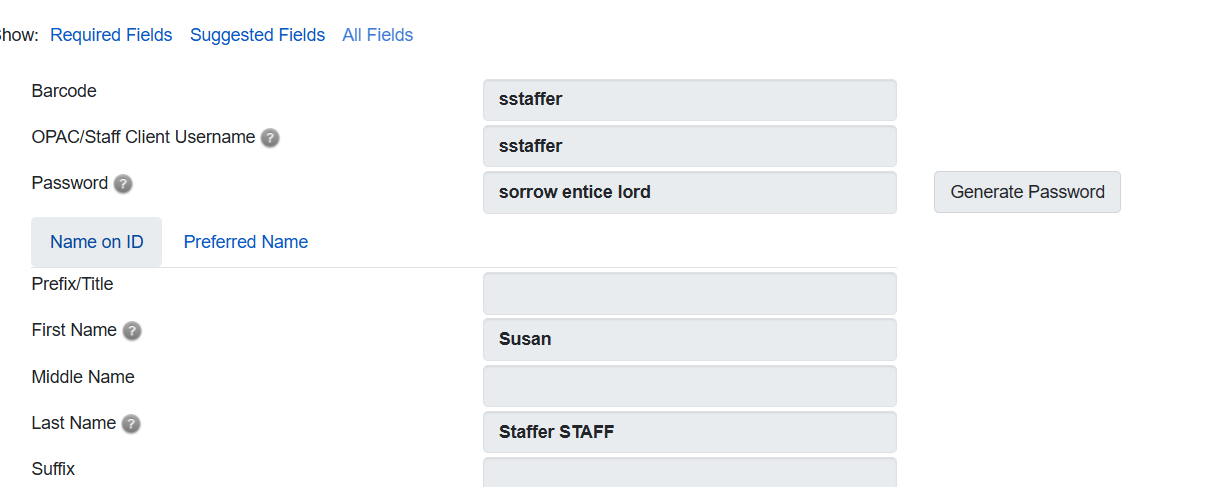 Figure 1. Create staff account example 1
 -
If your library requires a birthdate, you can use the standard dummy birthdate: 1901-01-01.
-
Daytime phone can be your library’s phone number.
-
Set the staff’s main permission group. Click the dropdown then choose from Library Staff Accounts > Regular Staff. If you need a secondary permission group, click Secondary Groups, select the permission, click Add, and click Apply Changes.
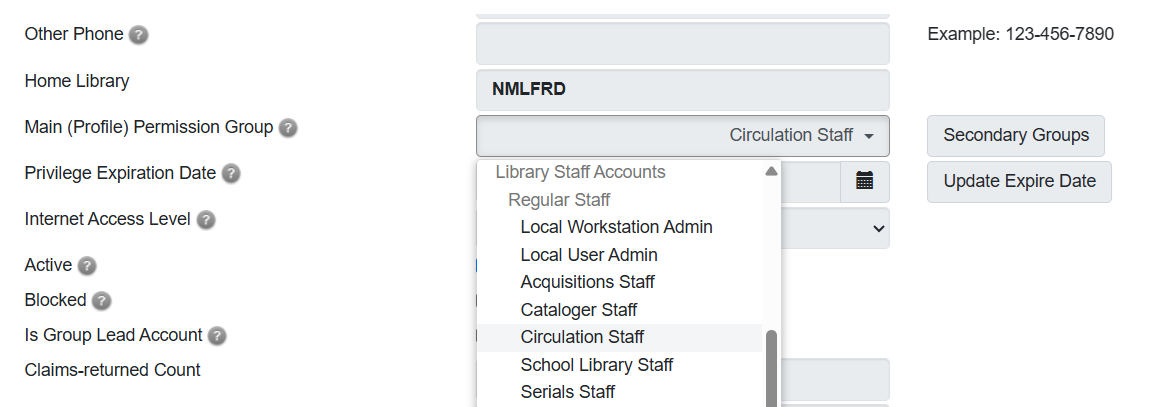 Figure 2. Create staff account example 2
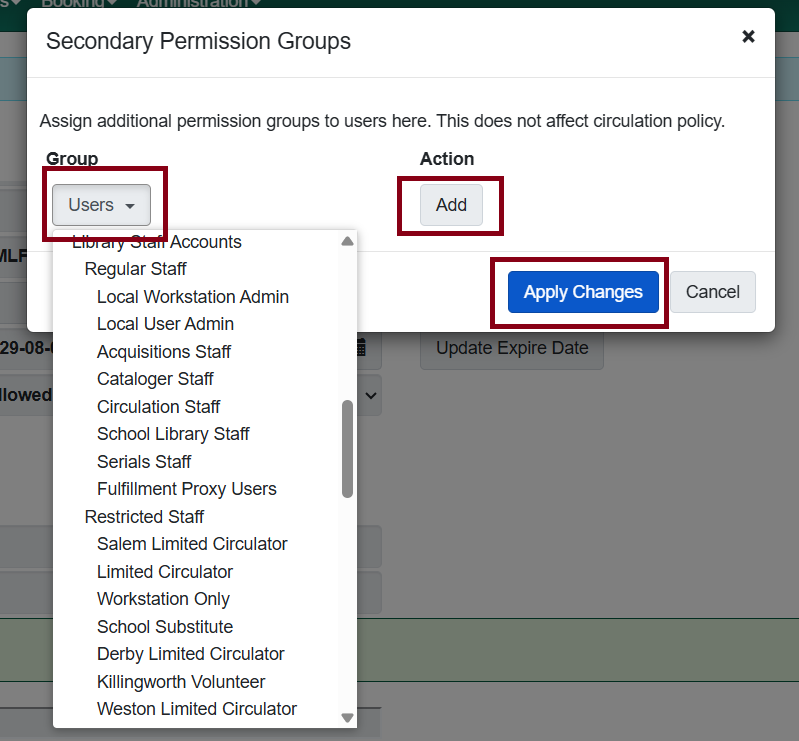 Figure 3. Create staff account example 3
 -
The expiration date should be left as is. We require staff accounts to be revisited and renewed every 3 years.
Staff will not be able to log in after their accounts expire! Just as with patrons, regular account expirations are an opportunity to review staff information, and to ensure that everyone who has an Evergreen staff account is still on staff. This follows digital security best practices to help protect private patron data. -
Use your library address for the address. It can be for both mailing and physical.
-
Use your library under Statistical Categories: Residency.
-
-
Click Save when done.
Set Working Location
In order to allow the new staff account to perform any functions that affect your library, they will need a working location assigned to them.
-
Retrieve the staff account that was just created (this can be done by searching for the username).
-
On the top-right corner click Other > User Permission Editor.
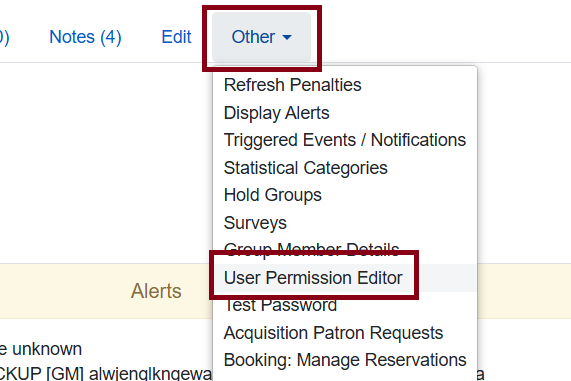 Figure 4. User Permission Editor option
 -
You should see a screen with your own lirbary listed and with a checkbox to the left. Click the checkbox next to your library and scroll all the way down to click Save. (The Find function through the browser also works in this list. i.e.: Ctrl + F)
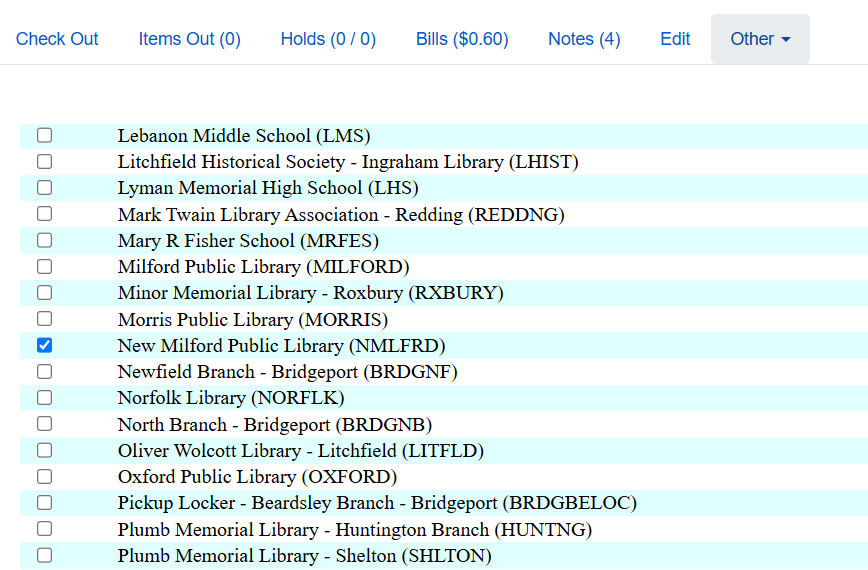
| If your staff member works in multiple branches in your library system, you can select mutliple branches. |
Reset Password
After you created the staff account and configured their working location, the next recommended step is changing their password. The best way to reset the password is clicking Send Password Reset Link in their account in the Edit screen.
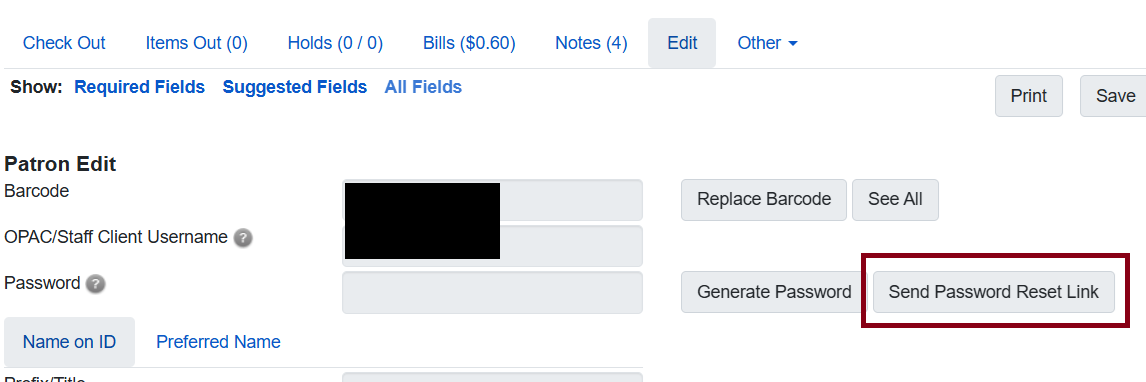
This will send a link to the email that’s saved to the account where they can set it up. Click here for more recommendations or information on setting passwords.
|
The password reset link will bring the staff member to the OPAC page where they can reset their password. 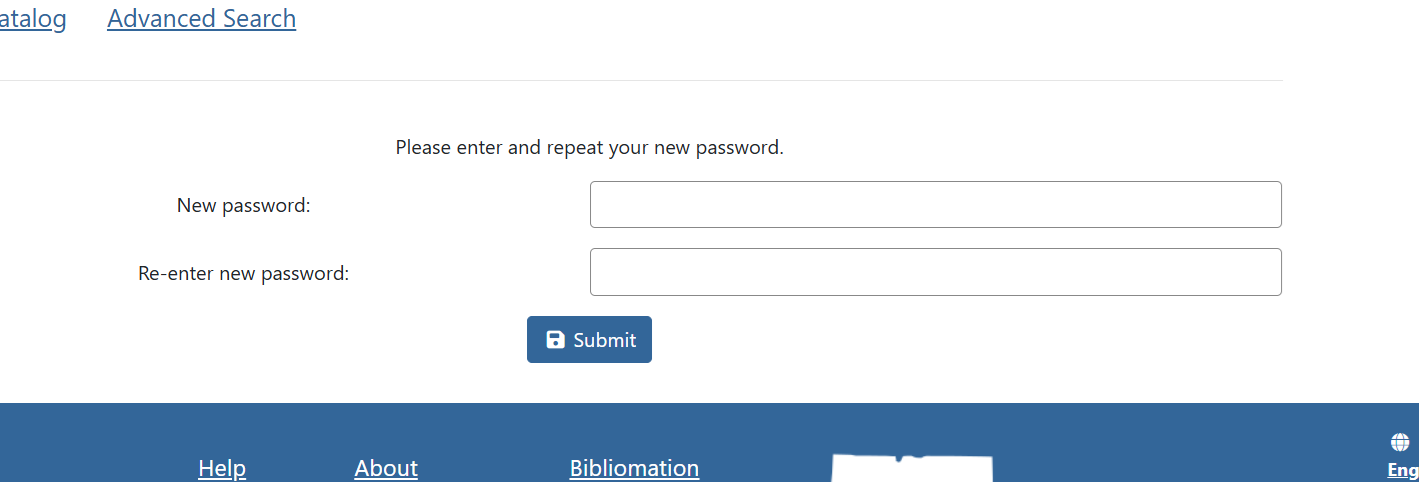
Figure 7. Password reset form in OPAC
|