Evergreen Printing Setup
Overview
There are two options for printing when working in Evergreen:
-
Printing without Hatch: Uses your browser’s built-in print functionality with some configuration
-
Printing with Hatch: Uses a browser extension that enables printer selection within Evergreen
Hatch allows you to choose different printers for different functions (receipts, pull lists, reports, etc.) directly within Evergreen. Without Hatch, you will use the browser’s printer settings and will not be able to use the printer settings in Evergreen.
Printing Without Hatch
If you have simple printing needs, you can use your browser’s built-in printing functionality. See the browser-specific setup pages for detailed instructions:
| Key points about printing in Evergreen without Hatch: |
-
The print dialog box will appear for each print job, requiring you to click OK each time
-
If you use multiple printers, you need to select the correct printer for each print job
-
Choosing "Print" from the browser’s menu will print the entire page, not just a receipt
-
When possible, use the "Print" option within Evergreen’s interface instead of the browser print function
Printing with Hatch
Hatch provides more control over printing in Evergreen, allowing you to configure different printers for different types of print jobs.
Installing Hatch
-
Download and install the Hatch software on your PC:
-
Install the "Hatch Native Messenger" browser extension:
For browser-specific installation steps, see:
-
Log into the Evergreen Web-Based Staff Client and verify that Hatch is connected. When Hatch is properly connected, you will see two green arrows in the browser menu in the top right corner.
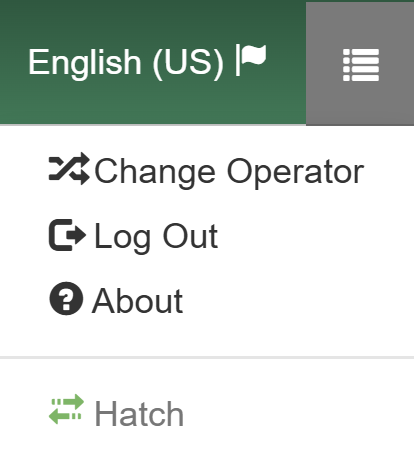 Figure 1. Hatch Connected Indicator in Evergreen ILS
Configuring Hatch in Evergreen
-
Navigate to Administration > Workstation > Hatch (Print Service) Printer Settings.
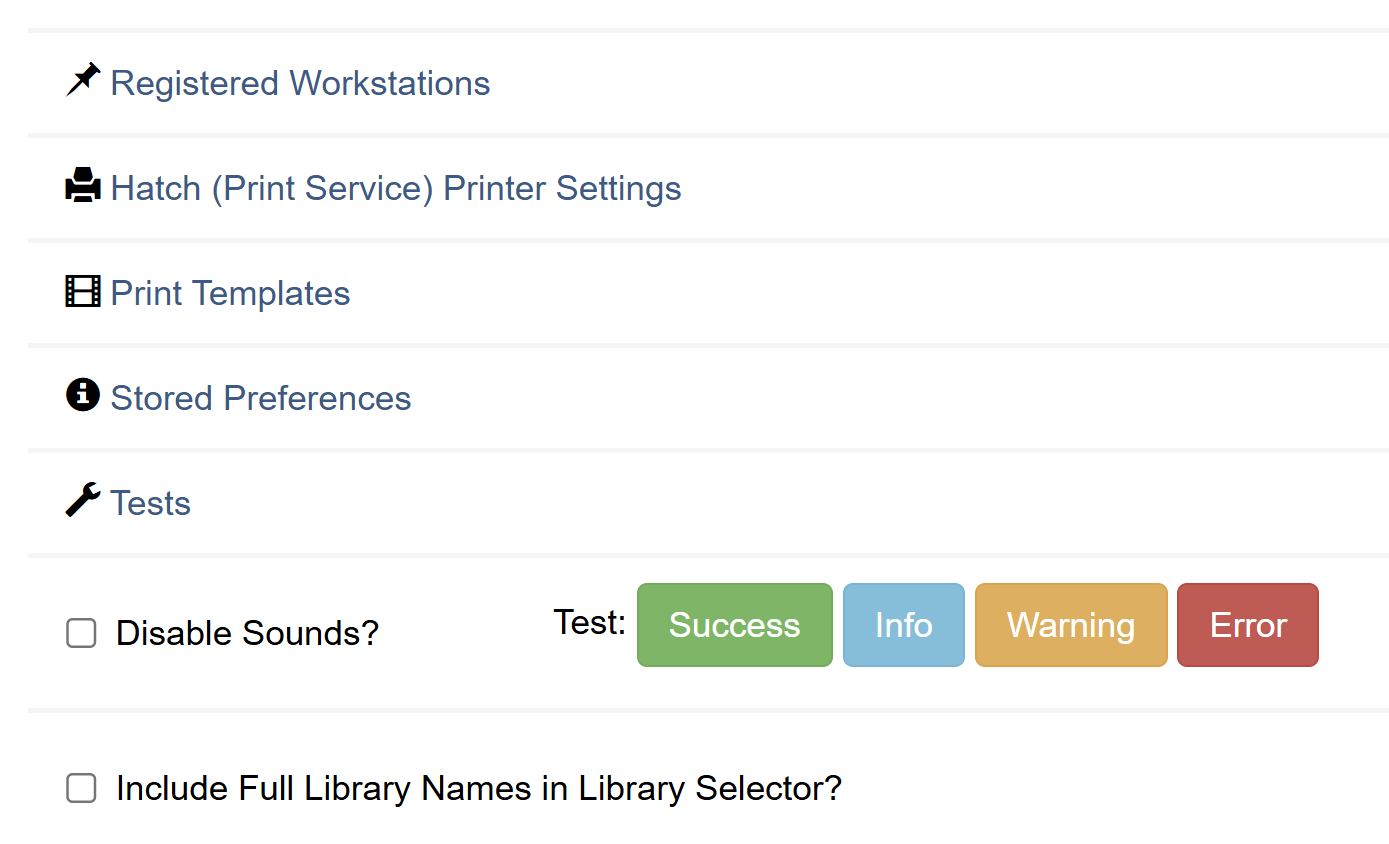 Figure 2. Print/Storage Service Menu Option
 -
Select Use Hatch for Printing.
Do NOT select the other two options: "Store Local Settings in Hatch" or "Store Offline Transaction Data in Hatch".  Figure 3. Hatch Configuration Settings
Your selections will be saved automatically. -
For each printer context:
-
Select the correct printer from the dropdown menu
 Figure 4. Printer Selection in Hatch Settings
 -
Change Paper Type to an appropriate size (e.g., Roll Paper 80 x 297 mm for receipt printers)
-
Set Automatic Margins to "HARDWARE MINIMUM"
-
Click Apply Changes to save your settings
If you don’t see the receipt paper option, you may need to select the receipt printer from the dropdown menu again.
-
Configuring Print Templates
-
Navigate to Administration > Workstation > Print Templates.
-
For each template you want to configure:
-
Select the template from the dropdown menu
-
Select the appropriate printer in the Force Printer Context dropdown
-
Click Save Locally
 Figure 5. Print Templates Configuration
Common templates that benefit from automatic printing configuration include Checkout Slip, Hold Shelf Slip, and Transit Slip.
-
Setting Up Spine Label Printers
Download Driver
First download the proper driver of your label printer. For Dymo drviers, click here.
Setting Up Spine Label Printer Without Using Hatch
Follow these steps with your browser to use your spine label printer without using Hatch.
Set Up in Chrome
-
Go to Settings menu in the top right corner and go to Print.
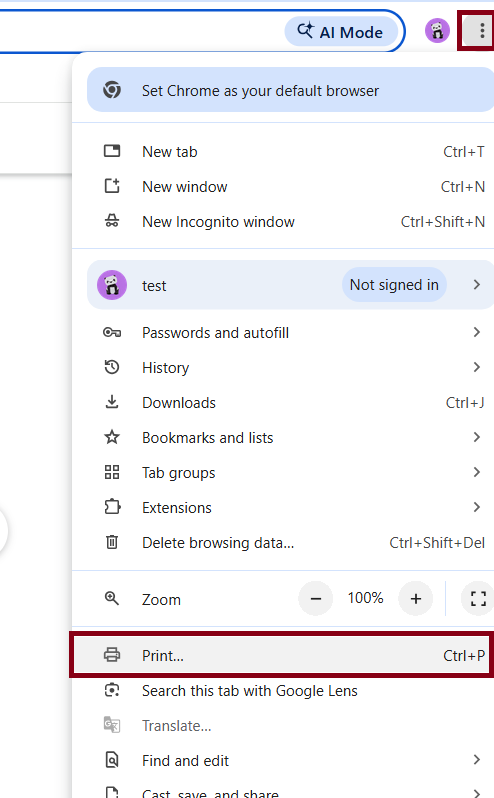 Figure 6. Print option in Chrome settings
 -
Select your spine label printer.
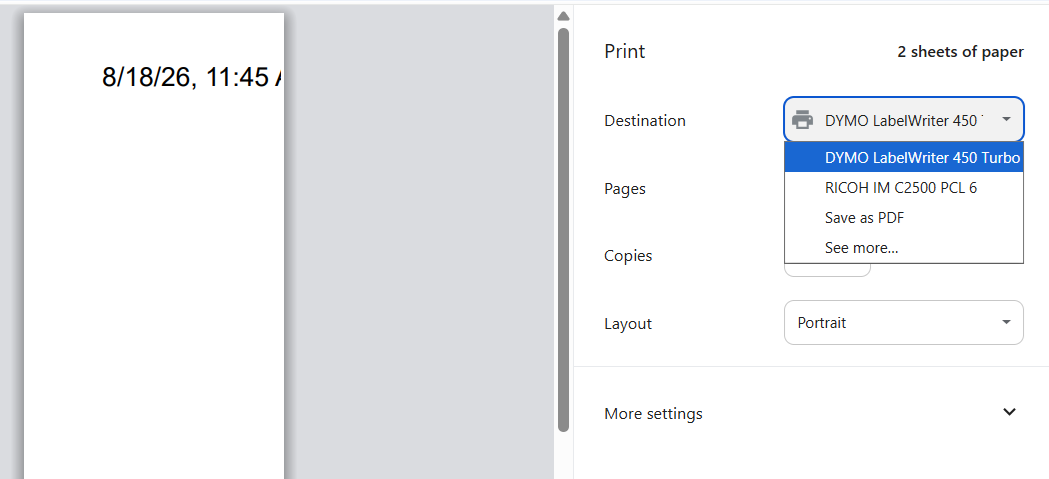 Figure 7. Select printer
 -
Expand More Settings, unselect Headers and Footers, and press Cancel.
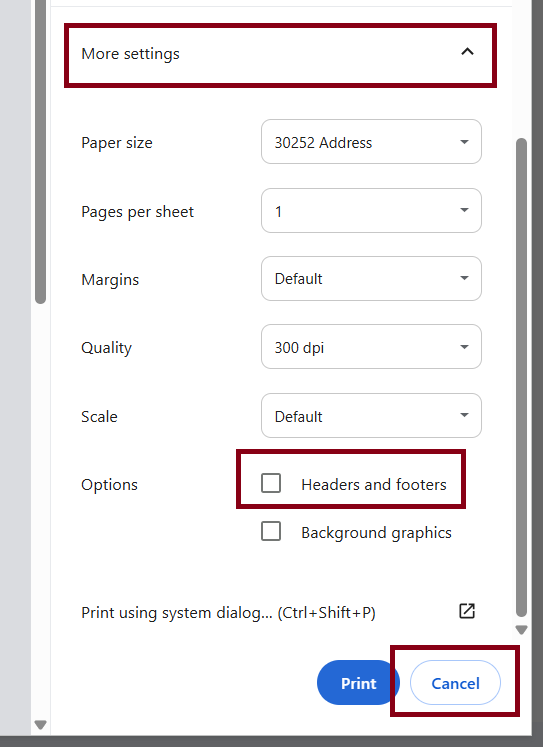 Figure 8. Expand More Settings and unselect Headers and Footers
Set Up in Firefox
-
Click on the menu option in the top right hand corner of your browser then select Print.
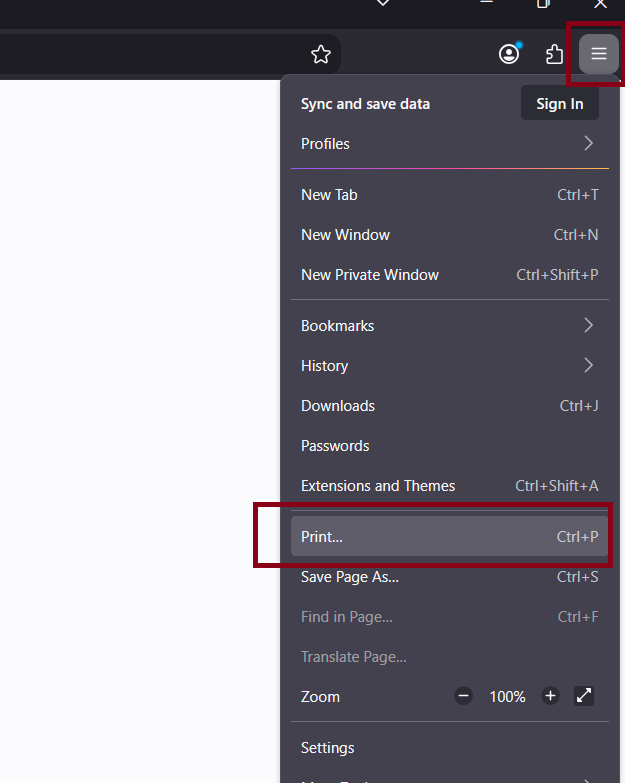 Figure 9. Print option in Firefox
 -
A dialog box will pop up. Select your printer under Destination.
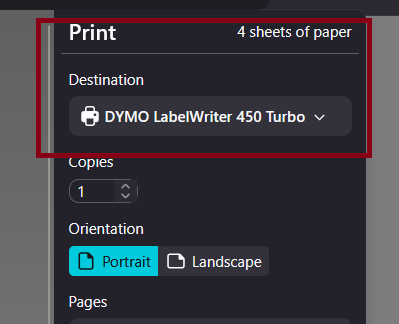 Figure 10. Select printer in Destination
 -
Click on More Settings and uncheck Print headers and footers.
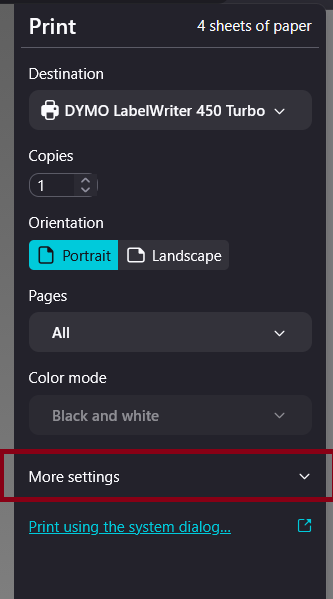 Figure 11. Expand More Settings
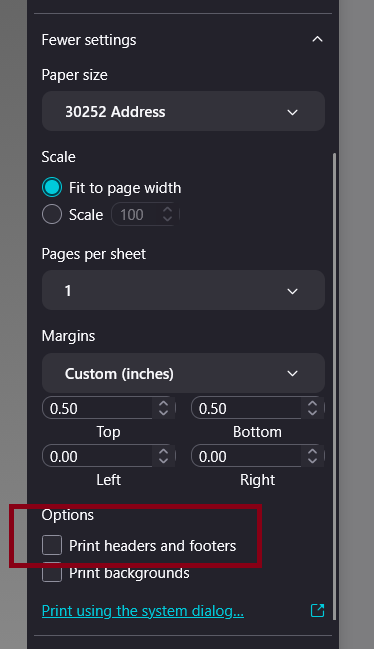 Figure 12. Uncheck Print headers and footers
 -
Click Cancel.
Setting Up Spine Label Printers with Hatch
-
Go to Administration > Workstation > Hatch (Print Service) Printer Settings.
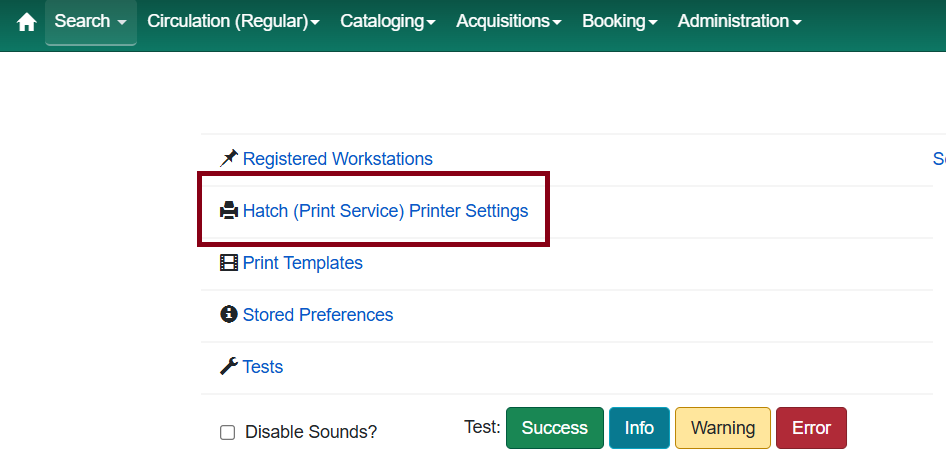 Figure 13. Hatch menu option
 -
Click on Label then select the printer in the dropdown.
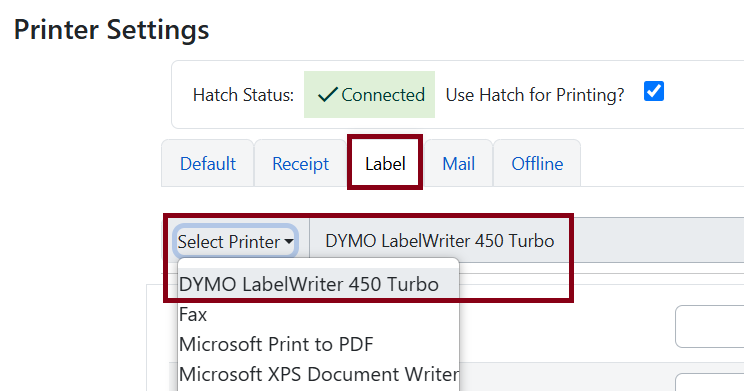 Figure 14. Select label printer
 -
Scroll down to Automatic Margins and select HARDWARE_MINIMUM in the dropdown.
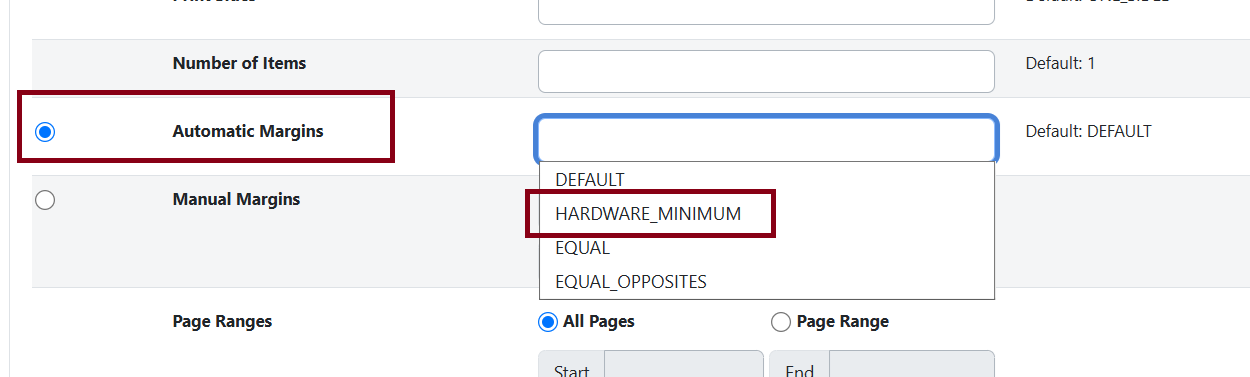 Figure 15. Select HARDWARE_MINIMUM in the margins settings
 -
Scroll back to the top and click Apply Changes in the top-right.
 Figure 16. Click Apply Changes
Printing Spine Labels in Evergreen
Set Up a Spine Label Template
-
Scan an item into Item Status. Highlight the item and go to Actions > Show > Print Labels.
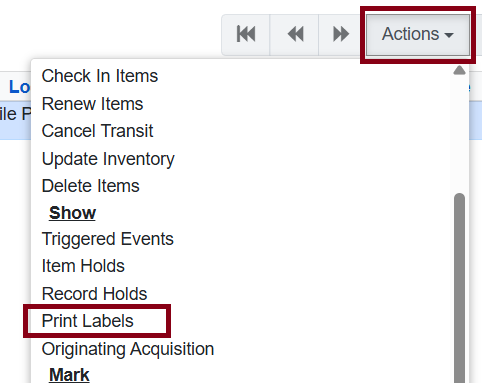 Figure 17. Print labels from Actions menu
 -
You’ll be taken to a Print Labels screen. Here you can change template settings and customize the labels. If you do not have a template for spine labels already set, you may notice an additional pocket label next to the regular spine label for the call number.
-
If you do not want the pocket label, go to Label Template, go to Settings and select Spine Label under Label Set Configuration. Set Columns under Page Settings to 1.
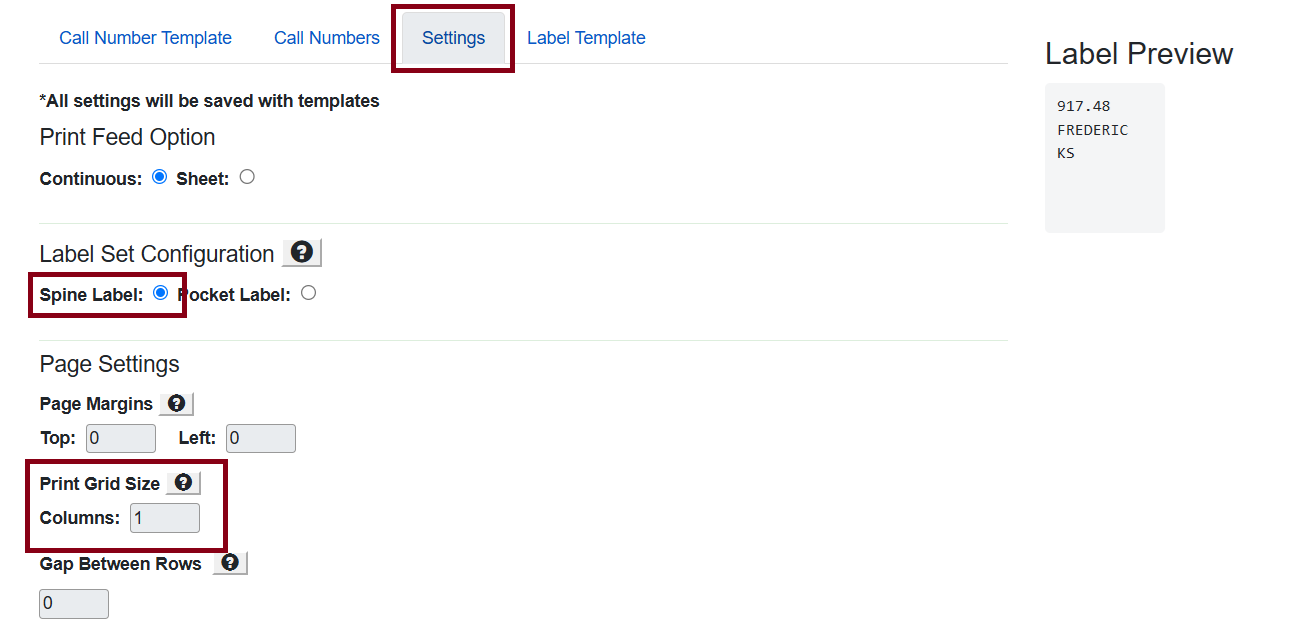
-
In the textbox next to Template give it a name. If you have Hatch enabled, select Label in the dropdown menu next to Printer. Click Save to save your template and printer.
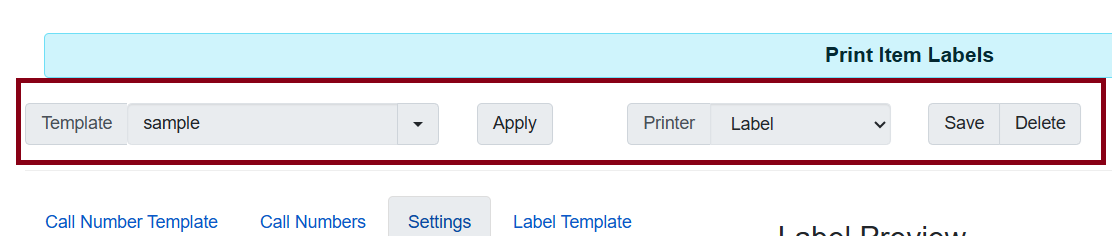 Figure 19. Saving a spine label template
 -
Go to Setting to customize your spine labels. Here you can change font types, sizes, and margins. All changes will update in the preview.
-
Call Numbers lets you change the content of the label itself if you need to make adjustments.
How to Print Spine Labels
You can print a spine label right after creating a new item, print labels for several copies on a bib record in Holdings View, or print a batch of labels for items on different bib records on the Item Status or Item Bucket screens. Labels print in a vertical column, so you will need a printer that can print on a ribbon of labels, such as a Dymo 450 Turbo (or Turbo Twin for spine and pocket label printing) or Zebra TLP 2824.
Printing After Creating an Item
-
If you always want spine labels to print after you have added an item, the setting is found in the Holdings Editor on the Holdings tab. Check the box for Print Labels? on Apply All, Save & Exit.
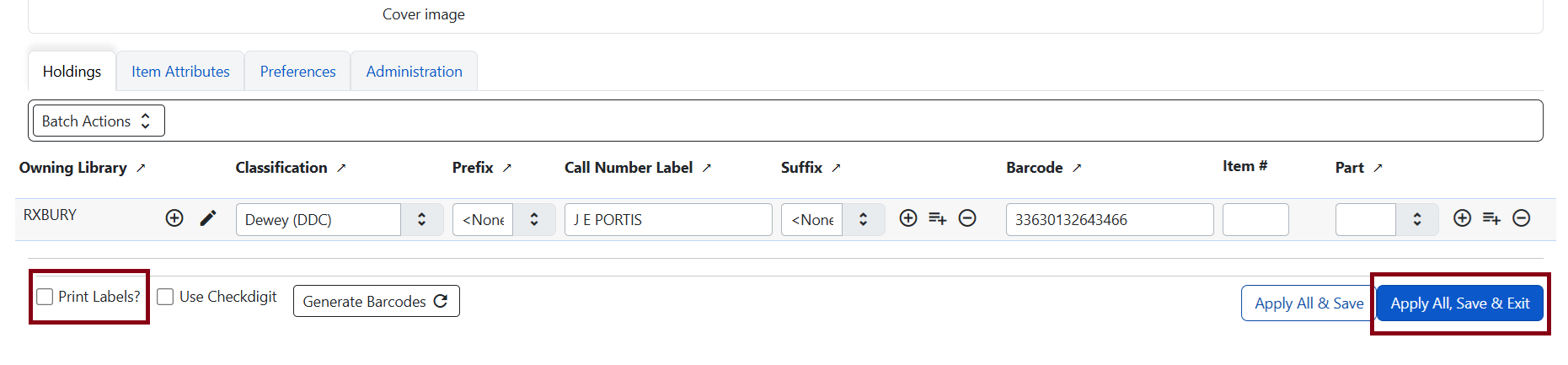 Figure 20. Enable printing labels by default
 -
After you create the item, a browser tab opens for the label printing. The call number maps in from the item you just created. You can type additional information in the rectangle representing the spine label by typing in the box on the left. Click on the Print button.
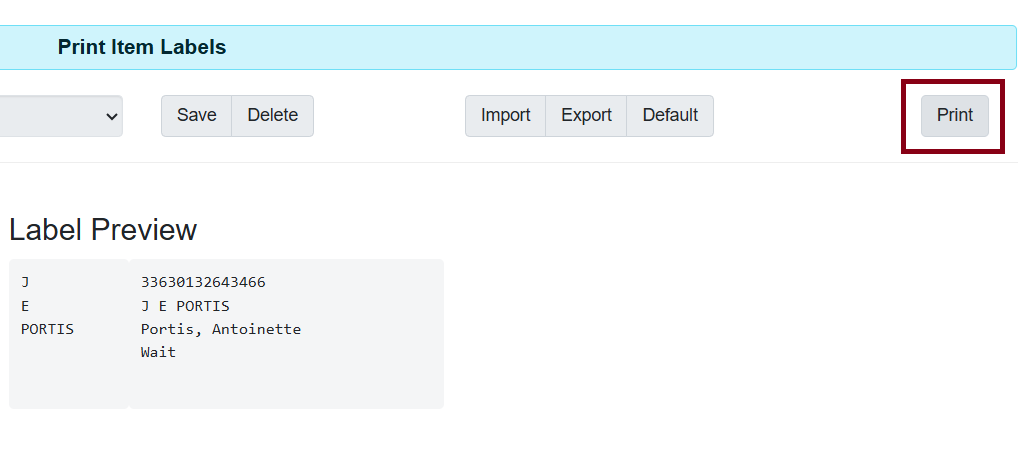 Figure 21. Print button in spine label view
-
Follow these steps if you are not using Hatch:
-
In Chrome, you need to change the Pages setting from All to Custom, then type in the page range. If you are printing labels for multiple copies, see the section on Batch Printing Labels for more detail in working with this printer dialog.
-
In Firefox, enter the page range to match the number of labels to be printed.
-
Batch Printing Labels for Holdings Maintenance, Item Status and Copy Buckets In Holdings
-
In Holdings Maintenance, highlight the items you wish to print spine labels for, then either right click to get a menu, or click on Actions. Click on Show/ Print Labels.
-
In Item Status, scan or type in your item barcode numbers to create a list. Highlight the items and click on Actions > Show > Print Labels.
-
In a copy bucket, the menu choice is the same.
Whatever option you choose, go to Print and you will be brought to the Print Item Labels page. A preview for each item’s labels is displayed. You can make adjustments if you want in the left box. This will not make a permanent change to the item itself. If more than one item has the same call number, you will only see one box for editing that call number. Click on Print when done.
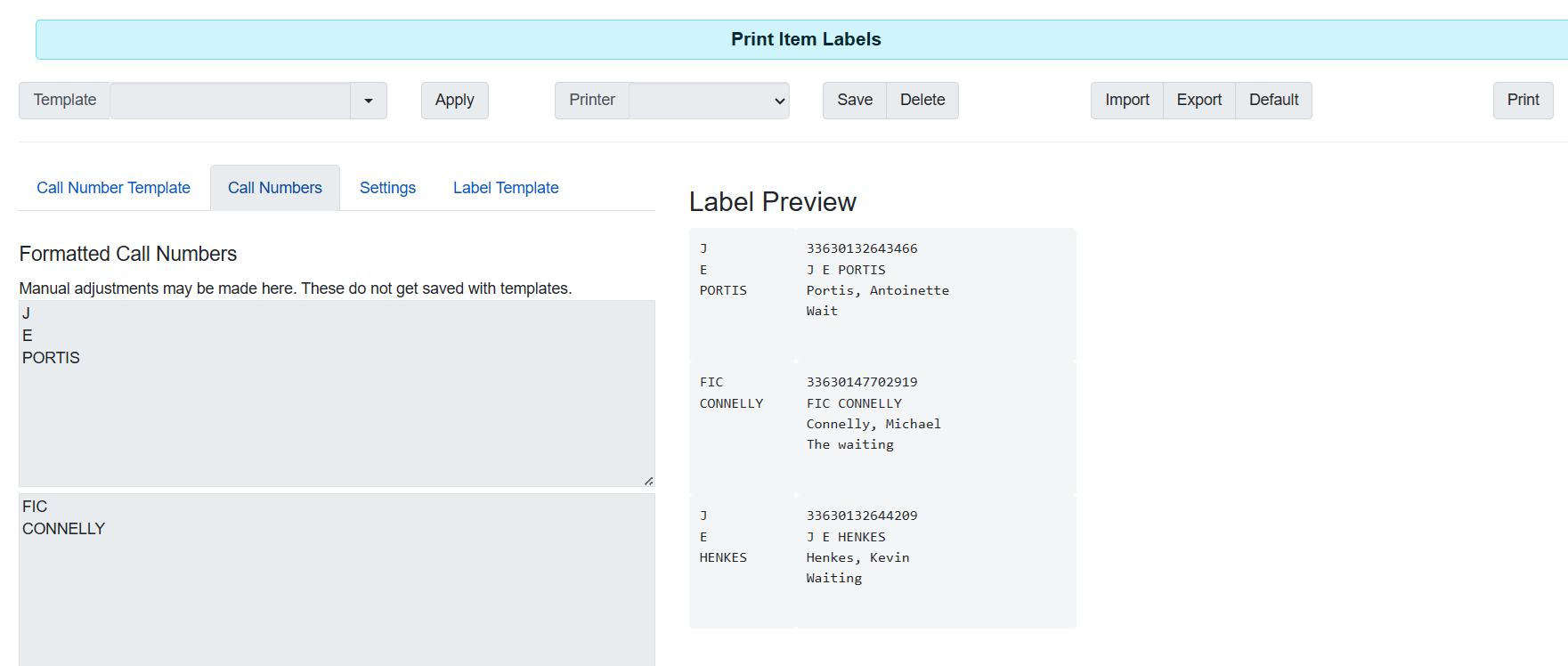
If you’re not using Hatch, follow these instructions:
In Chrome, you need to change the Pages setting from All to Custom, then type in the page range. In this example there are five spine labels to print so it’s needed to select pages 1-5. You should scroll through the print preview to make certain there aren’t any blank labels in the queue.
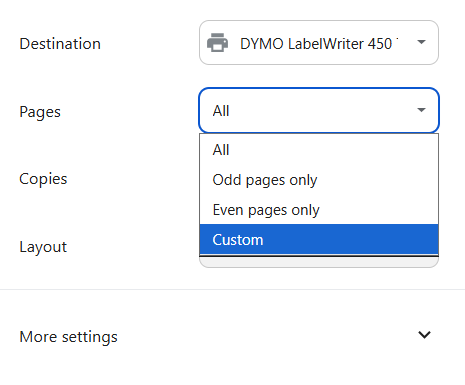
If there are blanks mixed in, when designating which labels to print, enter the page numbers of the labels with text, separated by commas.
In Firefox, enter the page range to match the number of labels to be printed. In this example I have five spine labels to print so I will select pages 1-5.
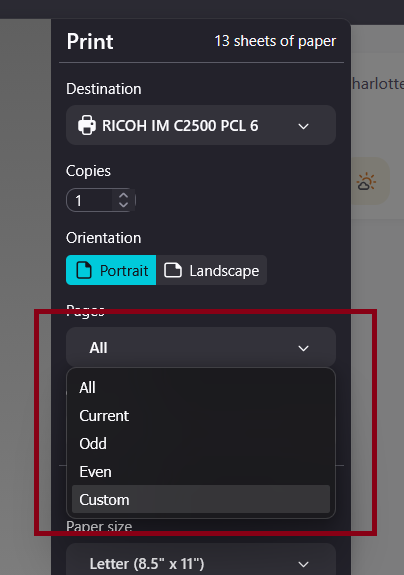
Troubleshooting
White Screen in Evergreen / Nothing Loads
If Evergreen displays a white screen or fails to load, there is a known issue where this commonly happens when the Hatch browser extension is installed but the Hatch Windows application is not. Follow these steps:
-
Verify both components of Hatch are properly installed:
-
Check if the Hatch browser extension is installed by looking for the extension icon in your browser
-
Verify the Hatch Windows application is installed by checking if it appears in "Programs and Features" in Windows
-
-
If only the browser extension is installed but the Windows app is not:
-
Install the Hatch Windows application from:
https://evergreen-ils.org/downloads/Hatch-Installer-0.3.3.exe
-
-
If both are installed but you’re still experiencing issues:
-
Clear the cache in your browser
-
Restart both your browser and the Hatch application
-
-
If problems persist, try a complete reinstallation:
-
Uninstall the Hatch browser extension
-
Uninstall the Hatch Windows program:
-
Search for "Programs and Features" in the Windows Start menu
-
Select "Evergreen-ILS Hatch…" then "Uninstall"
-
-
Delete the Hatch folder from your computer (if it exists):
-
Open File Explorer
-
Navigate to
C:\Program Files (x86) -
Delete the "Hatch" folder
-
-
Reinstall both the Hatch Windows application and browser extension following the installation instructions above
-
Changing Printer Selection for Templates
If you need to change which printer is used for a specific template:
-
Navigate to Administration > Workstation > Print Templates.
-
Select the template from the dropdown menu.
-
To change the automatic printer selection:
-
Select a different printer from the Force Printer Context dropdown
-
Click Save Locally
-
-
To use a print dialog instead of automatic printing:
-
If you have a customized template you want to keep:
-
Copy the entire content of the template editor
-
Paste it into a text editor like Notepad or Word
-
-
Click Reset to Default
-
If you had customizations, paste your saved template content back
-
Click Save Locally
Resetting to default will remove the Force Printer Context setting, causing print jobs to display the print dialog, but it will also reset the template itself to default values.
-