Editing Staff Accounts
|
If staff come to your library from another Bibliomation library, DO NOT update the staff account from the other library! Instead, you should create a new account for your staff member. This ensures that all of the data & transactions from the previous library stay with that library, instead of following the staff person to their new library. |
Editing staff accounts is very similar to editing patron accounts - but there are just a couple of additional ways that staff accounts can be manipulated, such as permission groups and working locations.
Retrieve the staff member’s record by entering their barcode/username into Check Out or by searching for them in Patron Search.
Then, click the Edit tab at the top. Make your adjustments and save.
| Only staff accounts with Local User Admin permissions can edit staff accounts. |
Password Reset
If the staff person has forgotten their password, they can have a reset link sent to their email address. Click here for instructions.
Preferred Name
Another field that may need to be edited is the preferred name.
A staff person may be going by a name that is different from their legal name. To respect staff wishes around preferred names, it is possible to make that change!
Scroll to the name section, and then click the Preferred Name tab. Then, enter the preferred first name. Don’t forget to Save your changes.
A preferred last name is not required in order to enter a preferred first name.
Email Address
It’s possible that when this person was first hired, they didn’t get an email address, but their responsibilities have changed and now they do have email.
Or, over the course of time, your library may have a different email provider or email domain - in which case, you’d want to update the staff person’s email address.
Just as a reminder for why we include email: it can be really helpful to add because if the staff person ever forgets their password, you can use the Send Password Reset Link as discussed above, or the staff person can reset it the same way that a patron would, through the OPAC.
Permission Groups
Over the course of time, during a staff person’s tenure at your library, they may move between departments or take on additional responsibilities. For example, your staff person may have started in the Circulation Department, but perhaps they’re also now helping out with Tech Services and need to be able to add or edit items in the catalog.
To edit a permission group, go into the Edit screen in the staff account, scroll to the permission groups section, and adjust as needed with the dropdown options.
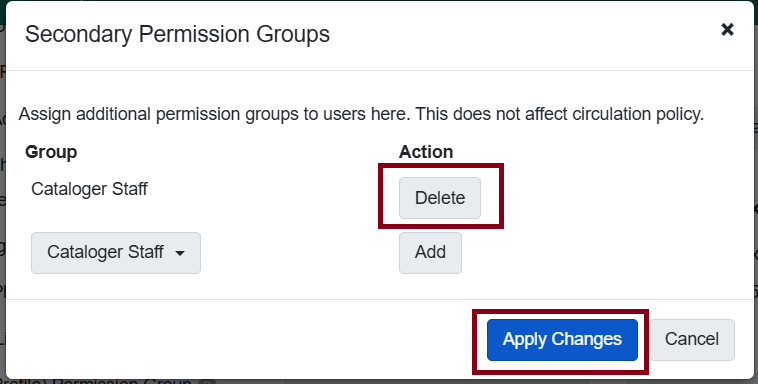
Don’t forget to review the account for secondary permission groups and change those if needed by clicking on Secondary Groups. If you want to remove an existing secondary permission, click Delete next to the permission then Apply Changes.
Update Expiration Date
Staff accounts are set to expire three years after the account was created or last updated. Expired staff accounts can’t log into Evergreen and need to be updated by a Local User Admin or by Bibliomation staff via Help Desk ticket.
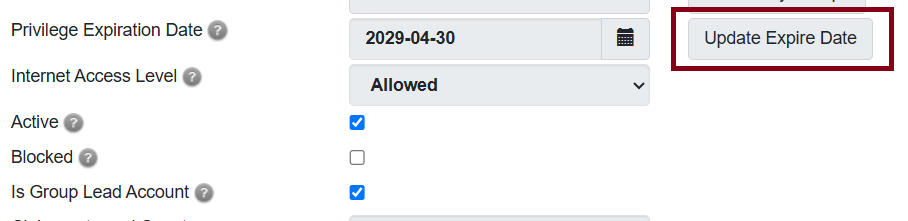
Go to the staff member’s account, click Edit, and click on Update Expire Date next to the Privilege Expiration Date field. Save when done.
Update Working Location
If your library has different branches, you can give your staff permission to work in all of those branches, or just a couple, or just one. And you can change this over time, depending on the branch they’re working at, or if they float between different branches.
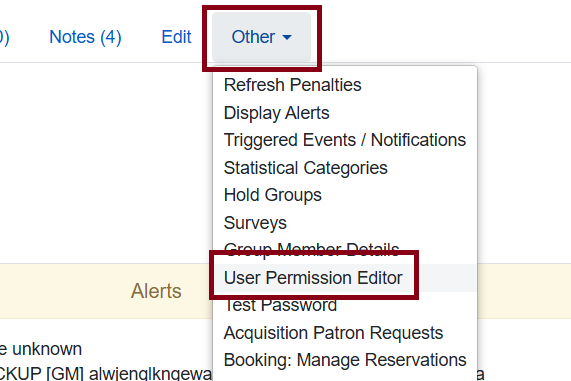
To update the working location, click the Other dropdown, and click User Permission Editor.
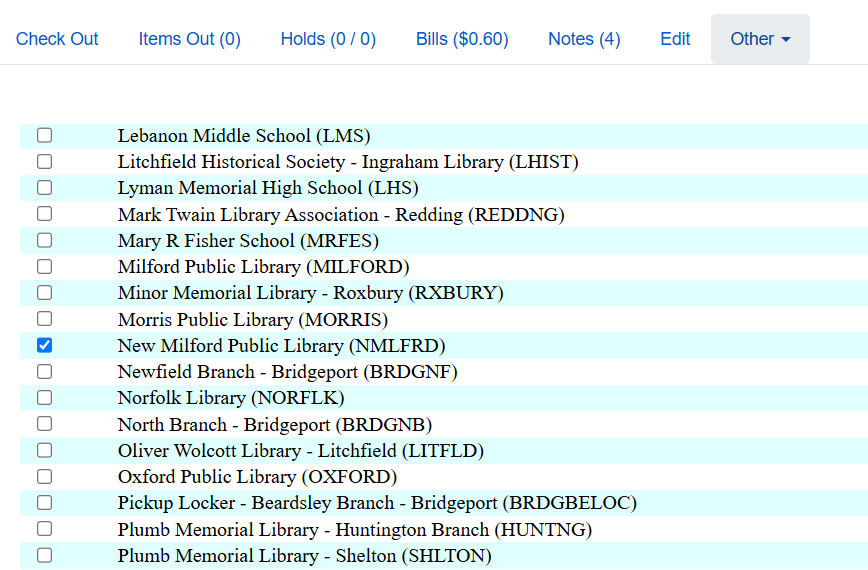
Select the desired working location(s) with the checkbox and don’t forget to uncheck any working locations if needed.
Remember to save by scrolling all the way down and clicking the button. You should get a pop-up that says User successfully modified. Click OK to confirm.