Deleting or Deactivating Accounts
If a staff member leaves your library, you must deactivate or request to delete the account via help desk to prevent them from accessing it improperly after they’ve gone. This is a security best practice.
Deactivating keeps the account in the system, but prevents the staff member from being able to log in.
Deleting the account completely removes the account from the system. Many actions that a staff member takes in the Evergreen system (e.g. checking items out to patrons, placing holds for patrons, creating or editing items, creating buckets, running reports, creating selection lists, and more) are tied to the staff account. Because of all of that data, when a staff account is deleted, it must be merged with another staff account. This gives Evergreen a place for that old data to live on, and updates the actions that are associated with their account.
When to Deactivate and When to Delete
Deactiviate when:
-
No one is hired for the vacated position yet.
-
You want to keep record of that staff member’s activity with the system like processing circulations.
-
You don’t need other staff to edit or delete anything they created (buckets, recurring reports, selection lists, etc.).
Delete and merge when:
-
A new staff member has been hired for the position and needs access to things they may have created in Evergreen, such as buckets, templates, and recurring reports.
-
You don’t need or want to keep the actions that the staff member performed in Evergreen associated with the account.
-
Other staff members need to be able to edit or change things that are tied to that staff member’s account, such as recurring reports, buckets, or selection lists.
| If the account was used for cataloging, be sure to export cataloging templates if deactivating or deleting. |
How to Deactivate an Account
-
Retrieve the staff account via search.
-
Go to Edit.
-
Find the Active checkbox and unmark it.
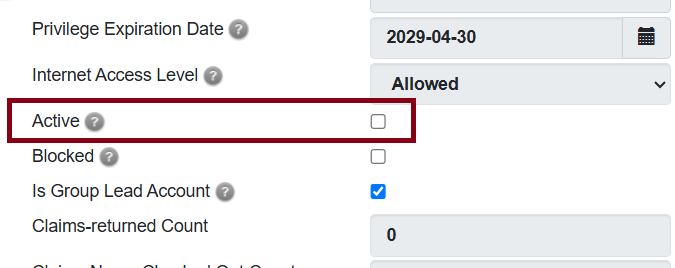 Figure 1. Uncheck active box
 -
Click Save.
This will prevent the staff member from being able to log into the system, but the account will remain on the system and can be reactivated by checking this box and saving the account again.