Staff User Passwords
Password Security
Passwords must be at least 12 characters long. This is a good starting point, but the best passwords should be difficult for both people AND computers to guess. Staff should be encouraged to create secure passwords to protect the patron data they have been entrusted with. Here are some best practices for creating secure passwords:
-
Avoid using things like common phrases, quotes from books, or song lyrics. Anything that may appear in a database, computers can guess.
-
Test a similar password to the one you plan to use on a site such as PasswordMonster.com.
-
Use a randomly generated password on a site such as DiceWare.
-
Don’t write your password on a sticky note! Anyone walking by could see or take your note.
-
If you must, write down your password on a single note with other passwords you need to remember, and keep it in a secure location that only you can access, such as your wallet or a locked desk drawer.
-
Try a password manager for storing all of your passwords. Some examples: LastPass, Bitwarden, KeePass, 1Password. These can also generate secure passwords for you, and you’ll only need to remember your master password.
Resetting a Staff Member Password
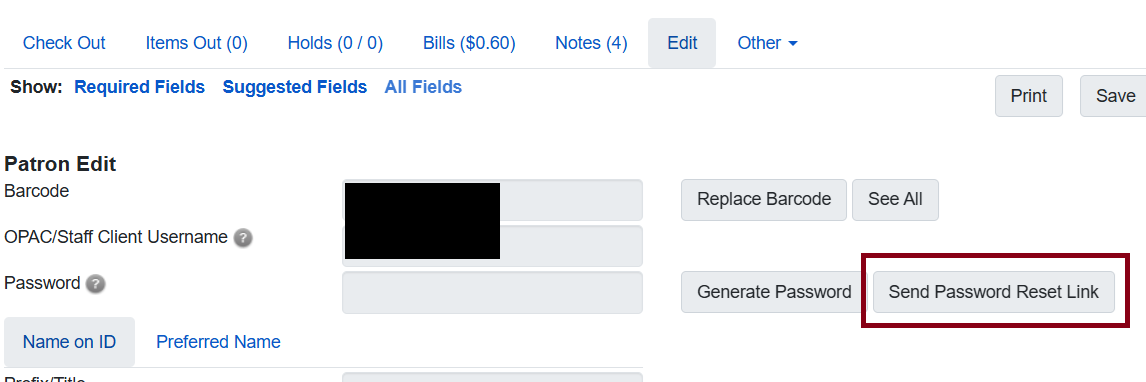
One of the most secure ways to reset a staff person’s password is to click the Send Password Reset Link button within the patron Edit screen to the right of the password field. Having an email address on staff member accounts is strongly recommended for this reason.
As long as the staff person has a valid email address on their account, then they will receive a link in their inbox allowing them to set a new password.
Although staff cannot otherwise edit their own accounts, they can click this link to send themselves a password reset link.