Fines
Overview
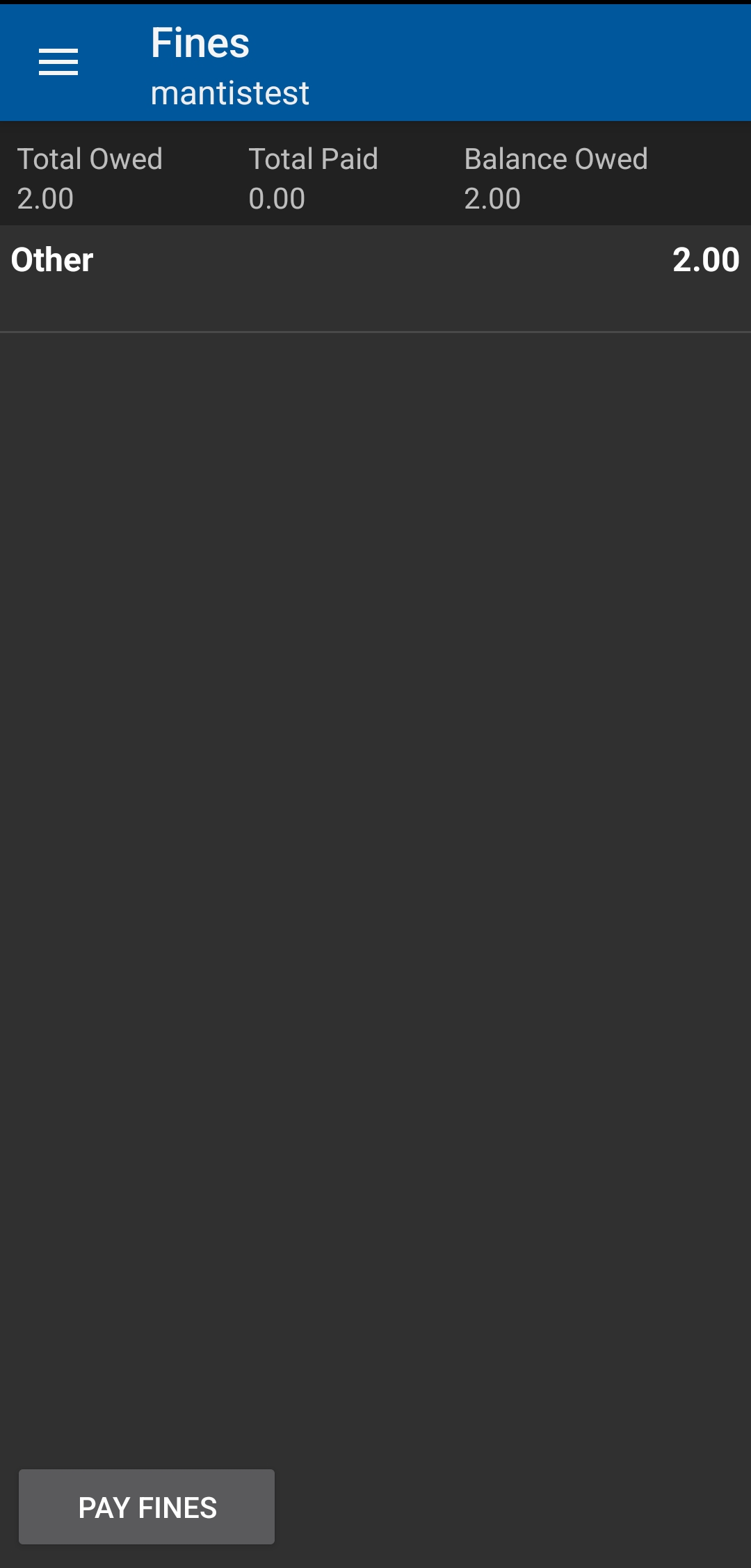
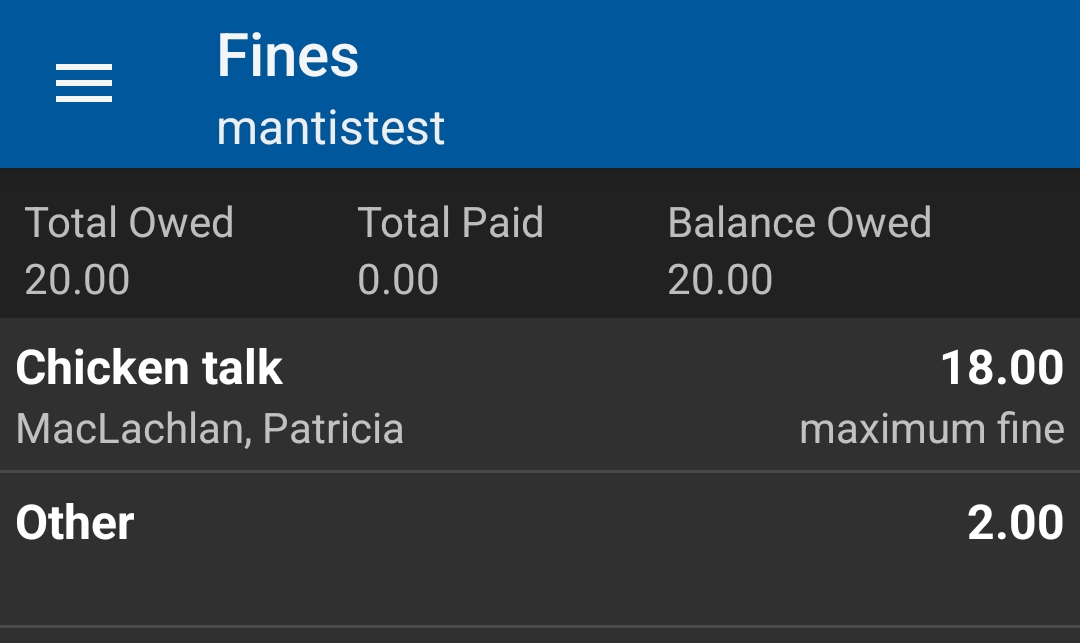
Summarizes current account charges: total owed, amount paid this session, remaining balance, and individual fees (lost, overdue, manual, etc.). If online payment is enabled, PAY FINES opens the OPAC payment workflow in the device browser.
Layout Breakdown
Element |
Meaning |
Notes |
Total Owed |
Sum of all outstanding charges |
Before any online payment attempt this session |
Total Paid |
Amount paid during current session (may remain 0.00) |
Reflects payments recorded via OPAC after returning to tile |
Balance Owed |
Total Owed − Total Paid |
Matches amount due in staff client barring recent adjustments |
Line Item (bold title or category) |
Specific fee (e.g., Lost item, Maximum fine, Other) |
Text may include reason/context |
PAY FINES button |
Opens OPAC payment workflow |
Visible only if online payments configured for patron’s home/owning library |
Paying Fines (When Enabled)
-
Tap PAY FINES (browser opens to OPAC login/payment page or directly to payment form if already authenticated).
-
Select charges (OPAC may default select all) and proceed through Stripe checkout.
-
Return to the app; reopen Fines tile to refresh Total Paid / Balance Owed.
|
Partial payments, if supported by OPAC configuration, will adjust Total Paid accordingly; the app shows updated numbers after the next fetch (navigate away and back if needed). |
| For information on opting into online payments, contact help desk. |
Guidance & Notes
-
Adjustments, waives, or cash handling still occur outside the app (staff client / desk).
-
Resolve disputes (e.g., claimed returned) before paying online to avoid refund steps.
-
Lost fees credit automatically if a found item check‑in triggers policy reversal.
Limitations
-
No line‑item detail drill‑through (e.g., billing date) in the app—use staff client for forensic review.
-
No split tender; online payment uses configured processor only.
-
No receipt export from app (OPAC email/print functions apply if offered).
Best Practices
-
Screenshot before payment if a personal record is desired.
-
Confirm email is present for OPAC receipt delivery.
-
Delay payment on disputed lost items until resolution.
Quick Troubleshooting
Issue |
Resolution |
PAY FINES button missing |
Library not enrolled in online payments OR patron not at eligible library—confirm Stripe participation. |
Balance doesn’t change after payment |
Close tile → reopen (refresh); if still unchanged, allow a short sync window. |
Charge believed incorrect |
Direct to service desk; adjust in staff client (app is read‑only for edits). |
Line item label unclear |
Check staff client bill details for full description. |
Payment page won’t load |
Check connectivity; ensure device browser not blocking pop‑ups. |
|
Refunds, voids, and fee adjustments must be processed in the staff client—patrons should not pay disputed charges online. |
|
If patron insists a lost fee will be cleared (item at home), advise waiting until the item is returned and the account refreshes to avoid unnecessary payment/refund cycles. |