Check Out
-
Regular Items – Items will check out for the loan duration governed by the circulation modifier used for your library and the rules associated with that particular circulation modifier.
-
Pre-cataloged Items – Items that will be checked out prior to being entered into the Evergreen catalog.
-
Editing Due Dates – Items may be checked out for a different loan period than that associated with the circulation modifier of a particular item(s).
-
Email Self-Checkout Receipt Options – Staff or patrons can set up options for emailing self-checkout receipts.
-
Check out item(s) with copy notes such as ‘Check for 6 CDs’.
-
Checkout Notes (Item Alerts) are messages attached to items for a specific circulation event to inform staff of a condition that requires their action.
Regular Items
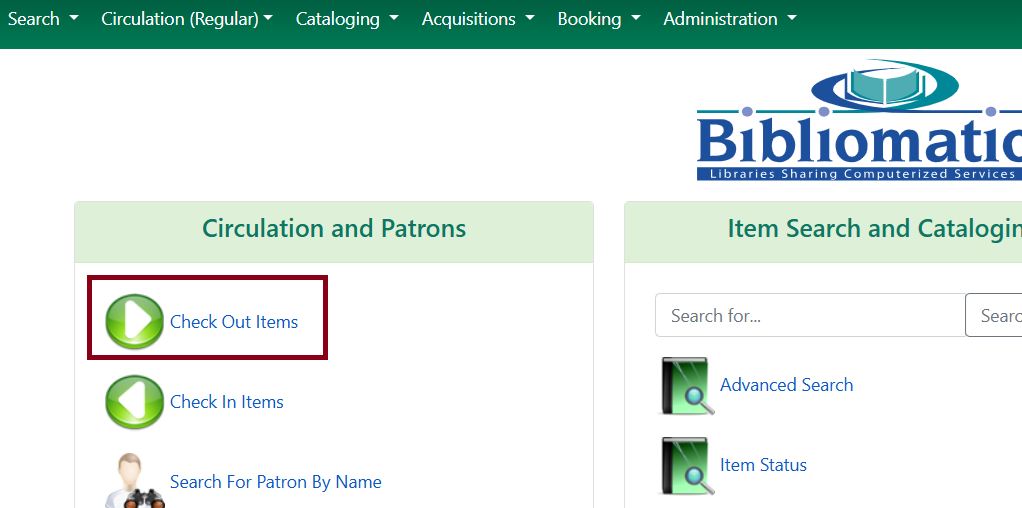
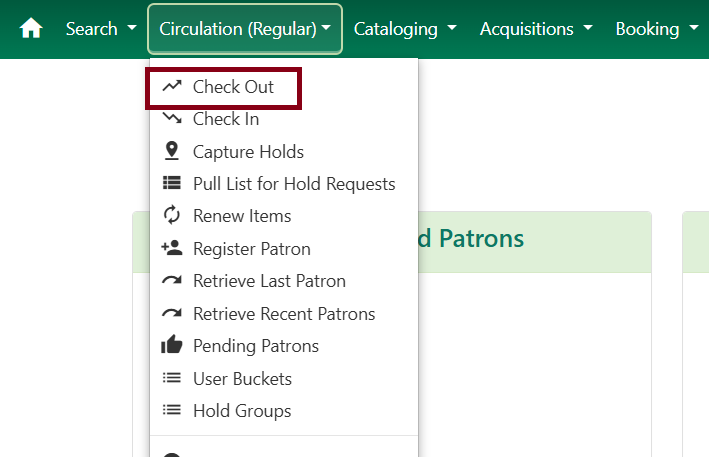
To check out an item, select Circulation → Check Out from the navigation bar OR click Check Out Items from the portal.
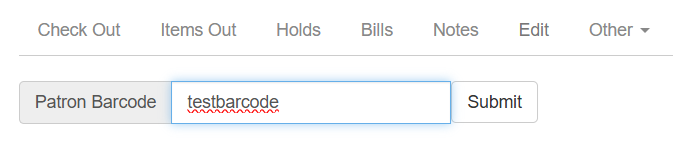
Enter the patron barcode: scan using a barcode reader, and it will be submitted automatically OR type in the barcode, and press Enter or click Submit.
Scan item barcode, or enter manually and click Submit.
Due date will display and continue to create a list of items checked out during this session.
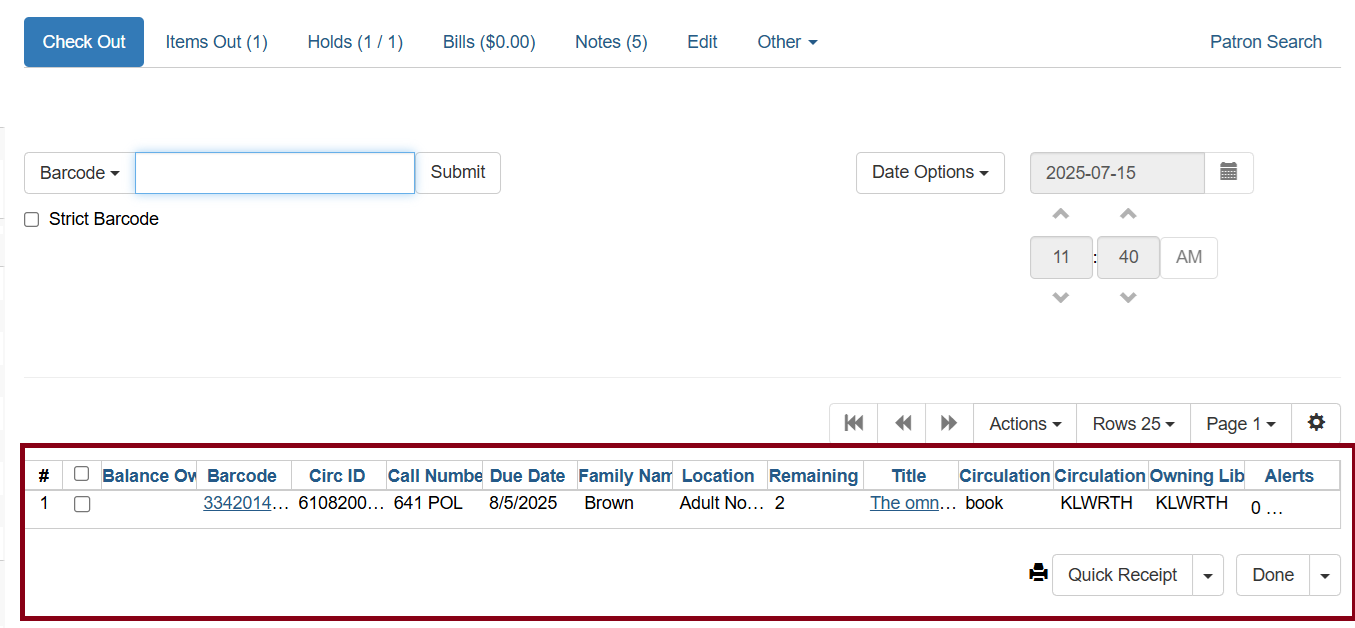
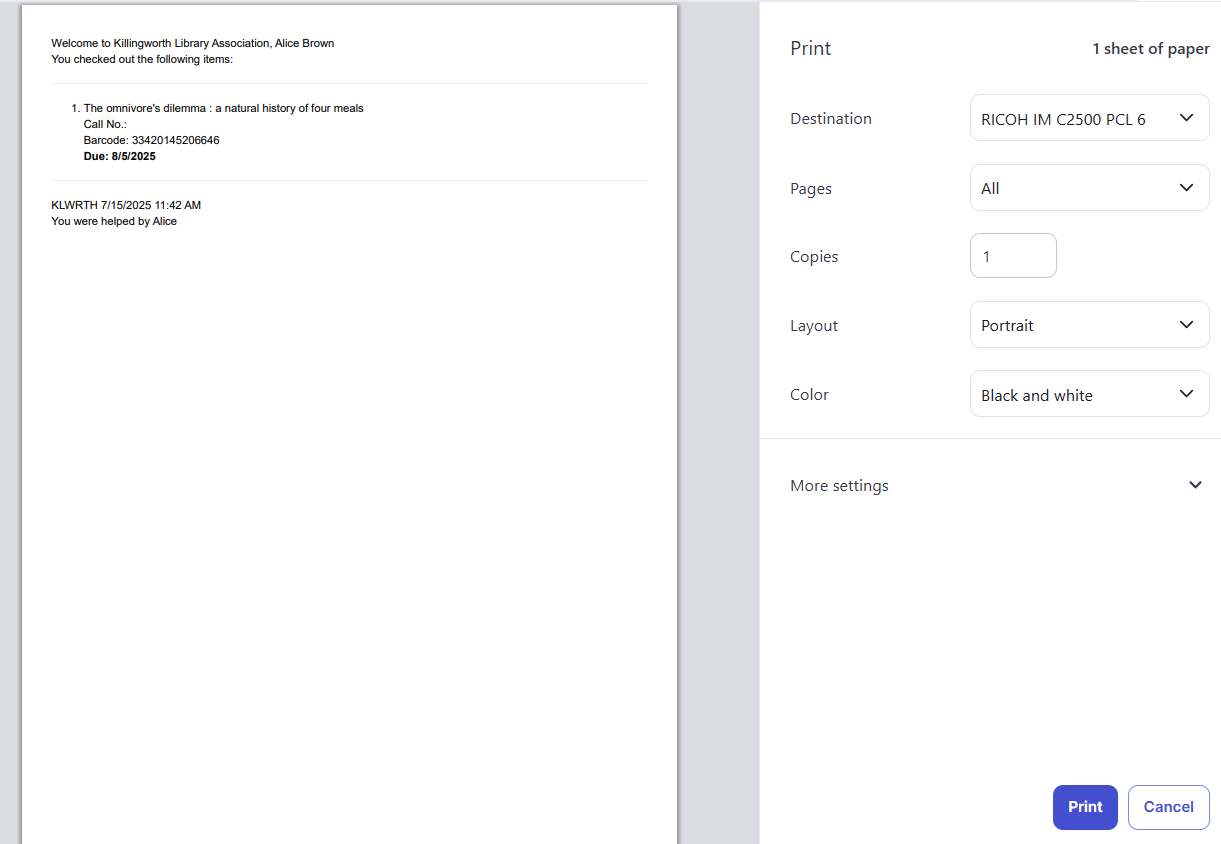
When all items are scanned, click the Done button. This will exit the patron record, and come up with a print dialog. If you have Hatch installed and configured, these will automatically print.
Pre-Cataloged Items
-
Go to patron’s Check Out screen by clicking Circulation → Check Out items as noted under Regular Items above.
-
Scan the item barcode.
-
A dialog box will appear.
-
Enter the required information into the form. Be sure to enter a Circulation Modifier so the item will behave properly with the appropriate circulation, fine, and hold rules.
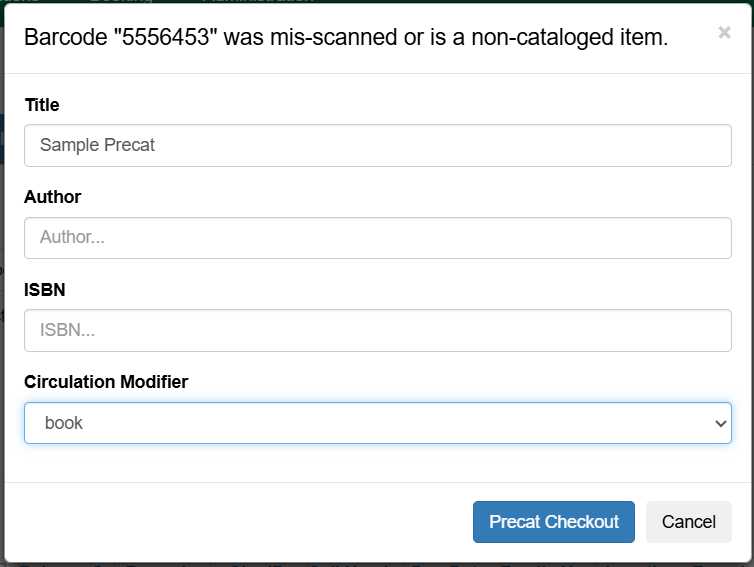 Figure 6. Precat checkout dialog box example
 -
Click Precat Checkout.
| The Precat screen does not respond to the Enter key or carriage return provided by a barcode scanner when the cursor is in the ISBN field. This behavior prevents pre-cataloged items from being checked out before you are done entering all the desired information. |
| Upon check-in, Evergreen will prompt staff to re-route the item to cataloging. |
Due Dates
Circulation and fine rules are set by circ modifier and automatically calculated when processing a regular check out. The due date will configure to the set duration rule, but if you have closed dates set because of a holiday, etc., the due date will be set to the following business day according to your hours of operation.
The Specific Due Date checkbox allows you to set a different due date to override the pre-set loan period. Before you scan the item, select the Specific Due Date checkbox as shown here.
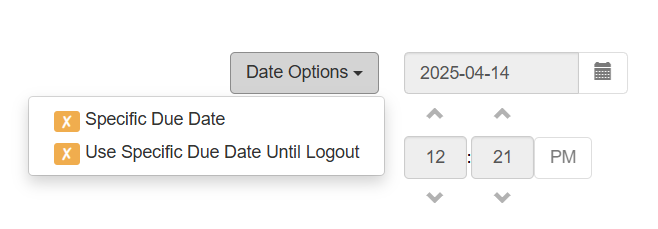
Enter the date in yyyy-mm-dd format or use the calendar picker to click the due date.
Specific Due Date will apply to all items checked out on the patron record, until you change the date, disable the Specific Due Date checkbox, or close the patron record.
Use Specific Due Date Until Logout will apply to all items checked out across patron records, until you change the date, disable Use Specific Due Date Until Logout, or log out of Evergreen.
| There is no special alert to let you know you are using the Specific Due Date setting. Be careful & mindful with this setting! |
Check Out Notes/Item Alerts
Check Out Notes (Item Alerts) are messages attached to items for a specific circulation event to inform staff of a condition that requires their action. Alert messages must be acknowledged or, in the case of temporary ones, deleted by clearing in order for the event to proceed.
Item alert messages are governed by local policy and practice. Local system and branch staff can add alert messages as defined by that local policy.
Categories of Alert Messages
Persistent alert messages will display every time the alert event occurs and can only be removed by cataloging staff. They are typically added when the item is cataloged although they can be added retrospectively.
A persistent alert message might indicate the number of pieces comprising the item, such as the number of CDs in an audiobook. The alert event can be just check in, just checkout, or both check in and checkout. Multiple persistent alert messages for events can be added to an item. The alert message must be acknowledged to complete the action.
Temporary alert mesages designed for one alert event and are typically added by circulation staff. Temporary alerts are usually cleared at that event. They must be acknowledged or cleared for the event to proceed.
Examples of temporary alert messages are those to indicate a damaged book checked out to a patron, an item needing a new spine label, or one to be routed to display. Temporary alerts can be added to items with persistent alerts and multiple temporary alerts can be added to an item.
| You can only manage (clear, edit, or add) temporary alert messages for items owned by your library. |
Adding and Managing Item Alerts at Circulation
Circulation staff can assign temporary alert messages to items as defined by local policy and procedures. They can be added to items in the checkout, check in, item status, or renew pages.
Multiple items can be selected from lists at these pages in order to add the same temporary alert message. Alerts cannot be managed in batch. Alert messages can be customized to the copy as needed to appear at check in. Temporary alert messages stop the checkout process until acknowledged.
A clear button displays in the message, allowing circulation staff to delete it, and then click on the OK button to proceed. Circulation staff can elect not to clear the message and continue the action by clicking on OK. The action can also be canceled if necessary.
Alternate Patron Checkout for Holds
Alternate Check Out can be used to check out an item to a patron other than the patron it is on the hold shelf for, i.e. spouse.
In this example, the copy is on hold for a patron, but we’ll check it out to another patron as if to fulfill the hold and cancel it on the original account.
-
Check out the item on the hold shelf to an alternative patron.
-
You will see an error message on the screen.
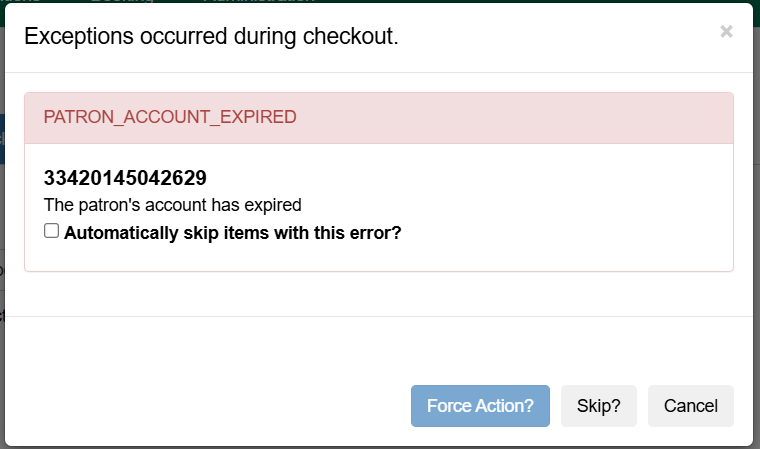 Figure 8. Alternative checkout
 -
Check off the box Cancel this hold upon checkout? and Force Action?.
This function will remove the hold from the original patron record so when the item is returned it will not reactivate the hold. It will also check the item out to the person who retrieved the hold.
| You can check off Automatically override for subsequent items? if you want to apply a staff override for all related items in succession. |