Library Card Management
Renewing Library Cards
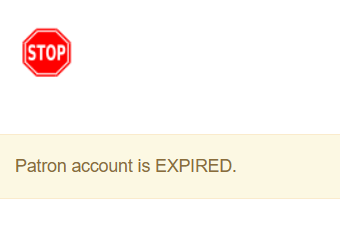
At initial retrieval, expired patron accounts will show an alert stating the Patron account is EXPIRED.
Patron accounts that are about to expire will also display an alert so staff members are aware of the impending expiration date.
Some Bibliomation libraries have set up email reminders for the patron when the library card is about to expire, usually 30 days prior to expiration.
Open the patron record in Edit mode as described in the section Updating Patron Information.
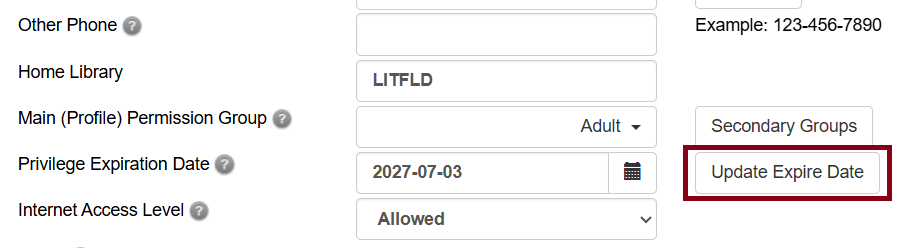
Navigate to the information field labeled Privilege Expiration Date. Enter a new date in this box or click the calendar icon, and a calendar widget will display to help you easily navigate to the desired date.
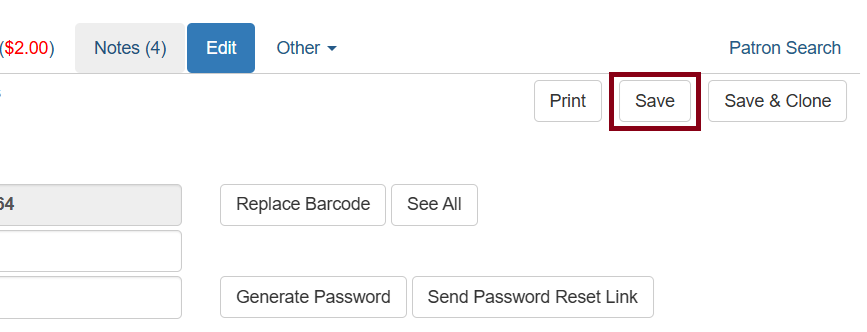
Select the date in the calendar picker, type in the date, or use the Update Expire Date button. Then click Save.
Lost Library Cards
Each library may deal with lost cards in a different manner. Below are the instructions to replace a barcode for a patron who has lost a card.
Retrieve the patron record as described in the section Search for Patron Record.
Open the patron record in Edit mode as described in the section Updating Patron Information.
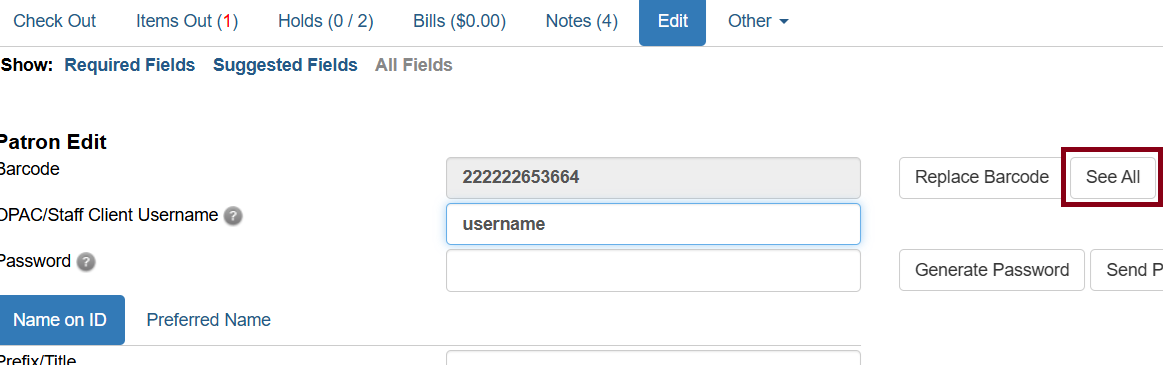
Next to the barcode field, select the Replace Barcode button.
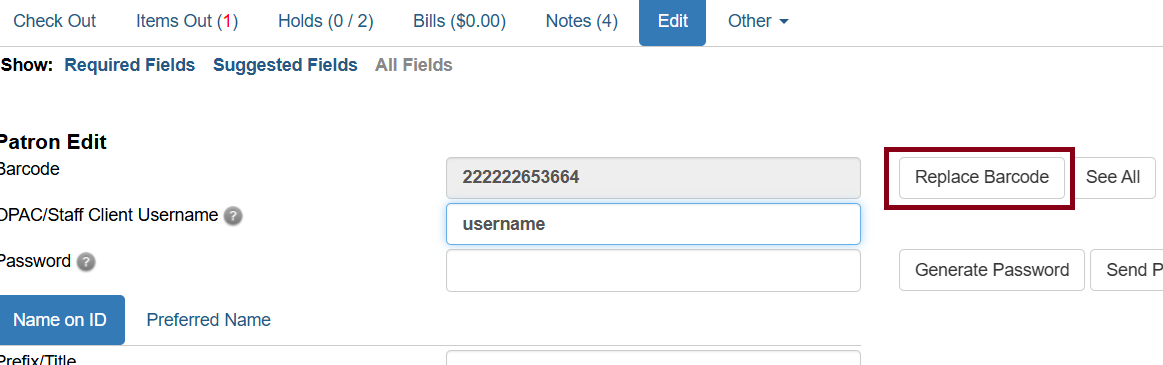
This will clear the barcode field. Scan or type a new barcode and Save the record. The screen will refresh and the new barcode will display in the patron summary pane.
| When updating a barcode, the OPAC username WILL NOT automatically change. This is to avoid accidentally overwriting any text-based usernames that patrons have created for themselves. If the old barcode number is still in the username field, copy and paste or scan the new barcode directly into the username field. |
If a patron’s barcode is mistakenly replaced, the old barcode may be reinstated (with the proper staff permissions).
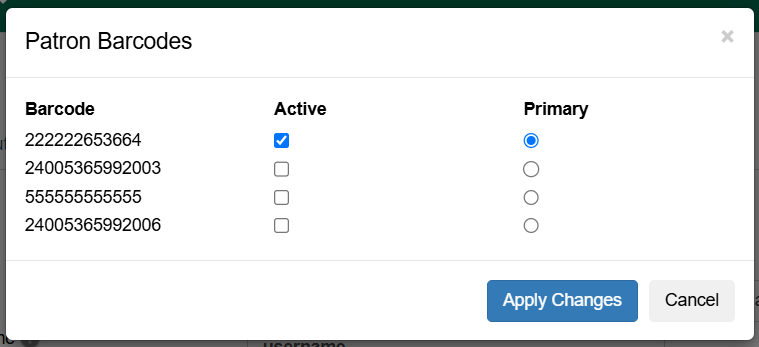
Select the See All button next to the Replace Barcode button. This will display the current and past barcodes associated with this account.
Check the box for the barcode that should be Active and Primary for the patron. An Active and Primary barcode may be used for circulation transactions. The barcode displays in the patron’s summary information in the Library Card field.
Once you have modified the patron barcode, Save the patron record.
Otherwise if See All doesn’t work for your situation, retrieve the patron record as described in the section Search for Patron Record. Open the patron record in Edit mode as described in section Updating Patron Information.