Merging Patron Records
Sometimes a patron will wind up having more than one patron record in the database. In order to keep the circulation, fine, bill transactions, etc. all together, you will need to merge the records.
| PLEASE REVIEW THE ACCOUNTS BEFORE MERGING. Once two accounts are merged, the older account is completely deleted from the system and all circulation history will be saved under the new account. If you want circulation history of bills, lost items, etc. saved on the original account, don’t merge. |
-
Identify the patron records to be merged. The records need to appear on the same screen in order to be selected for merging. Select the records to be merged.

-
The Merge Patrons button becomes active after selecting the records. Click Merge Patrons.

-
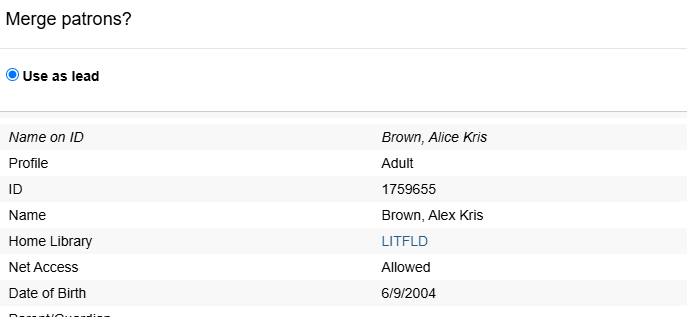
You need to know which patron record should remain (Lead Account), and which will be merged into it. Select the one to be the Lead Account by checking the Use as Lead option for the record.
-
Scroll and click on the Merge button at the bottom of the page.

-
You can verify the merge by searching for the patron, and going to the Edit screen for the patron record. Click on See All next to the barcode field to view all active and inactive barcodes.
-
See All displays all barcodes that have been used for this patron, as well as which barcode is set to Active and Primary.
| In the event that profiles can’t merge, check to see if there is an active grocery type billing listed as a "Collection Fee". These fees will need to be resolved by the original home library before you can merge. |