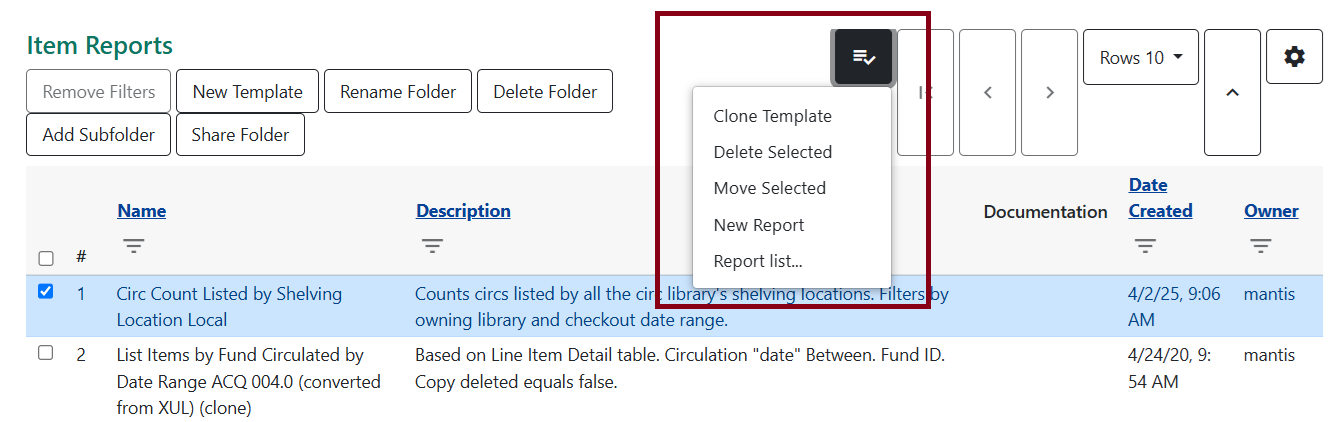
Report Templates
We don’t recommend choosing the New template option. Instead, it’s better to clone existing templates that Bibliomation create and save them into your folders.
Browsing Templates
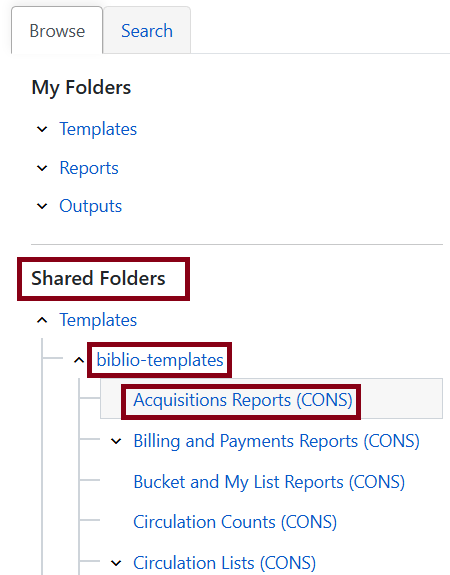
To browse reports from the Bibliomation collection, go to biblio-templates under Shared Folders. These are all organized by sections of Evergreen with some subfolders. The organization tree for these report templates will not change between upgrades.
Searching Templates
Searching is also a viable option. To search, go to the Search tab. You can search by all fields, name, or description of the report template. You can also select which folders to search from directly. This may be helpful when trying to filter out reports using certain keywords within a subfolder within the Bibliomation collection.
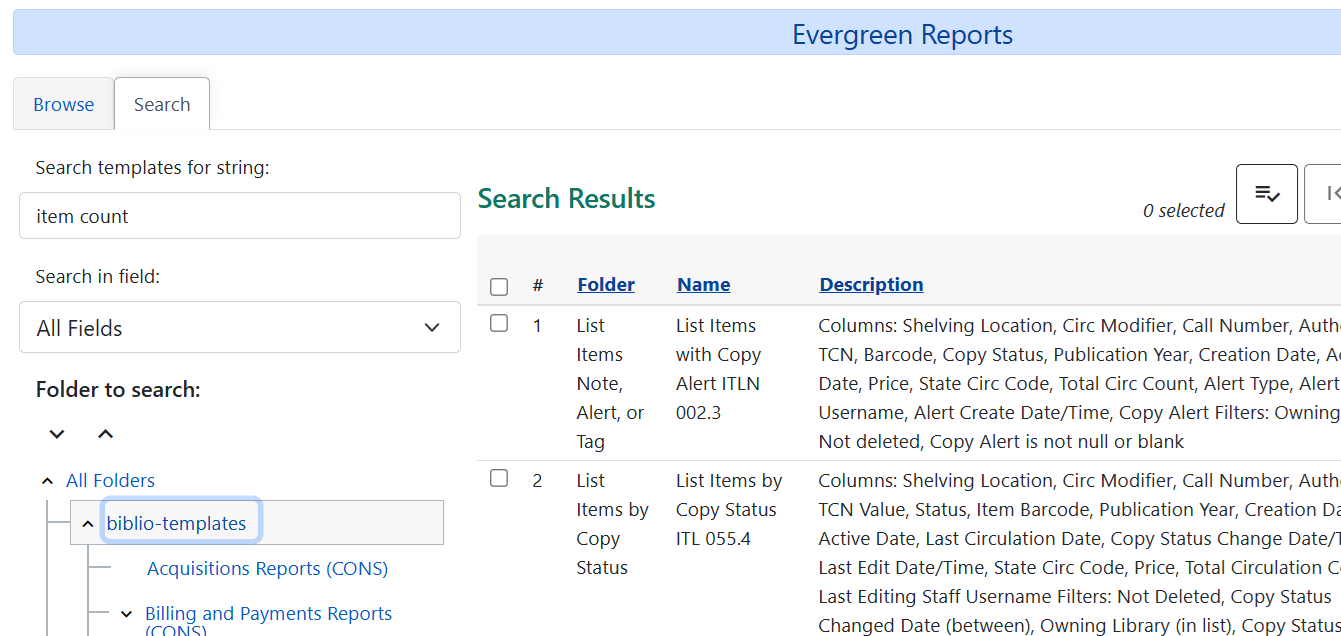
By searching for keywords and clicking on Circulation Lists (CONS) under the biblio-templates folder, Iyou can narrow down all the reports that use shelving location included in the description of the reports.
Cloning Templates
Cloning in the Browse Tab
You can clone from the Browse tab. After browsing, select the template you want to clone by checking off the box to the left, click on the actions button, and select Clone Template.
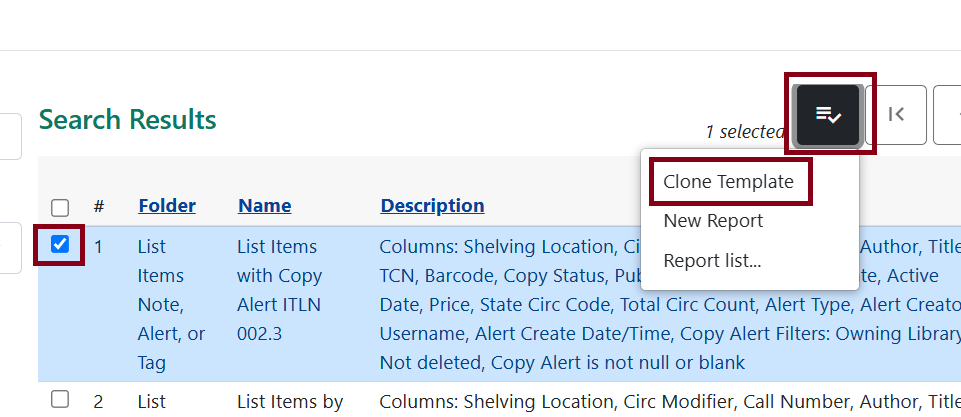
You can rename the template and/or change the description to what you wish. Don’t forget to select the proper reports folder to the right before clicking Save.
When you navigate back to your folders, you’ll see the template saved.