User Buckets
User Buckets allow staff to make batch modifications to user accounts in Evergreen. Batch modifications can be made to selected fields in the patron record.
-
Home Library
-
Profile Group
-
Network Access Level
-
Blocked flag
-
Active flag
-
Juvenile flag
-
Privilege Expiration Date
-
Statistical Categories (residency)
Batch modifications can be rolled back or reversed.
User accounts can be added to User Buckets by scanning individual user barcodes or by uploading a file of user barcodes directly in the User Bucket interface. They can also be added to a User Bucket from the Patron Search screen. Batch changes and batch edit sets are tied to the User Bucket itself, not to the login of the bucket owner.
Creating a User Bucket
Adding Users via Patron Search
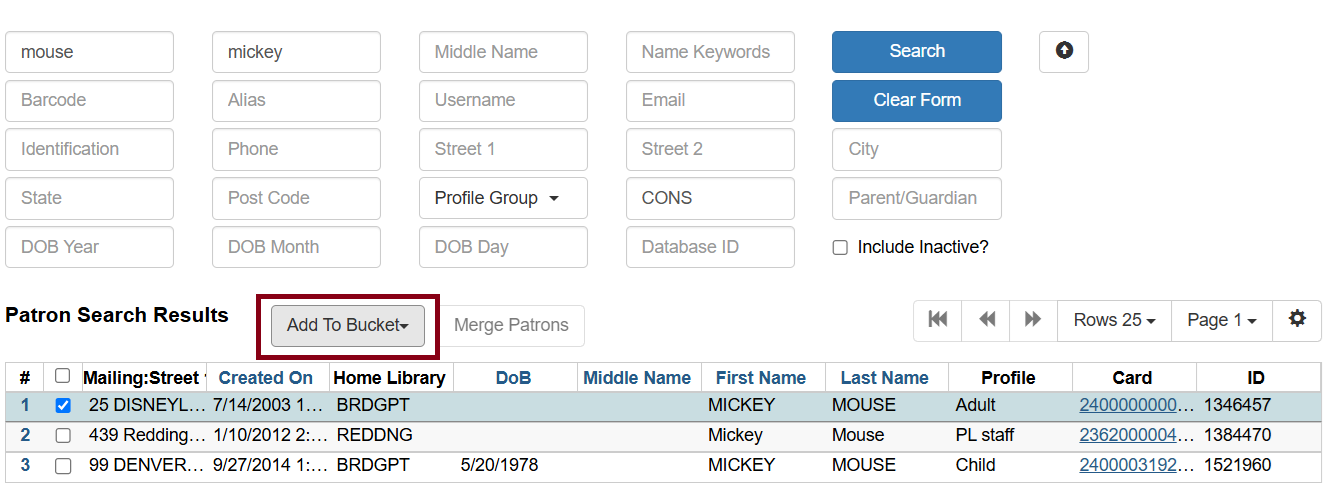
Go to Search → Search for Patrons.
Enter your search terms, and select the users you want to add to the user bucket by checking the boxes next to each user row. Then, click Add to Bucket.
Select an existing bucket or click New Bucket to create a new user bucket.
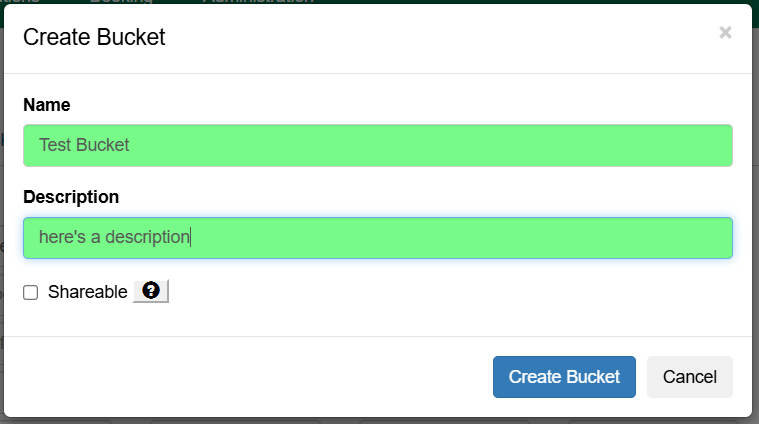
If creating a new user bucket, a dialog box called Create Bucket will appear where you can enter a bucket Name and Description and indicate if the bucket is Staff Shareable?. Click Create Bucket.
After adding users to a bucket, an update will appear at the bottom-right hand corner of the screen that says Successfully added [X] users to bucket [Name].
Adding Users via User Buckets
You can scan barcodes to add users to a bucket within the User Buckets screen.
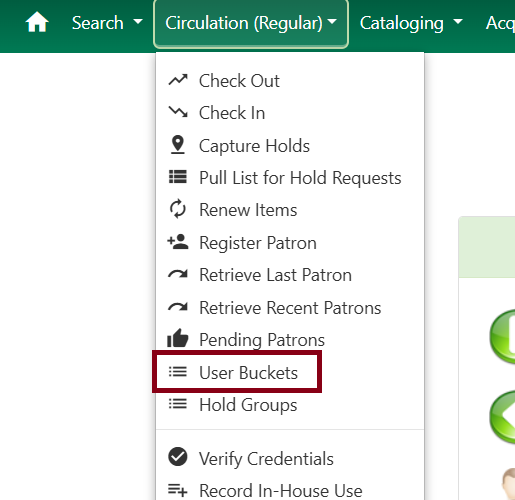
Go to Circulation → User Buckets.
Select the Pending Users tab at the top of the screen. Click on Buckets and select an existing bucket from the drop down menu or click New Bucket to create a new user bucket.
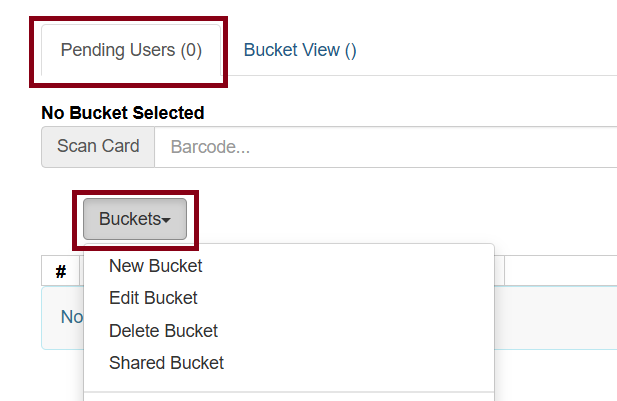
When creating a new user bucket, a dialog box called Create Bucket will appear where you can enter a bucket Name and Description and indicate if the bucket is Staff Shareable?. Click Create Bucket when done.
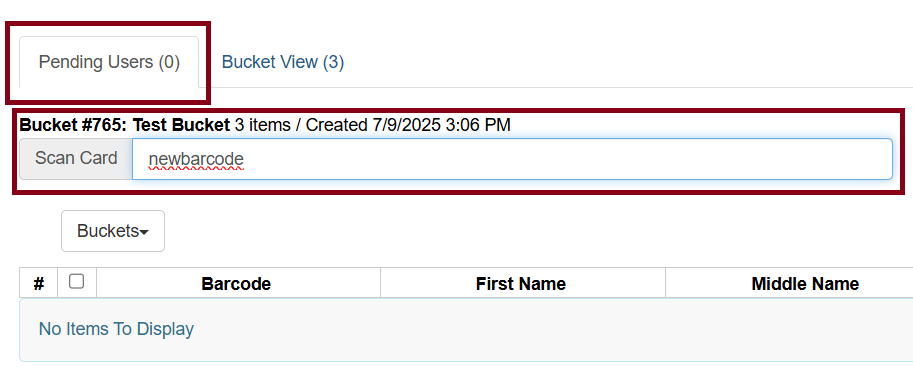
After selecting or creating a bucket, the Name, Description, number of items and creation date of the bucket will appear above the Scan Card field.
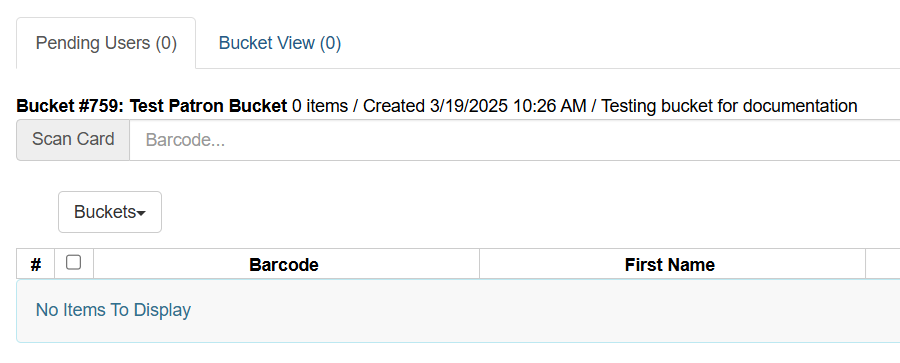
Scan in the barcodes of the users who you want to add to the selected bucket into the Scan Card field. Each user account will be added to the Pending Users tab. (If you are manually typing in barcodes, be sure to press ENTER on your keyboard after each one.)
Go to Actions → Add to Bucket or right-click on a selected user account to view the Actions menu and Select Add to Bucket.
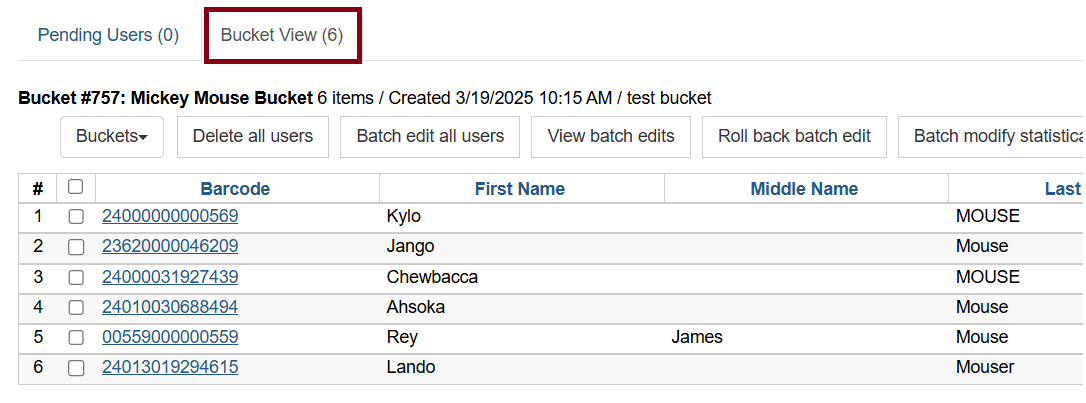
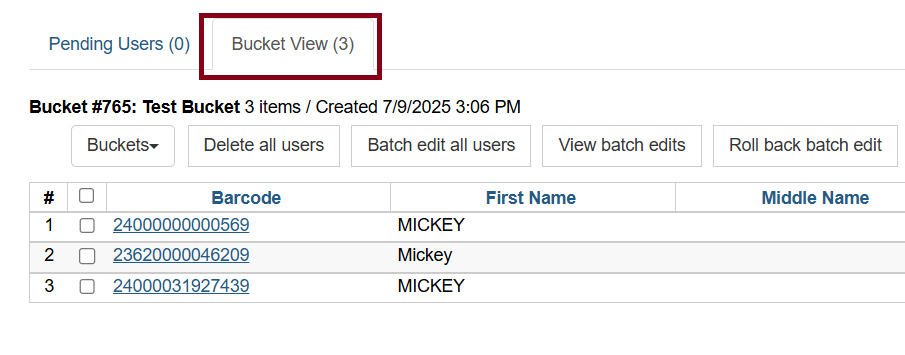
The user accounts will move to the Bucket View tab and are now in the selected User Bucket.
Adding Users with File Upload
Go to Circulation → User Buckets and select the Pending Users tab at the top of the screen.
If creating a new user bucket, a dialog box called Create Bucket will appear where you can enter a bucket Name and Description and indicate if the bucket is Staff Shareable?. Click Create Bucket.
After selecting or creating a bucket, the Name, Descriptions. Number of items and creation date of the bucket will appear above the Scan Card field.
In the Pending Users tab, click Choose File and select the file of barcodes to be uploaded.
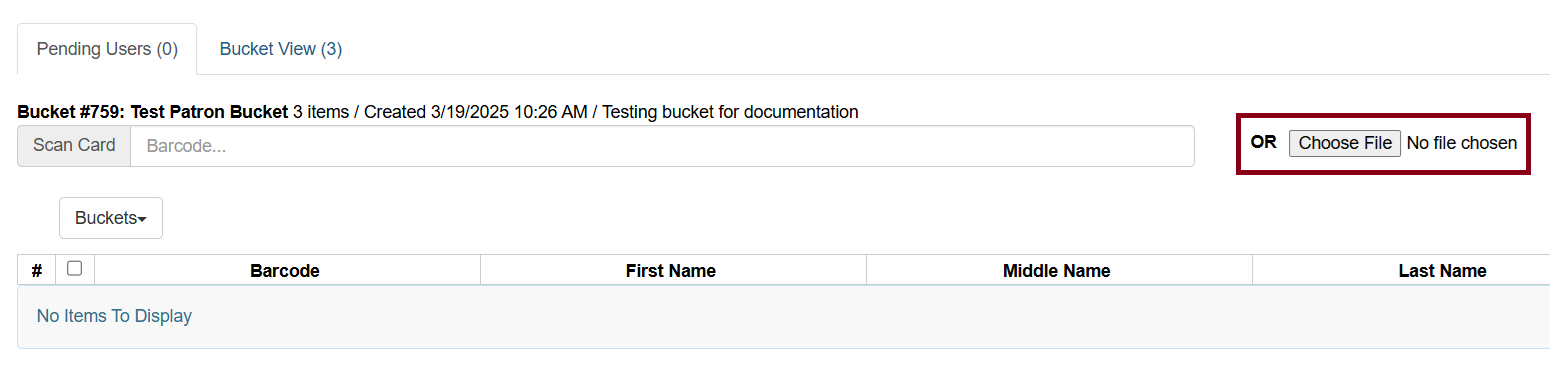
The file that is uploaded must be a .txt file that contains single barcodes per row. Notepad is good for this function.
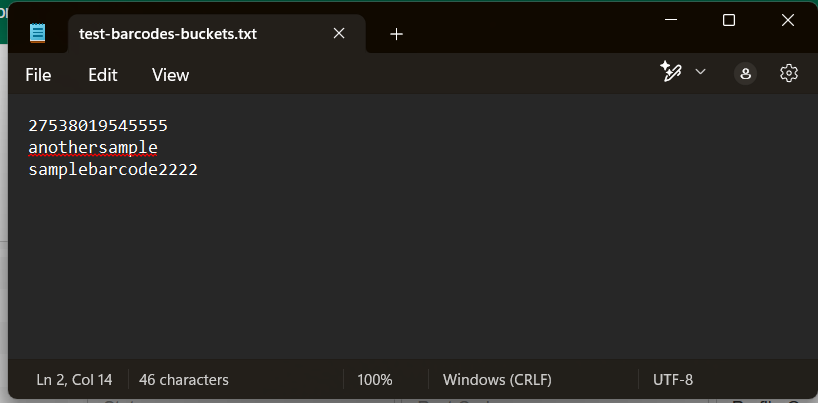
The user accounts will automatically appear in the list of Pending Users.
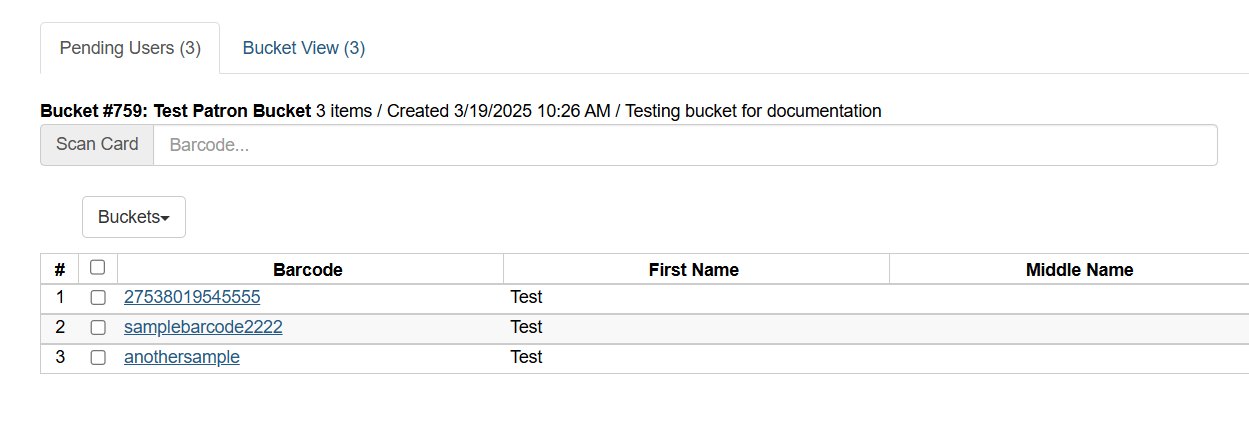
Select the user accounts that you want to add to the bucket by checking the box next to each user row or with the top checkbox to select all.
Go to Actions → Add to Bucket or right-click on a selected user account and select Add to Bucket.
The user accounts will move to the Bucket View tab and are now in the selected User Bucket.
Batch Edit Users
Select the Bucket View tab.
Click Buckets and select the bucket you want to modify from the list of existing buckets.
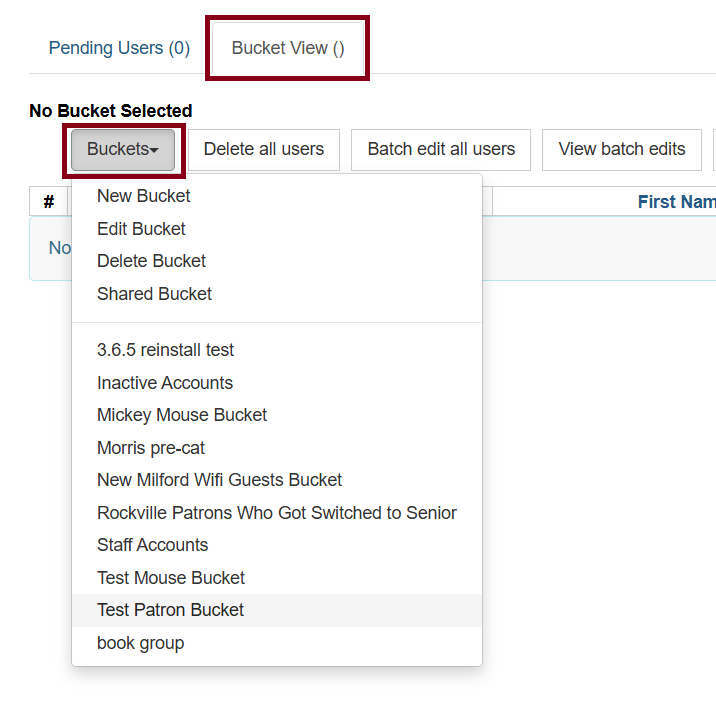
After selecting a bucket, the Name, Description, number of items and creation date of the bucket will appear at the top of the screen.
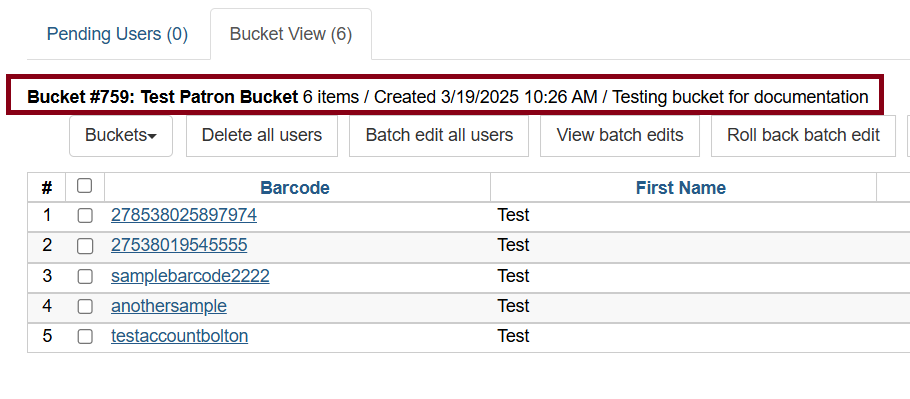
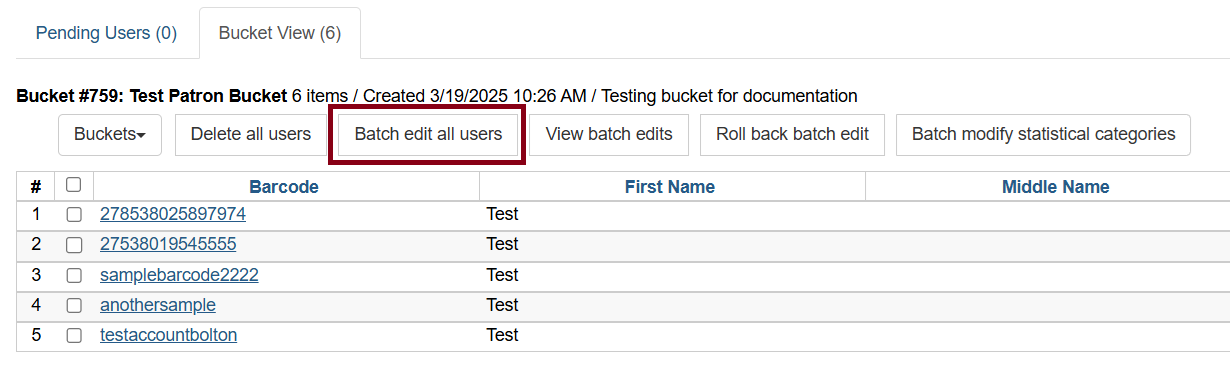
Check the list of users in the bucket and click Batch edit all users.
A dialog box called Update all users will appear where you can select the batch modifications to be made to the user accounts. Assign a Name for Edit Set. This name will allow staff to identify the batch edit for future verifications or rollbacks.
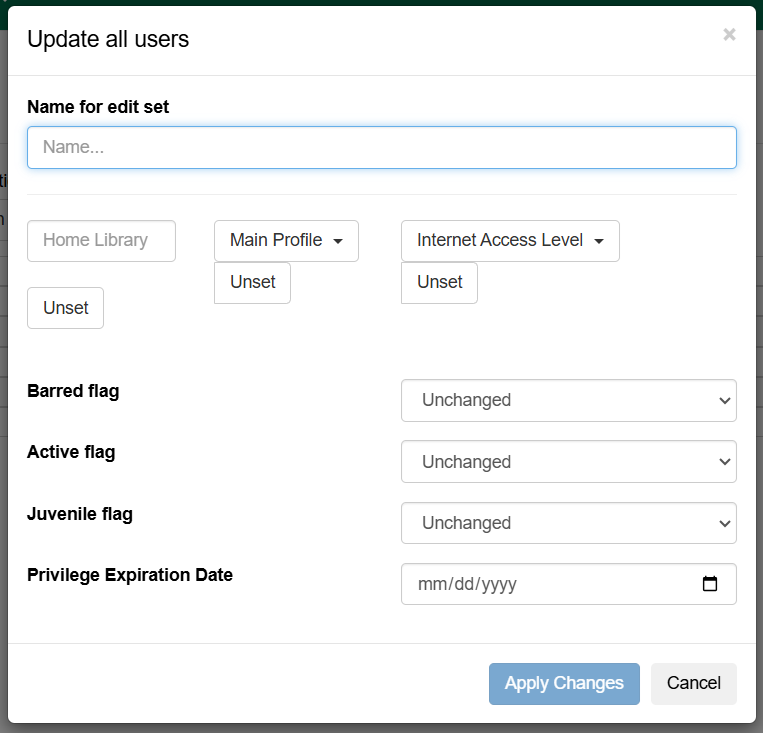
Set the values that you want to modify. The following fields can be modified in batch:
-
Home Library
-
Profile Group
-
Network Access Level
-
Barred (Blocked) Flag
-
Active Flag
-
Juvenile Flag
-
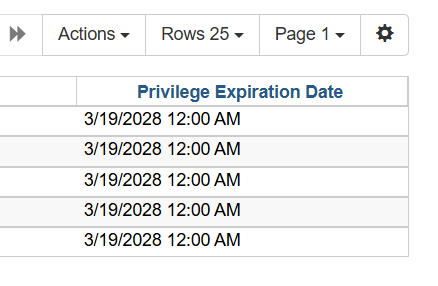
Privilege Expiration Date
For example, here’s a batch edit for Privilege Expiration Date:
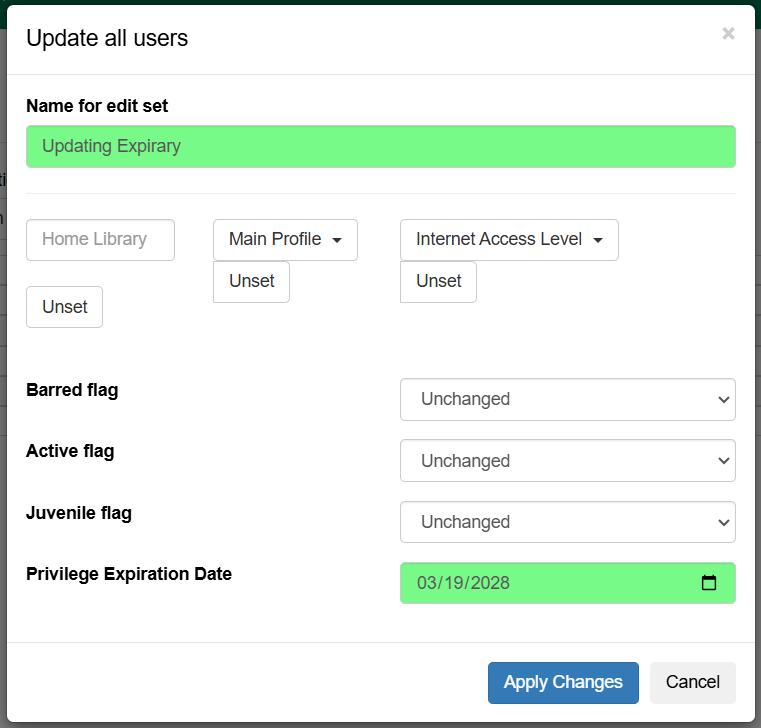
Click Apply Changes. The modification will be applied in a batch.
Sharing Buckets
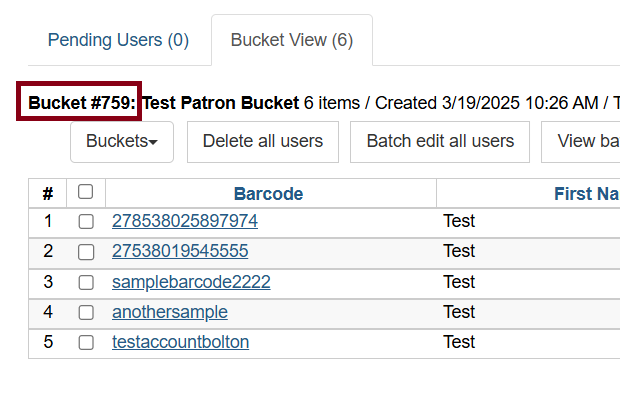
If a User Bucket is marked Shareable, it can be retrieved via bucket ID by another staff login account. You can find the ID number at the end of the bucket’s URL for the bucket, and right before the bucket name. For example, in the screenshot below, the bucket ID is 759.
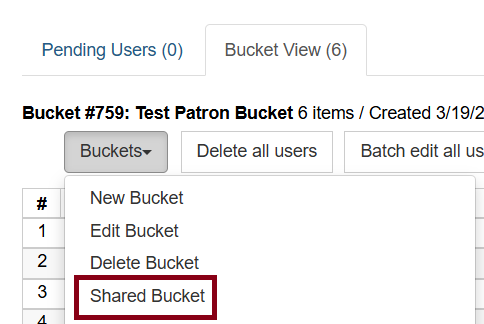
To retrieve a shared bucket, go to Circulation → User Buckets and select the Bucket View tab. Click Buckets and select Shared Bucket.
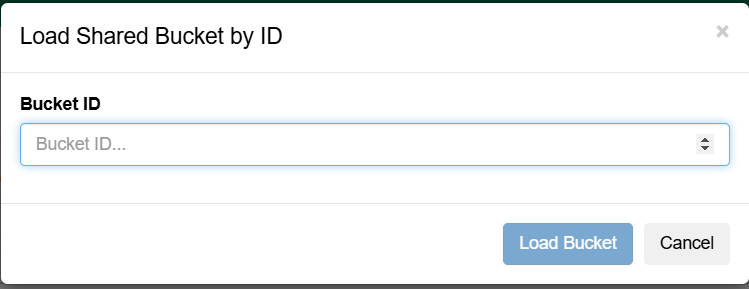
A dialog box called Load Shared Bucket by bucket ID will appear. Enter the ID of the bucket you wish to retrieve and click Load Bucket.
The shared bucket will load in the Bucket View tab.