Notices
The following is a complete list of notices that can be sent.
Notice |
Description |
Format |
Courtesy Notice |
Sends as a reminder that an item will be due soon. Default is set to 3 days before the due date. |
Email, Text |
Autorenewal Notice |
Only sends for items eligible for autorenewal by circ rules. If an item is autorenewed, the new due date will print. If it’s not eligible for autorenewal, the original due date will print with a reason why it didn’t renew. Items won’t autorenew if: The patron’s account is expired. The item is on hold for another patron. The patron has a lost item on their account. The patron has exceeded a treshold of max fines. Default is set to send these the early morning of the item’s due date. |
|
Overdue Notice |
Sends when an item is overdue by a set amount of days. A library can multiple of these. Typically, libraries send one overdue at 7 days overdue and a second overdue at 14 or 21 days overdue. These can be customizable to the library’s needs. |
Email, Print |
Lost Item/Bill |
Automatically sends when an item is in lost status and bills the patron the price of the item. Items go into a lost status by what the library chooses. Typically, this is around 28 days overdue from the last due date. |
Email, print |
Hold Ready for Pickup |
Sends when an item is on the hold shelf ready for pickup. |
Email, text |
Welcome Notice |
Sends after a patron is registered or when their self-registration submission is confirmed by a staff member. |
|
Self-Registration Confirmation |
Optional email that sends to the patron a confirmation when they submit their online application for a library card. This email is very customizable, but most messages give the patron information on how to receive their card at the circulation desk and what information to bring for confirmation. |
|
Hold Expires from Shelf Soon |
Notifies the patron that their hold will be coming off the hold shelf soon and back into circulation. Default is set to send two days before the shelf expiration date. |
|
Checkout Receipt |
Sends to the patron after circulating items at a circ desk. |
|
Self-Check Items Out Receipt |
Only available for libraries with self-check. |
|
Test Email |
Can only be sent in the patron’s account/Edit screen. This is a good option to see if the email on the account is correct and is receiving emails. |
|
Test Text |
Can only be sent in the patron’s account/Edit screen. |
Text |
Password Setup/Reset Email |
Can be accessed in login form through the OPAC. This would be the Get Password link. Enter the patron’s username or barcode, and an email with further instructions will send. This can also be used to set up or reset passwords for staff accounts, too. Even with an OPAC link, it still applies. |
|
Text Call Number |
Can be accessed through the OPAC. When looking up a bib record, you can click Text Call Number next to the listed copies. This sends the call number and some copy information to the patron. |
Text |
Print Notices
Print notices are available for overdue and lost items that become billed. Click here to access print notices. You’ll need to log in using your Evergreen staff account credentials.
Print notices are for patrons who don’t have an email address associated on their account. These are generated daily; however, if there aren’t any items going into an overdue or lost status for patrons without an email, a PDF file won’t be created for that particular day.
These notices are cutomizable. Please open a help desk ticket for more information or if you would like to edit your print notices.
Triggered Events/Notification Log
You can look up triggered notifications such as due date slips, self-checkout slips, hold slips, etc.
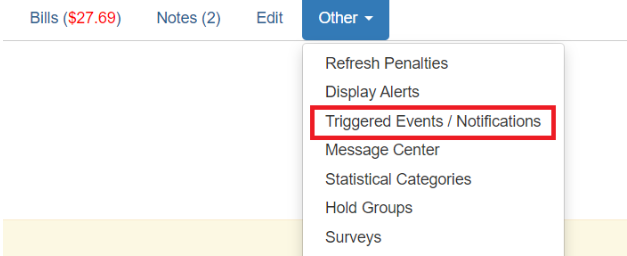
Search for a patron, open their account, and go to Other → Triggered Events / Notifications.
This will open up a new window that will show the events and notifications organized in two tabs for Circulations and Holds.
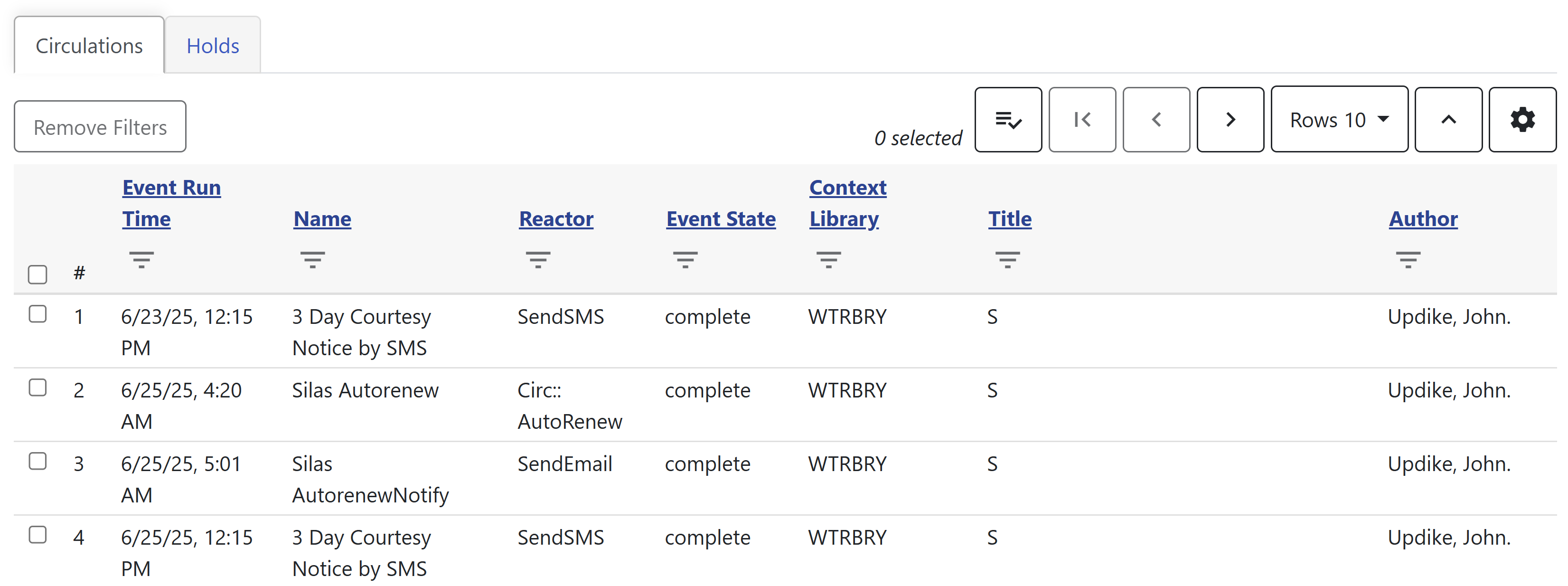
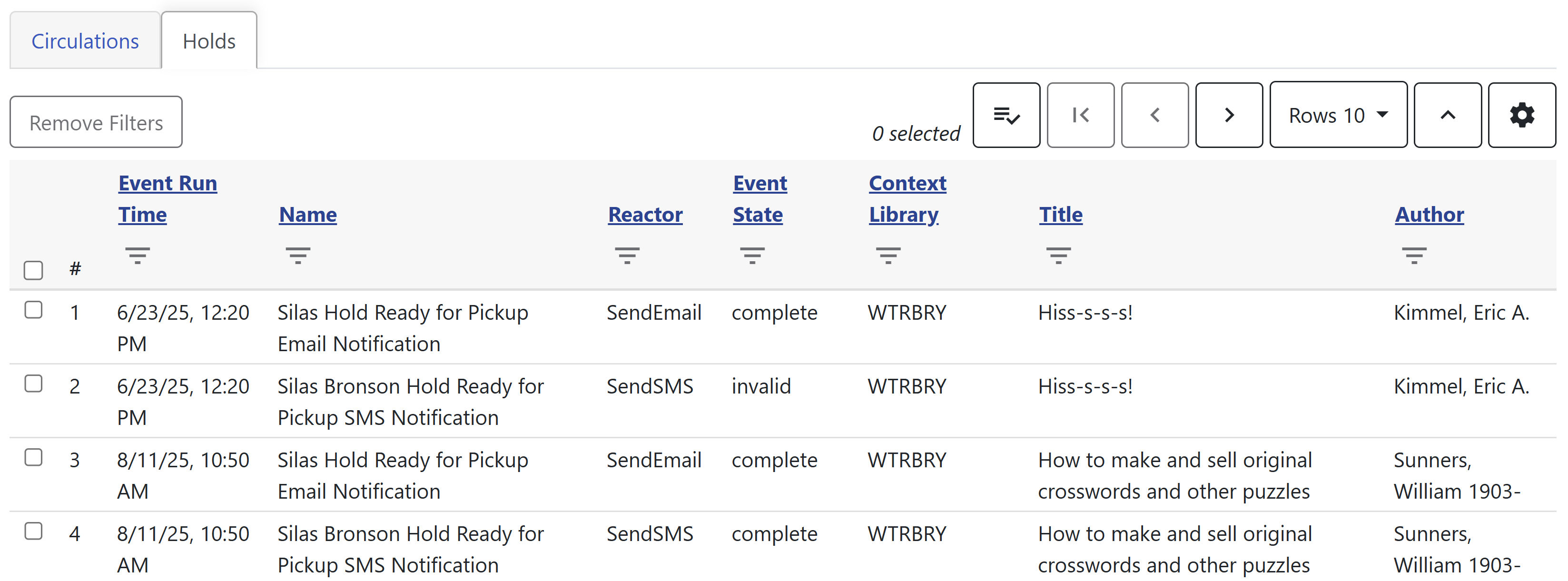
Messages that have sent successfully will show a complete status. Messages that haven’t will show invalid.
Acorn App Push Notifications
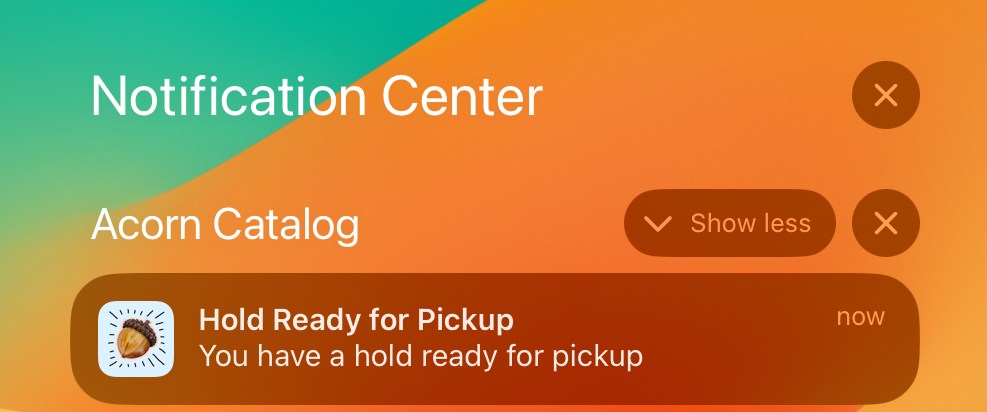
Currently, there are courtesy reminders and hold ready for pickup push notifications within the app (see Push Notifications (Acorn app)). Courtesy reminders send once in the morning and open Items Out (Acorn app), and Hold Ready can send multiple times per day and opens Holds (Acorn app).
For an overview of the app, see Acorn Mobile App.
Patrons who are registered with the app will be automatically enrolled in this service; however, patrons can still control if they receive push notifications based on their phone settings.
SMS/Text Messaging
For details about how SMS notices work with Shoutbomb, including commands, settings, and troubleshooting, see SMS/Text Messaging with Shoutbomb.