Billing and Payments
There are two types of bills in Evergreen: Circulation bills and Grocery bills.
Circulation bills are system-generated, including overdue fines, lost item cost and processing fees, etc. Overdue fines are added daily once an item is overdue. The fine rates are determined by each library. Depending on the library’s setting when an item is marked as lost, bills may be automatically generated to cover the item’s cost (price in the item record) and the processing fee. Each library determines its own lost schedule and processing fee.
Grocery bills are manually created by staff.
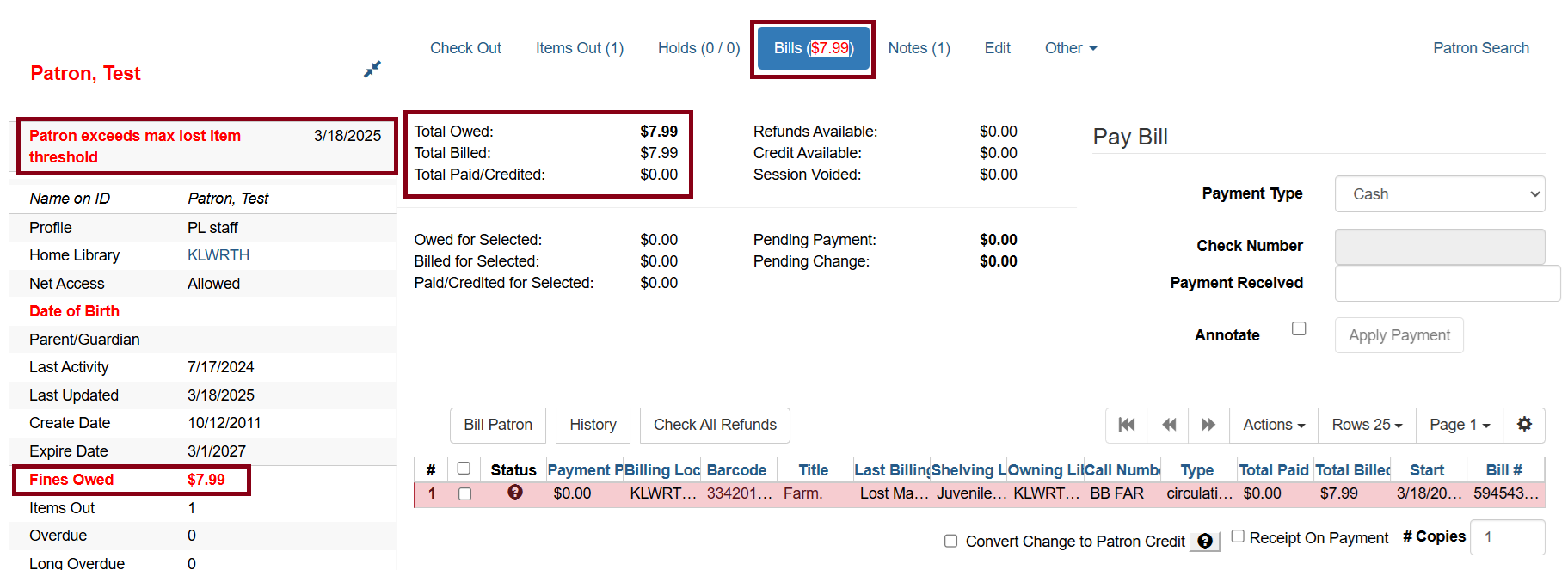
Bills are visible in the patron record. If the patron has not exceeded the fine threshold, the name will be in black.
The below example shows a test patron with a lost item. If a patron as a lost item, by consortial standards, the account is blocked. Thus the Fines Owed field shows up in red.
To View Bills
-
Click on Bills.
-
Bills will display in the lower portion of the screen.
-
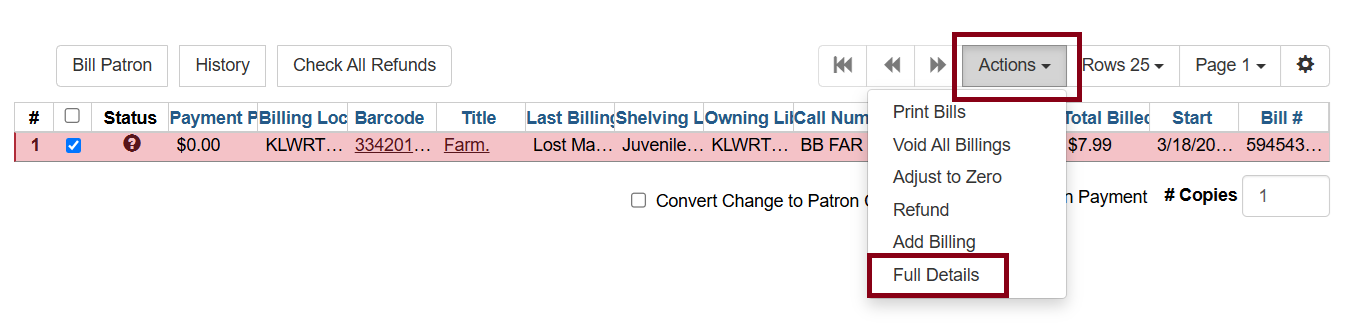
Under Actions for Selected Transactions you can choose Full Details for more information about the bill.
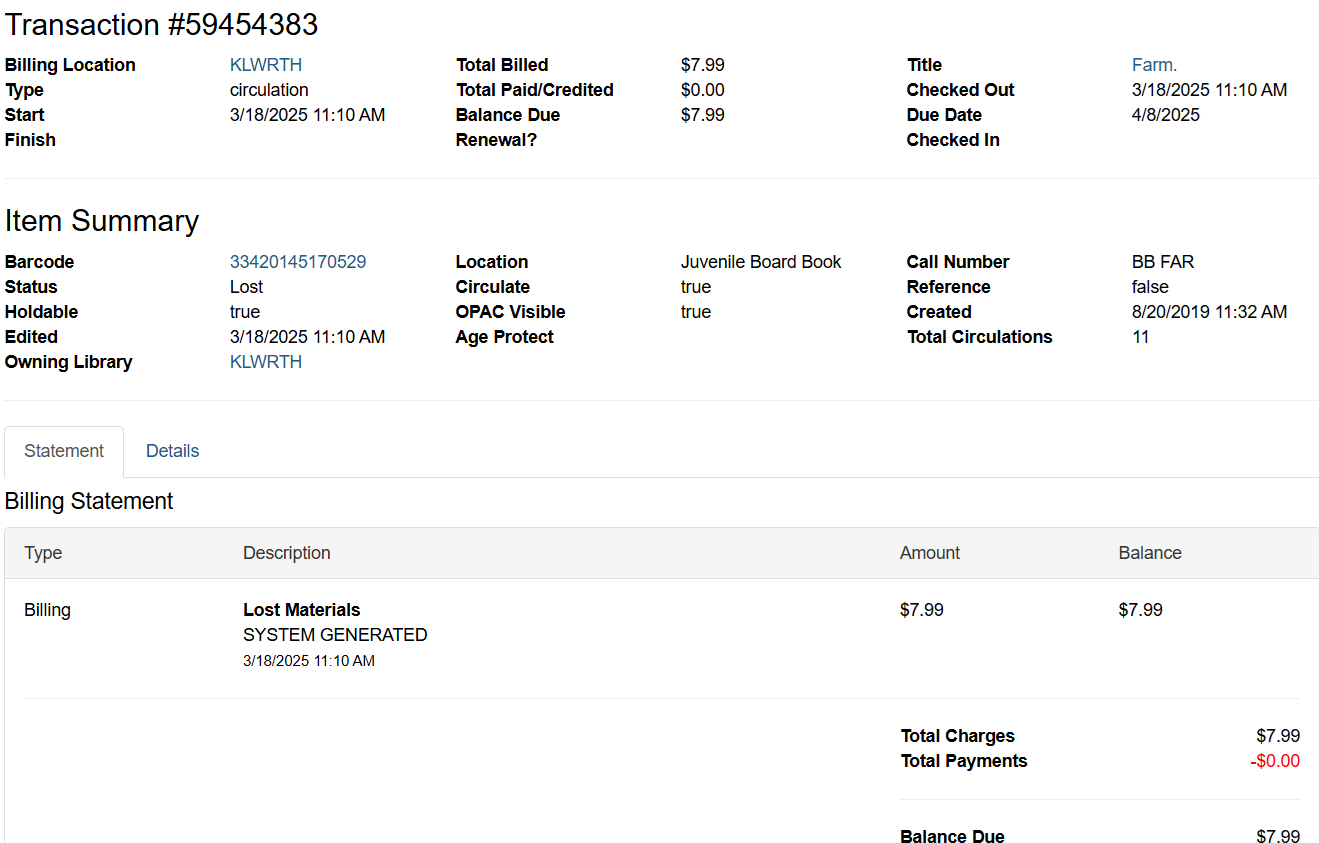
The full description of the bill can be viewed.
Paying Bills
| If there are more than one bill and the patron wants to pay for only one item, be sure to check that one item. Check marks are on the far left of the bill information. Make sure the bill(s) you want to pay are checked, not just highlighted. |
-
Check off the items the payment is/are for.
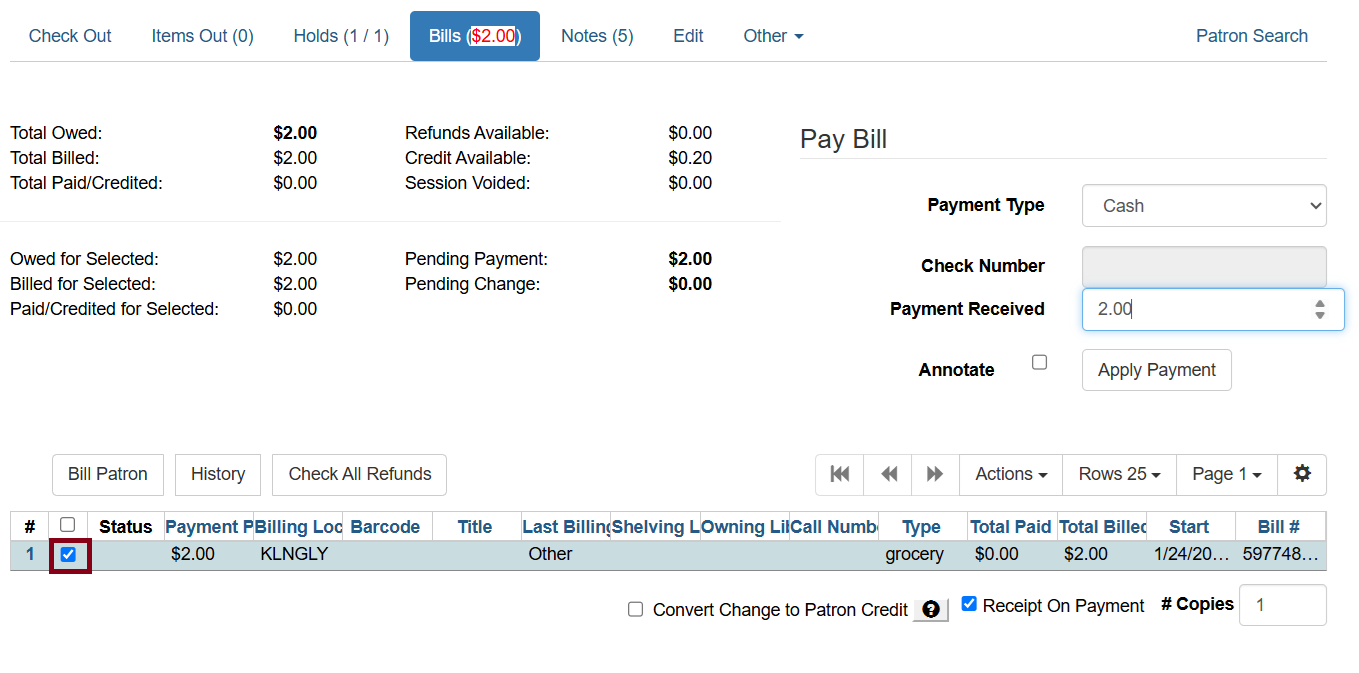 Figure 4. Select bill for payment
 -
Choose the payment type.
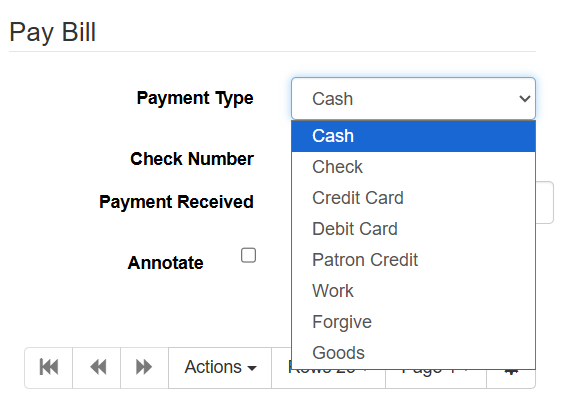 Figure 5. Select payment type
 -
Enter the amount being paid toward the bill. You may annotate the payment if needed.
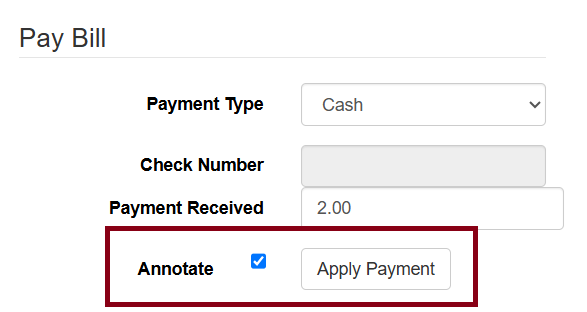 Figure 6. Apply payment to bill
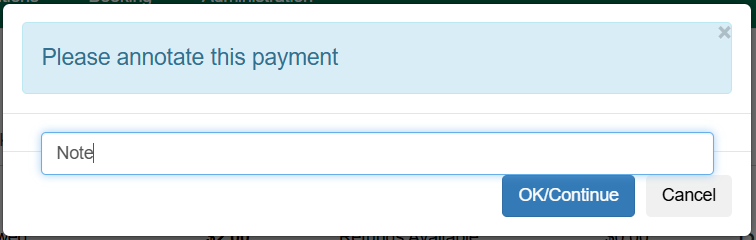 Figure 7. Optional - annotate bill payment
 -
Click Apply Payment.
Payments will be paid across all fines if payment is larger than the first billing in the list.
The total now due has been updated.
Adding Bills
-
Click on Bill Patron.
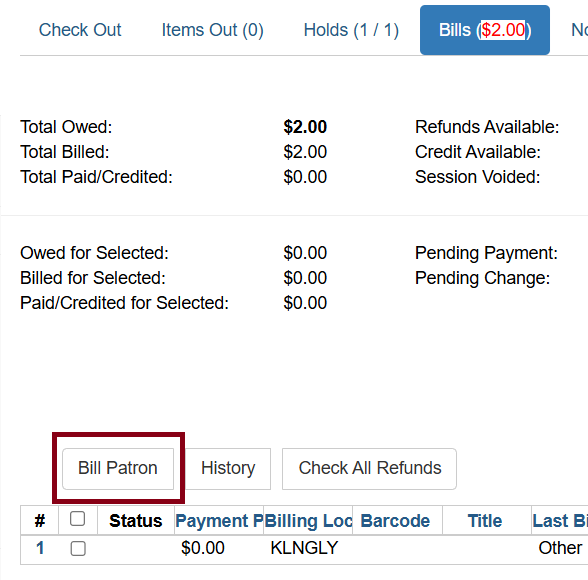 Figure 8. Bill patron button
 -
Choose the patron bill type.
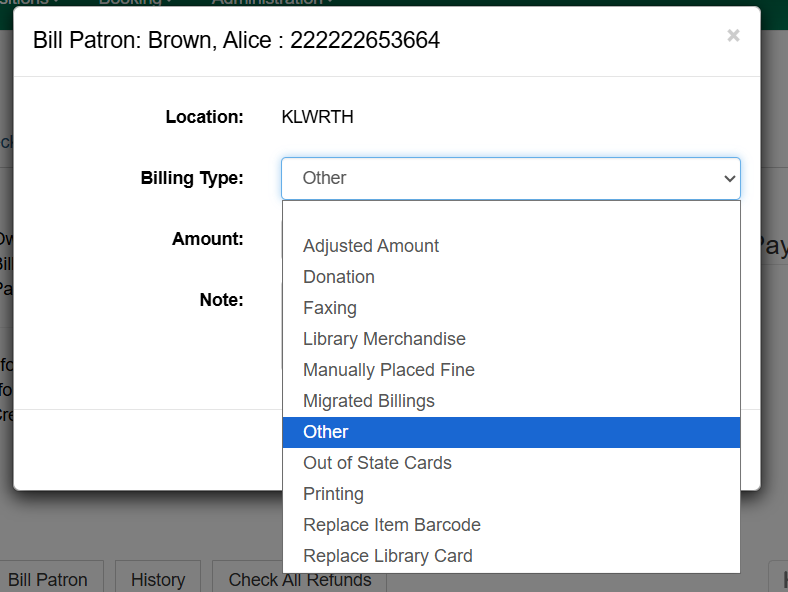 Figure 9. Patron bill type
 -
Type in the amount due.
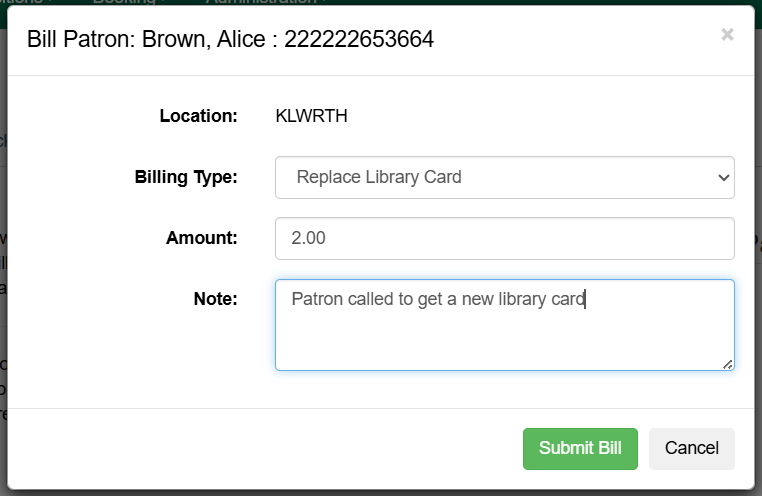 Figure 10. Amount due for patron bill
 -
Add a note if desired. (Notes will be available to full under Full Details.)
-
Click on Submit Bill.
| Manually added bills will be grocery bills. |
Patron Credits
Patron credit can be used to save into the patron’s account for later use. For example, a patron who has a bill of $2.00 for printing can pay with $5.00 and the rest of the $3.00 can be credit used for a future payment.
To create patron credit:
-
Select a bill.
-
Input the payment amount that is larger than the bill amount.
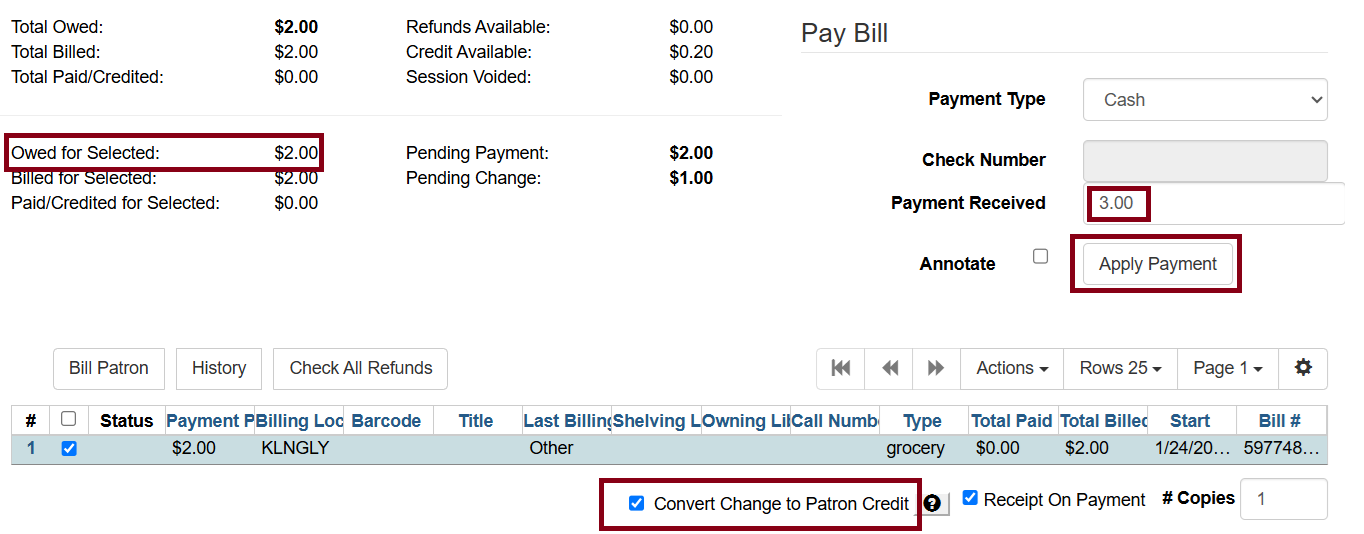 Figure 11. Convert change to patron credit
 -
Check off Convert Change to Patron Credit towards the bottom of the grid.
-
Apply the payment.
The Credit Available line in the table above will show the change stored as credit or added to an existing credit.
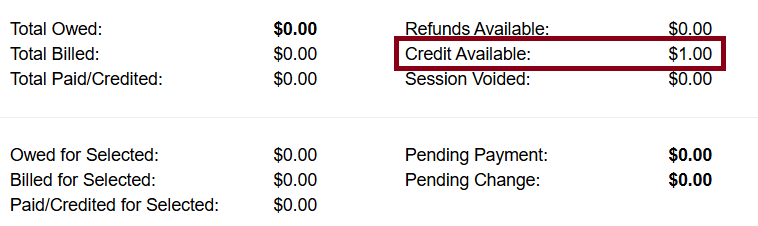
To pay with patron credit, you’ll need to apply the payment with the Patron Credit payment type.
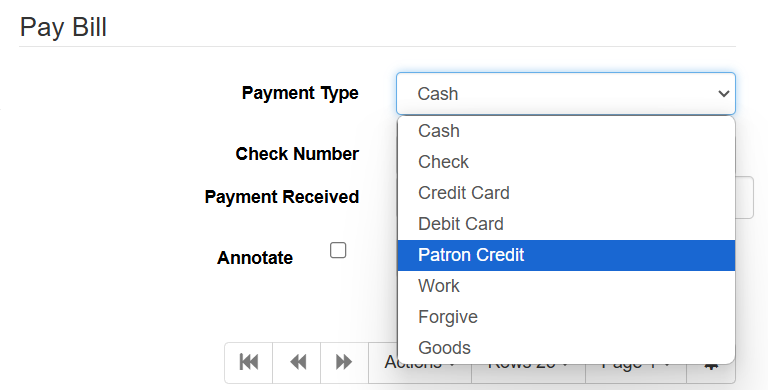
To remove the patron credit, you’ll need to create a bill of that credit amount then apply the patron credit payment to said bill.
Viewing Billing History
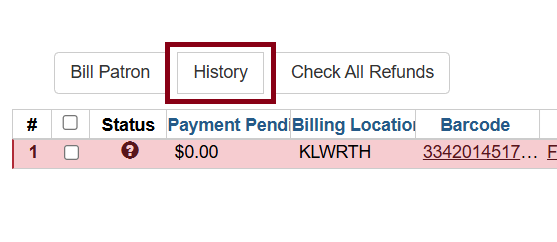
Click on History in the Bills section.
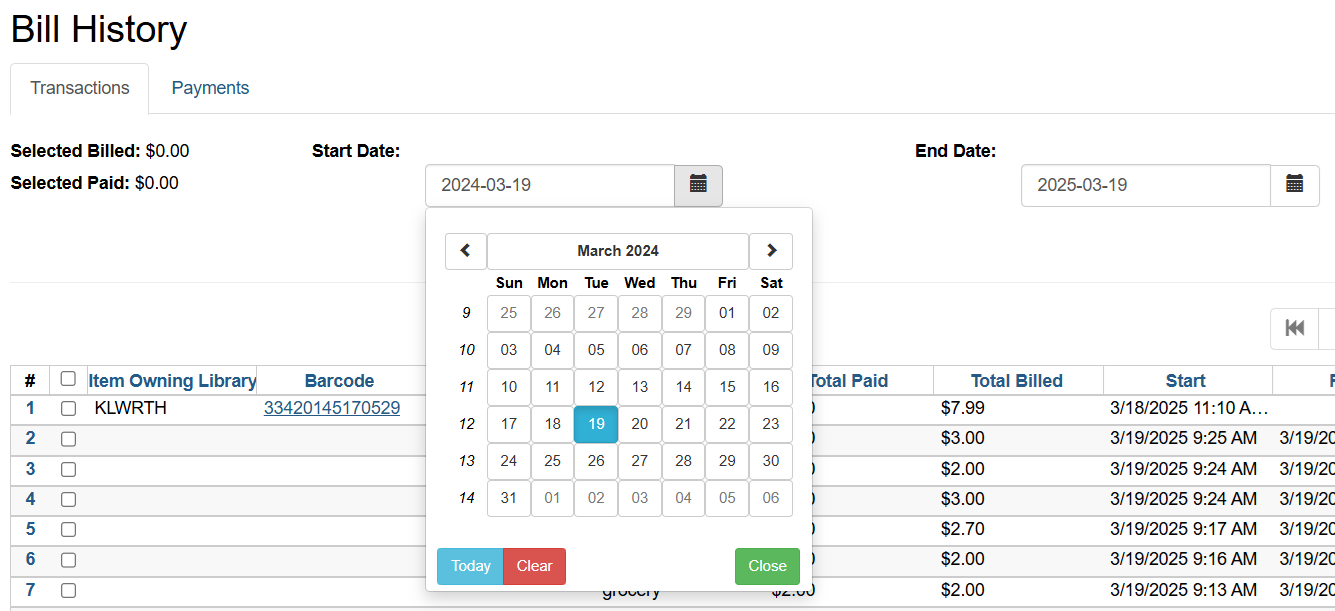
You may view Transactions or Payments. Change the Start Date to include any transactions or payments you want to view and click Apply.
You can do the same procedure in the Payments tab, to view payments in a specific time period.
Select the line for which you would like to view more detail, by using the check box. Click on Actions and Full Details. You can also right-click and choose Full Details.
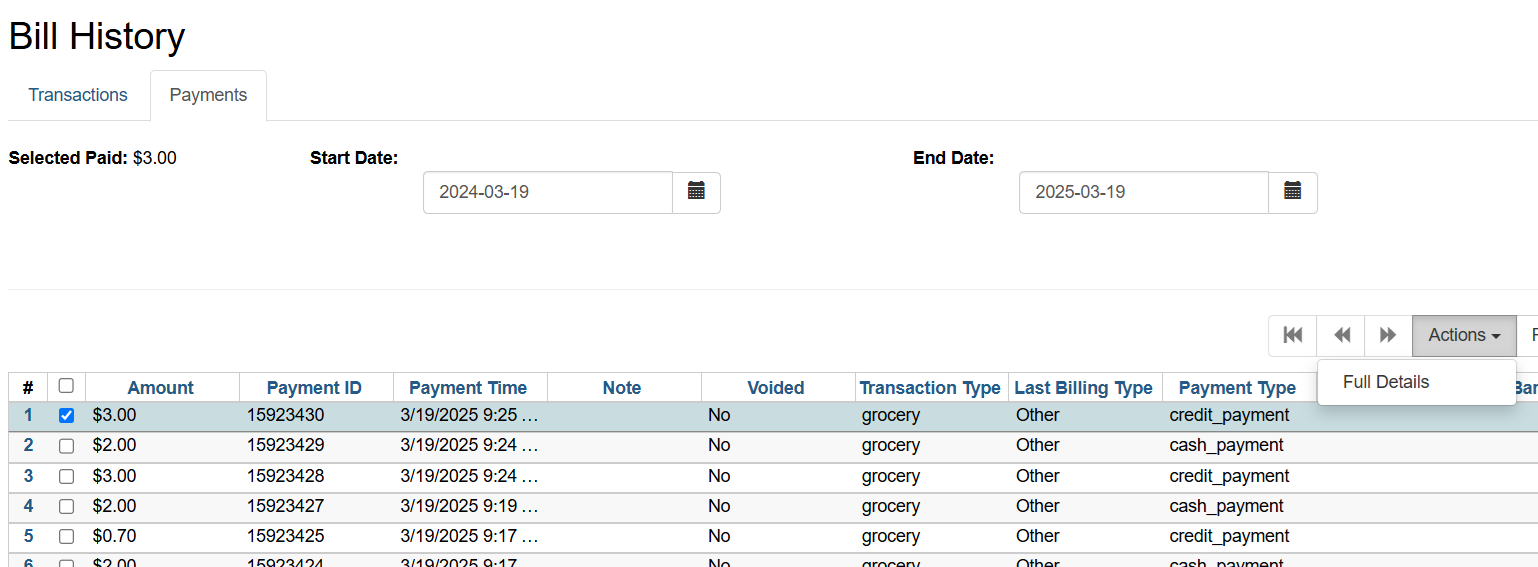
The full details of the transaction or payment will appear.
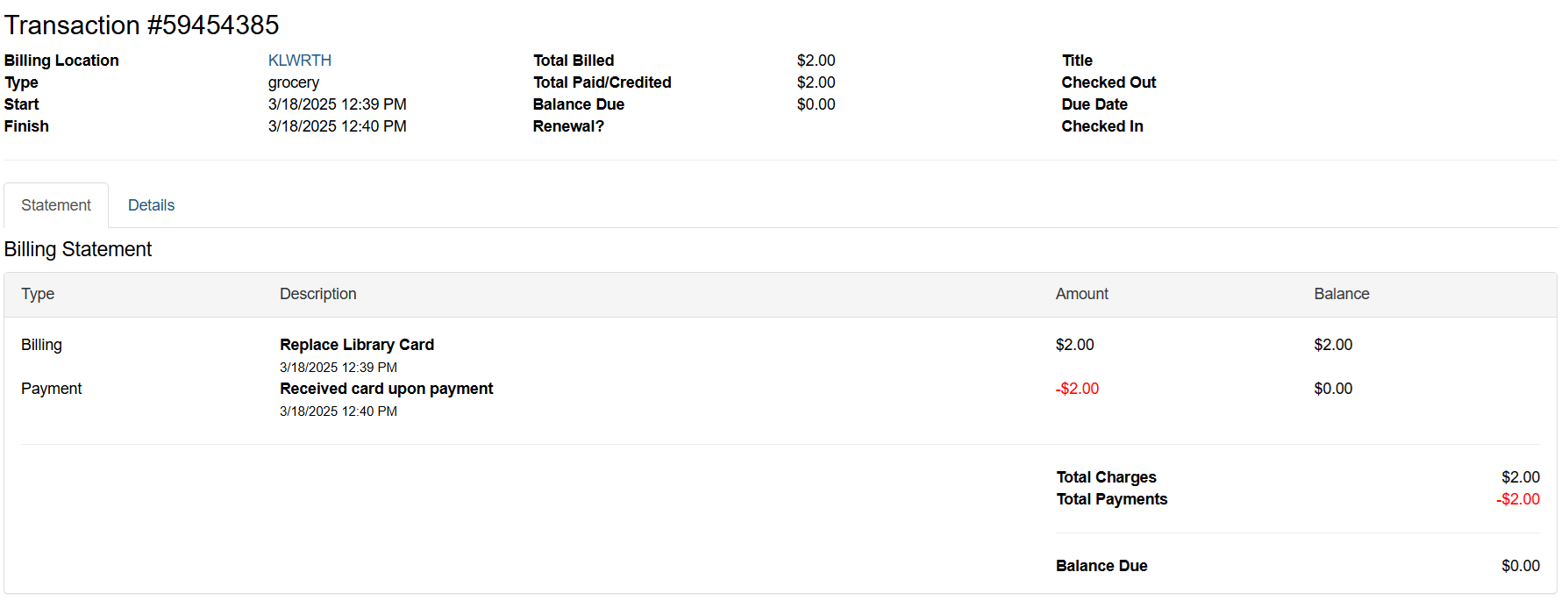
Paying for a Lost Item
An alert will be visible for lost items when you try to check out an item to a patron.
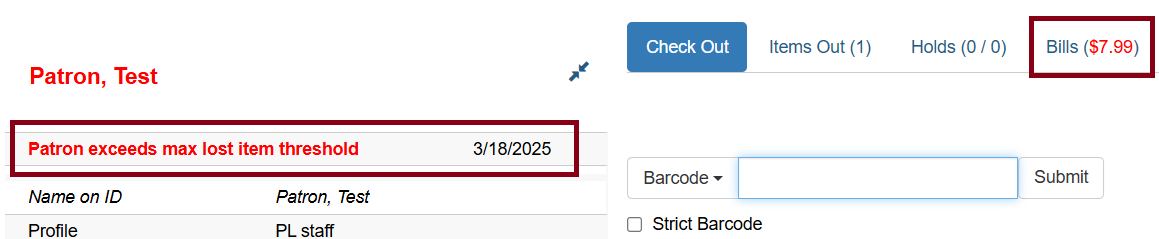
Click on Bills to view lost item(s).
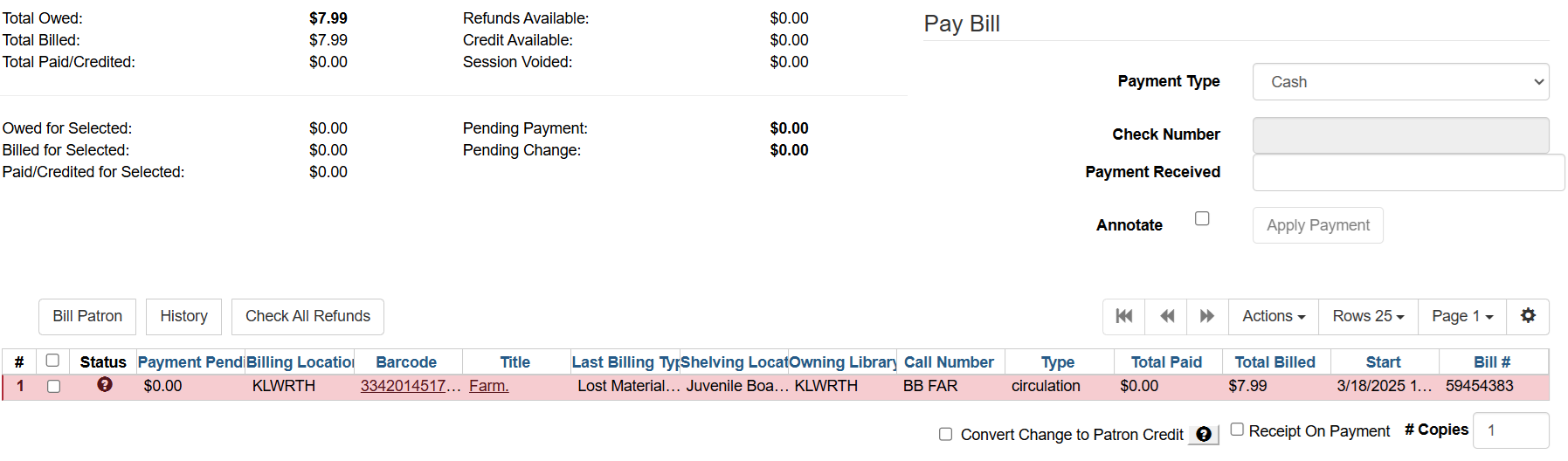
Select the correct item to be paid, as there may be more than one bill.
Fill in the payment details for the item. If you would like to place a note for the payment, check off Annotate. Click on Apply Payment button.
Once paid, the item is removed from the patron’s record.
You may need to refresh the screen to clear the exceeds max lost item threshold alert.
Online Payments with Stripe
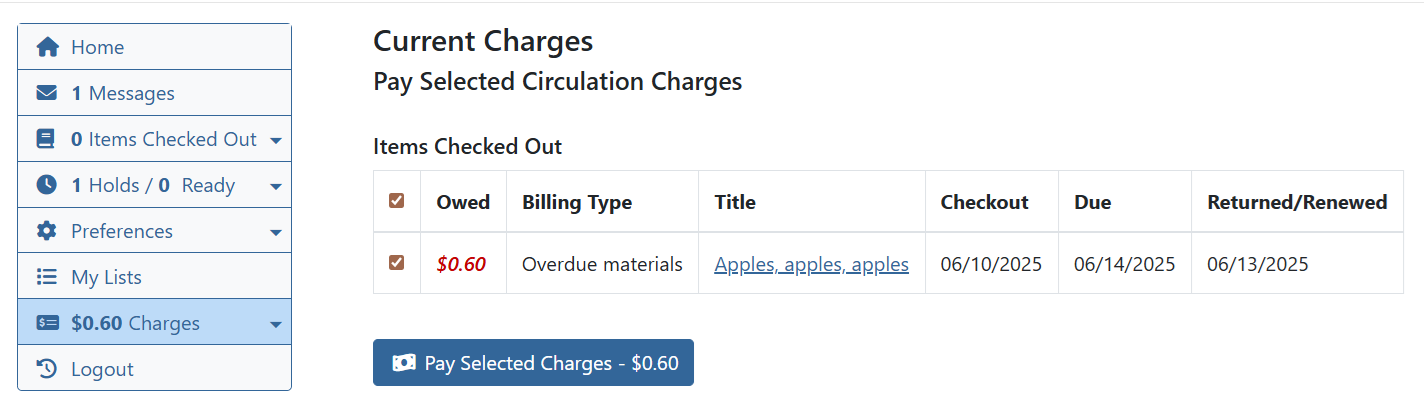
Online payments is an opt-in service that allows patrons to pay online with a credit or debit card through the OPAC. To opt-in, your library will need to submit a help desk ticket and sign up for a Stripe account. Stripe is the only credit card processing service that does not pass any information about the patron’s credit card to our servers or through our network when it is integrated with Evergreen. The information is sent to Stripe through the patron’s browser.
Stripe is certified to PCI Service Provider Level 1. This is the most stringent level of certification available in the payments industry. More information about Stripe and Security.
In order to get started, you will need to create an account with Stripe. You can do this by visiting their website. The rate for Stripe as of 5/23/23 is 2.9% + $0.30 per successful card charge. This rate is unchanged since at least 2018. There are no monthly payments or fees.
Once you have an account set up with Stripe:
-
You will provide Bibliomation two sets of API keys. These keys can be found in your Stripe account settings. The first set will be a test set that we will set up in our test Evergreen system so you can get a preview of how the feature functions in the catalog.
-
The second is your live set of API keys that we will use to activate the service in the live system when you are ready.
-
When the keys are sent, Bibliomation staff will send back a link for you to test if the accounts are set up properly. You can use the Stripe test cards to try it out and confirm it’s working when test payments go through.
| When the service is enabled, any patron whose record shows your library as their home library will be able to pay all fines and fees online. This will include fines and fees from other libraries, including lost item fees. Per state library guidelines, you are allowed to keep fines collected from other libraries. However, you must remit payment for lost materials to the owning library of the material. A report will be generated so that you can identify lost items from other libraries that were paid for online. Contact the owning library to find out their preferred method of payment. |
The patron will have the option of printing a receipt for their payment, or having the receipt emailed to them. The receipt currently includes title, due date, and transaction ID for each circulation that was paid for (whether for an overdue fine or for a lost item). It is on our wishlist to include item barcode on this receipt.
A refund policy statement will appear on the bottom of the payment form. The refund policy statement is customizable by library. Here are some examples of policy statements currently in use:
Important! You must have a printed receipt to be eligible for a refund on lost items (regulations allow for no exceptions) (Default wording)
Important! To be eligible for a refund on lost items, items must be returned within 6 months of the payment date. You must present a printed receipt as proof of payment. Refund amount will be amount paid minus any accrued fines on that item. Items not owned by Hall Memorial Library are not eligible for refunds.
Important! The C.H. Booth Library will not refund payments for lost or damaged materials under any circumstances.
Finally, Bibliomation can provide two reports. Please ask your help desk staff member about setting this up to recur:
-
Bills for Items Paid Online Owned by Other Libraries Monthly BIL 017.2
-
Online Credit Card Payments by Date Range BIL 018.1