Help and Support
This module provides guidance on how to request assistance, access support resources, and submit special requests for the Evergreen Integrated Library System.
Help Desk Support Overview
Bibliomation provides support to member libraries through a ticketing system. This streamlined approach ensures that all requests are properly documented, tracked, and resolved by the appropriate staff member.
|
When you create a support ticket, you should receive an immediate confirmation. If you do not receive this response, please contact the help desk directly. |
Any library staff member may open a help desk ticket, regardless of their role or permission level.
Creating a Support Ticket
Accessing the Help Desk
-
Log in to the Evergreen Staff Portal
-
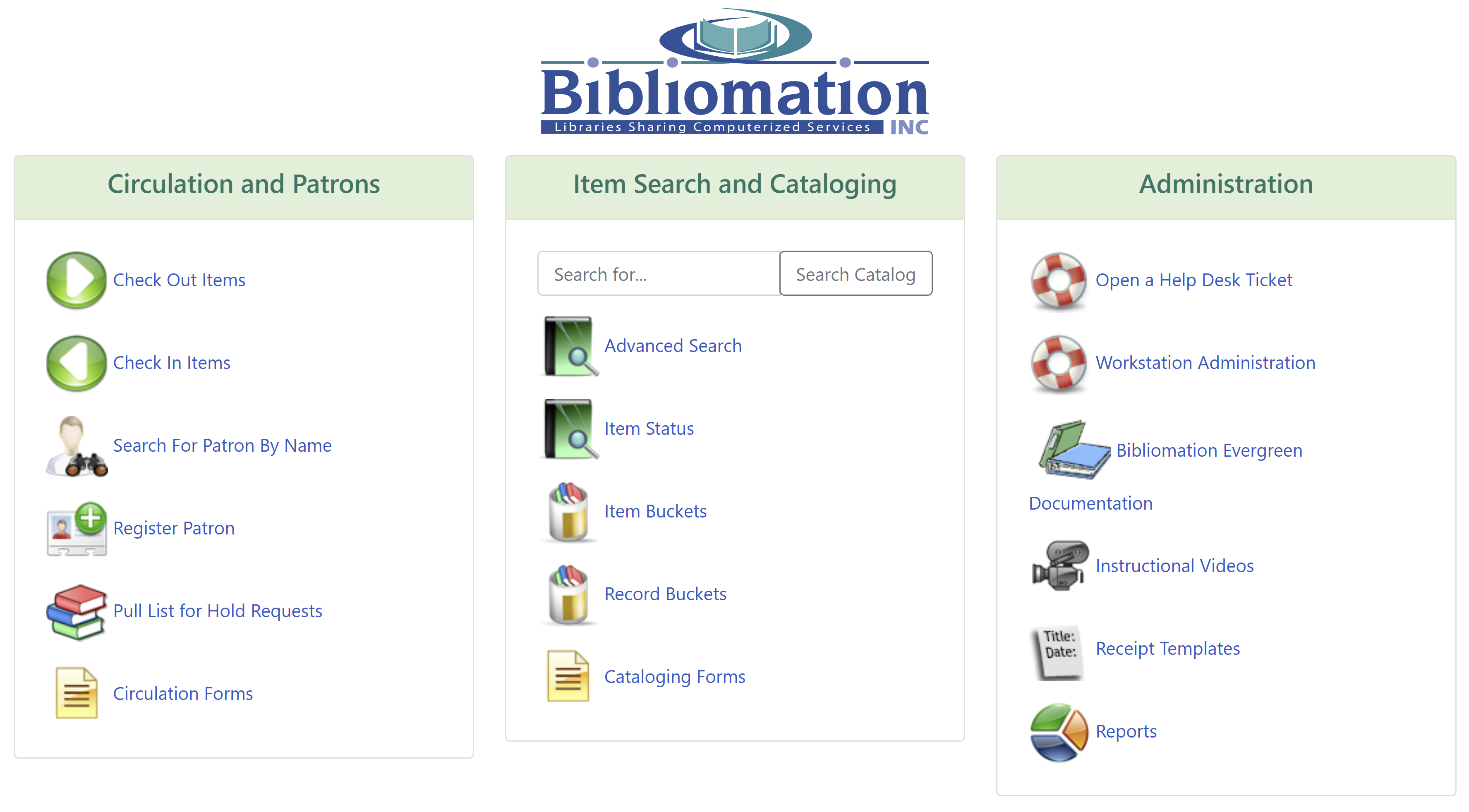
Find the Administration section on the Evergreen portal (splash screen/home page)
-
You can always return to the portal by clicking the house icon in the upper left corner of the green navigation bar
-
-
Click on the link to contact the Help Desk
-
Select Open a New Ticket

Providing Effective Information
To ensure prompt and accurate assistance, include the following information in your ticket:
-
Select the most relevant topic from the dropdown menu
-
This helps route your request to the appropriate staff member
-
Include your phone number and availability
-
If you work part-time, note when you will next be available
-
Indicate if another staff member should be contacted for follow-up questions
-
Select your library from the list
-
For computer-specific issues, include:
-
The name of the machine
-
The IP address (found by hovering over the VNC icon in the lower right corner of the screen near the clock - it typically begins with 10.129)
-
-
Provide a brief, descriptive subject line (e.g., "Item will not check out," "Hold not triggered," "Fines not correct")
-
Include all relevant information:
-
Item barcodes and titles
-
Patron barcodes (redacted as needed for privacy)
-
Your permission group(s)
-
The behavior you experienced
-
The behavior you expected
-
-
Attach screenshots if relevant to illustrate the issue
|
The more detailed information you provide, the faster your issue can be resolved. For computer problems, always include the machine name, IP address, and what you were doing when the issue occurred. |
Available Resources
This module contains the following help resources:
Request Forms and Procedures
-
Requesting Shelving Locations & Rule Changes - Instructions for requesting new shelving locations or circulation rule changes for your library.
Optional Services and Features
-
Opt-in Services - Additional services that Bibliomation libraries can enable for their patrons, including autorenewal, self-registration, curbside pickup, self-check, online payments, and more.
System Changes and FAQs
-
Print Overdue Notices FAQ - Detailed information about the new print notification system for overdue notices, including transition guidance and commonly asked questions.
Help Desk Process
When your ticket is received, the scheduled help desk staff member will:
-
Review and triage your request
-
Assign the ticket to the appropriate personnel based on the issue type
-
Ensure you receive updates on the status of your request
Bibliomation staff are committed to providing timely, accurate assistance to all member libraries.