Item Status
The Item Status screen is very helpful. Many actions can be taken by either circulation staff or catalogers on this screen. Here we will cover some circulation-related functions, namely:
Checking Item Status
-
To check the status of an item, select Search → Search for copies by Barcode.
-
Scan the barcode, or type it and click Submit. The current status of the item is displayed, with selected other fields.
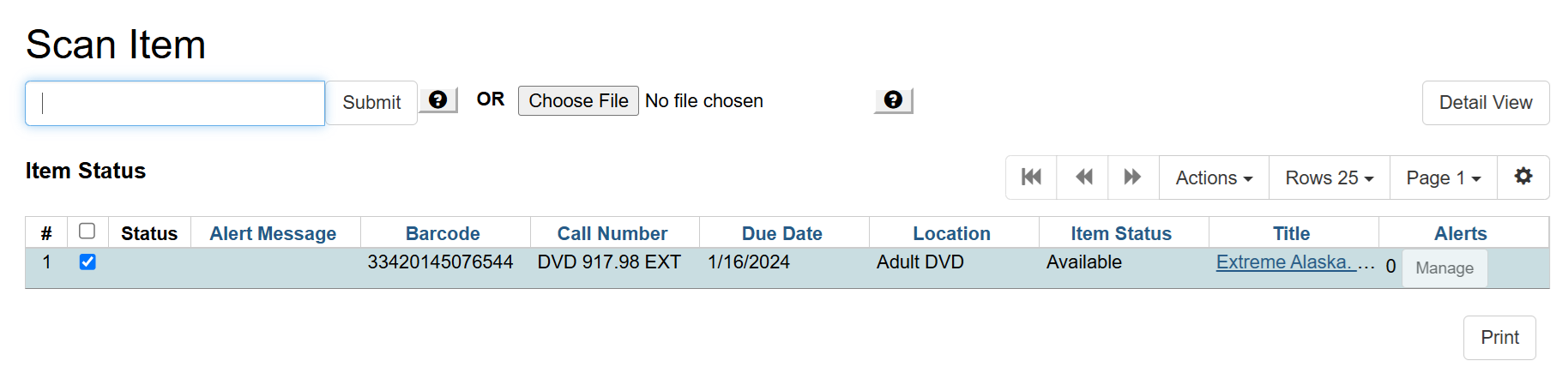 Figure 1. Item Status screen
 -
You can use the column picker to select more fields to view.
-
If you want to save the columns you added, for future sessions, click Save Columns from the column picker.
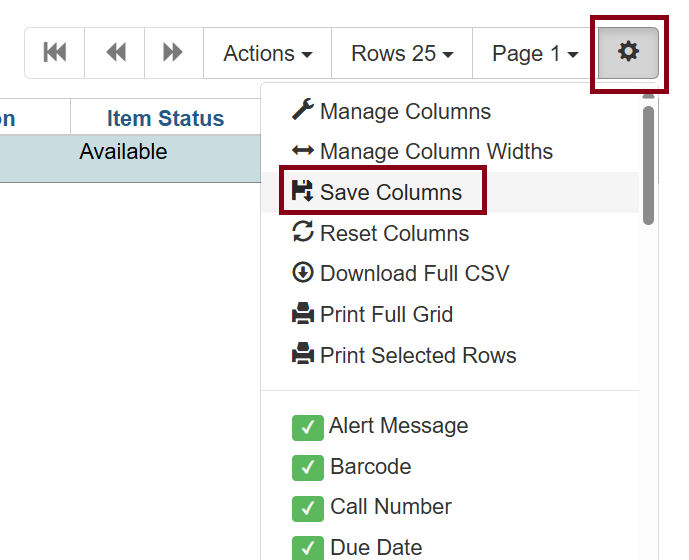 Figure 2. Column picker
 -
Click the Detail View button and the item summary and circulation history will be displayed.
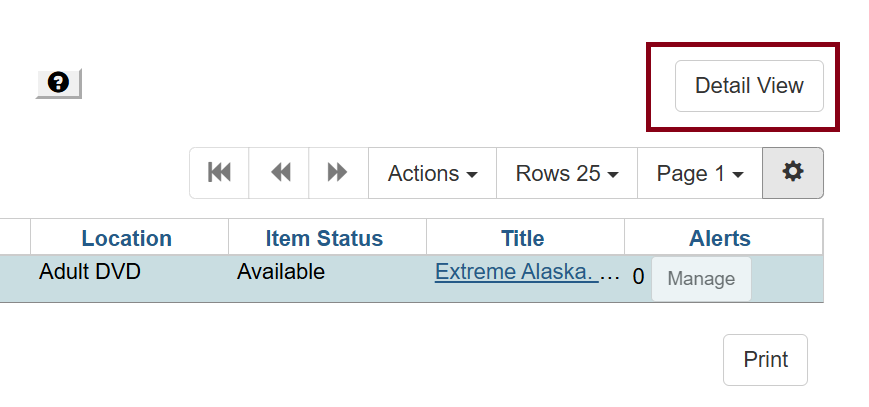 Figure 3. Detail view
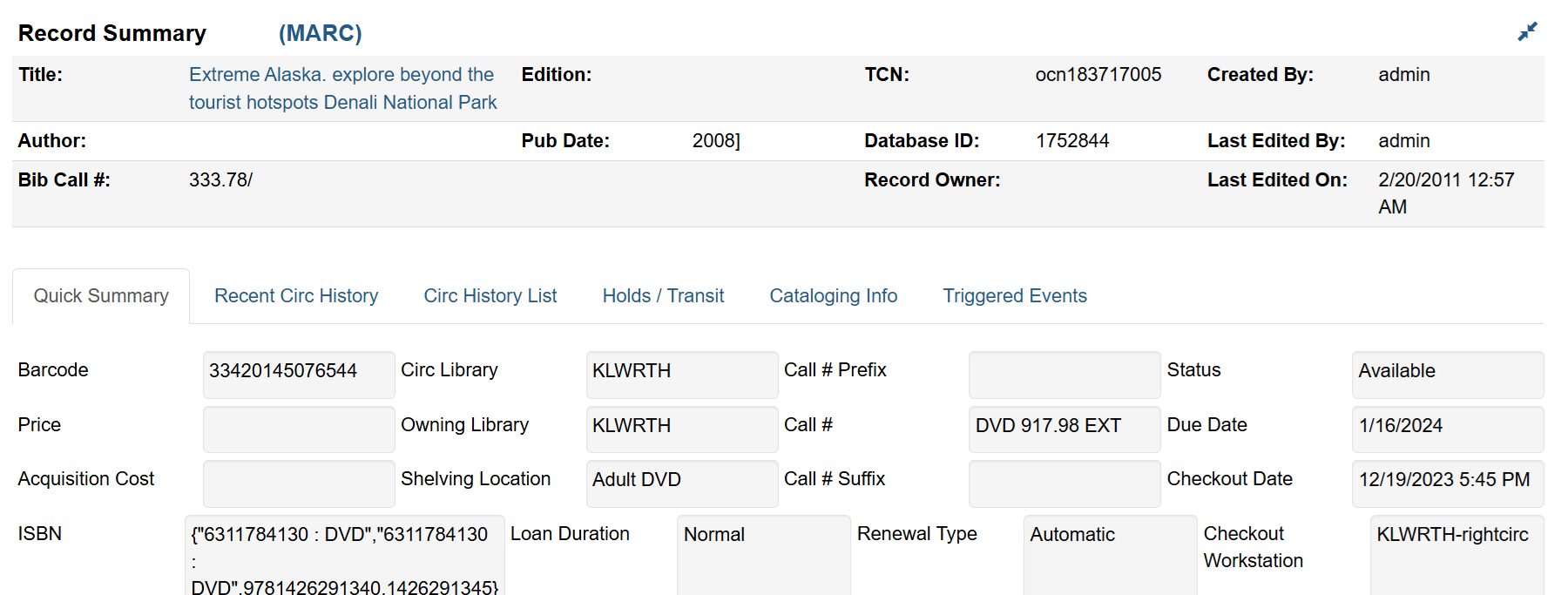 Figure 4. Detail view screen
 -
Click List View to switch back to the full list of items you’ve scanned in.
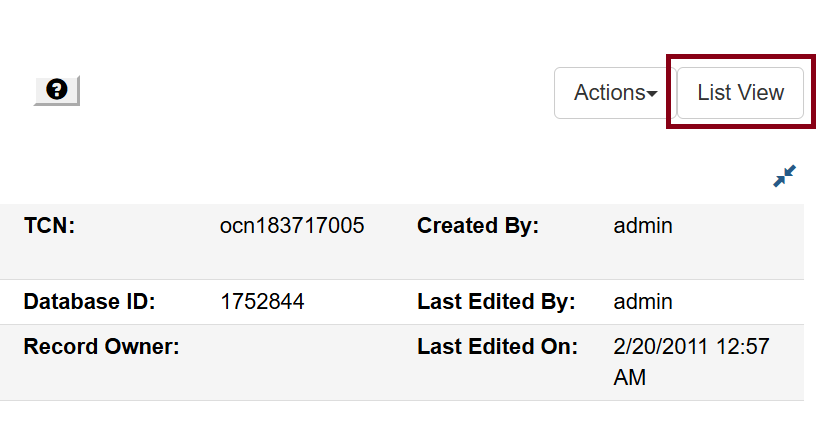 Figure 5. List view button
| If the item’s status is Available, the displayed due date refers to the previous circulation due date. |
Uploading Items from a File into Item Status
You can load a batch of items all at once. To do this, click Choose File and find the file saved on your computer.

The file should be a plain list of item barcodes, one per line. The file must be saved in simple text format (i.e. .txt file extension).
To ensure smooth uploading and further processing on the items, it is recommended that the list contain no more than 100 items. Use the drop down list to change the number of lines you wish to load in Item Status.
| One way to get a batch listing of barcodes: copy them from the barcode column on a statistical report you’ve downloaded, and paste them into a simple text file! |
View Past Circulations
-
Bring up your item in the Item Status screen as mentioned above with Scan Item by Barcode or going to Circulation → Item Status.
-
Scan the item barcode.
-
Select Detail View.
-
Choose Recent Circ History. The item’s recent circulation history is displayed.
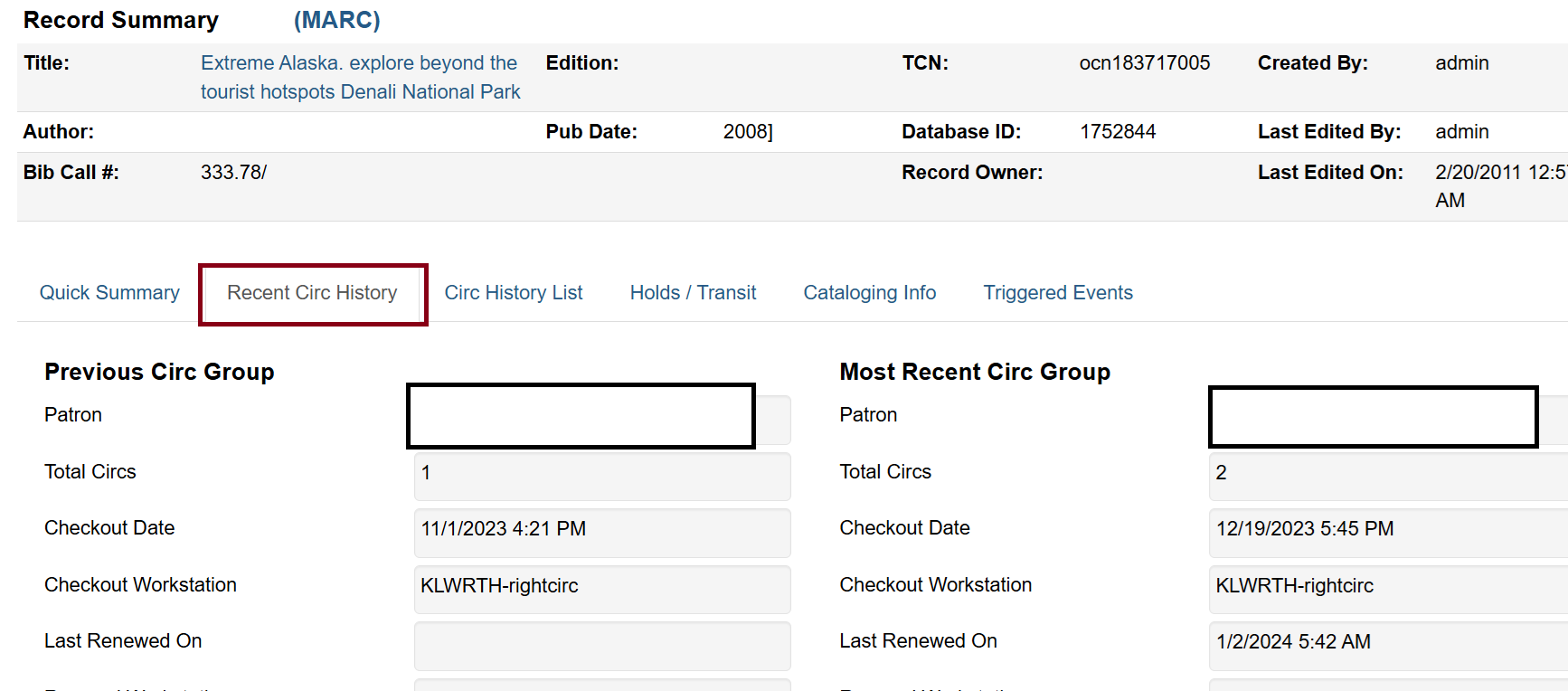 Figure 7. Recent Circ History tab
 -
You can also view a list of the last few circulations using the Circ History List tab. This screen will show up to the last 4 circulations, if they all occurred within the last year.
-
To retrieve the patron(s) of the last circulations, click on the name of the patron. The patron record will be displayed.
Mark Items Damaged, Missing, and Other Functions
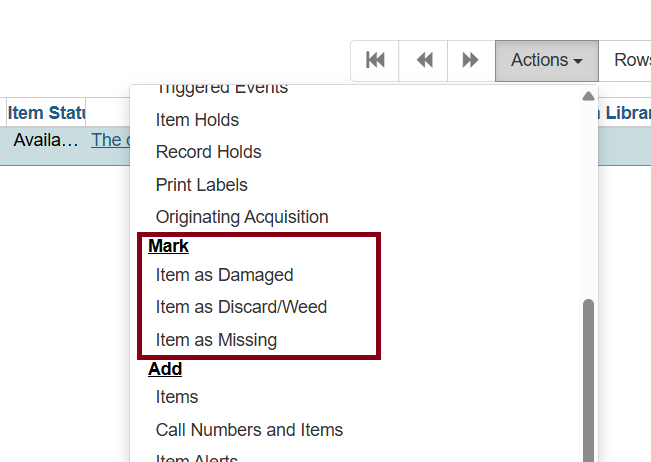
Select the item. Click on Actions for Selected Items → Mark as Damaged, Mark as Missing, or Mark as Discard/Weed.
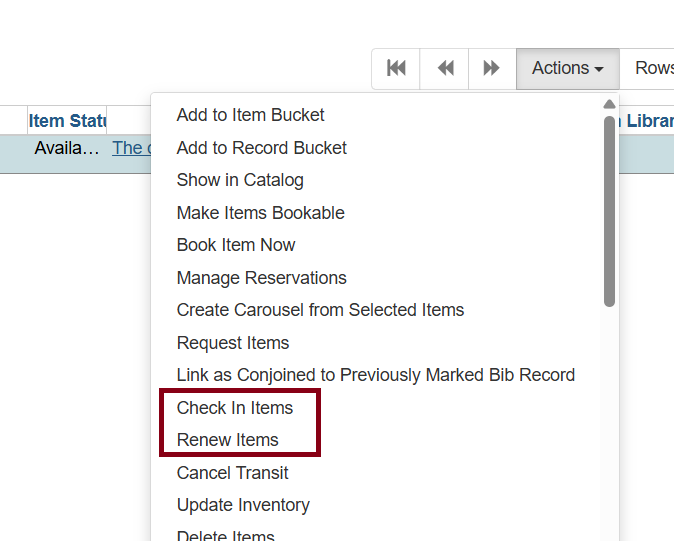
Following the above procedure, you can check in and renew items by using the Check In Items and Renew Items on the dropdown menu.
| Depending on the library’s policy, when marking an item damaged, bills (cost and/or processing fee) may be inserted into the borrower’s account. |
Placing Holds in Item Status
In previous versions of the Evergreen client, a hold placed in Item Status would not display hold notification preferences on the hold slip. However, holds from Item Status will now bring over their notification options.
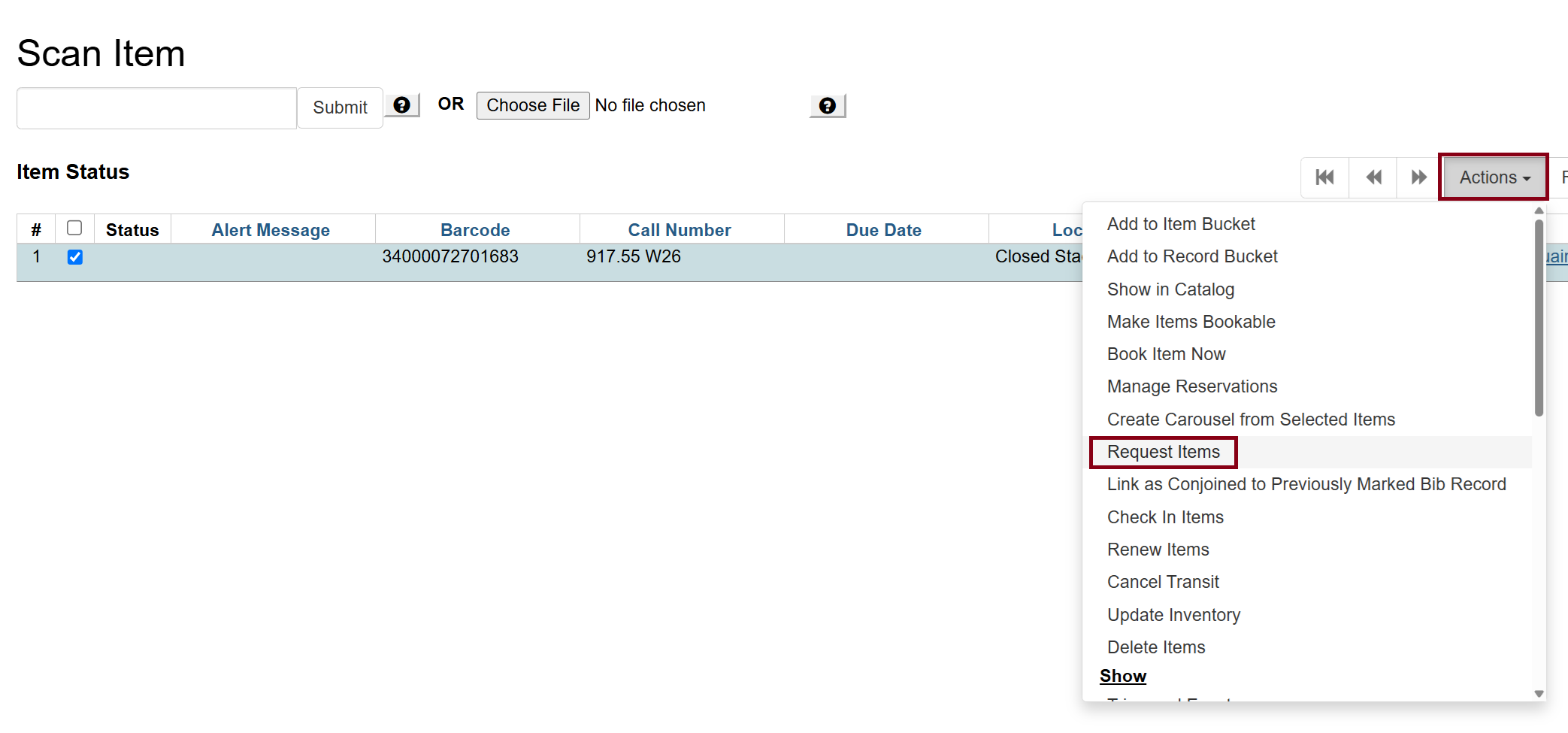
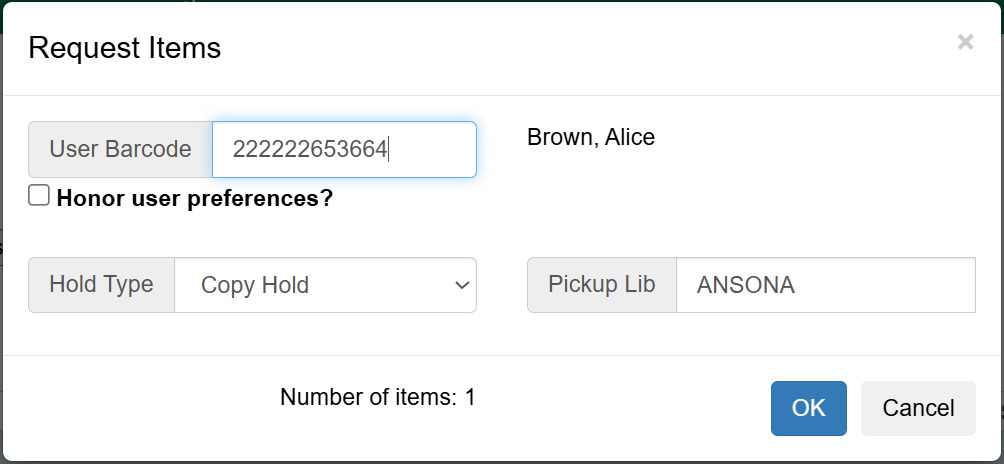
Hold Shelf Slip will display hold notification preferences if the Honor user preferences is checked.
Under Hold Type you can choose whether it is a title-level hold (for any copy listed on the same record – generally recommended), or a copy-level hold (for a single specific individual copy).