Transit List
Overview
The Transit List provides a way to view and manage items that are in transit to or from your library within a specified time period. This tool helps track items in motion and can assist with identifying items that may be delayed in transit.
Accessing the Transit List
-
Navigate to Administration > Local Administration.
-
Select Transit List from the menu options.

Figure 1. Transit List Option in Local Administration Menu
Generating a Transit List
-
On the Transit List screen, you’ll see options to configure your report.
-
Set the Start Date for the period you want to review. The default is usually the current date.
-
Optionally adjust the End Date if you want to see a specific date range.
-
Choose whether to display items Transit To or Transit From your library using the toggle options.
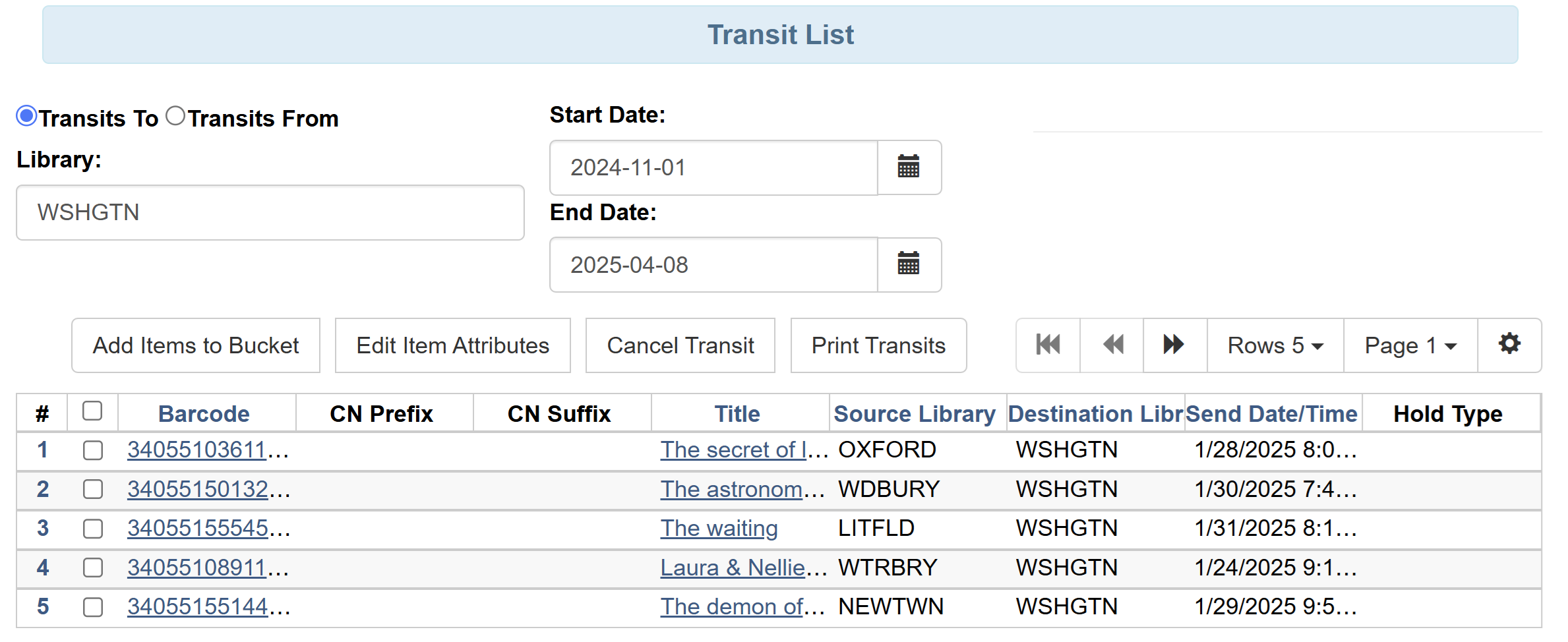 Figure 2. Transit List Configuration Screen