Searching
Basic Search
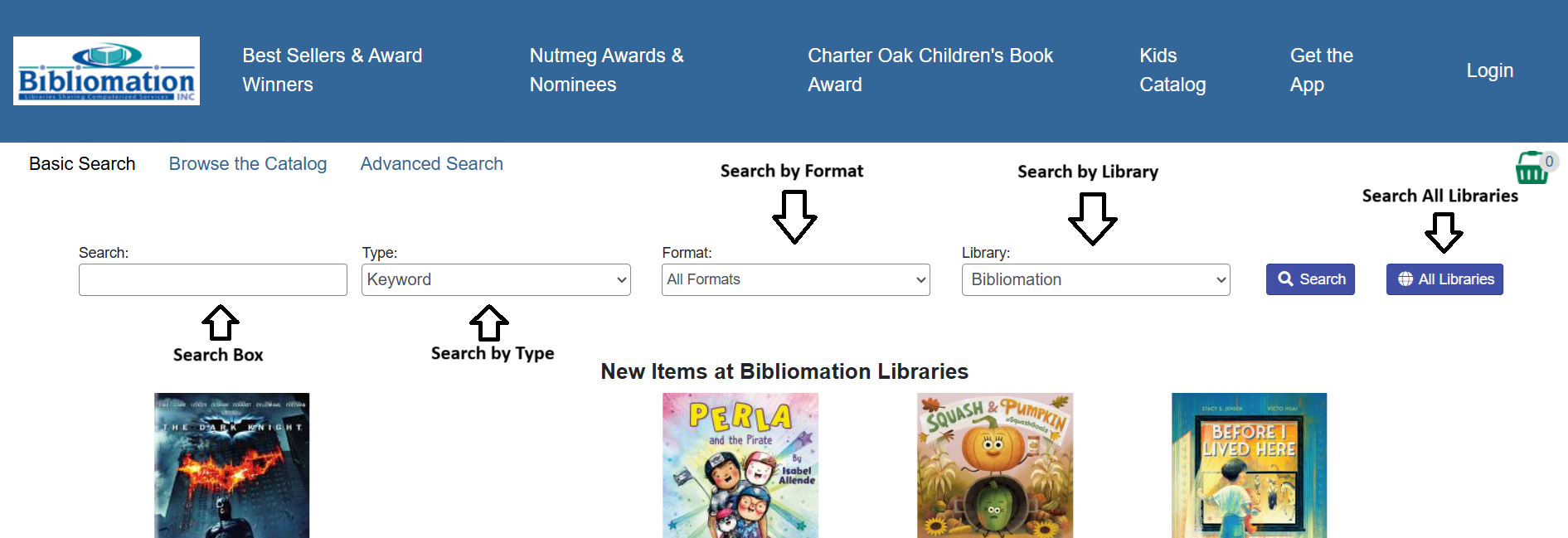
The homepage contains a single search box, similar to Google, to search for items. You can search by:
-
Keyword (default) – find terms anywhere in the item record
-
Title – words in the title
-
Author – the author’s name
-
Subject – finds terms in the subject field of the record
-
Series – the name of the series
-
Call Number – the call number of the item
Formats
You can limit your search results to a specific format. The format options are as follows:
-
All Formats
-
All Book (includes large print and regular print)
-
All Music (includes CDs and cassette tapes)
-
All Videos (includes blu-rays, DVDs, and VHS)
-
Audio Cassette music recording
-
Blu-ray
-
Braille
-
Cassette audiobook
-
CD audiobook
-
Downloadable audiobooks
-
Downloadable ebooks
-
DVD
-
Equipment, games, toys
-
Kit
-
Large Print Book
-
Map
-
Microform
-
Music score
-
Phonograph music recording
-
Picture
-
Playaway
-
Serials and magazines
-
Software and video games
-
VHS
Libraries
By default when you go to http://opac.biblio.org you will be searching all libraries in the Bibliomation network.
To limit to just your local library collection, click the dropdown under Library: and select your local library. If you are viewing the catalog from within the library or from your library’s website, the collection should already be restricted to just your items.
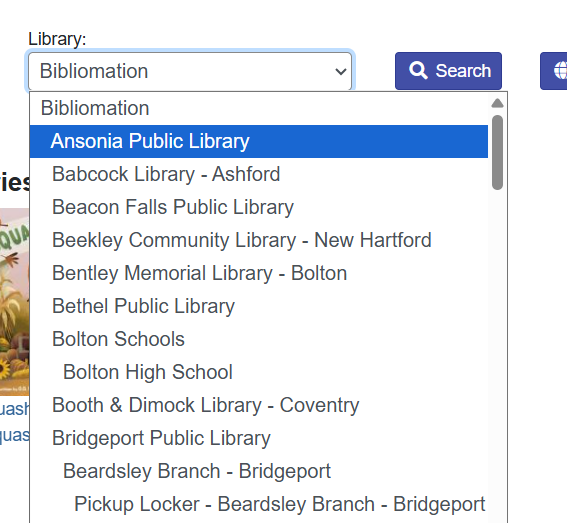
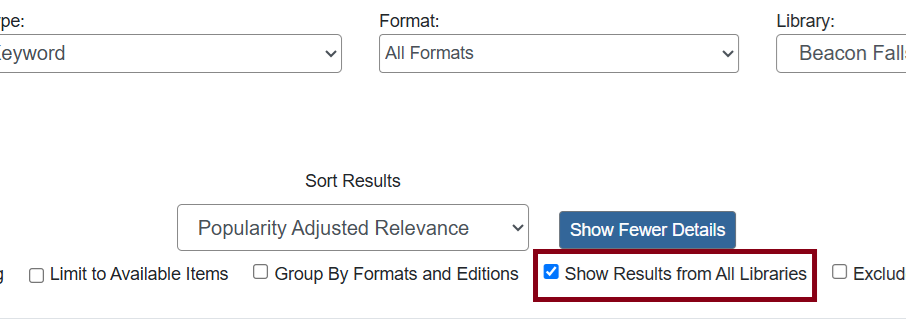
You can click the Show Results from All Libraries checkbox after performing your search to expand out to all libraries without needing to choose Bibliomation as your search library.
Advanced Search
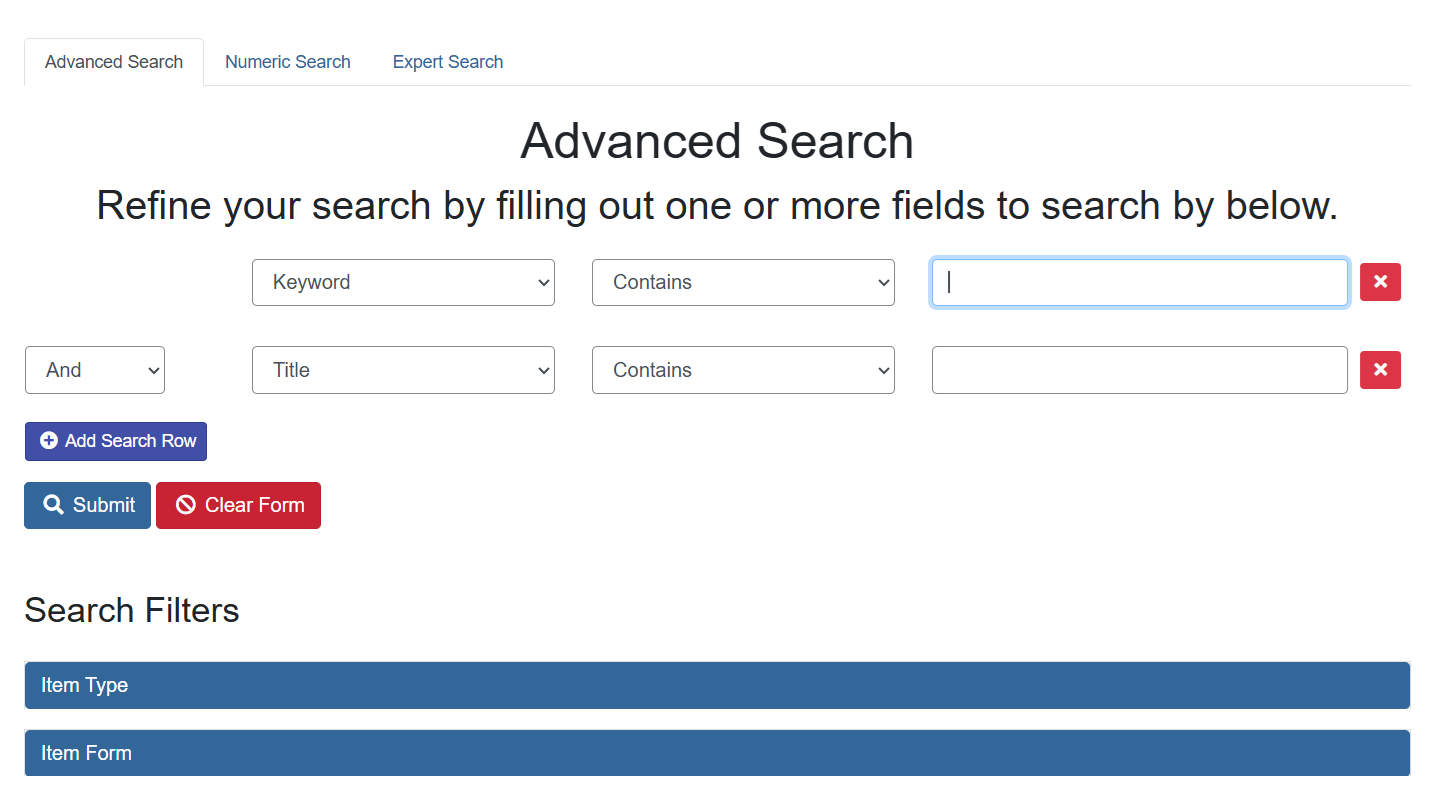
Advanced search lets you search with more than one search term and refine your search by limiting results by different criteria.
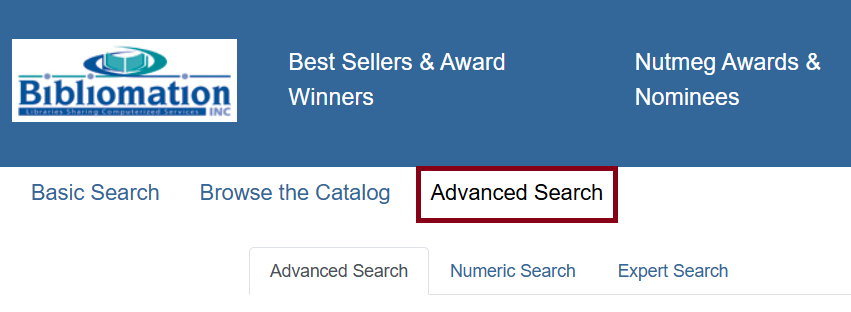
You can access the Advanced Search options by clicking on Advanced Search on the homepage or on the left-hand side of the search results.
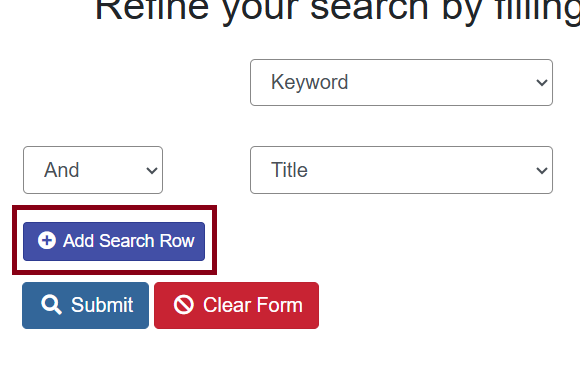
To add more search terms than just the three options supplied, click on Add Search Row as needed under Search Input.
Search Filters
Search filters are a means to further refine your search results. You can also use these filters without entering search terms. You can filter or limit on:
-
Item Type – type of items (books, audiobooks, video recordings, etc)
-
Item Form – format of items (books, large print, microfiche, etc)
-
Audience – adult, juvenile, etc
-
Language
-
Literary Form – fiction or nonfiction items
-
Publication Year – you can set the publication date before, after, or between certain years
Sort Criteria
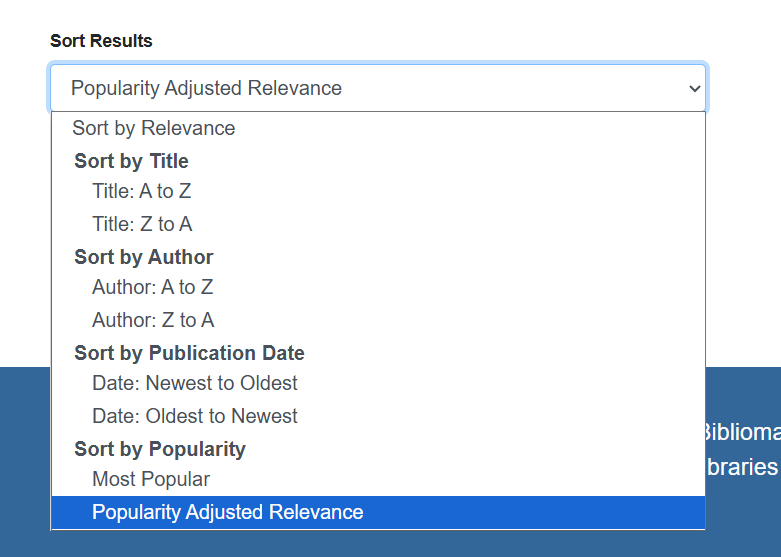
By default, search results will sort by Popularity Adjusted Relevance, from most to least. Popularity is calculated by how often the item is borrowed, with preference given to print materials and newer items. Relevance is calculated by the number of matches for your search terms within the catalog record.
You can change the sort results to Title, Author, or Publication Date. To change the sort options, scroll down the Advanced Search form and access the dropdown menu under Sort Results.
Search Tips
You do not need to enter the author’s last name first, nor do you need an exact title or subject heading. Evergreen is also forgiving about plurals and alternate verb endings. If you enter "dogs", Evergreen will also find items with “dog”.
-
Do not use an "AND" operator to join search terms.
-
Don’t worry about extra spaces, exact punctuation, or capitalization.
-
Enter your search words in any order.
Ex: A search for “compass golden” gives the same results as a search for “golden compass”. -
Use specific search terms. Evergreen will search for the words you specify, not the meanings, so choose search terms that are likely to appear in an item description. For example, the search luxury hotels will produce more relevant results than nice places to stay.
You can form more complex searches using the Advanced Search features.
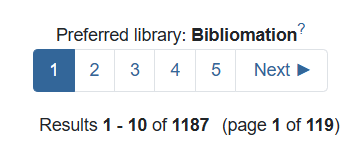
After submitting your search, the results that are displayed are divided into pages if your search produced many results.
You can jump between pages by clicking the numbers or Next which are located to the right of the number of results. When searching all locations in the Bibliomation catalog you will see a display similar to one located below.
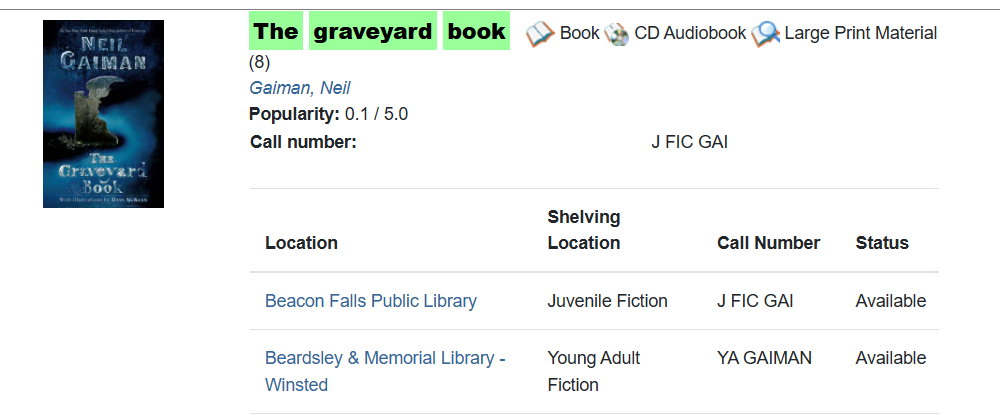
Under the title, brief information listing the author, publisher, publication date, and format is listed, in addition to library holdings and availability.
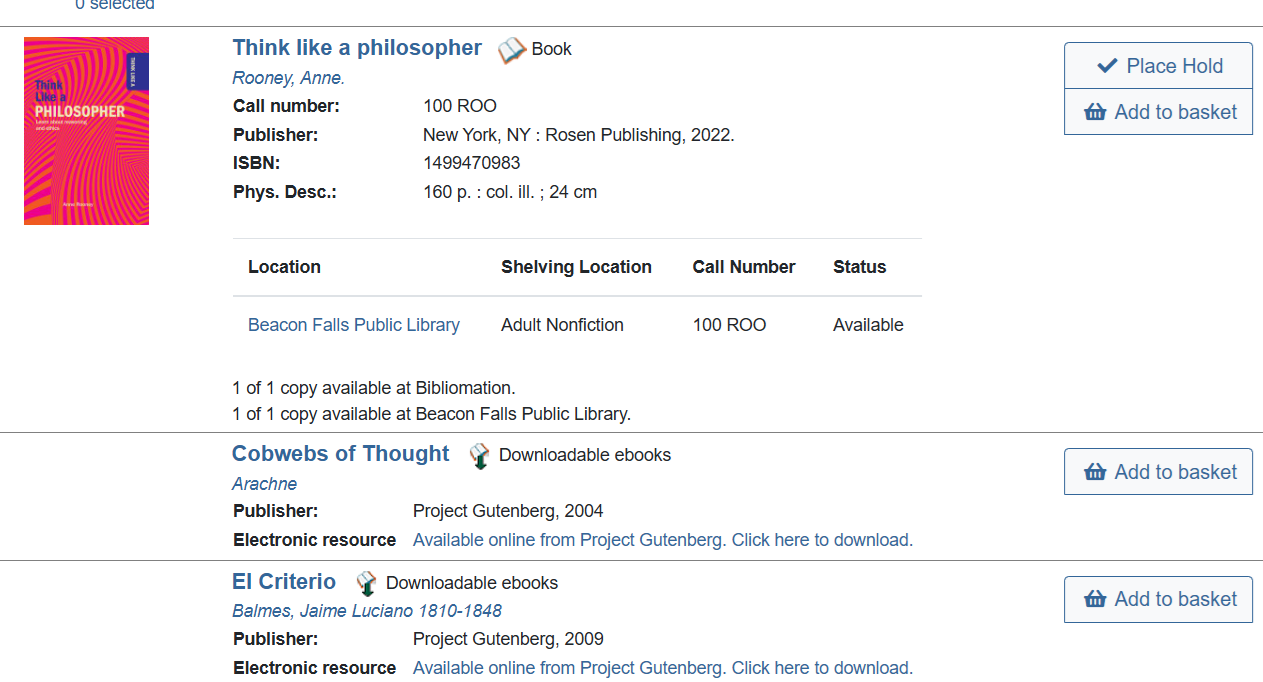
You can request an item from the result display or click on the title to go into more details of the item such as other library locations and availability. You can also click on the author to find other items by the author.
Refining Your Search Results
Highlighting
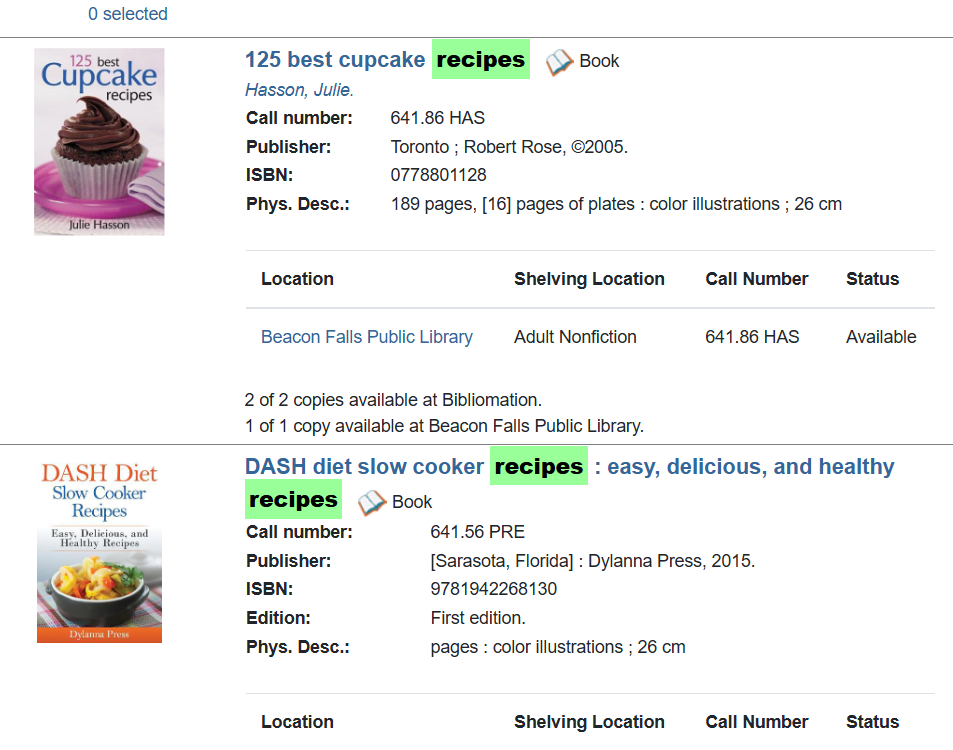
When navigating through the search results, your search terms will be highlighted in green. To disable this feature, click the Disable Highlighting checkbox.
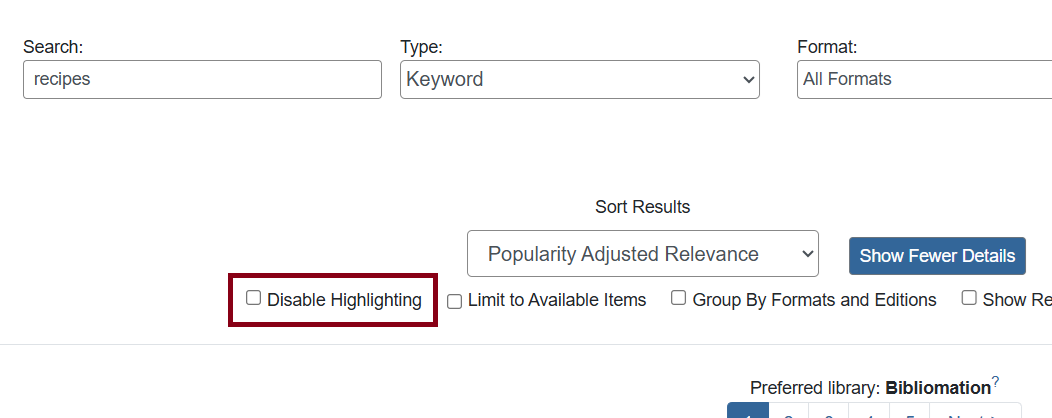
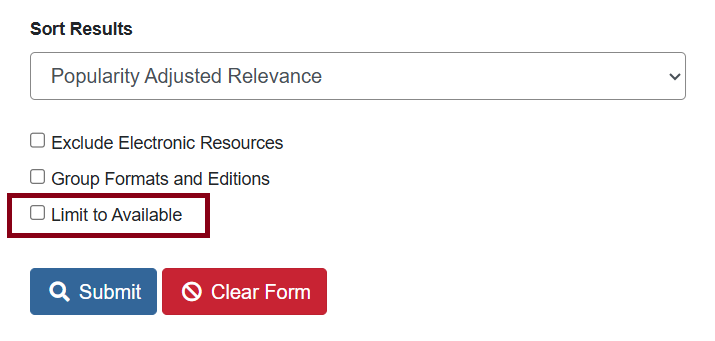
Limit to Available
An additional Limit to Available option is available after searching. Click the checkbox to filter to available items.
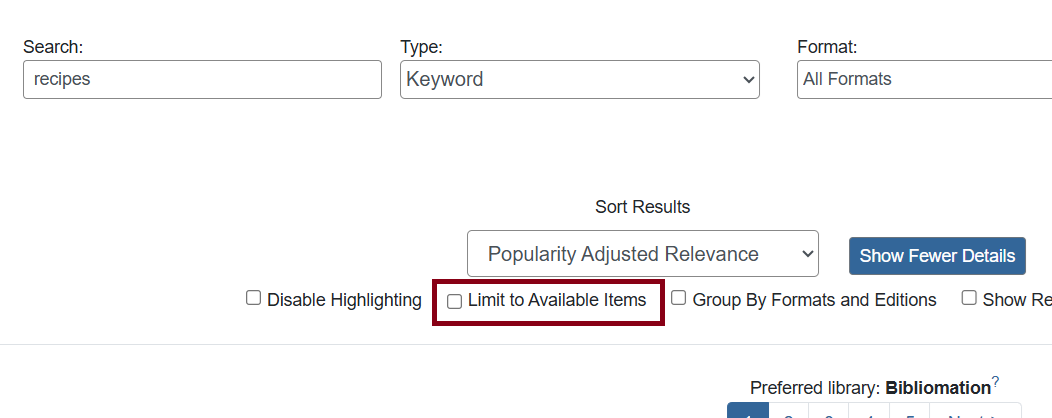
Group by Formats and Editions
Checking Group by Formats and Editions will show records with different formats grouped together by title and author.
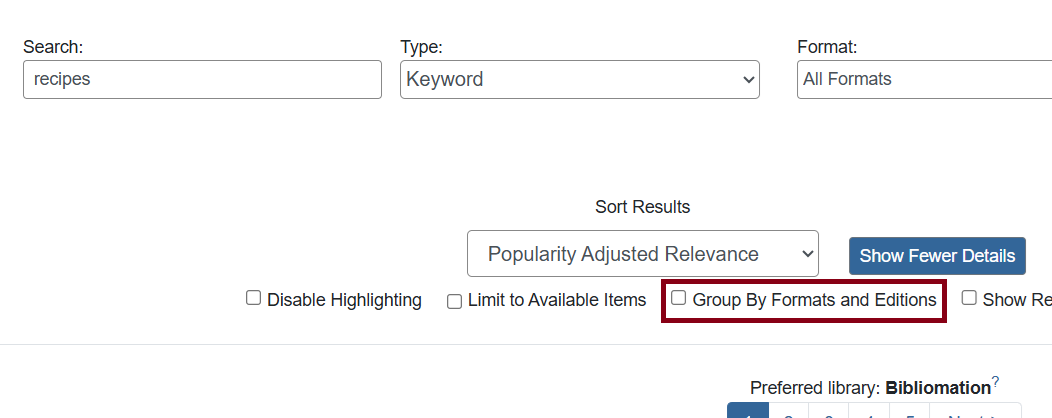
If you click Place Hold from the grouped search results, you will be given the option to place your hold on all of the grouped records, or just certain formats.
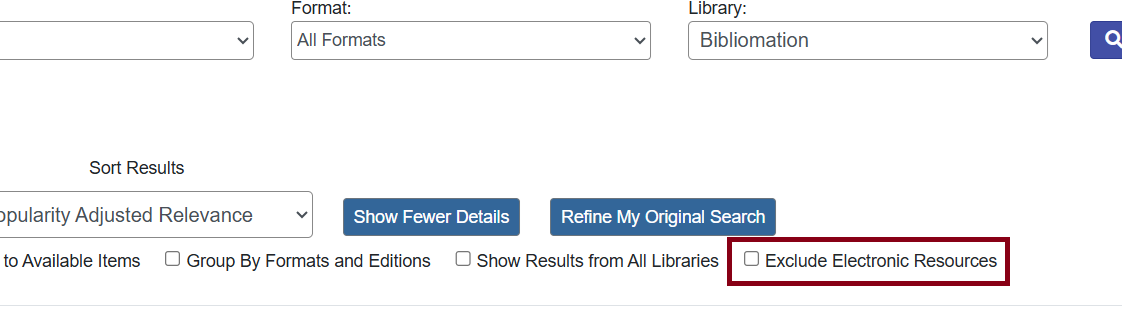
Exclude Electronic Resources
Check Exclude Electronic Resources if you wish to only search physical items in your library, and exclude ebooks and downloadable audiobooks. Note that in most cases, you will only see electronic resources when searching a specific library due to licensing restrictions.
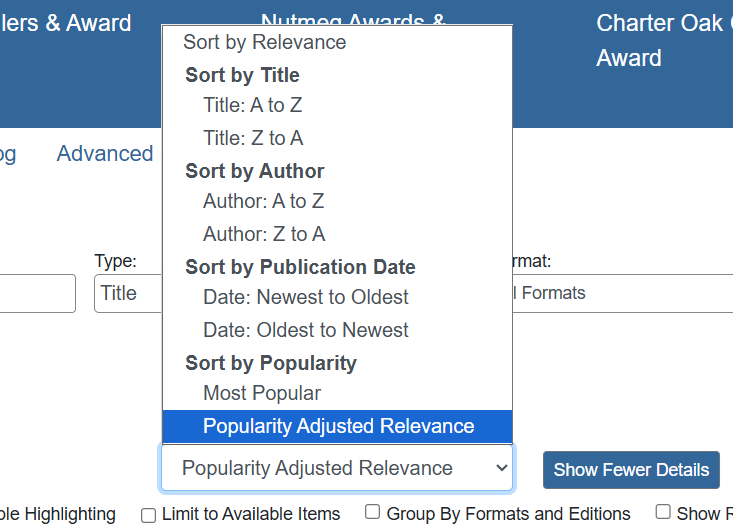
Sorting Results
You can also sort the results by clicking on the drop-down box under Sort Results after searching.
If you have restricted your search to a specific location, your search results will look slightly different. That library’s items will be the only ones listed, but the results page will tell you that there are other copies within the network of libraries. You can click See Results for All Libraries to show items at all libraries.
You can further refine your search results by using Advanced Search.
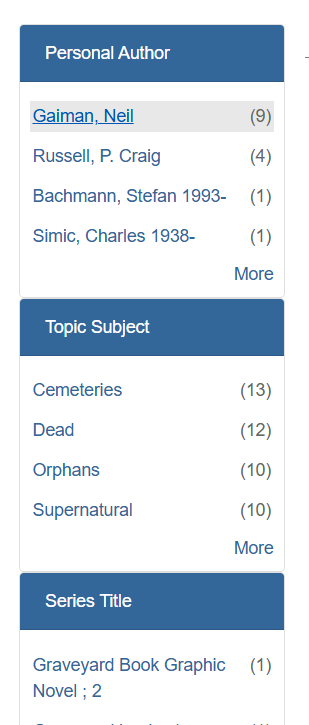
Related Subjects, Authors, and Series
To the left of the search results, relevant subjects, authors, and series are listed. Clicking on any of these links will begin a new search instead of refining the current search.
Viewing a Specific Record
Click on a title to view detailed information including availability, barcode, physical location in the library, descriptive information (author, publisher, copyright, physical description, abstract, author notes, subjects, etc).
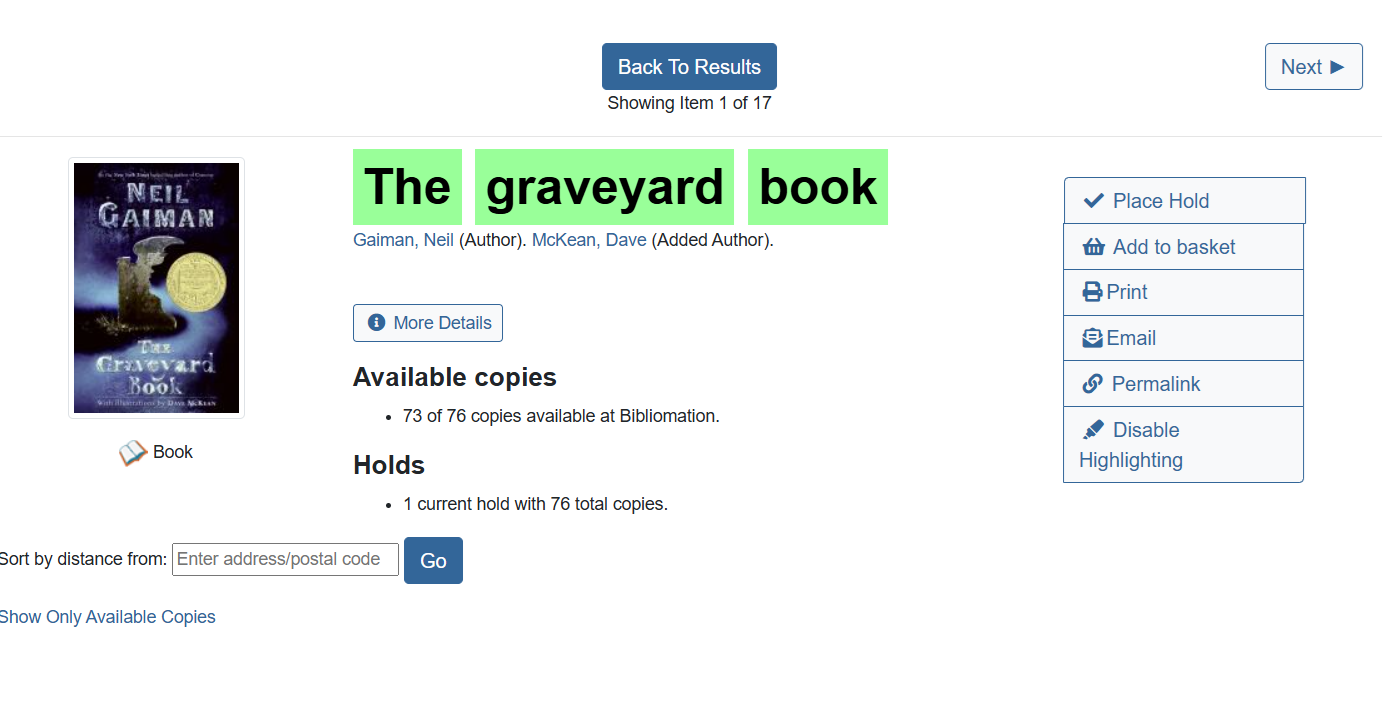
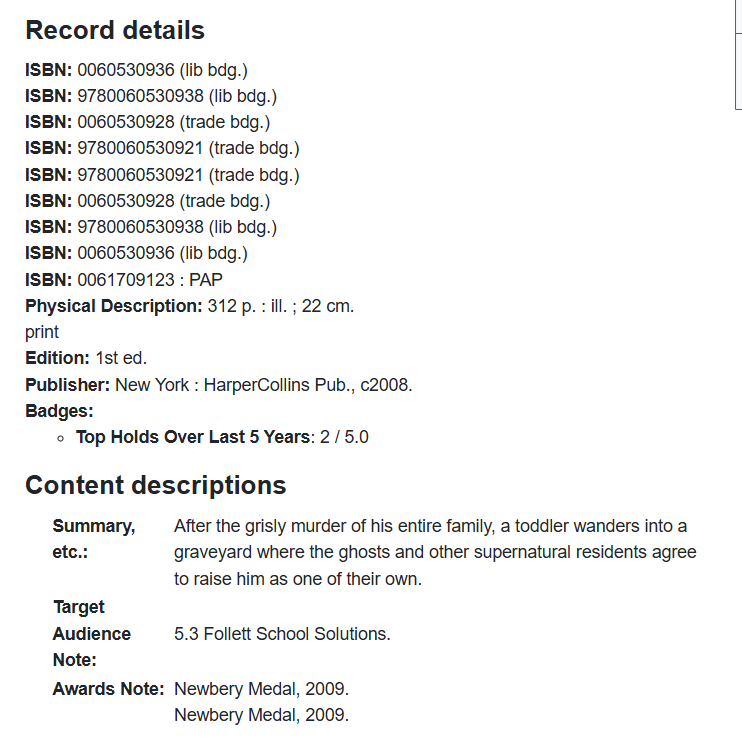
Record Details
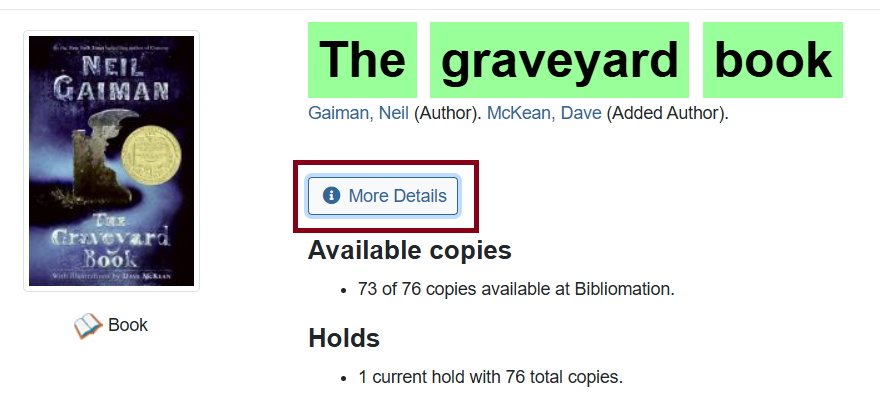
The item details show information such as Title, Author, ISBD, Edition, Publication Date, Publisher, Physical Description, Format, Abstract or Summary (if available), and Subjects. You can click on any subject listed to conduct a new search on that subject. To access this information, click on More Details.
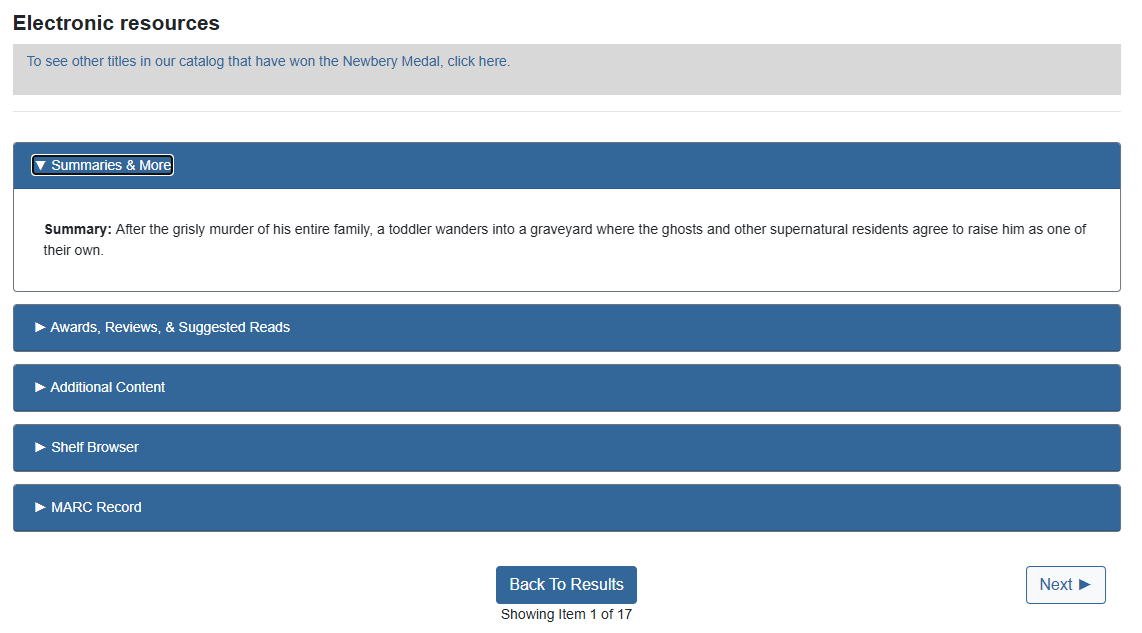
To view more information, scroll down the record to find more expandable options:
-
Summaries & More
-
Awards, Reviews, & Suggested REads
-
Additional Content
-
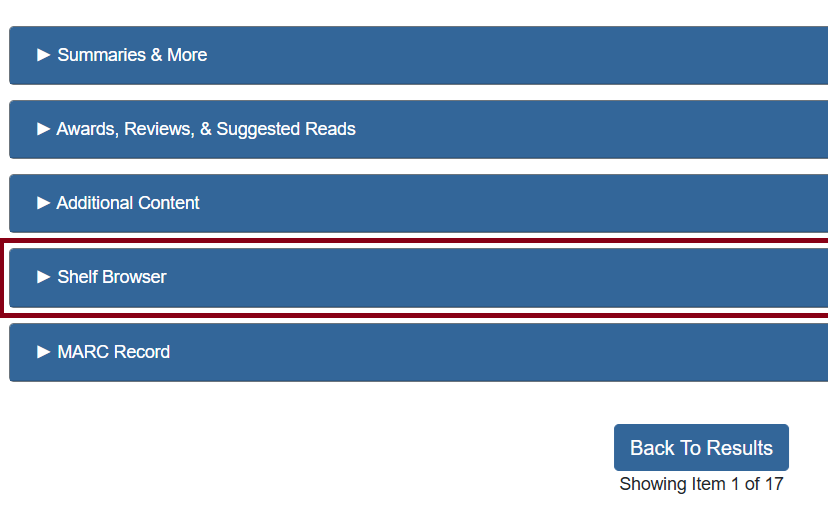
Shelf Browser
-
MARC Record
Click on the links to expand the menus.
Syndentics Unbound
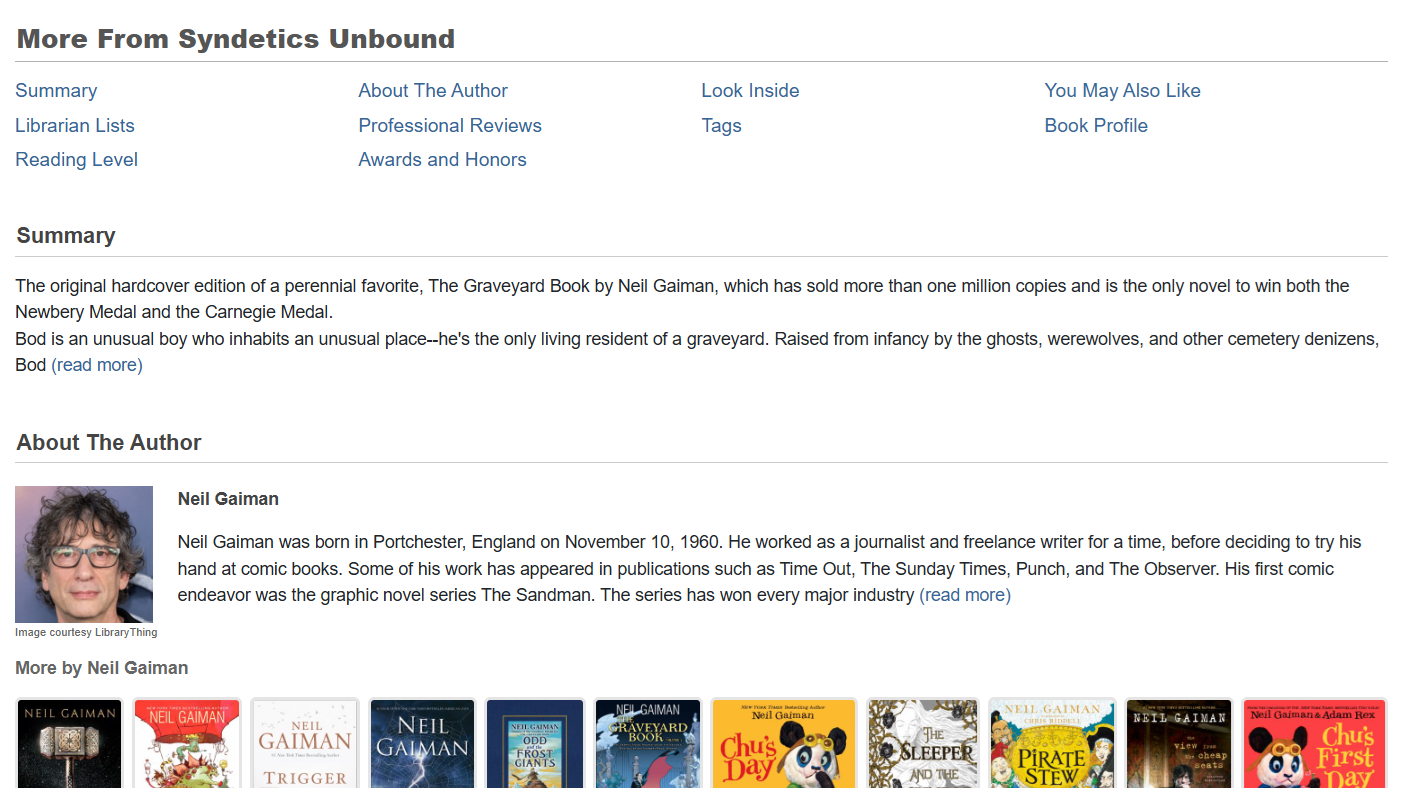
When you scroll lower in the item record, you’ll find the Syndentics Unbound feature.
This is an additional service that gives more information about the item you’re viewing, the author/creator, and other materials you can view that are like the search result.
For example, viewing The Graveyard Book has more information on the author Neil Gaiman, other books he’s written, and read-alikes.
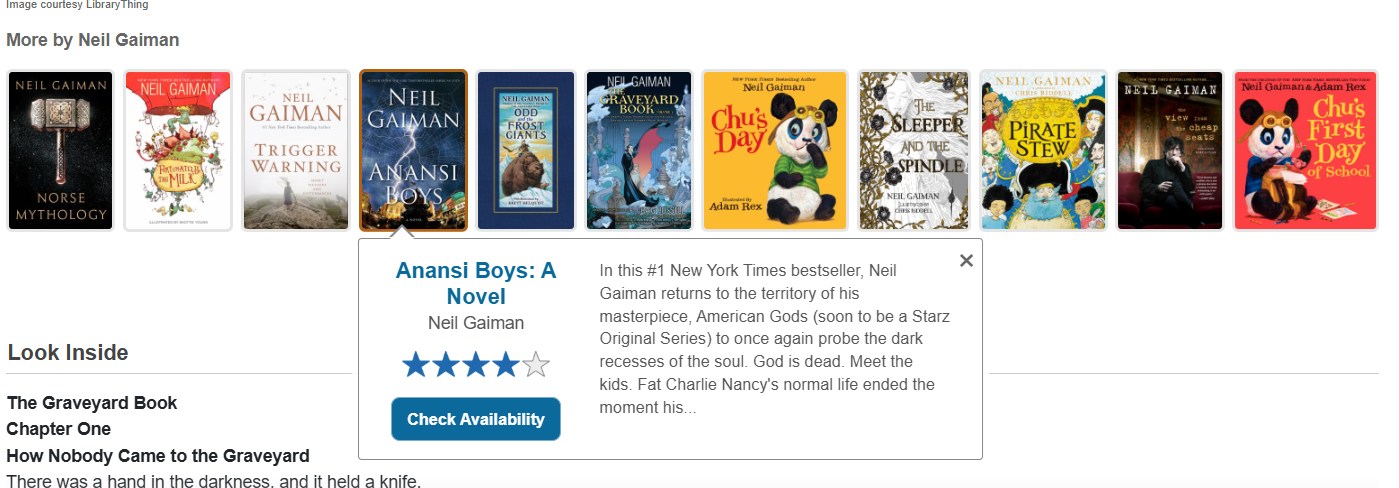
When looking at other materials, you can mouse over the covers to find more information or perform a search to see if the catalog can find results from that selection.
Library Information Links
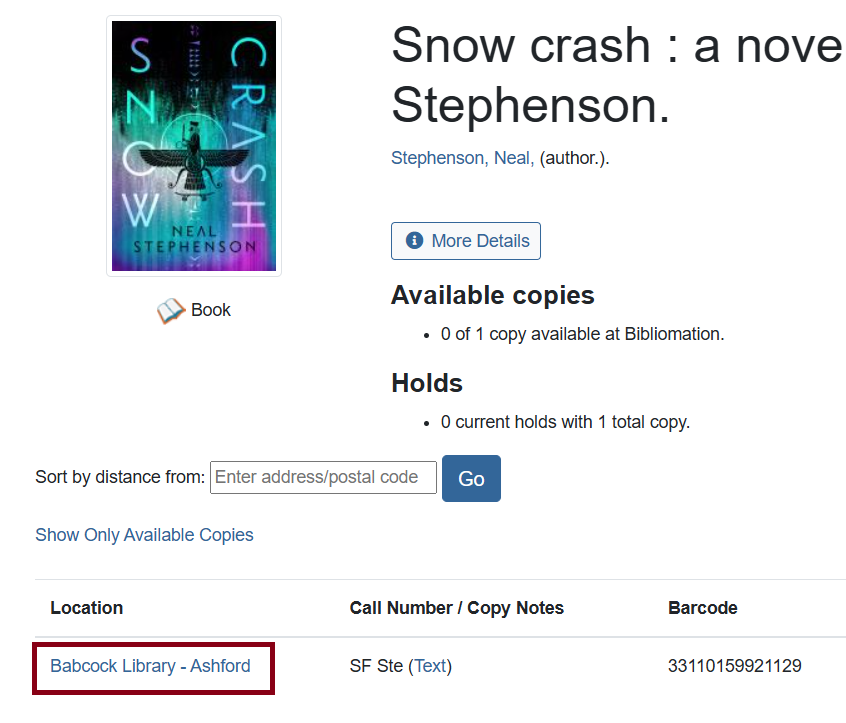
When viewing a record, you can click on the library name link within the in the item table under Location.
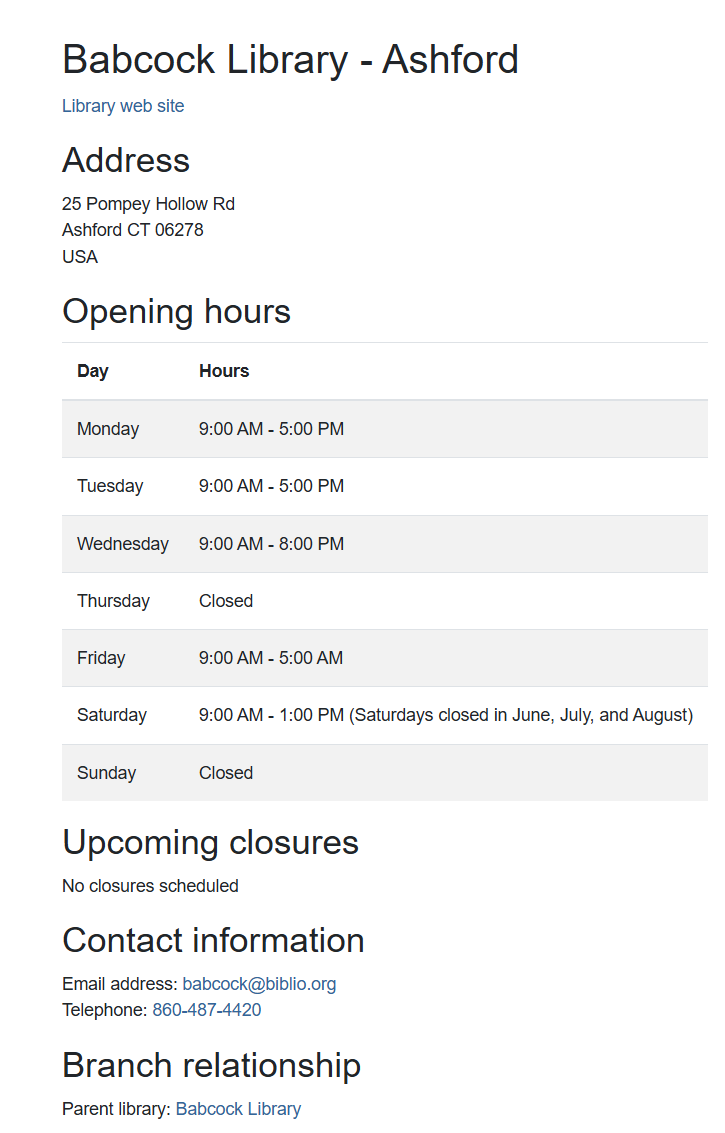
This will open in a new tab with the library’s information such as hours of operation, address, etc.
Shelf Browser
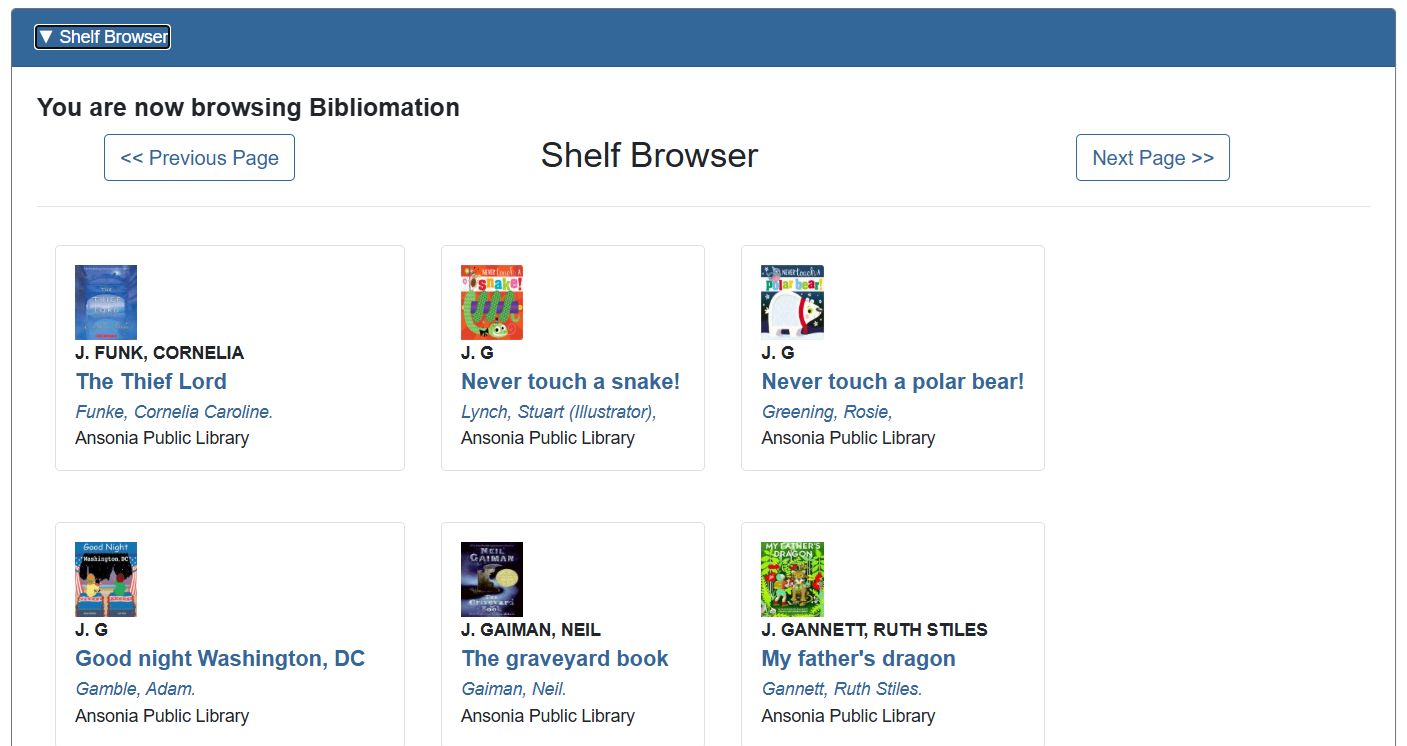
Clicking on the Shelf Browser will show you items that are located next to and near the item you are viewing as if you were standing in front of the shelf. You can click on any of these titles or authors to be brought to that item record.
To use it, view a specific record and scroll down to see the option.