Search Catalog
Overview
Search the Evergreen catalog using the same core fields as the OPAC: Keyword, Title, Author, Subject, Series, ISBN/UPC. Defaults: Keyword, All Formats, your Preferred Library. From results you can open detail, place a hold, add the title to an existing list, or copy availability information.

|
Great for quick stack checks: use the ISBN/UPC scan instead of typing on a small keyboard. |
Quick Search Workflow
-
Tap Search Catalog.
-
(Optional) change Search Type, Format, or Library.
-
Enter text OR tap the scan icon to capture an ISBN/UPC (search type switches automatically).
-
Review results; tap a title for detail & actions.
-
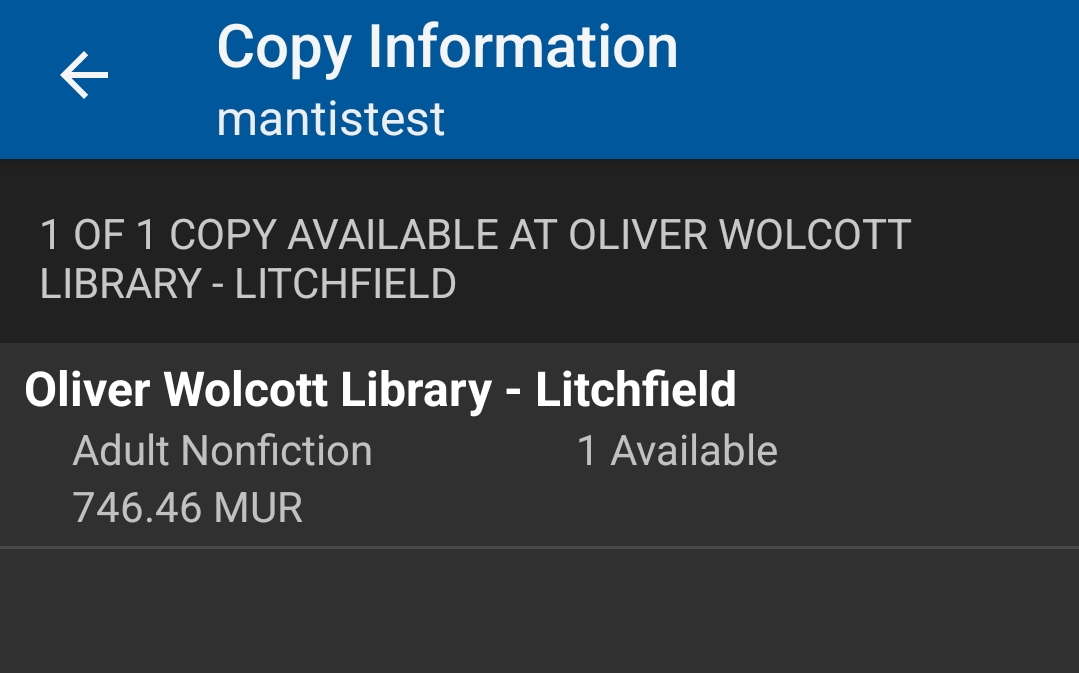
From Item Detail choose Place Hold, Add to List (existing lists), or Copy Info (availability + call number text).
Search Form & Controls
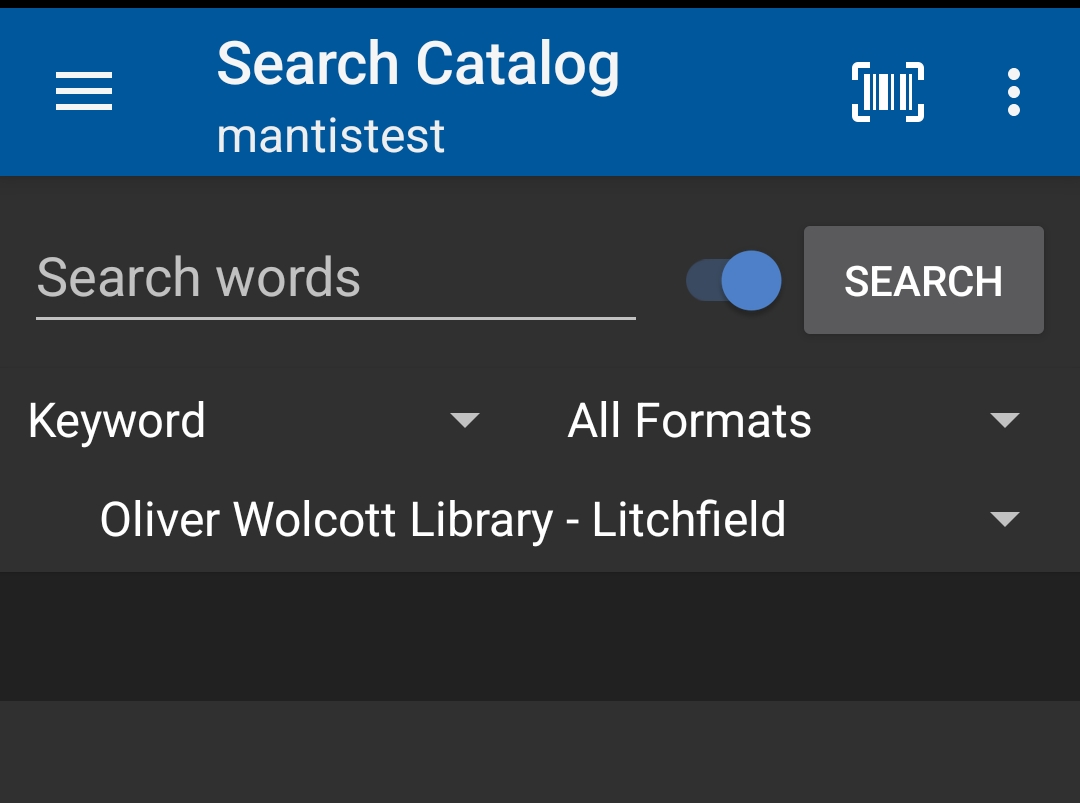
The search bar sits atop four adjustable elements:
Control |
Purpose |
Notes |
Search Type dropdown |
Changes field being queried (Keyword, Title, Author, Subject, Series, ISBN/UPC) |
Defaults to Keyword. Selecting scan icon also flips this to ISBN/UPC automatically. |
Format dropdown |
Limit to a material type |
Exact list mirrors OPAC; examples: Book, Large Print, DVD, eAudiobook. |
Library selector |
Scope to preferred or another library / system |
Defaults to patron Preferred Library. Broader searches possible by changing scope. |
Scan (barcode icon) |
Open device camera / Google Lens style capture |
Fills the search box with the scanned code and sets type to ISBN/UPC. |
Search Type (Field)
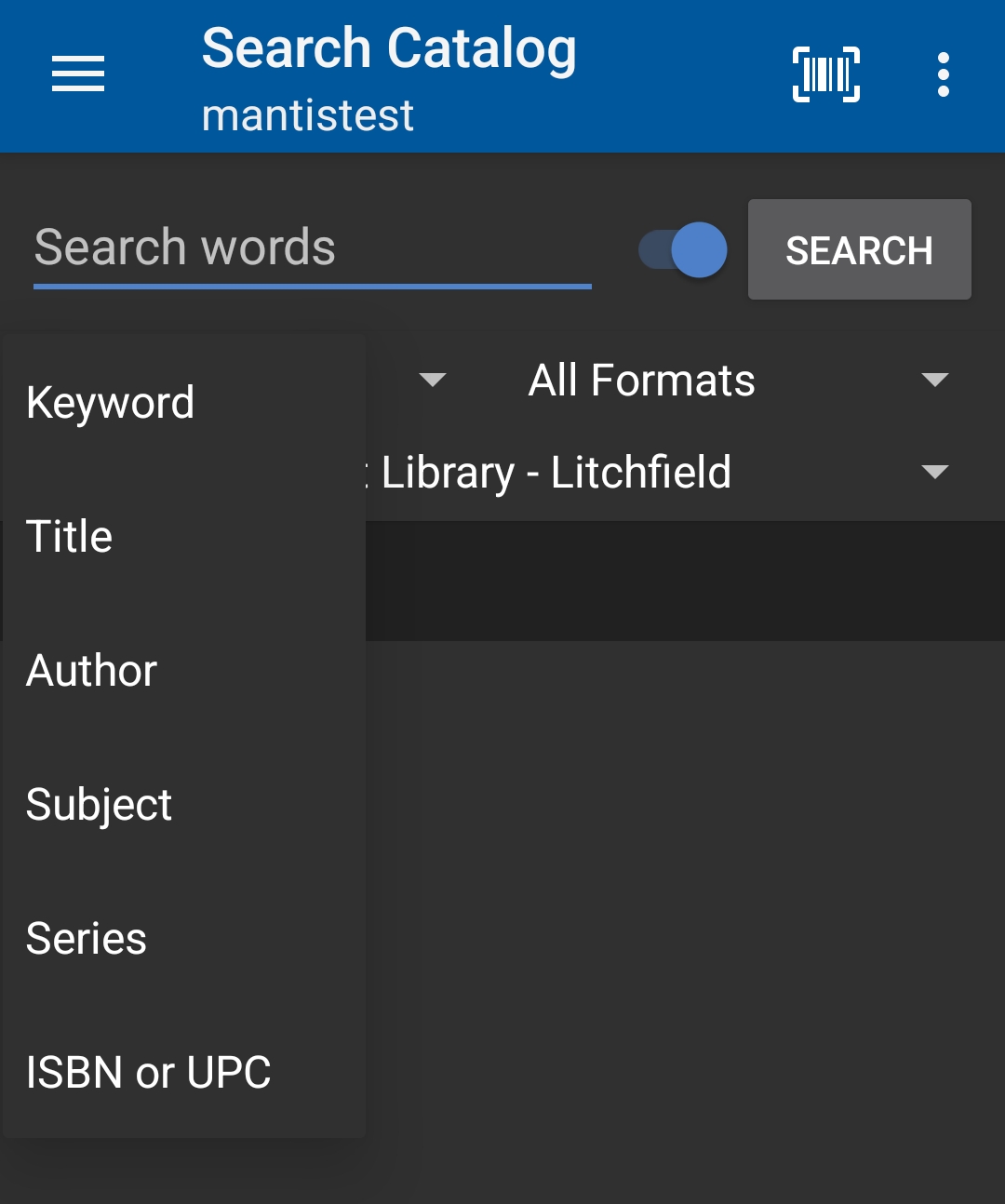
Switch among familiar OPAC fields. Keyword remains most forgiving (multi‑field).
Format Limiter
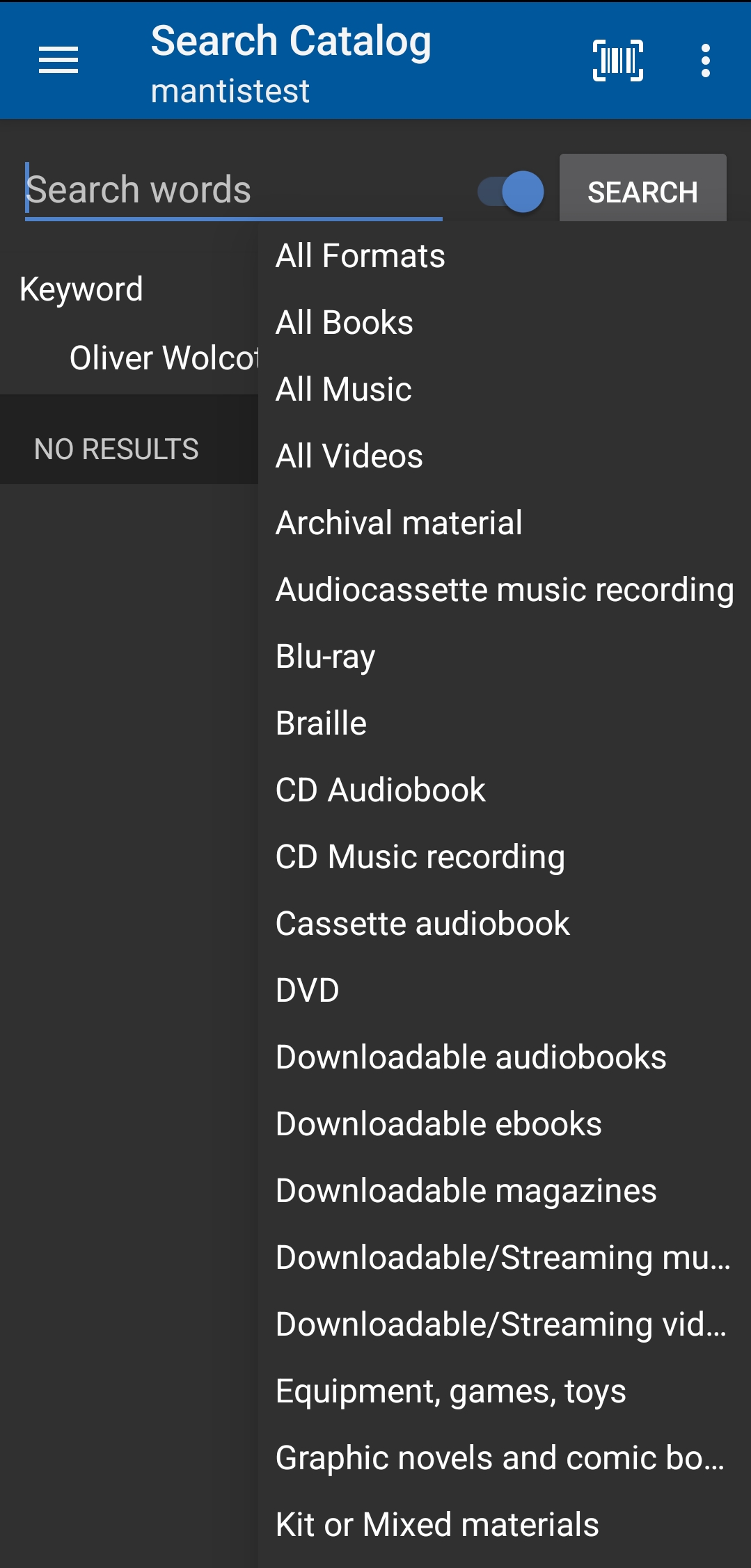
Use when patrons want a specific medium (e.g., Large Print). Leaving All Formats yields broader result sets.
Library Selector
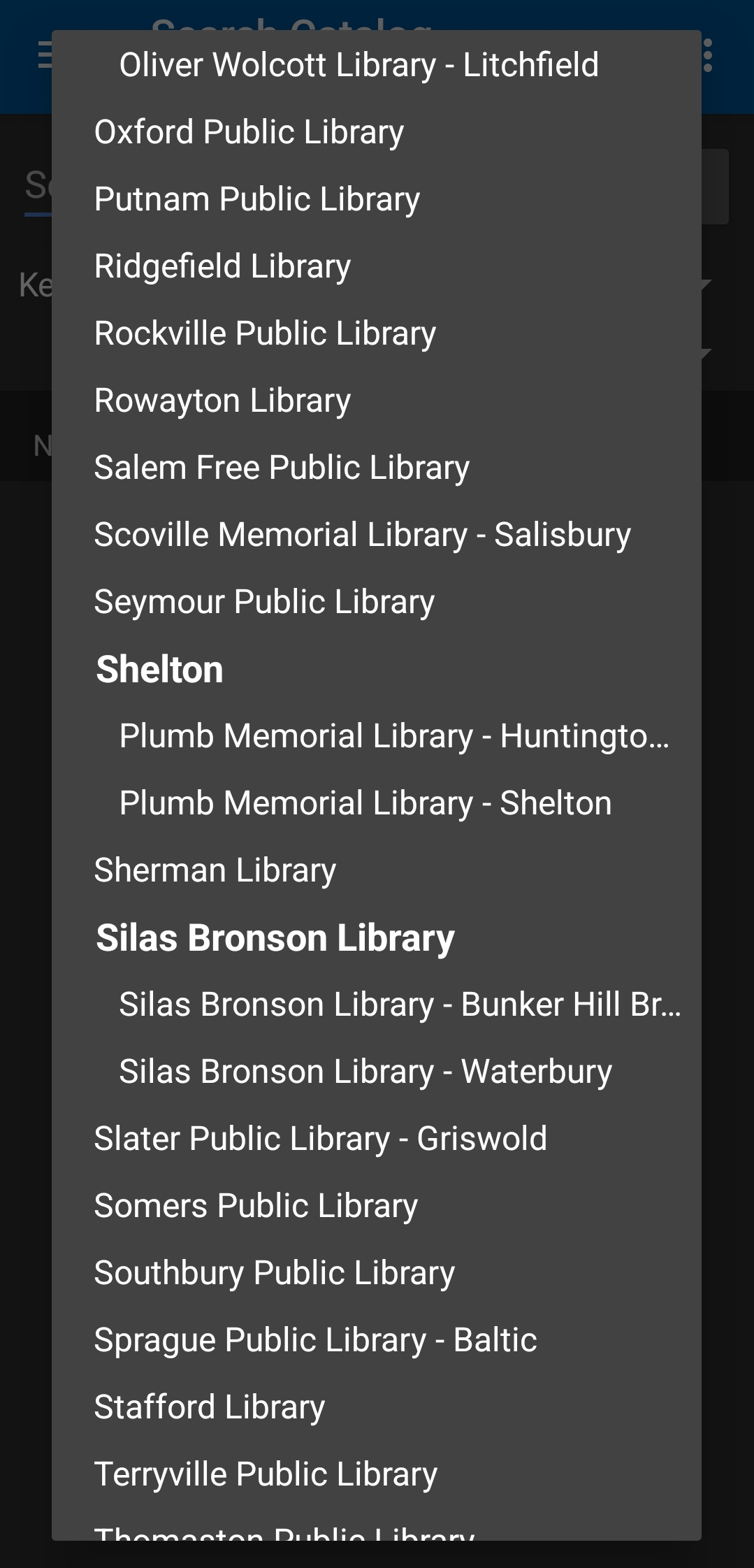
Changes holdings scope without altering the patron’s saved preferred library. Useful when traveling or comparing availability.
ISBN / UPC Scan
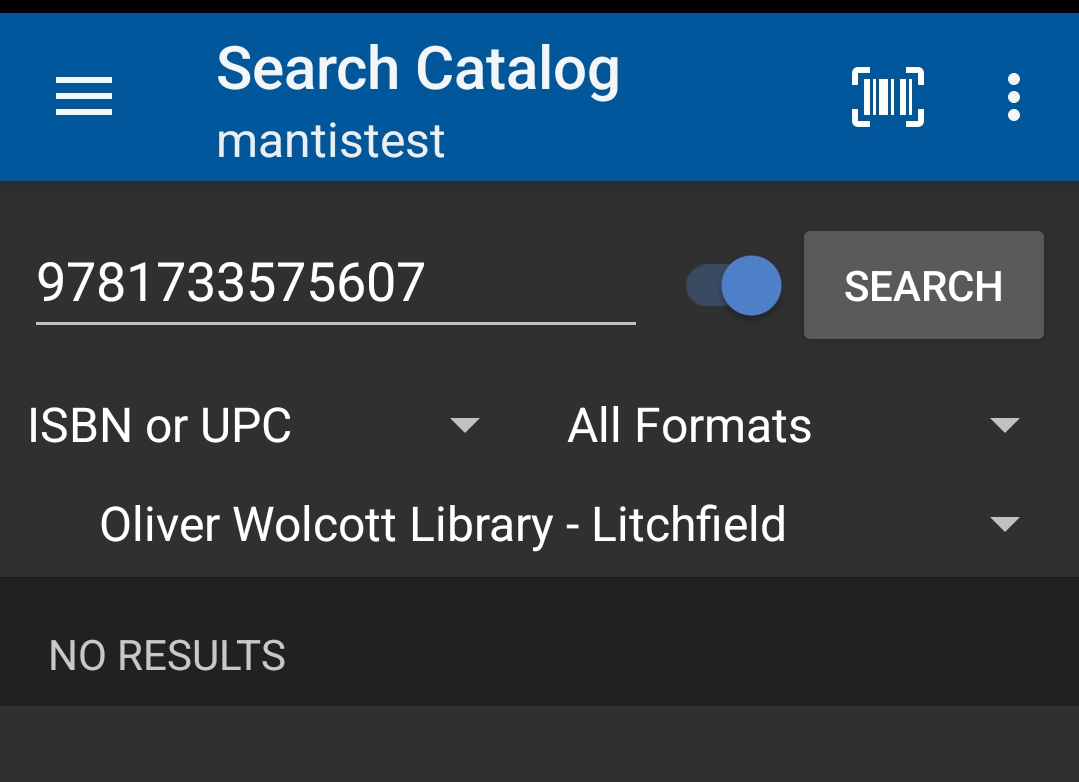
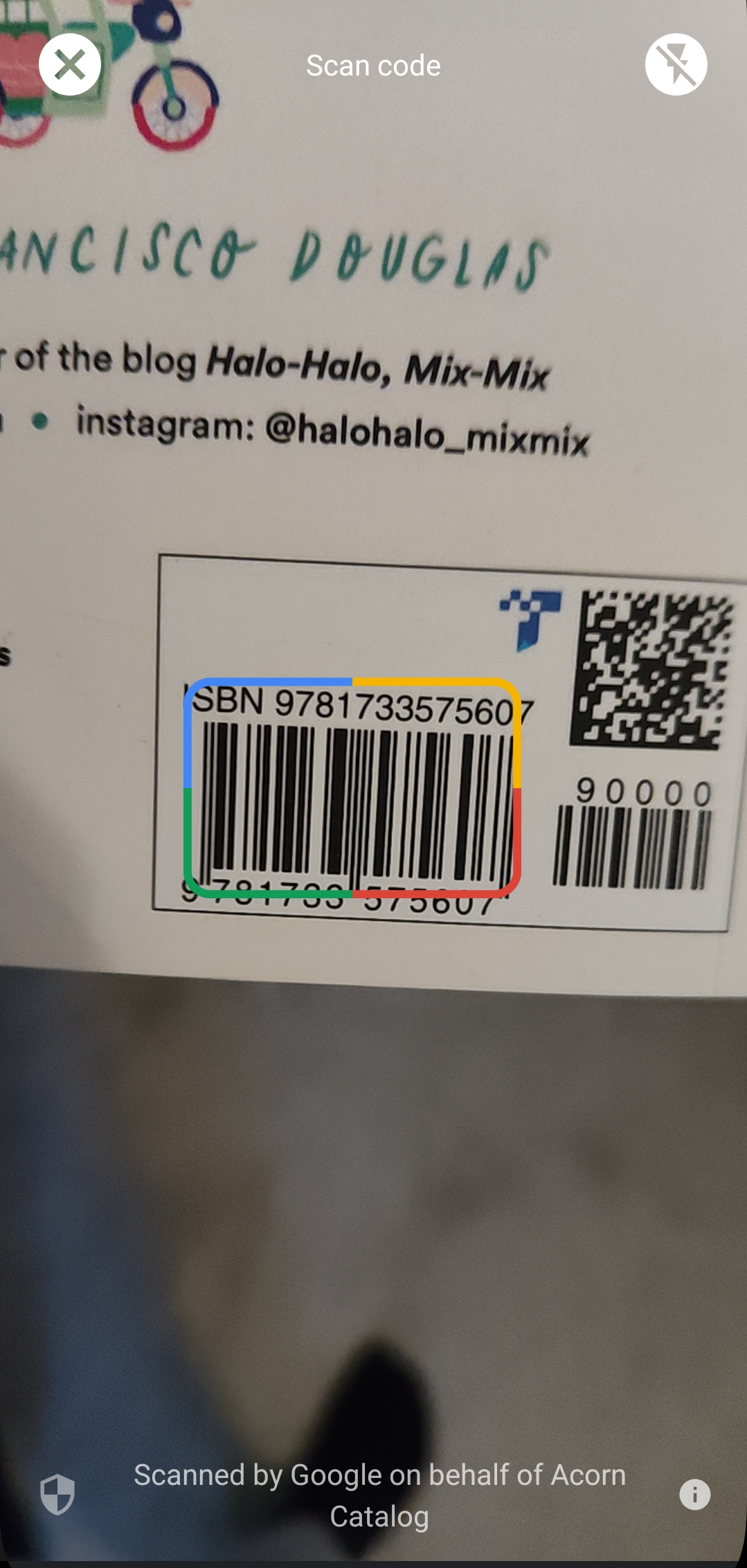
Tapping the scan icon opens the device camera (Android often uses Google Lens; iOS uses built‑in camera). Center the ISBN/UPC; app populates the number and sets Search Type to ISBN/UPC automatically.
|
If camera permission is denied the first time, future scans fail silently. Enable via device Settings → Apps (or Privacy) → Acorn → Camera and retry. |
|
Scanning is also helpful for verifying an edition quickly—scan, open detail, confirm publication year before shelving decisions. |
Results & Item Detail
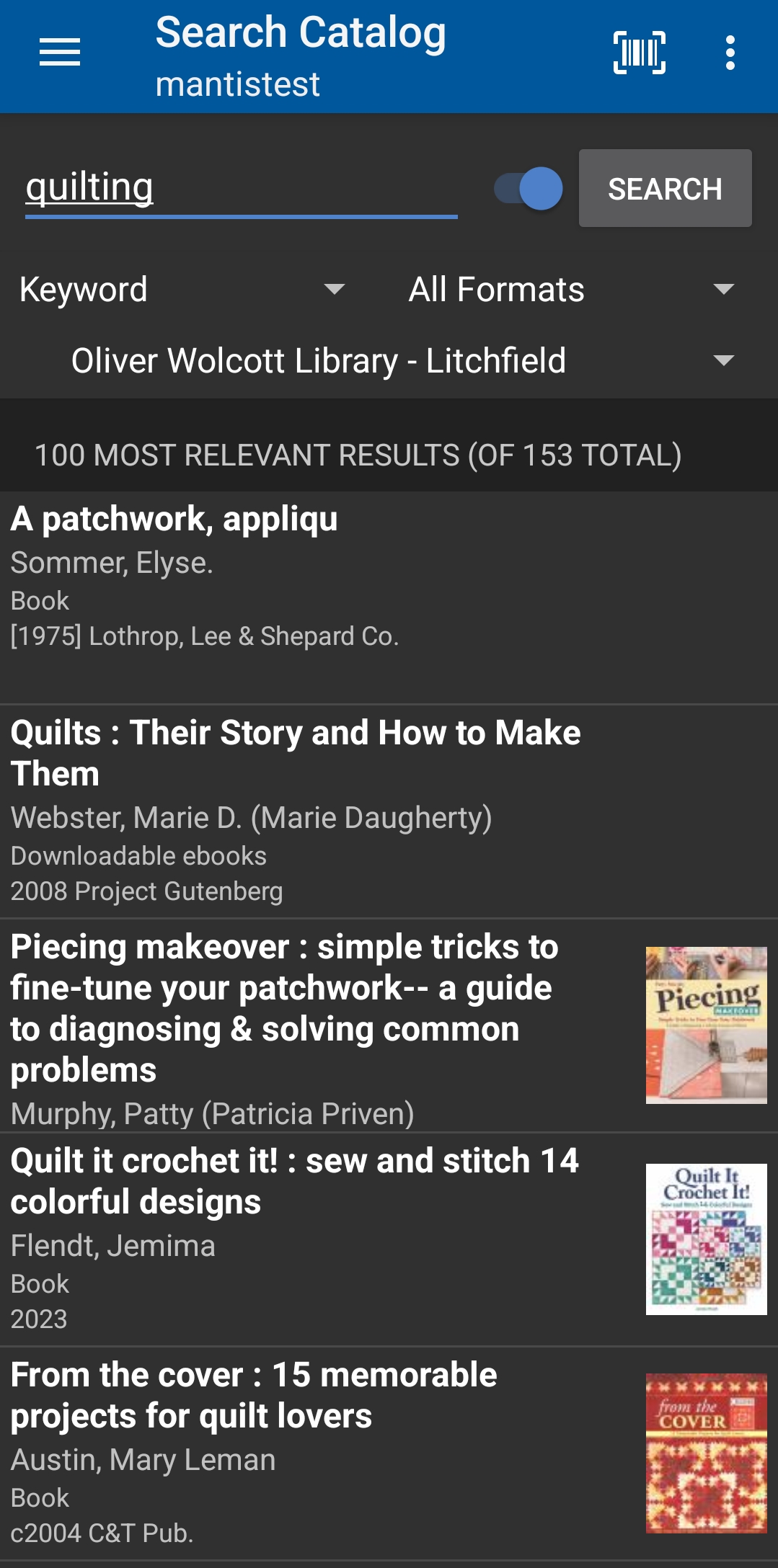
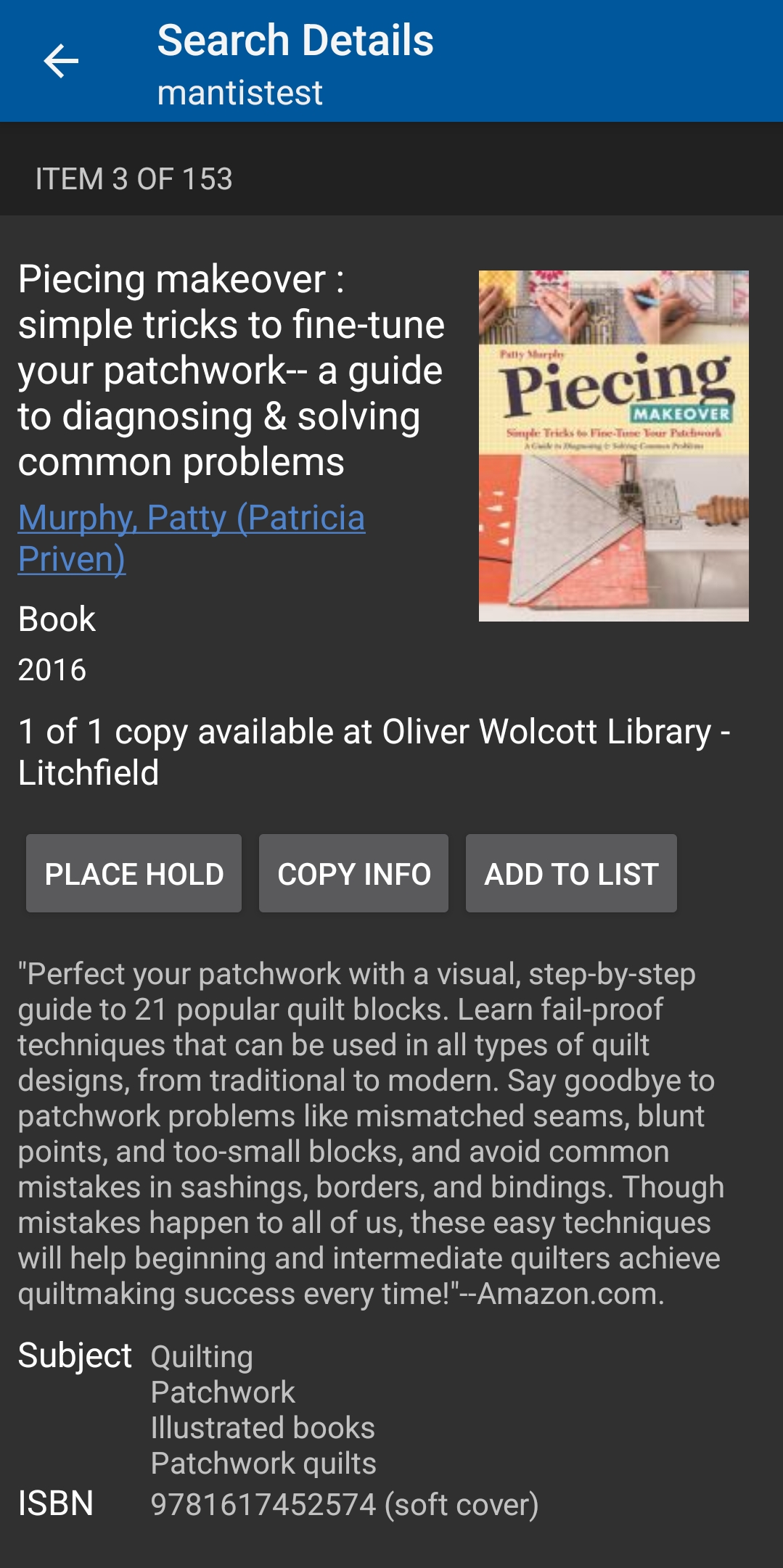
The detail view shows a bibliographic summary and primary actions:
-
Place Hold – Opens a hold form pre‑filled with patron notification/pickup preferences.
-
Add to List – Presents only already created lists (create new lists first under My Lists).
-
Copy Info – Gathers availability + call number text for easy pasting (e.g., email or notes app).
|
Editing notification channels or contact info happens on the hold form / account settings—placehold form fields may appear blank but still inherit saved preferences on submit. |
Lists Integration
The Add to List option shows only lists you already created. Create lists first under My Lists, then return to add titles while browsing.
|
For rapid readers' advisory, pre‑create themed lists (e.g., "Summer Thrillers") then add titles on the fly while conversing with the patron—fewer taps. |
Best Practices
-
Start with broad searches (Keyword + All Formats) then narrow.
-
Change library scope only when needed; remember to set it back after comparisons.
-
Use the scan icon for long numbers—reduces typos.
-
Verify pickup location before placing a hold (especially when traveling).
-
Show Copy Info for quick sharing of location details (phone / email).
Troubleshooting
Problem |
Solution |
Scan icon does nothing |
Camera permission off—enable in device settings and relaunch app. |
No results for ISBN just scanned |
Check lighting / glare; confirm correct ISBN (10 vs 13). Try manual entry. |
Format dropdown feels empty |
Likely scrolled—drag list; formats mirror OPAC choices. |
Wrong library scope stuck |
Explicitly reselect preferred library (selector remembers last choice per session). |
Cannot add to a new list |
Create list first under My Lists; then return and retry Add to List. |
Hold form shows blank contact fields |
Saved preferences still apply; confirm in account settings if uncertain. |