Holds Shelf
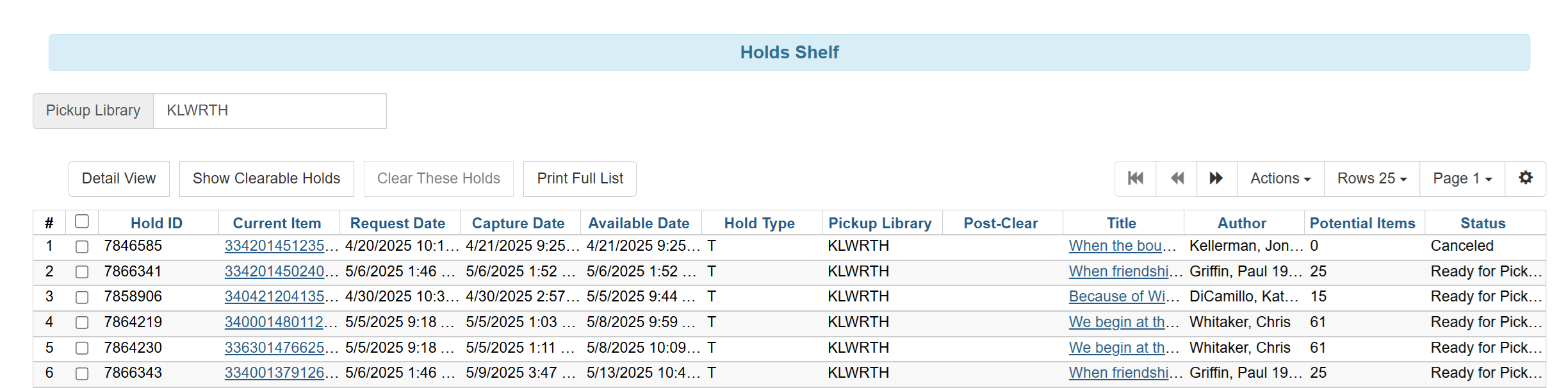
In this screen, you can view items that are placed on your holds shelf and clear expired holds.
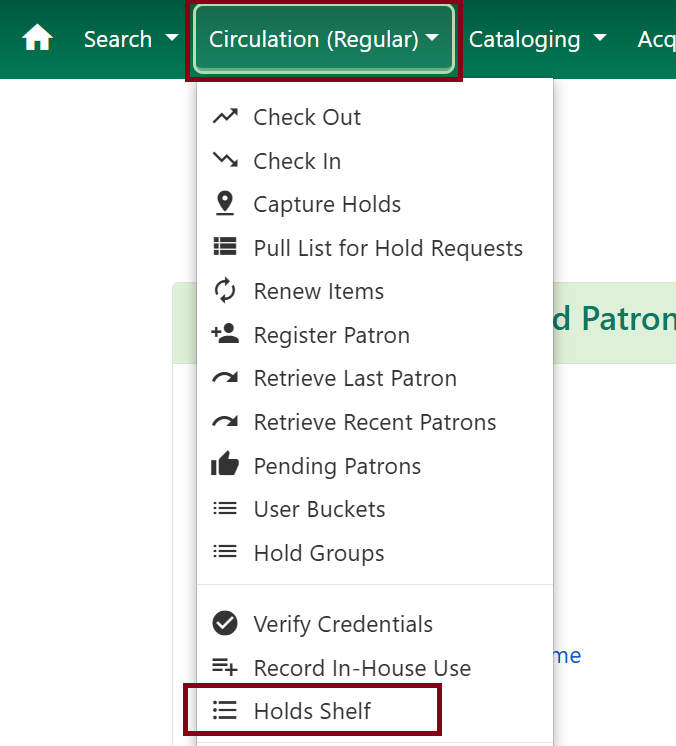
To get there, click Circulation → Holds Shelf.
Clearing Expired Holds
When holds reach the end of their eligible Ready for Pickup status, you can clear out the expired holds.
-
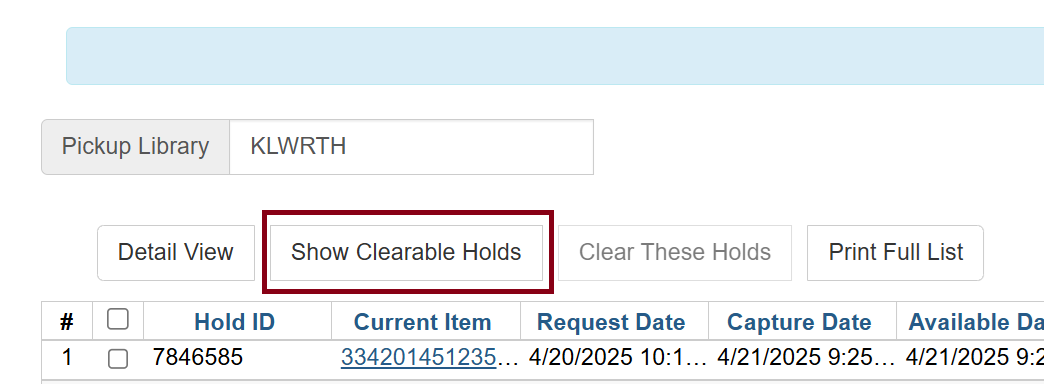
Click the Show Clearable Holds button to list expired holds and canceled holds only. Expired holds are holds that expired before today’s date.
-
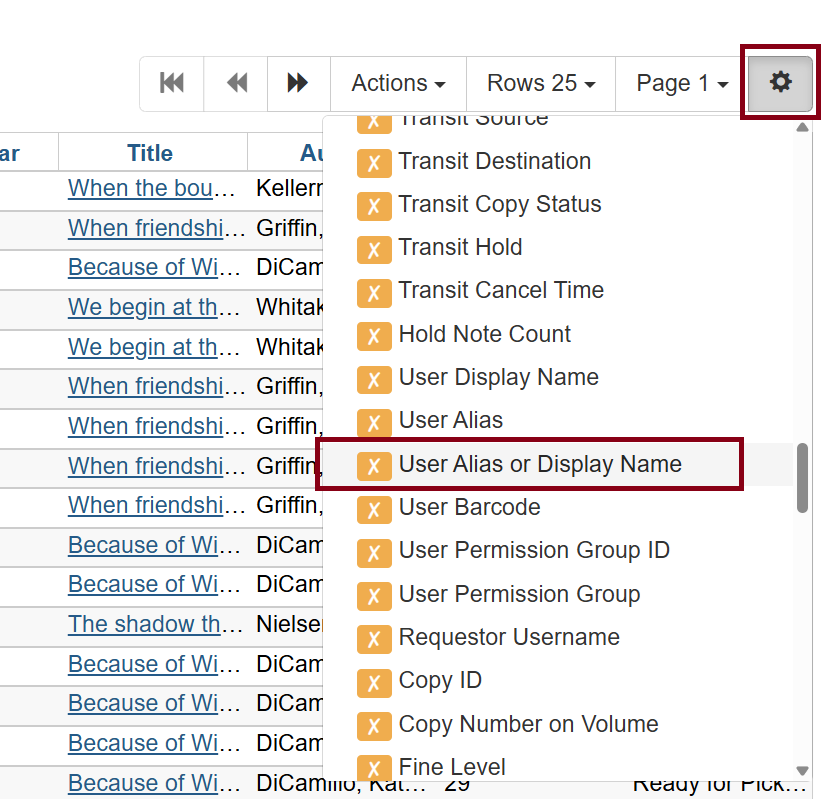
From here, you can add some columns that could be helpful. By default, patron names are not displayed, but you can add columns such as User Alias or Display Name.
-
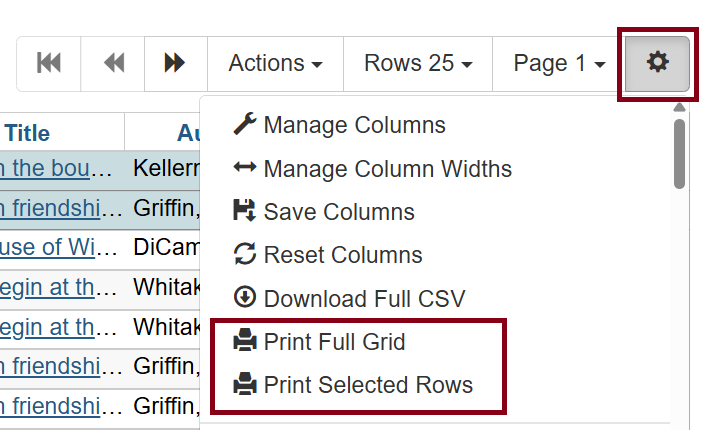
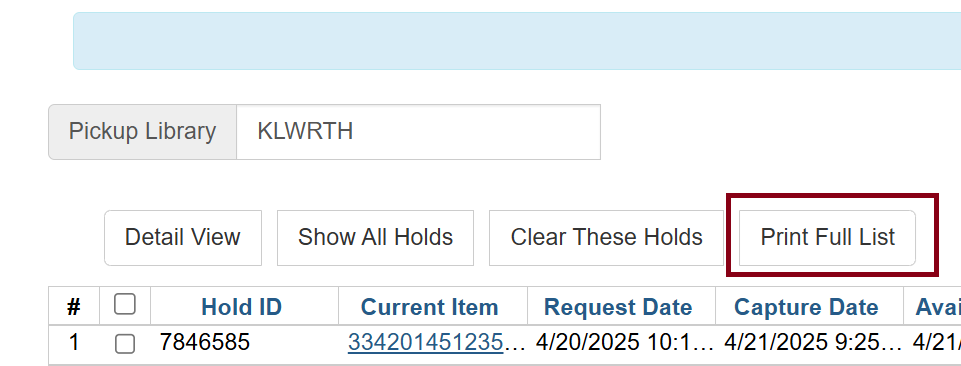
When the list is configured to the preferred display, choose Print Full Grid from the Actions menu, Print Selected Rows also in the Actions menu if you have certain lines selected, or the Print Full List stand alone button in the upper left hand corner of the screen.
-
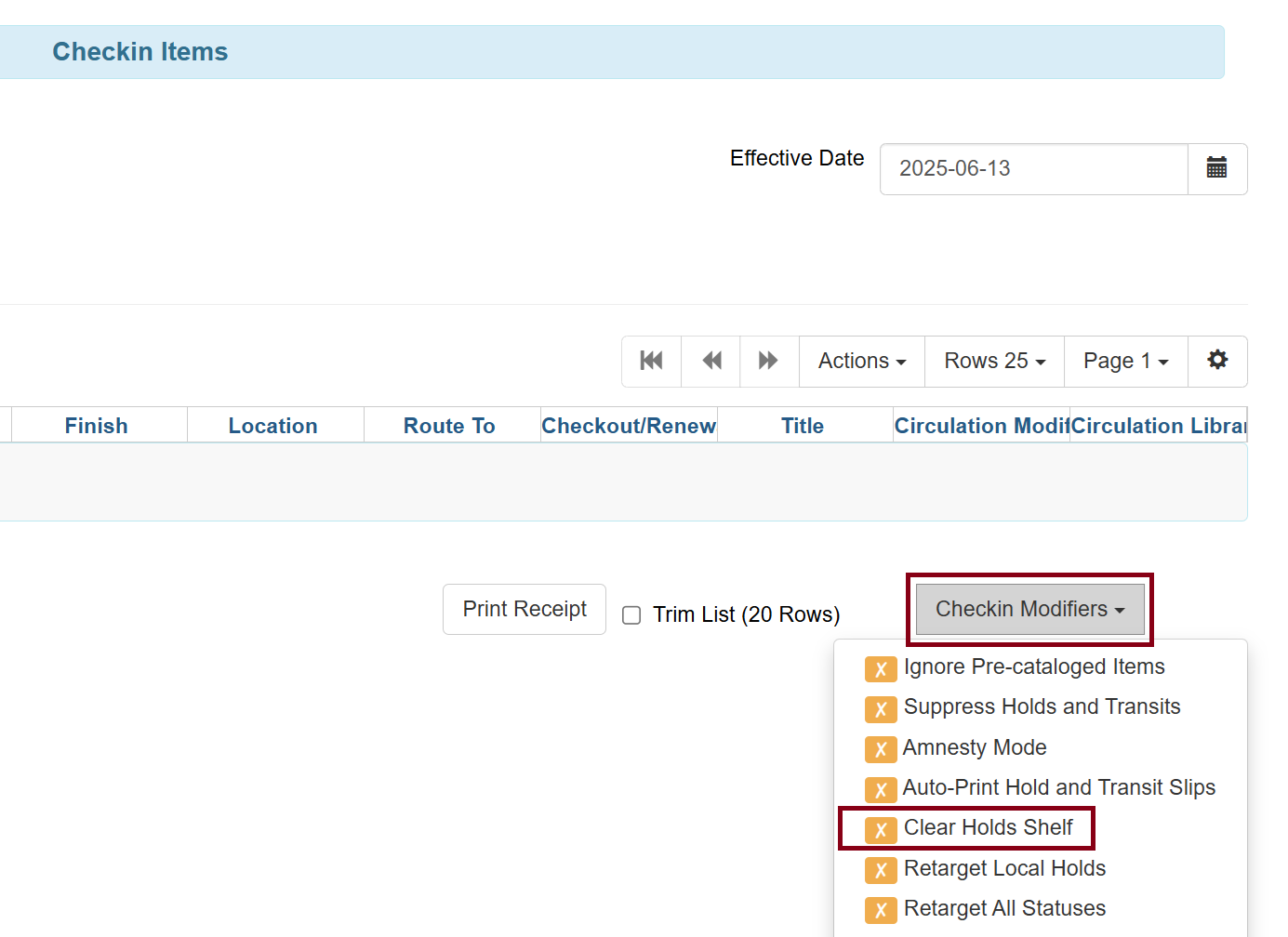
Physically remove the expired and canceled holds from your physical hold shelf, and check them in with the Clear Hold Shelf checkin modifier enabled.
| DO NOT use the Clear These Holds button within the Holds Shelf screen. Clicking this presumes you want to send all expired back to the shelf or on to the owning library or the next library with a hold. Using the Clear Holds Shelf checkin modifier allows you to keep expired holds on the shelf a while longer on a case-by-case basis. Please be mindful of other libraries’ materials when doing this. |