Getting a Browser Ready (Chrome)
Creating Profiles
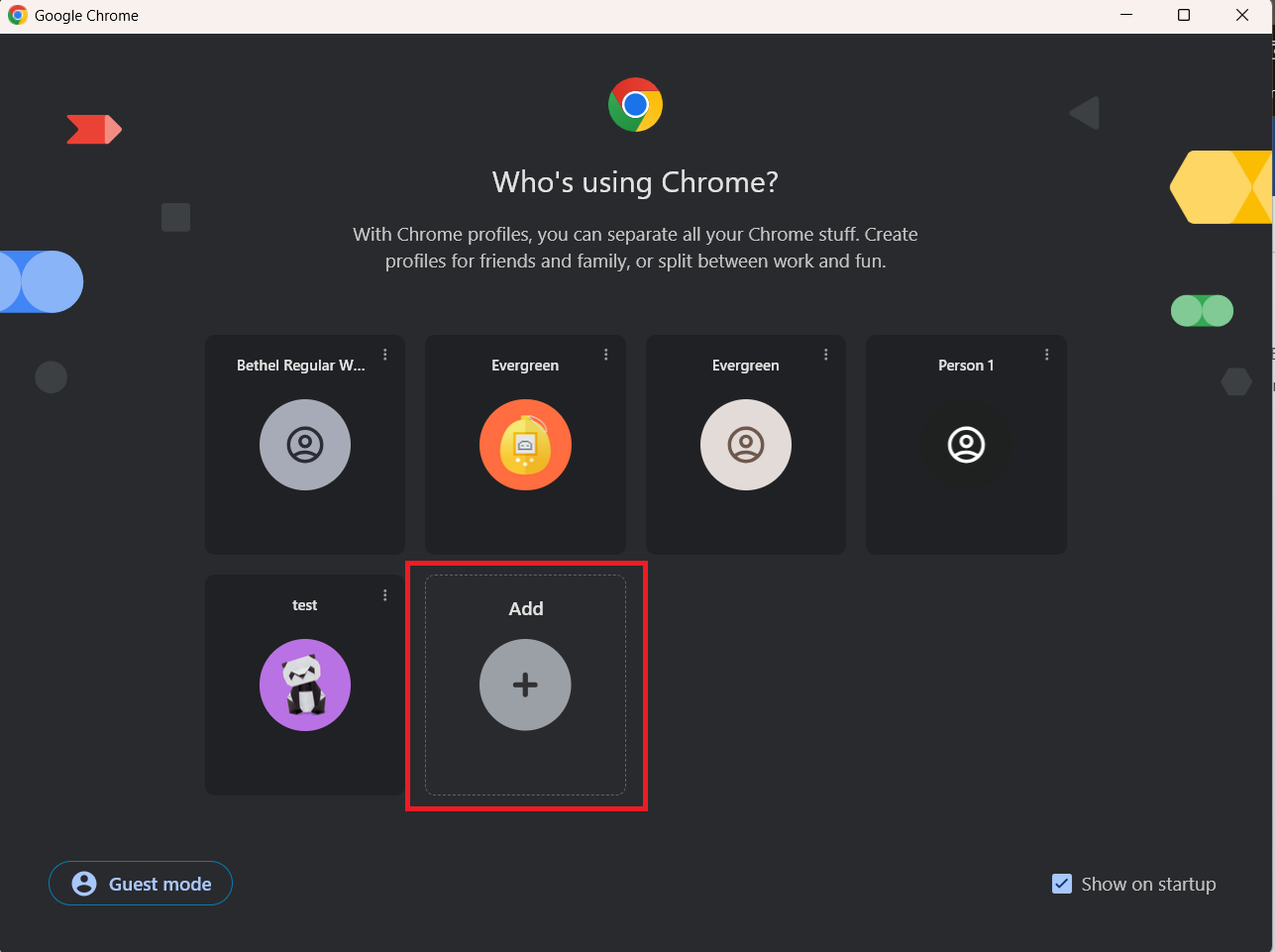
In Chrome, a profile selection will appear on startup. In this screen you can click on Add on the right to create a new profile.
If you already have the browser open, you can also click on the icon in the upper right hand corner, next to the three dots, to manage your profiles.
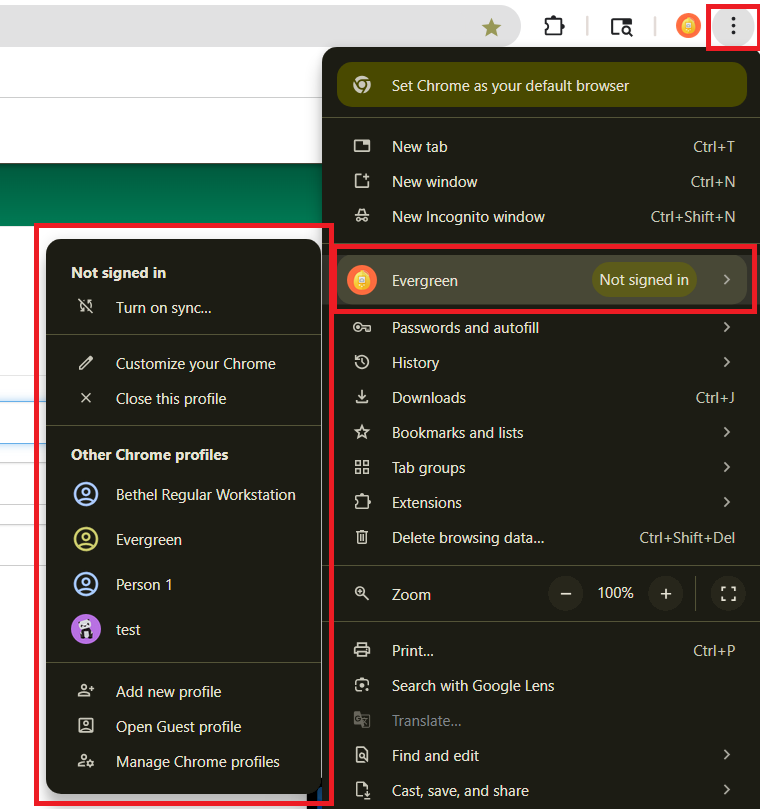
Select the Chrome profile that’s in use then select Add a new profile towards the bottom of the submenu that shows up.
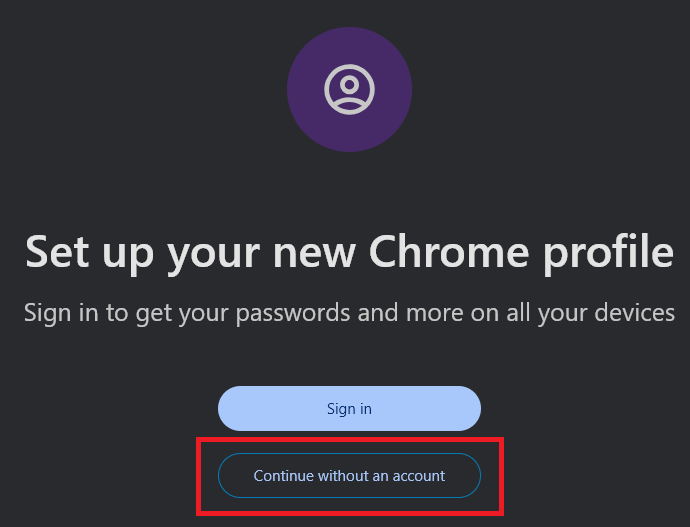
With whatever one you choose, you’ll be asked to sync a Google account to the new profile. Select Continue without an account if you are creating an Evergreen profile.
You can Sign In if this is a separate profile for email and internet browsing use outside of Evergreen. But for the Evergreen-optimized profile, do not sign in.
Enter a profile name that will remind you what the profile is for, e.g. Evergreen. Chrome also allows you to select a unique profile picture (click the pencil icon to the right of the silhouette icon), and offers the choice of a color palette. These visual cues will help differentiate the Evergreen profile from your other profiles.
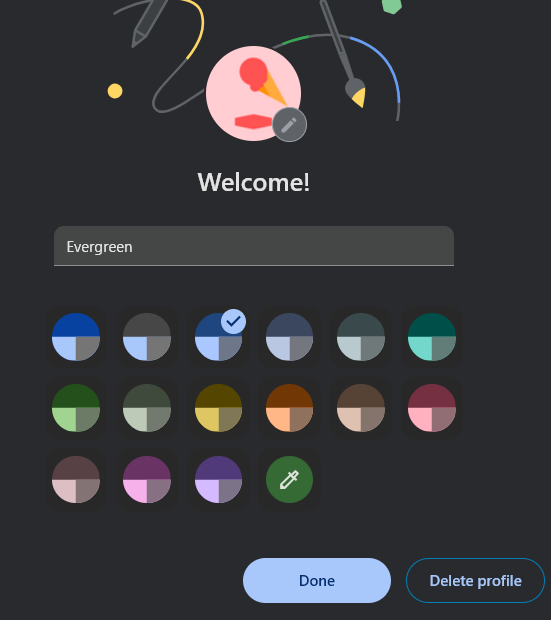
Go to the top right-hand corner and click the three vertical dot icon then go to Settings.
Go through any informational prompts that Chrome offers. On the landing page, you should be at You and Google. Click on Customize your Chrome profile. You can select an avatar if you wish. Afterwards, scroll to the bottom and turn on Create desktop shortcut.
This will create the desktop shortcut for the profile.
Turn Off Pop-Up Blockers
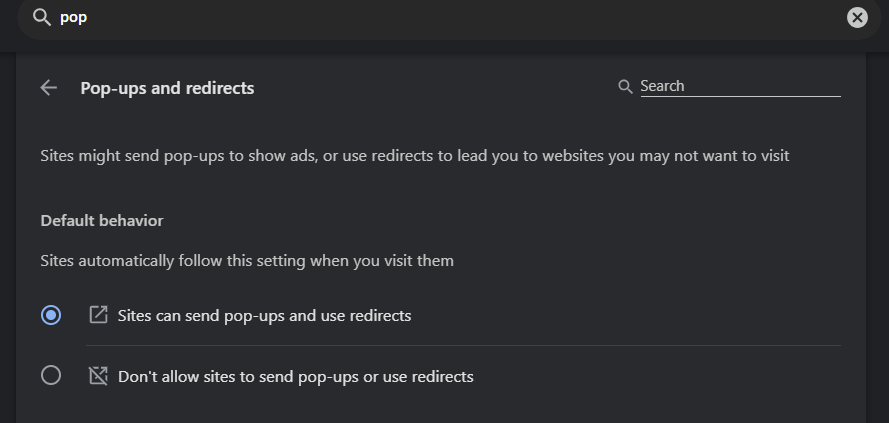
Some screens in the web client will require pop-up windows. A good example is the Volume/Copy editor used for adding or editing items. You will need to let your browser know that pop-ups for the web client site are permissible.
Select Settings from the Chrome menu in the upper right corner.
Search in the searchbar Site Settings and click on the option below.
Scroll down to the Content section, and click Popups and Redirects.
Click on Sites can send pop-ups and use redirects.
Customizing Your Bookmark Toolbar
To give yourself faster access to your most commonly used functions, you can display your browser’s bookmark toolbar and save those functions to it.
To open or close your bookmark toolbar in Chrome, press CTRL + Shift + B.
You can rename the bookmark by right clicking on it and clicking Edit.
Edit the text in the Name field, then save the change.
| Open bookmarks in new tabs when you want to keep different screens open at the same time. Press the CTRL and then click the link, or right-click on link and select Open in a new tab. |