Patron Record
The patron record in Evergreen is displayed with information about the patron on the left side of the screen, with any alerts to display on the right.
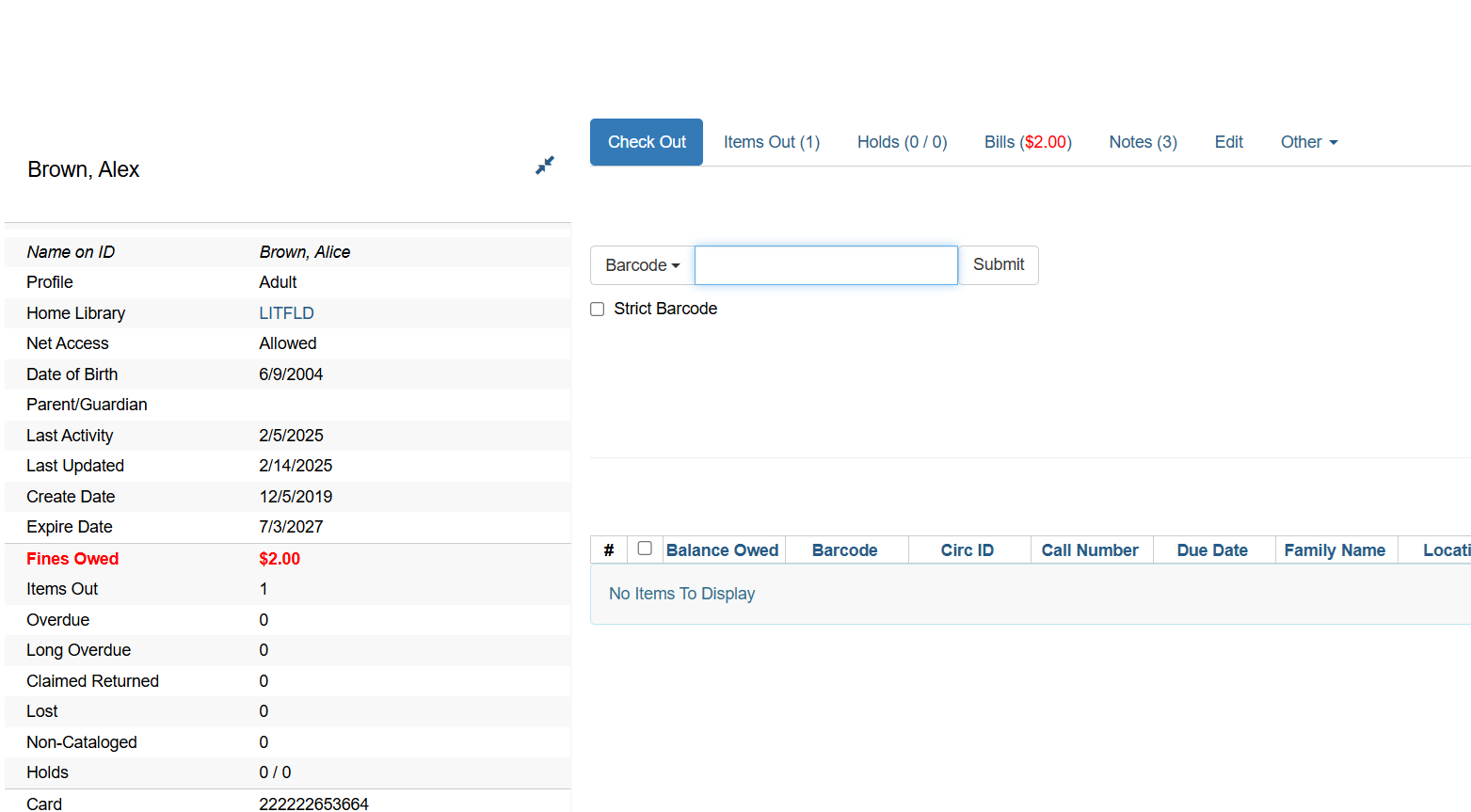
| You can expand and minimize the patron info on the left, by clicking the double arrows near the top. |
To retrieve more information about the patron, click on Edit.
Structure of a Patron Record
The structure of a patron record is displayed in an informative breakdown of all patron-related data points.
The Patron Edit or Register screen contains the following fields most used, to be filled out or updated:
-
Barcode
-
Username
-
Password
-
Primary Name/Preferred Name
-
Prefix/Title
-
First Name
-
Middle Name
-
Last Name
-
Suffix
-
Name Keywords
-
Alias
-
Date of Birth
-
Juvenile?
-
Parent/Guardian
-
Primary Identification Type
-
Primary Identification
-
Secondary Identification Type
-
Secondary Identification
-
Email Address
-
Email Checkout receipts by default?
-
Daytime Phone
-
Evening Phone
-
Home Library
-
Other Phone
-
Home Library (where patron is registered in Bibliomation)
-
Main Permission Group
-
Privilege Expiration Date
-
Internet Access Level
-
Active?
-
Blocked?
-
Is Group Lead Account
-
Claimed Return Count
-
Claims Never Checked Out Count
-
Alert Message
-
User/Hold Settings
-
Default Phone Number
-
Default Hold Pickup Location
-
Collections: Exempt
-
Hold Notices
-
Default SMS/Text Number
-
Default SMS Carrier
-
Receive overdue and courtesy notices?
-
Allow Others to use my account
-
Address
-
-
Type
-
Postal Code
-
Street 1
-
Street 2
-
City
-
County
-
State
-
Country
-
Valid Address?
-
Within City limits?
-
Statistical Categories
-
Gender
-
Residency (where patron resides)
-
-
Retrieving Last/Recent Patrons
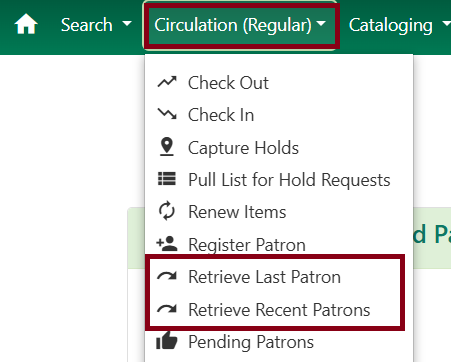
The option Retrieve Last Patron and Retrieving Recent Patrons will appear in the Circulation drop-down from the navigation bar.
When Retrieve Last Patron is selected, the Check Out screen will display for the last patron.
When Retrieve Recent Patron is selected, it will display up to the last five (5) transactions.
If no patrons have been accessed, the grid will display No Items to Display.
Updating Patron Information & User/Hold Settings
Retrieve the patron records as described in the section Search for Patron Record.
Click on Edit from the options that display at the top of the patron record. Edit the record as needed and click Save.
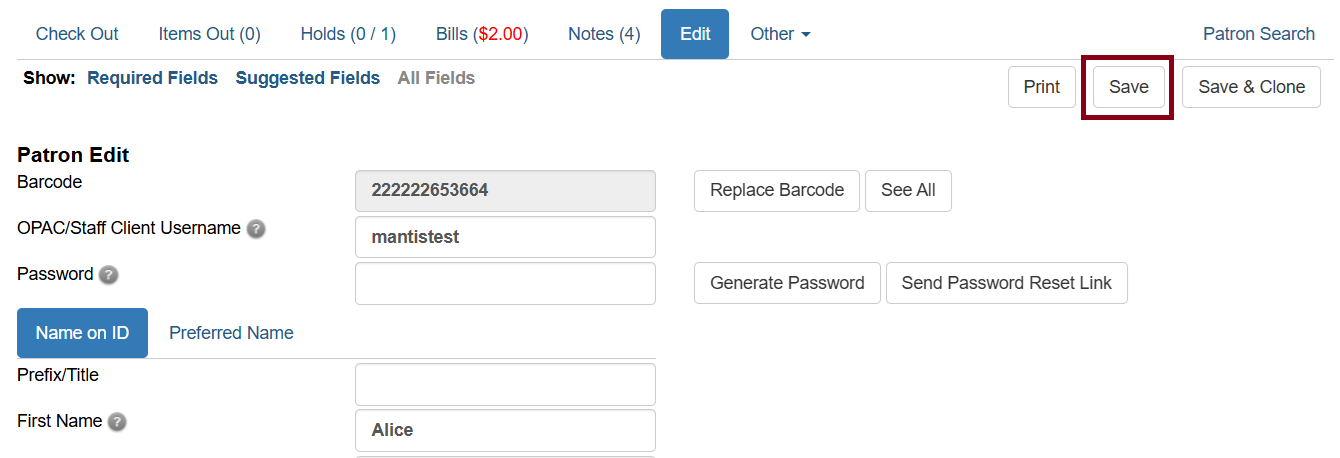
| To quickly renew an expired patron account, click the Update Expire Date button. You will need a Main (Profile) Permission Group selected for this to work, since the permission group may determine the expiration date. |
Bibliomation, Inc. follows the Connecticut State Library guidelines for patrons residing in the state, and those who have property outside the state of Connecticut.
Refer to the Bibliomation guidelines for patrons who have moved from one Bibliomation town to another entitled BIBLIOMATION CIRCULATION POLICIES: Operational Standards Committee revised October 20, 2016.
User/Hold Settings
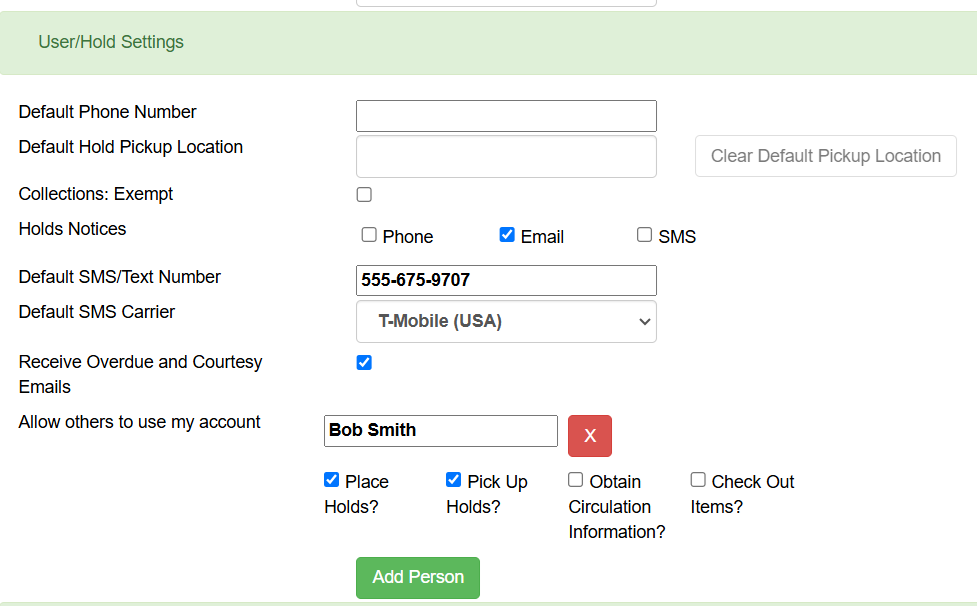
While updating the patron record, you have the opportunity to change their user settings. Patrons can update their own user settings from the OPAC, as well. These include default phone number, hold pickup location, and method for receiving hold notices.
Receive overdue and courtesy notices? allows patrons to opt in or out of receiving overdue notices and preoverdue notices via email. It will be checked off by default, but patrons can opt out of notices if they wish. Uncheck if they opt out. If the patron opts out, print overdue notices will be generated for them even if they have an email address on their account.
In addition, a patron can make a note that they have given their permission to allow someone else (or multiple people) to use their account. They can opt to allow someone else to place holds, pick up holds, view borrowing history, and check out items, on their behalf. They can choose one option, multiple, or all.
This information will show up at the bottom of the patron account summary, so it’s important for library staff to check the account summary whenever someone who is not the named cardholder asks to perform any of these transactions.
Resetting Patron’s Password
A patron’s password may be reset from the OPAC or through the staff client. To reset the password from the staff client:
-
Open the patron record in Edit mode as described in the section Updating Patron Information.
-
The password field should appear blank.
-
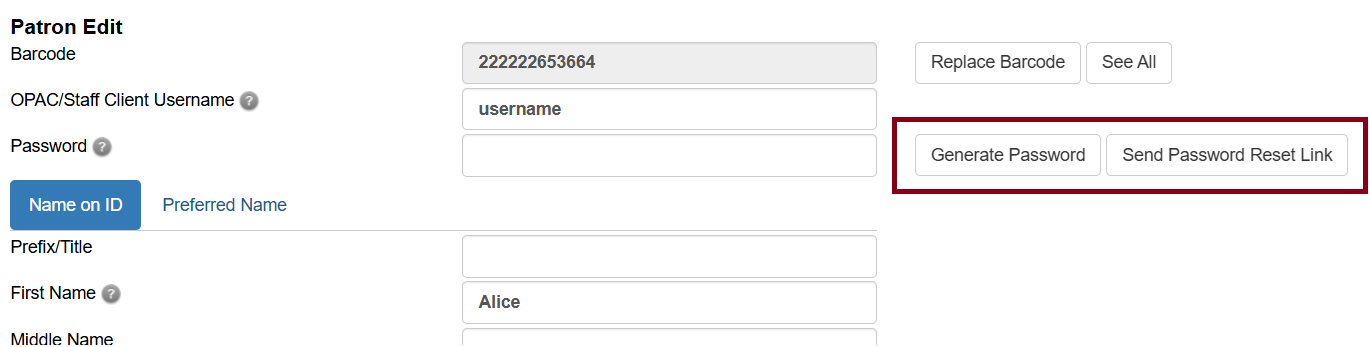
There are two options in the staff client to help a patron reset their password.
If the patron has a valid email address on file in their account, you can click the Send Password Reset Link button, and they will receive an email so that they can update their own password.
This is the preferred method, as it allows the patron to keep their password private at all times.
The other option is to use the Generate Password button, and tell the patron what the new password is. It is a good idea to suggest they change it to something private as soon as they can.
Click Generate Password and three random words will appear as a new password. You can also repeatedly click the button to generate new combinations if one is too confusing for the patron to remember.
-
Give the patron their new password, and then save the record. (Once you save the record, the password field will appear blank again as a security measure.)
Remind the patron they may change their password in the OPAC under My Account.
Security Tips
For security purposes, the patron’s password must consist of AT LEAST 12 characters, including spaces if used.
Per digital security best practices, we strongly recommend the following:
-
12 character password length requirement
-
More entropy (i.e. disorder or randomness) makes it harder for a computer to guess the password
-
Passphrases should be genuinely random. Computers CAN guess things like:
-
Dictionary words alone
-
Phrases from books
-
Famous sayings
-
Anything else where there might be a database of potential solutions (e.g. song lyrics, movie quotes, lists of literary characters, etc.)
-
-
Smart humans can also guess things like:
-
Birthdates
-
Street addresses and phone numbers
-
Names of loved ones
-
Commonly used passwords such as “password” and “123456”
-
Test Email/SMS Notification
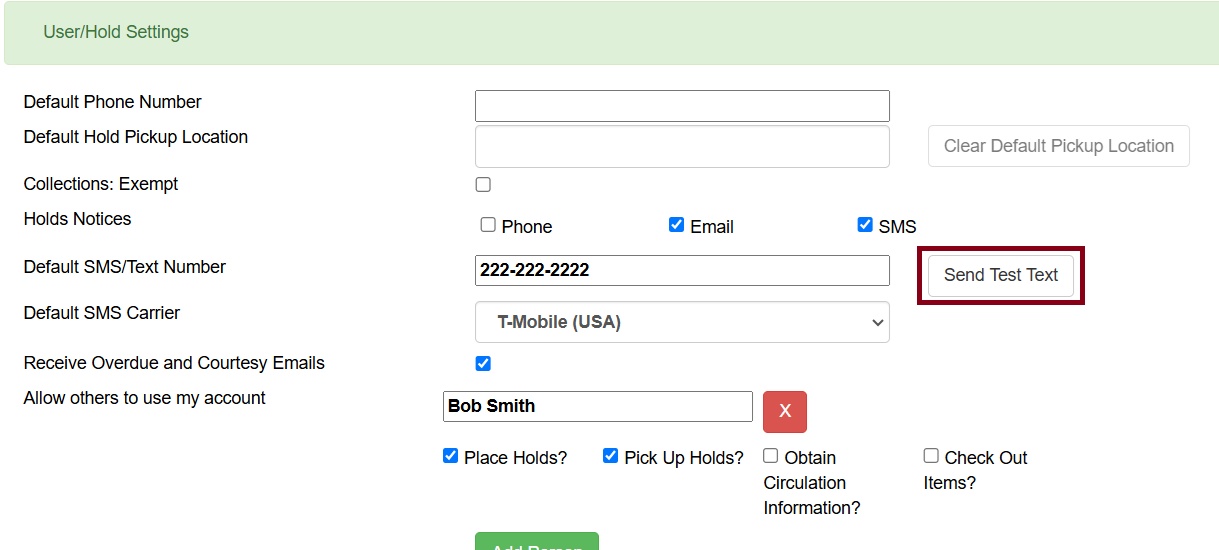
Staff will be able to verify an email address or SMS after adding or editing an email address or SMS number and carrier on the patron record.
This feature is not available for a new patron until the patron record has been saved.
All tests will include default, generic language to show that the message is a test and doesn’t contain any patron or item information.
Testing Email
From the Patron Edit screen, click on Send Test Email to send a test email to the address provided by the patron.
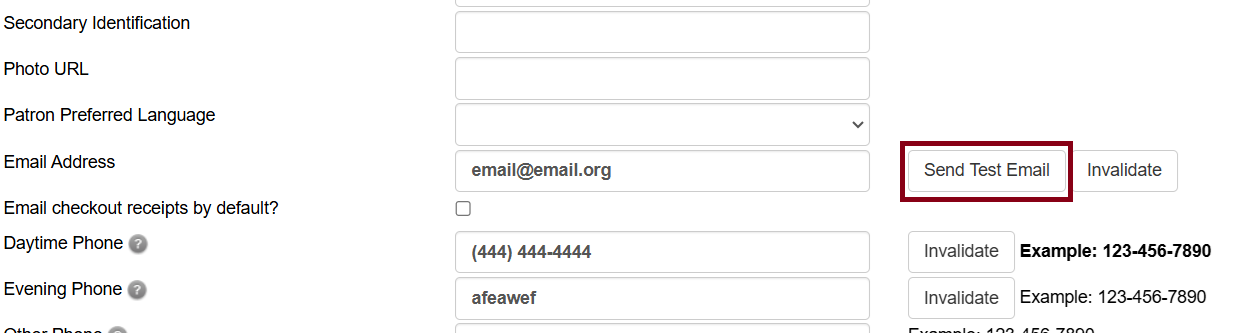
Clicking Invalidate will create a note in the patron record for the next time the account is accessed. This can helpful if you notice a bounceback from an incorrect email in their account and you would like staff to follow up with the patron next time they visit the library.
Blocking a Patron
A patron may be blocked from circulation activities.
To block a patron:
-
Retrieve the patron record as described in the section Search for Patron Record.
-
Open the patron record in Edit mode as described in the section Updating Patron Information.
-
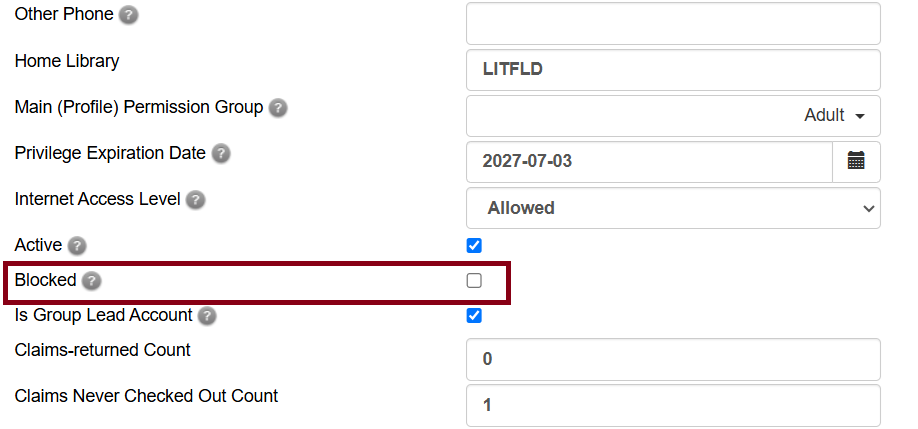
Click the box for Blocked in the patron record.
-
Save your changes. The screen will refresh.
To remove a block from a patron record, uncheck the Blocked checkbox. Click Save.
| Manually blocking a patron from one library bars that patron from all consortium member libraries. |
Deleting a Patron Record
From time to time, you may need to delete a patron record. For example, if the person moves permanently to a different state or passes away.
The patron record needs to be clear of any open transactions, such as open circulations or bills, in order to be deleted.
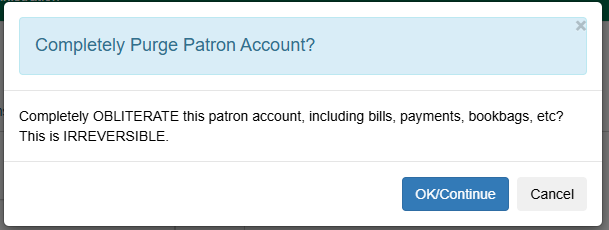
Once the patron record is clear of open transactions, you can then delete it by clicking the Other tab. Then click Completely Purge Account.
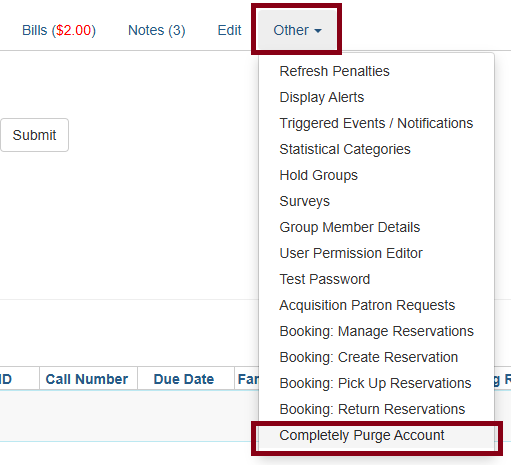
Evergreen will prompt you to confirm, at which point you can click OK/Continue if you are absolutely sure you want to delete the account.