Holds
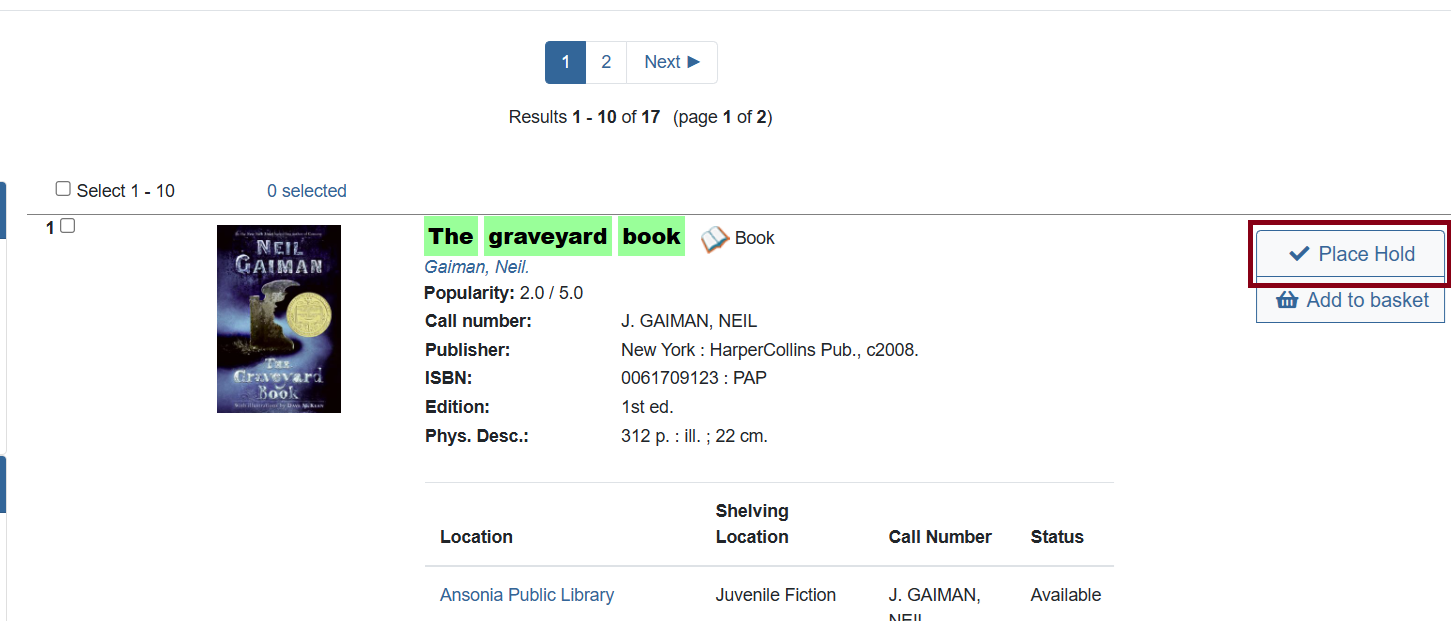
You can request an item from the search results page.
Or from the title details page.
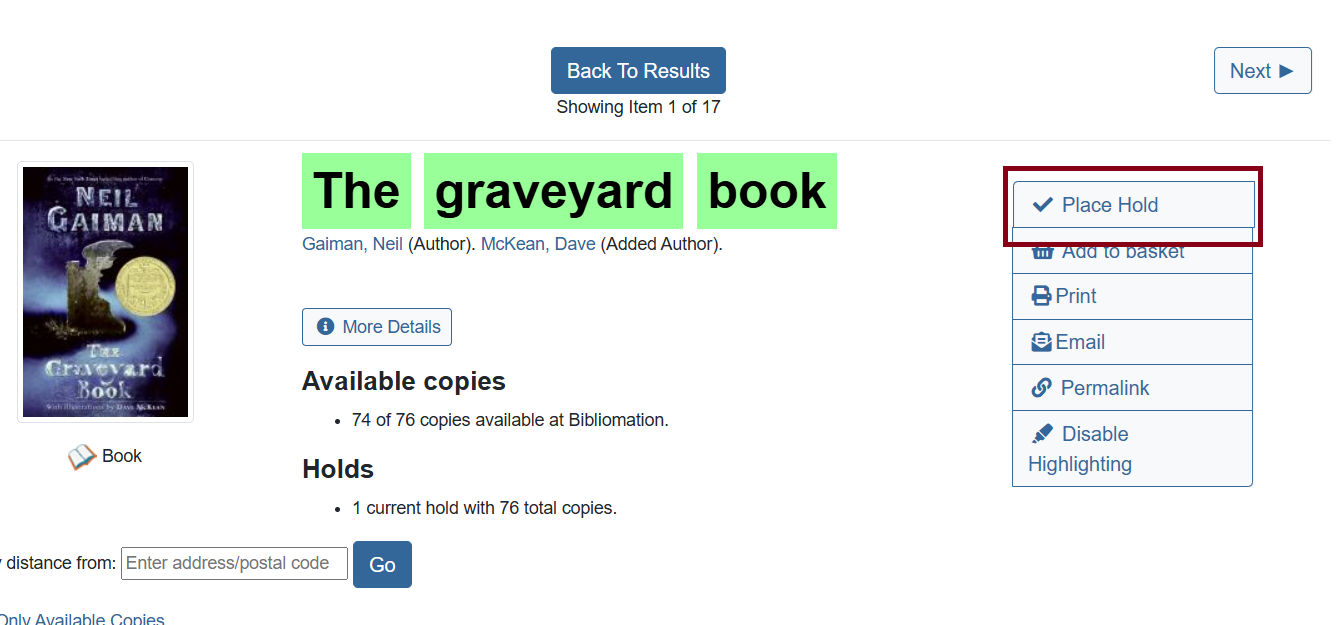
Click the Place Hold button on the right side of the page.
Next, you will be asked where you want to pick up your item and how you want to be notified when it is available.
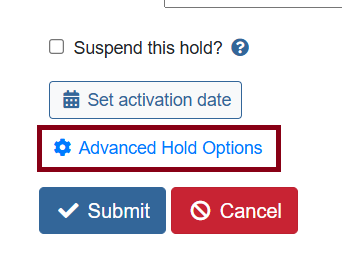
Check Suspend this hold? if you want to place the item on hold, but want to wait for it to be captured by the library. You can also set an activation date so it will automatically be activated (and no longer suspended) on that date. If you do not set an activation date, you’ll need to activate the hold manually from your account (see the My Account).
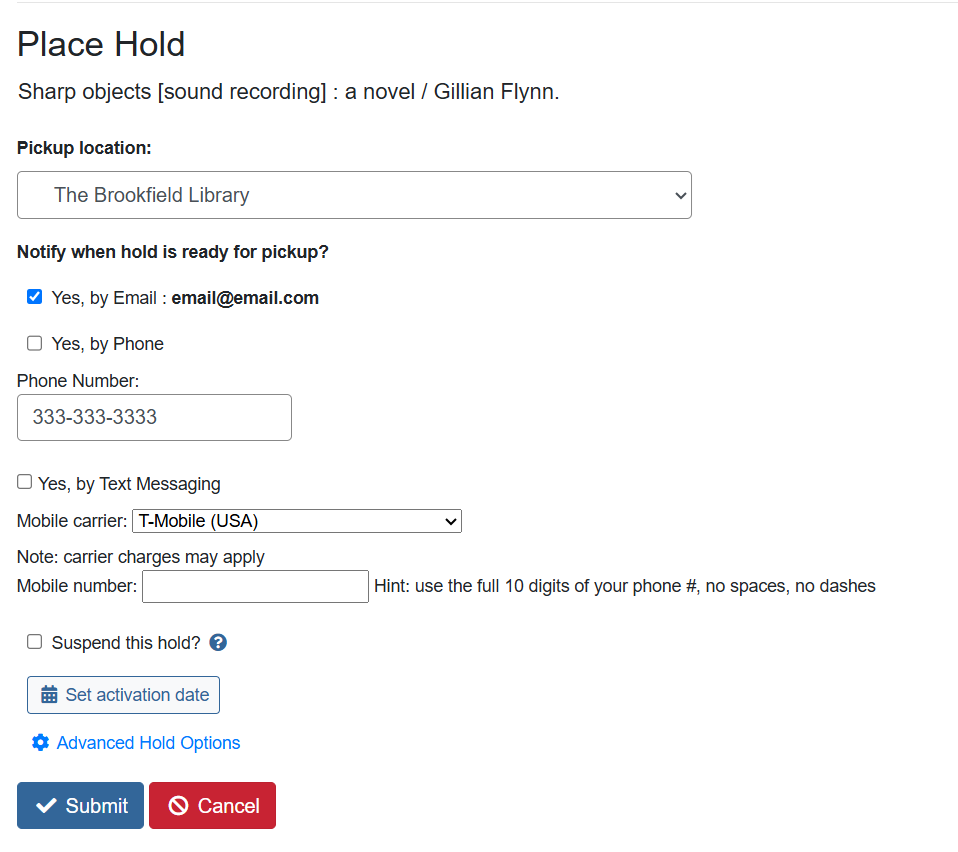
Place Hold - Advanced Hold Options
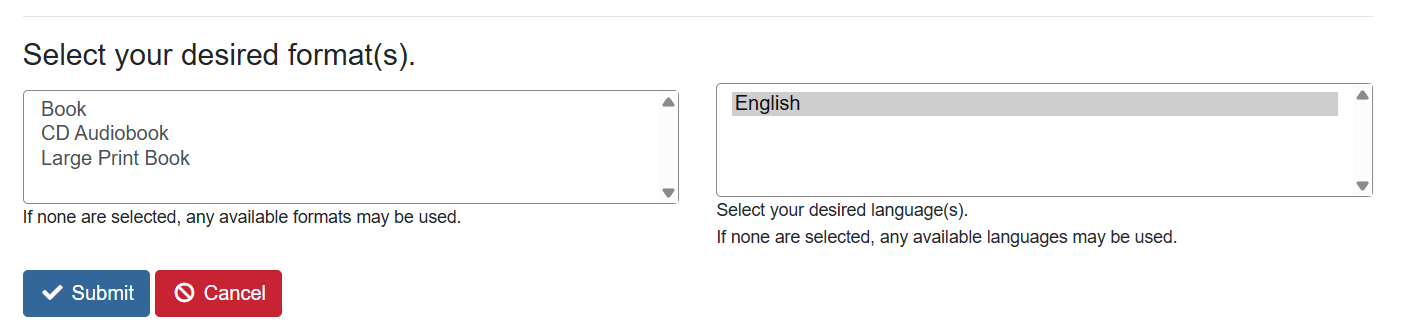
Click on Advanced Hold Options to choose desired formats for your hold. Click on a format to select it. Hold down the Ctrl key on your keyboard to select more than one option.
These options allow you to place a hold on multiple titles at once and receive the first available copy. If you only want to place your hold on a single record (the one your library owns, for example), click Basic Hold Options to turn off these options.
| If you do not select a format or do not click Basic Hold Options, your hold will be placed on all of the formats listed. |