Troubleshooting & FAQ
Quick Troubleshooting Table
Problem |
Likely Cause |
Solution |
Cannot scan digital card |
Low brightness / glare |
Raise brightness to max; angle device; clean screen. |
Scan still fails |
Older scanner struggles with screen refresh |
Tap to copy barcode; key manually; offer physical card. |
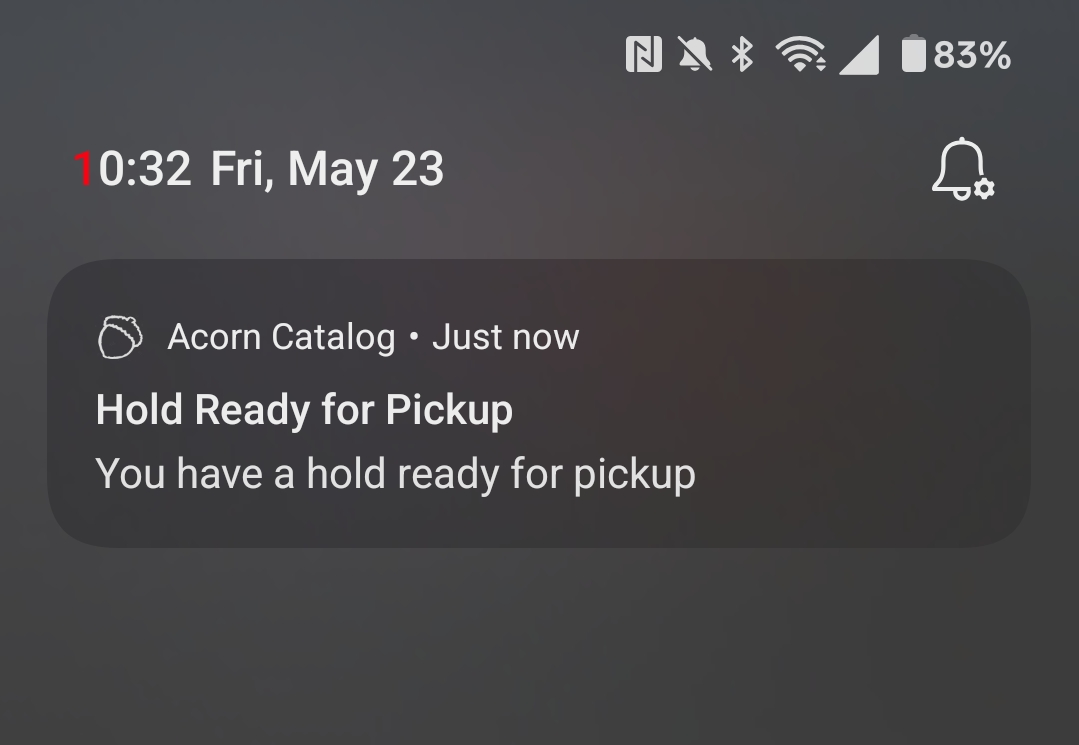
No push notifications received |
OS permission denied |
Enable in device Settings → Notifications → Acorn; open app once. |
Patron expects auto‑renew push |
Feature misconception |
Only two pushes: Hold Ready & Courtesy; check Items Out for renewal. |
Courtesy push arrived but item overdue next day |
Auto‑renew failed / block |
Check Items Out for renewal button or blocks; renew manually if allowed. |
Renew button missing |
Max renewals reached / hold / block |
Verify in staff client; explain policy. |
Hold edit not saving |
Status now In Transit or Ready |
Edits limited after transit; act earlier next time. |
List description cannot be added |
App limitation |
Use OPAC to add/edit description. |
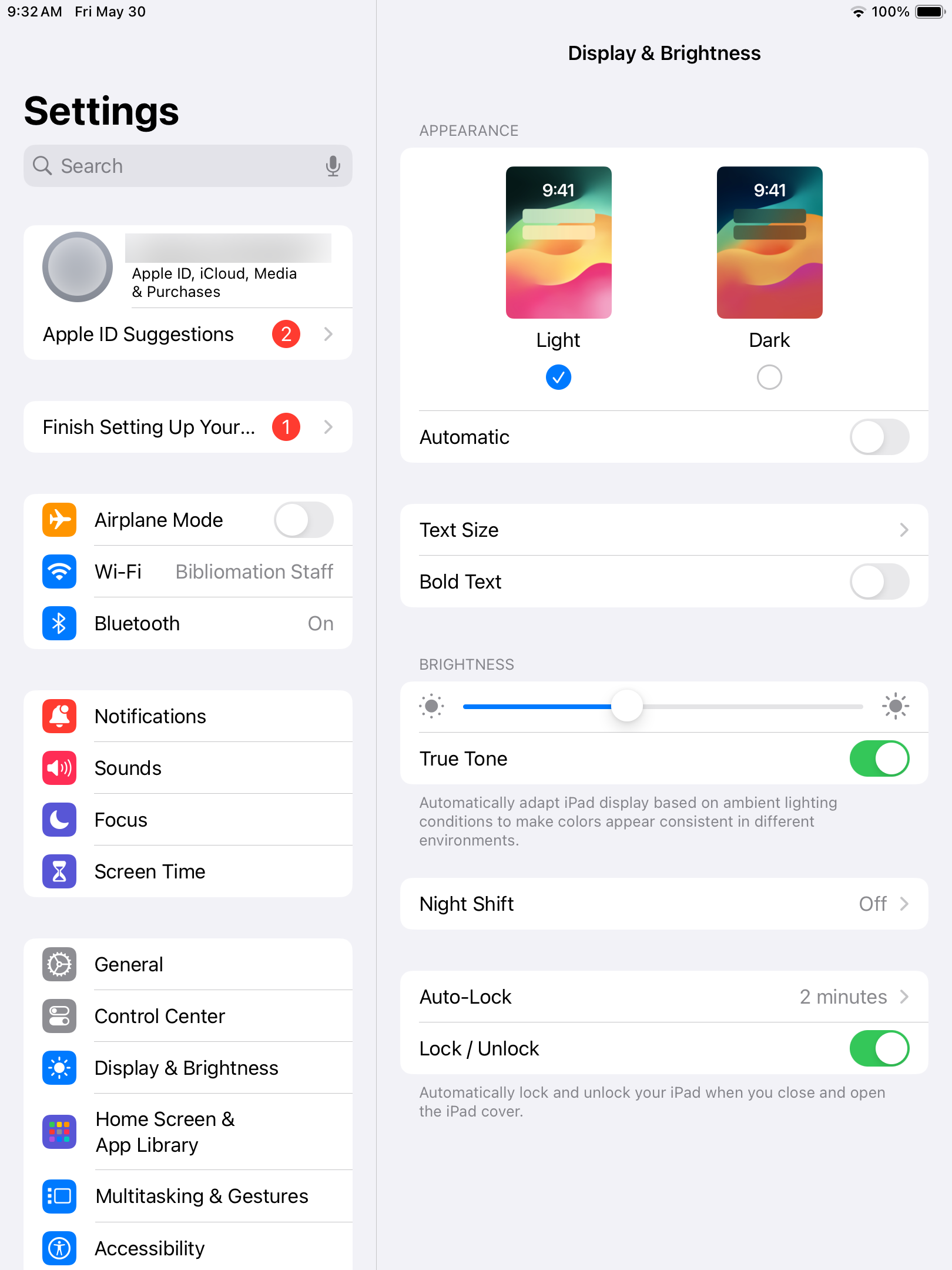
Light/Dark toggle missing on iOS |
Platform design |
Change system Appearance in iOS Settings. |
Barcode scan icon absent |
Camera permission denied |
Allow camera permission in Settings → Apps → Acorn. |
Pay button missing under Fines |
Online payments not enabled for library |
Confirm Stripe participation; pay in person if absent. |
Multiple accounts disappeared |
App reinstalled / data cleared |
Re‑add accounts; use Forgot Password if needed. |
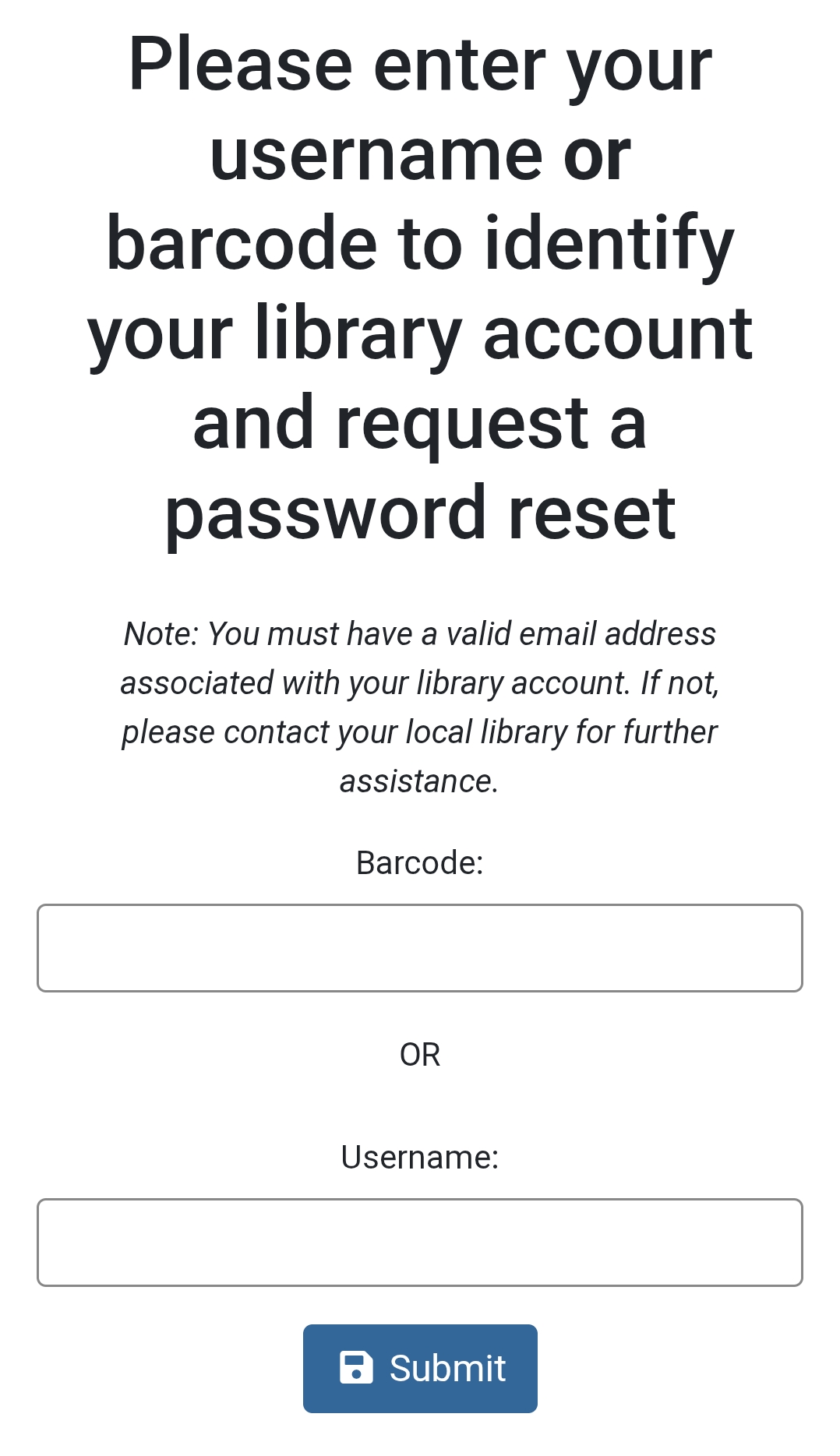
Forgot password link not working |
Missing email in patron record |
Add email in staff client then retry. |
Detailed Scenarios
Digital Barcode Fails
-
Raise brightness
-
Tilt or rotate device
-
Tap to copy & manual entry
-
Use physical card if hardware is older
Push Notification Missing
-
Update app if needed
-
Check OS notification permission
-
Toggle OFF → ON
-
Open app once (foreground)
-
If repeats, note timestamp & escalate
FAQ
-
Does the app show how many renewals remain?
Yes—each item under Items Out shows remaining count (auto-renewals use the same pool).
-
Can staff trigger a push notification manually?
No.
-
Can patrons create list descriptions in the app?
No—use the OPAC.
-
Does uninstalling remove optional tile config?
No—tiles are configured server-side and return after reinstall.
-
Why are some notification fields blank on the hold form?
They are placeholders; saved account preferences still apply on submission.
Best Practices
-
Email notices remain a fallback
-
Demonstrate tap‑to‑copy barcode
-
Encourage enabling push on first launch
-
Periodically verify optional tile URLs still load
|
Capture device + OS + app version + steps attempted before escalating—reduces back‑and‑forth. |