Patron Notes
There are three types of notes and messages that can be applied to the patron account:
-
Note - information recorded on the patron account. Labeled as SILENT_NOTE.
-
Alert - information recorded on the patron account that generates an alert when the patron’s account is retrieved. Labeled as ALERT_NOTE.
-
Block - information recorded on the patron account that blocks patrons from checking out, renewing, and placing items on hold. Staff generated version of these types of messages will be labeled STAFF_CHR. System generated blocks will have more descriptive labels.
Notes, alerts, and blocks can be applied to a patron’s account automatically by the system or manually by staff. These can be viewed and managed on the Notes tab in the patron account.
Any of the above types can be set as visible to the patron so they can be viewed in the OPAC.

System Generated Notes
Alerts and blocks will show up under the patron’s name when you access an account.
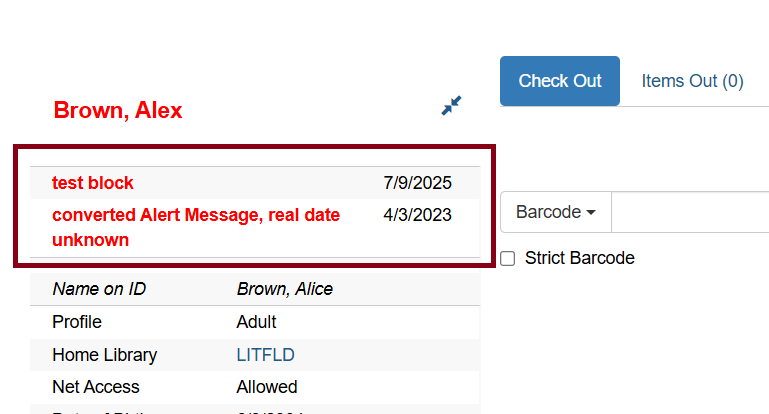
| Hover over the title of the note to view the full note contents, or click the title of the note to go to the notes screen. |
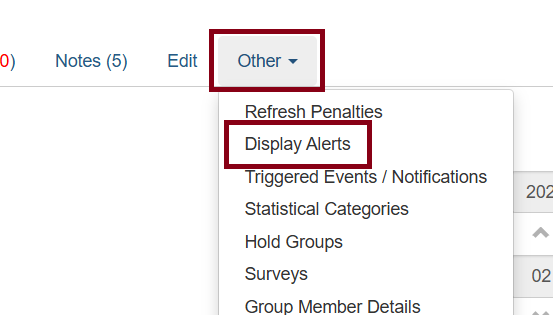
You can also look up alerts in Other → Display Alerts.
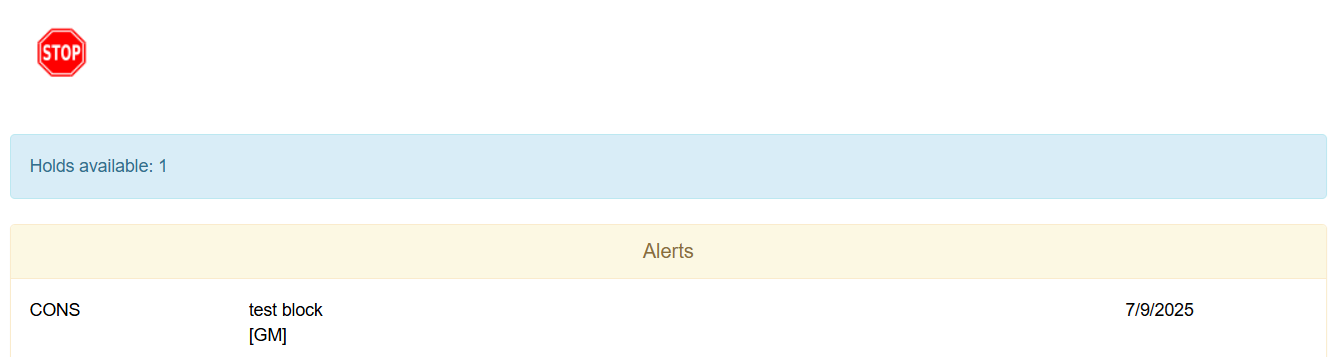
Evergreen will automatically apply alerts in the following situations:
-
Patron’s account has expired.
-
Patron has a hold ready for pick up.
-
Patron has an invalid email address.
-
Patron has an invalid phone number.
-
Patron has an invalid address.
When these blocks are applied to an account the patron is blocked from checking out, renewing, and placing items on hold. Evergreen will also not capture or fulfill holds for the patron. The max checked out item threshold is an exception; patrons with this block can still renew and place holds on items.
With the exception of the max lost item block, the block will only apply at the library where the fine was applied or the items were checked out. Other libraries will not be able to see these blocks.
The thresholds for these blocks are set per library and can be changed by contacting the Help Desk.The max lost item threshold is the exception; this block is applied for all patrons with one lost item system-wide.
Evergreen will remove these blocks and alerts when the cause is resolved. They can also be removed individually by staff if necessary.
Blocks can also be overridden by staff with the Circulation Staff permission group when placing holds, checking out items, or renewing items.
Staff Generated Notes
Adding a Note
-
In the patron’s account click on the Notes tab.
-
Click Create Note.
-
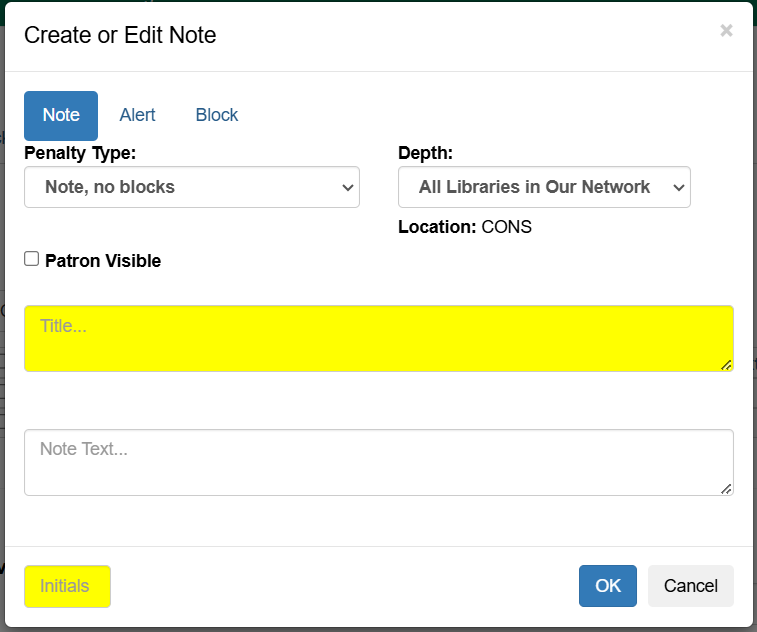
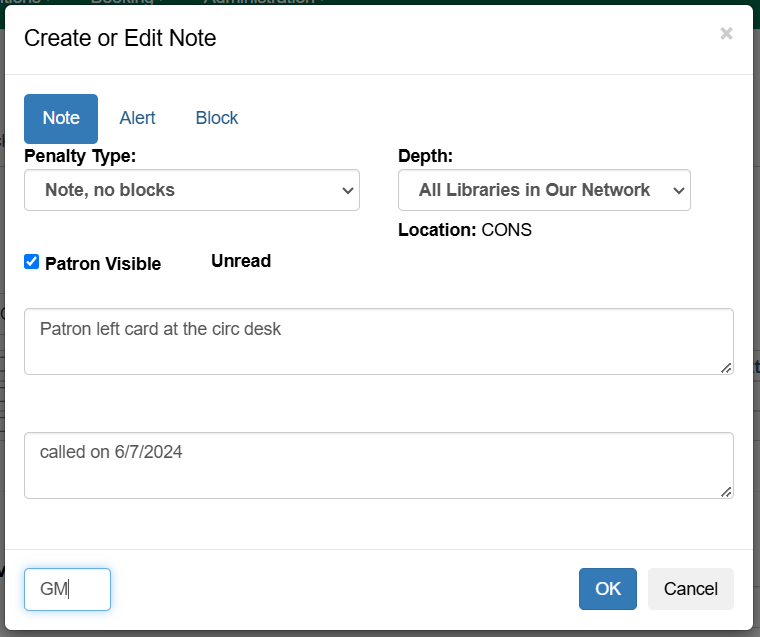
Select the type of note you would like to create by clicking the appropriate button or selecting the option from the Penalty Type drop down (or by clicking the Note, Alert, or Block tab).
-
If the note should be visible to patrons in My Account check the box for Patron Visible.
Visible notes are also viewable in the Other → Message Center in the staff client in the patron account in the staff client.
-
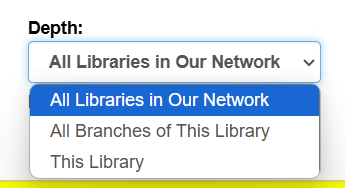
You can change where the note will be visible from the Depth menu. If you want it to be visible at all libraries that might interact with the patron, keep it set at All Libraries in Our Network. If it is specific to your library or system, you can set it to All Branches of This Library or This Library.
-
Enter a Title for the note (this is required).
-
Optionally, enter additional text for the note.
-
-
Enter your initials (required) and click OK to save the note.
| Patron visible notes cannot be edited after a patron has viewed them. |
Deleting or Archiving a Note
-
In the patron’s account click on the Notes tab.
-
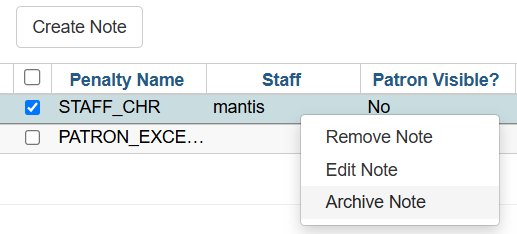
Select the note you would like to delete or archive.
-
From the Actions menu select the appropriate action. You can also right-click over the note to bring up the same menu.
| Notes cannot be deleted after they are archived. |
-
If archived, the note will now display in the archived section. By default archived notes from the last year display. Use the date selectors to adjust this period as needed.

| Patron visible notes cannot be deleted after the patron has viewed the note. Instead, these notes must be archived to remove them from the active notes section. |