Evergreen Version 3.15 New Features
April 2026 Bug Backports
On Monday, April 13, the Evergreen department will apply the following bug fixes and small new features to the system.
-
When placing OPAC holds, the notification options will now say Notify by… instead of Yes, by… for better clarity.
-
Restores alternating row colors in the Patron Summary.
-
Restores the display and editing of line item detail notes in Acquisitions.
-
Restores the ability to change copy attributes, including funds, after a PO is activated in Acquisitions.
-
Fixes color scheme when printing the Pull List in dark mode.
-
Filter boxes in the Staff Catalog are wider.
-
Fixes an issue where some items stay in the Claims Returned state after they have been checked in.
-
SMS Carrier is no longer a required field in the Patron Edit/Registration page or within hold options in the OPAC.
-
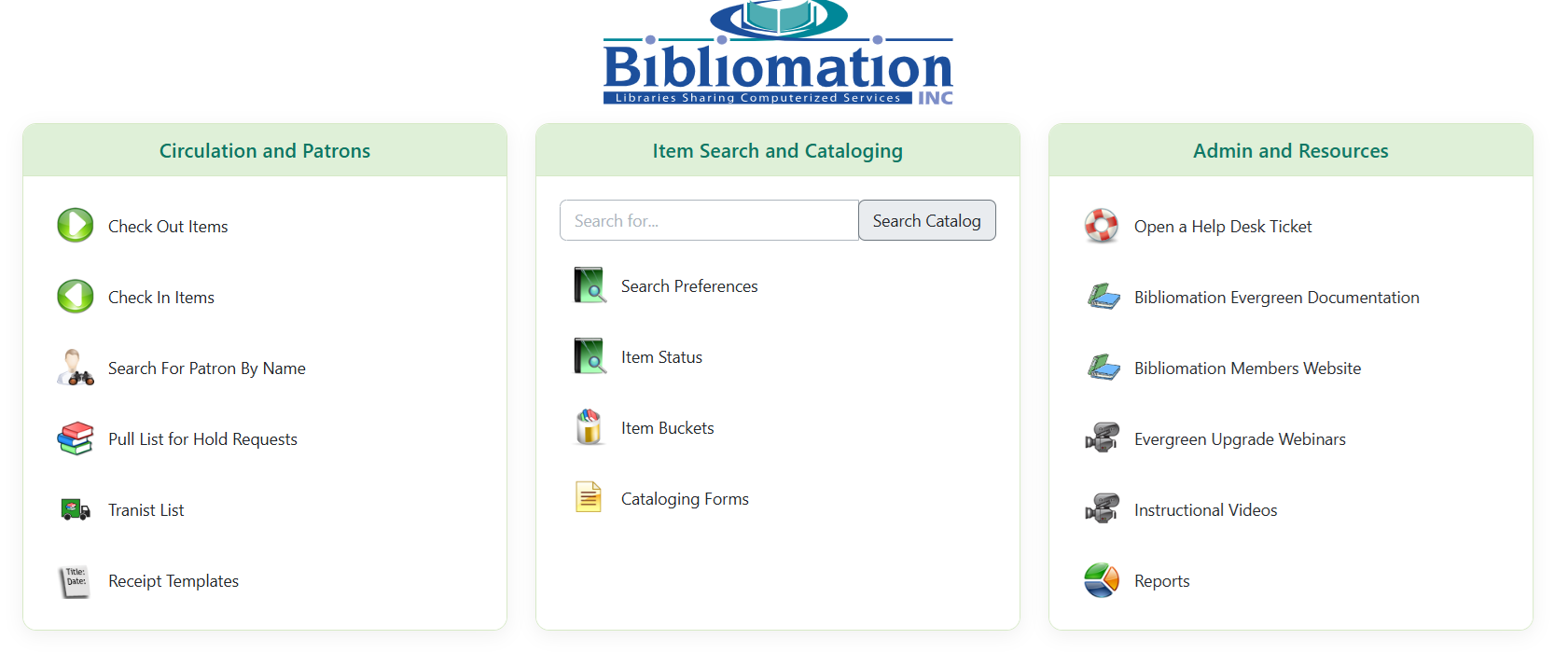
The home/splash page for Evergreen has a refreshed design. Links are also slightly reworked:
-
Register Patron has been removed and can be accessed under the Circulation dropdown in the top nav bar.
-
Transit List is added.
-
Receipt Templates moved under Circulation and Patrons.
-
Advanced Search for the Staff Catalog has been removed and can be accessed within the Staff Catalog screen.
-
Search Preferences for the Staff Catalog has been added.
-
Administration has been changed to Admin and Resources. This will include more external links to Bibliomation’s resources. Reports is still under this column.
-
Post Upgrade Notes
| In some workstations after the upgrade, the Patron Search won’t work and will stall. Click Clear Form and refresh the page (hit the F5 button on your keyboard). The search form should begin working again. This only needs to be done once on workstations having trouble. |
The system has been successfully upgraded to version 3.15 over the weekend of Feb 21-22. Thanks to reporting from our members, we were able to find other things to address:
-
For catalogers, you may have noticed Library of Congress formatted suggested call numbers when using the Holdings Editor. Go to Preferences and change the Default Classification to Dewey (DCC). The change will save automatically. You’ll need to close the holdings editor and open it again to see the change take place.
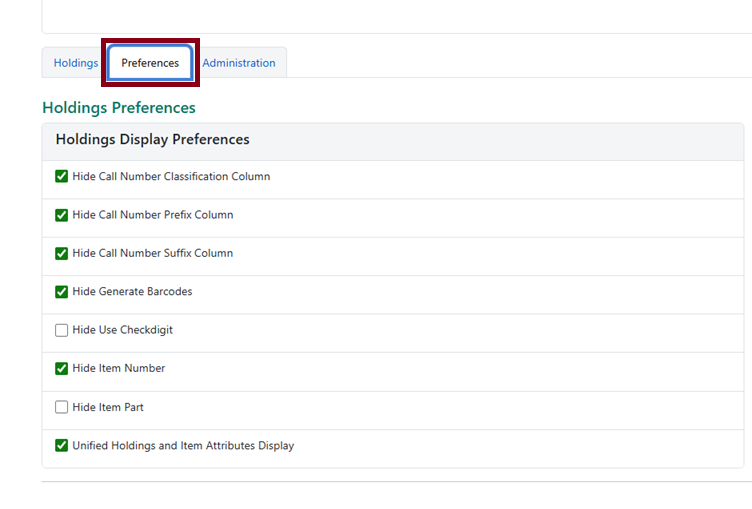 Figure 2. Holdings Editor Preferences
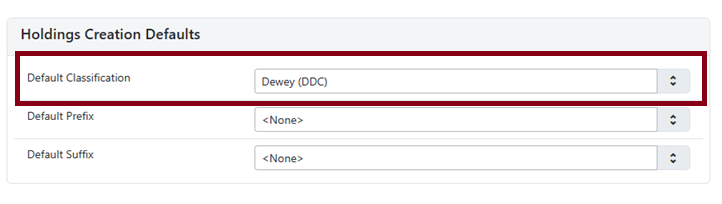 Figure 3. Holdings Editor Default Classification
Circulation
Hold Reset Reasons
Hold reset reasons allow staff to see when and why a hold request has been reset. Reset reasons are generated any time a hold has been reset, whether that’s a manual reset from a staff member (i.e.: Retarget Hold, Find Another Target) or automatically because a hold has reached the hold retarget interval.
To locate the hold reset entry:
-
Open a patron account and go to their Holds tab.
-
Select a hold and click Detail View.
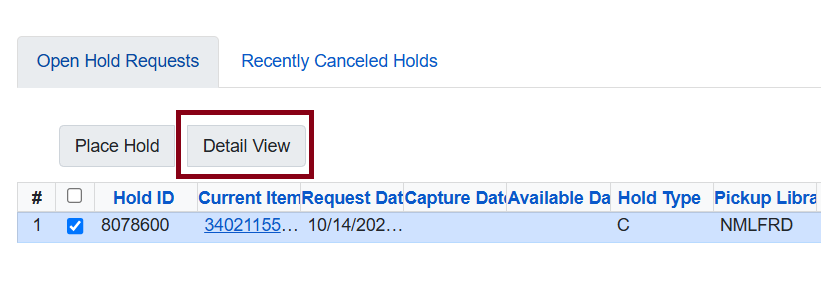 Figure 4. Detail View button
 -
Scroll down and click on Reset Entries.
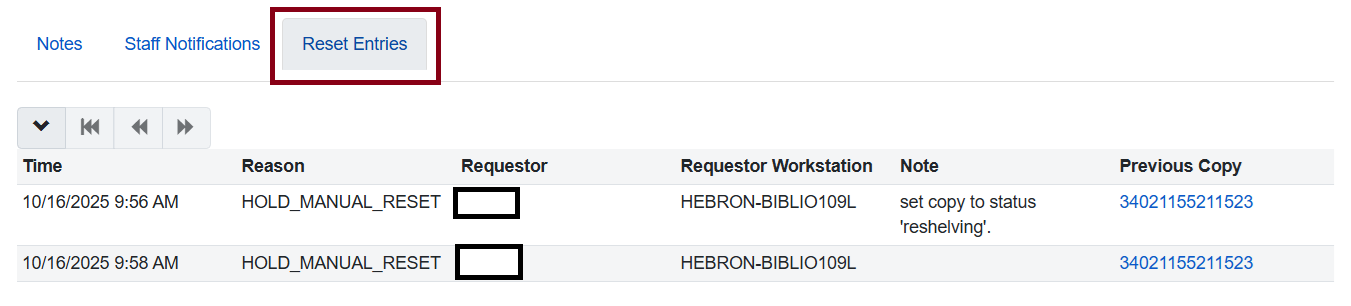 Figure 5. Reset Entries tab
Cataloging
New Holdings Templates
There is a new holdings template editor available. To access it, go to Adminstration → Local Adminstration. The older holdings template will be listed under Holdings Template Editor (Legacy). The new one will now be Holdings Template Editor.
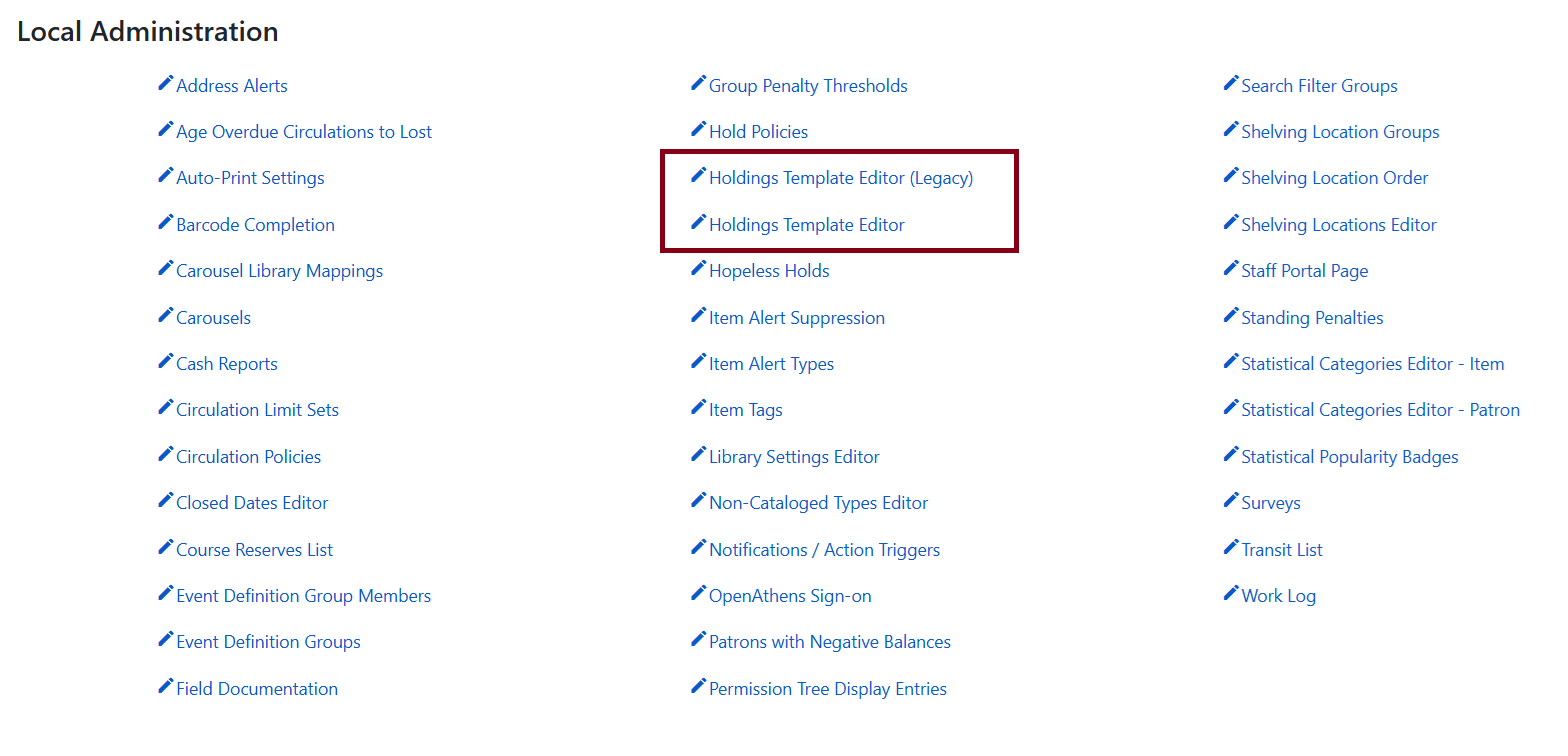
The new templates list will look like this.

Clicking Create Template will open the new template in a new tab.
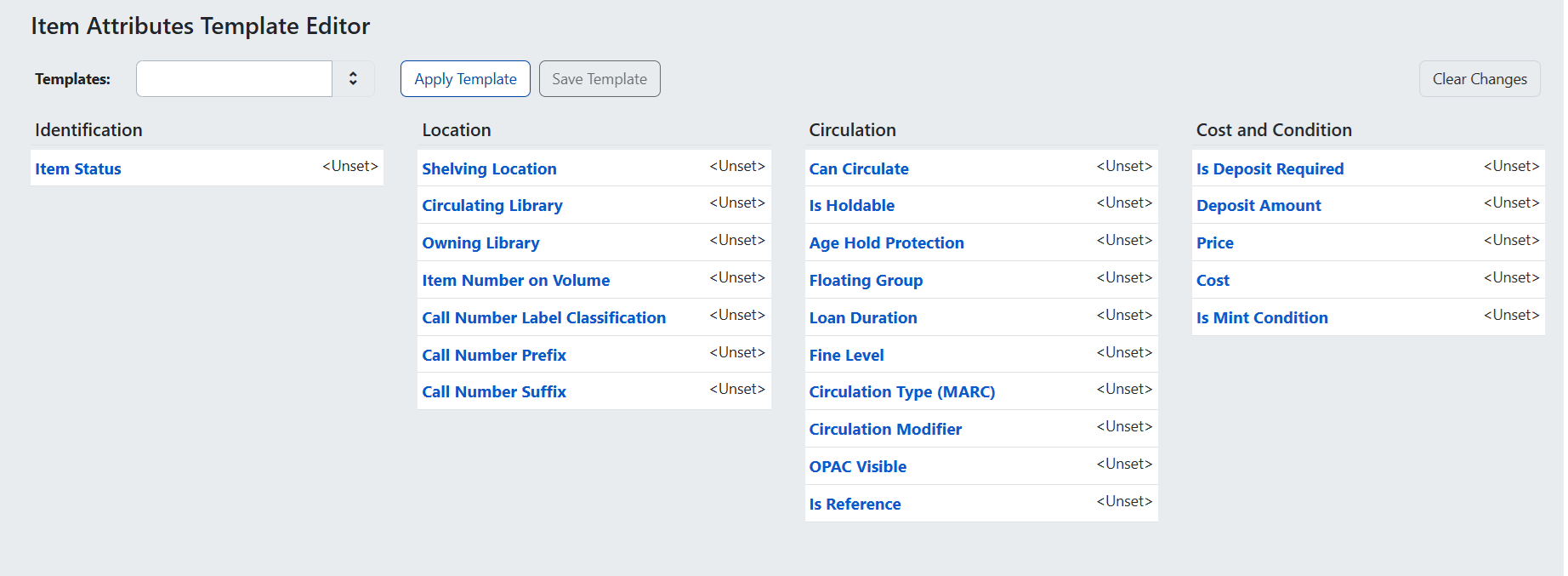
For instruction on creating a new holdings template, click here.
New Holdings Editor
The Item Attributes tab within the Holdings Editor looks very different but contains the same information.
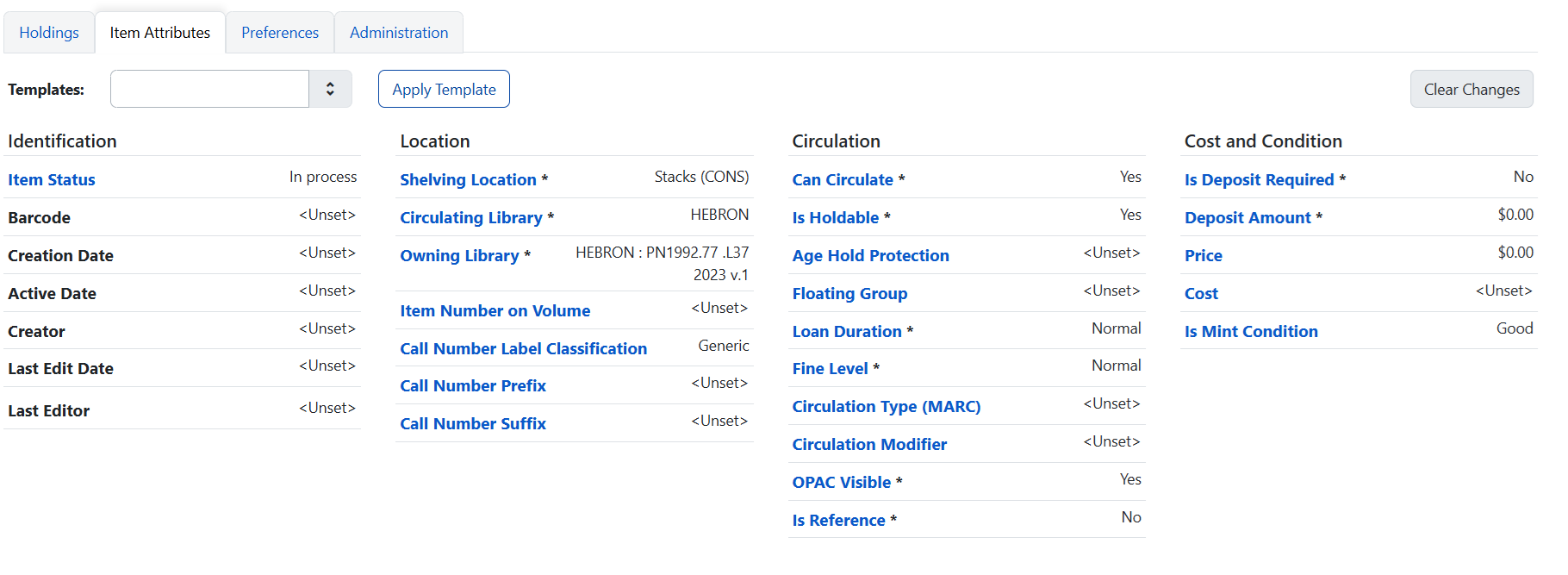
Click here for instructions on using the holdings editor.
New Parts Permission
As of the Evergreen 3.15 update, parts are required when an item is added to a bibliographic record with other items having parts.
For example, a bibliographic record for a DVD set has items with the part “boxed set.”
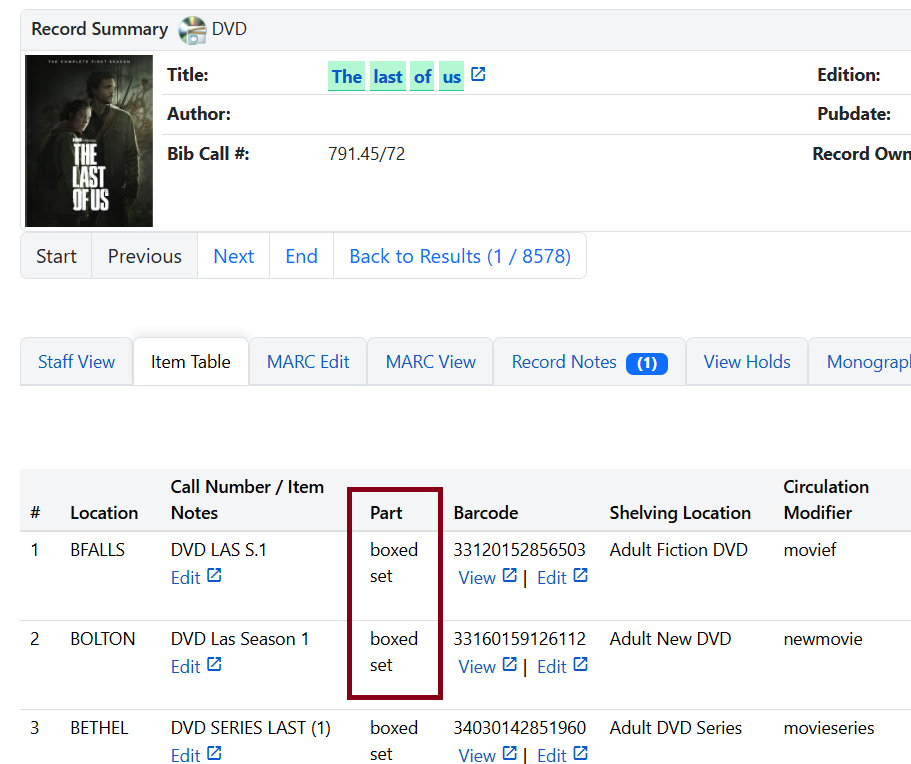
When a library wants to add their own item to the record, the part field is marked red, indicating a part is required. The buttons for Apply All & Save and Apply All, Save & Exit are inactive. The item cannot be created.
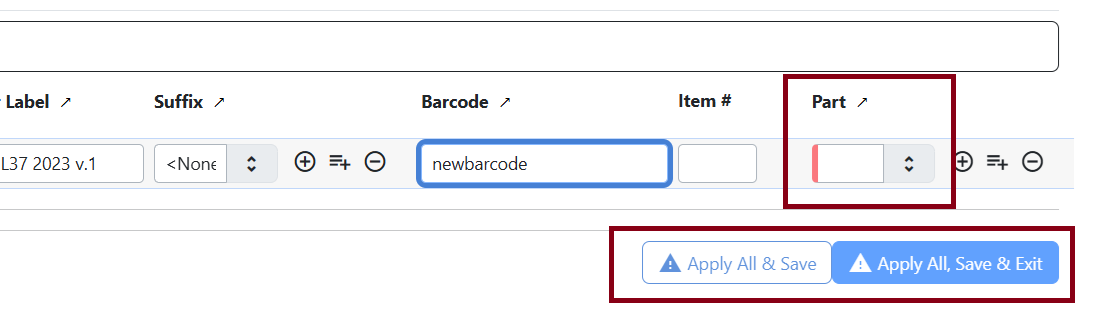
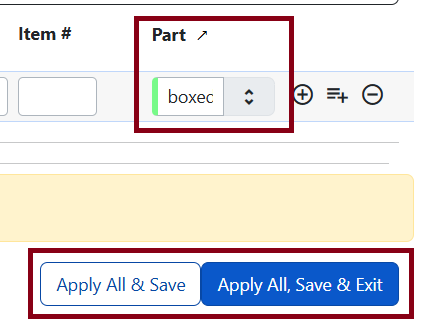
Once a part has been assigned, the part label is marked green, the button becomes active and the item can be saved.
Search Preferences Options
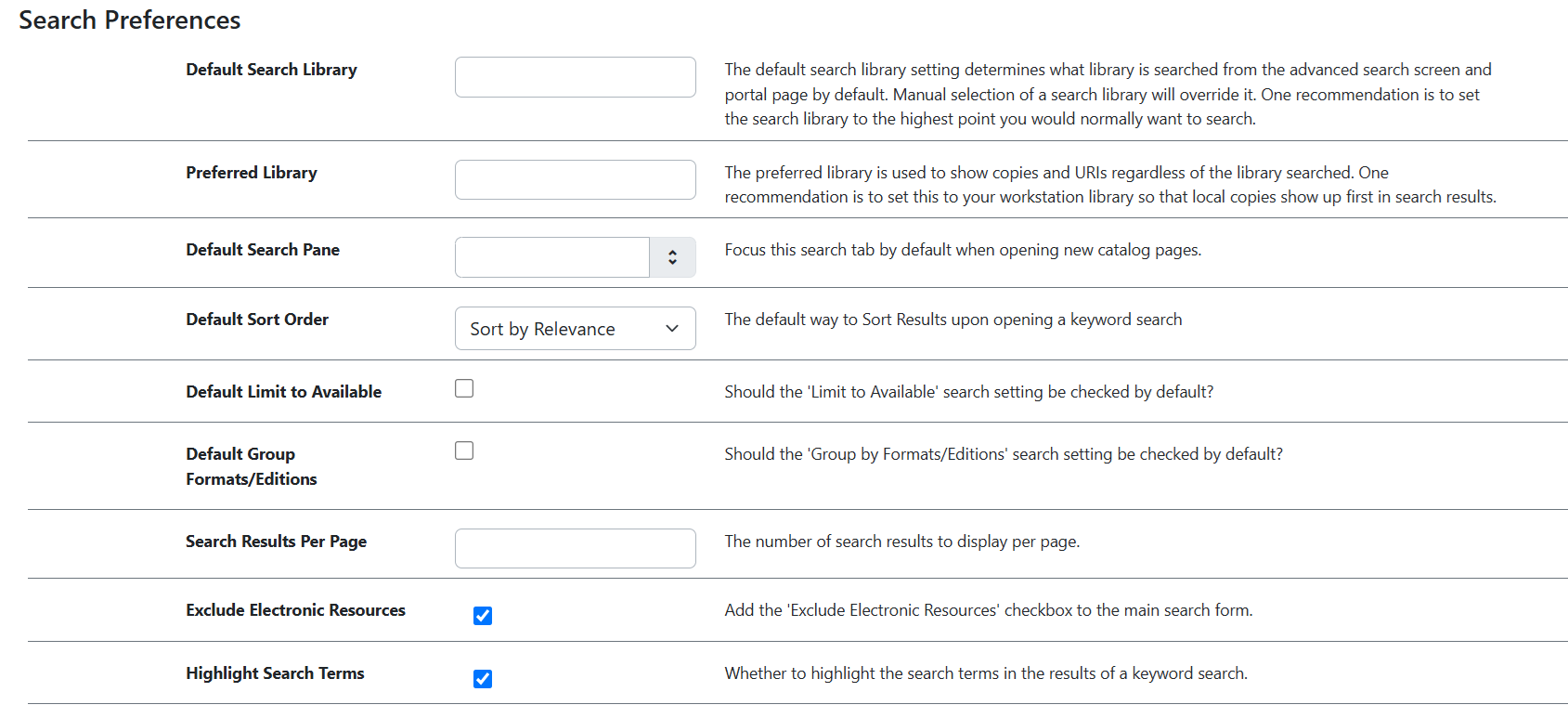
More options are now available in Search Preferences when searching the Staff Catalog.
-
Open the Staff Catalog by clicking Cataloging → Search the Catalog.
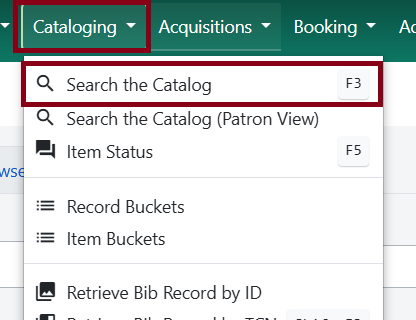 Figure 13. Staff catalog
 -
Click on Search Preferences in the search form.
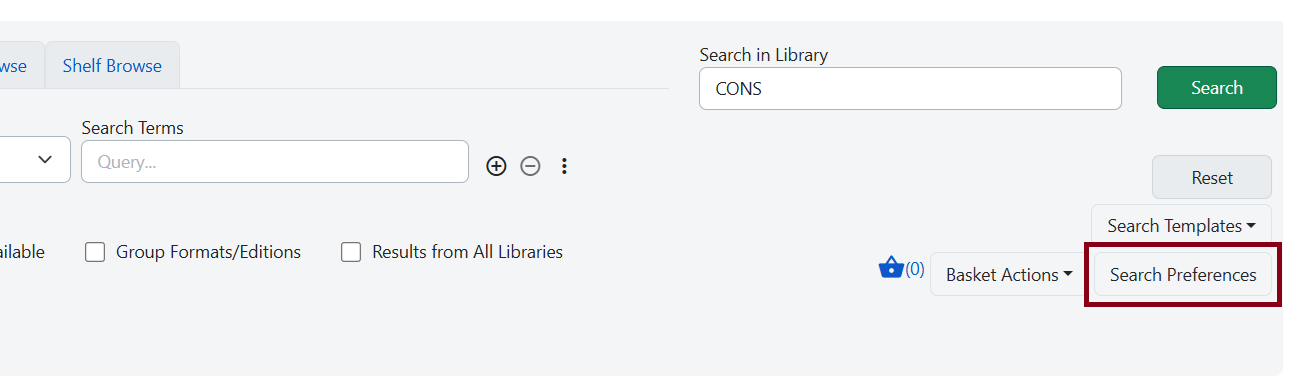 Figure 14. Search Preferences option
The form now includes:
-
Default Sort Order
-
Default Limit to Available
-
Default Group Formats/Editions
-
Highlight Search Terms
New Record Buckets
Record buckets now has a new layout and certain actions will be in different areas. Record buckets has a landing page or sometimes known as a "bucket list" page.
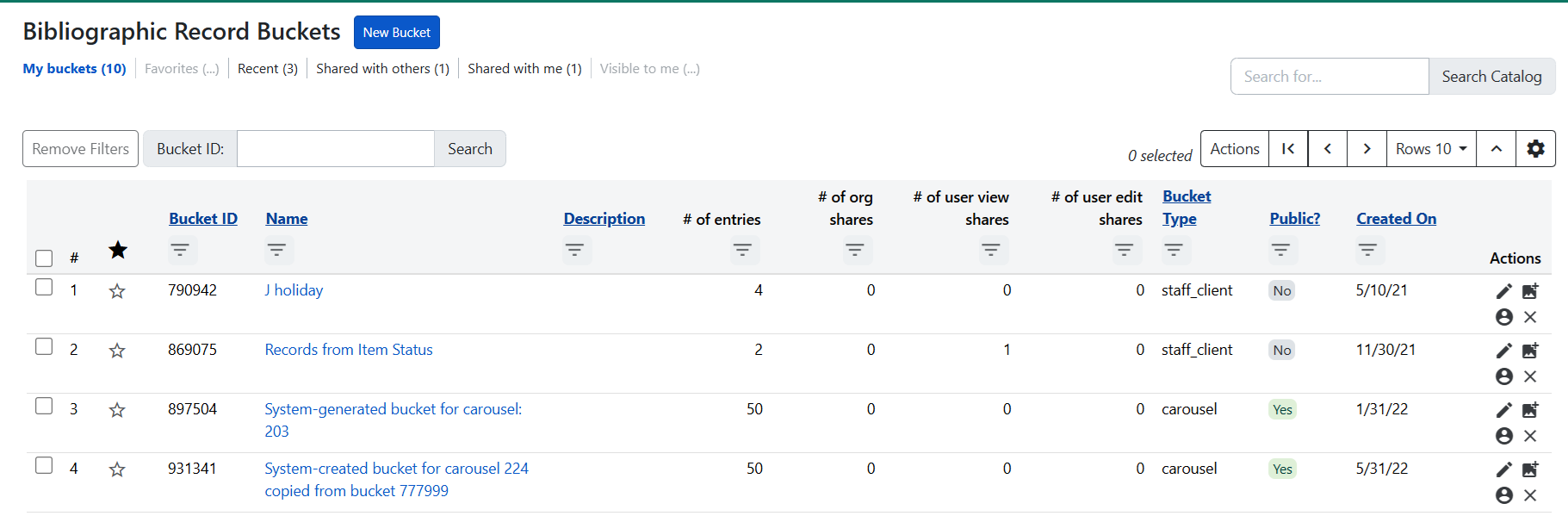
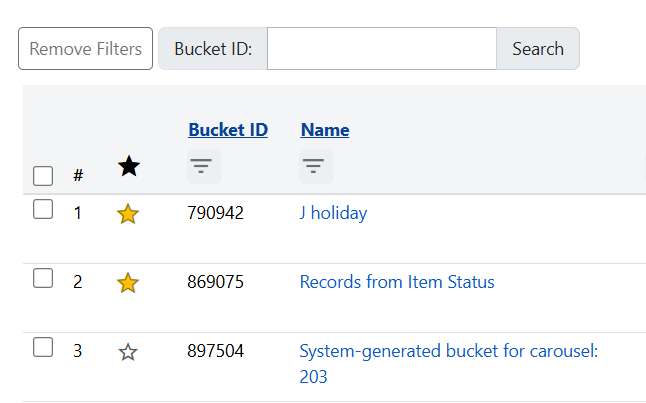
In the bucket list page, you can favorite buckets by clicking on the star icon (you might need to refresh the page after toggling it to see the change). This will be helpful if you work on particular buckets often. Adding a favorite star onto the bucket will also ensure it will be within the staff catalog’s new Buckets tab when you search the catalog.
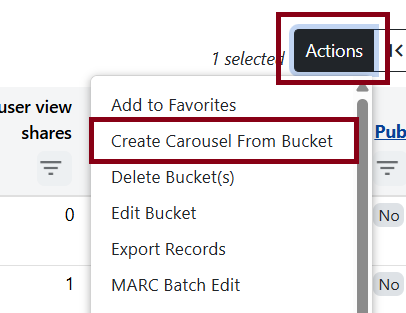
To create a carousel, click on Actions and Create Carousel from Bucket after checking off a bucket from the list. The bucket list screen is the only place you’ll be able to choose this option.
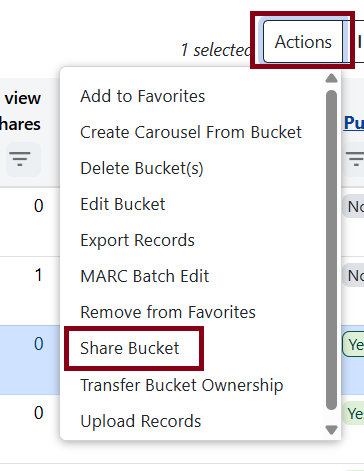
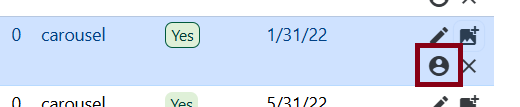
To share a bucket directly with another staff member, you can click on Actions and Share Bucket or the little person icon all the way to the right of the selected bucket.
When sharing buckets, you can search for the staff member you want for editing or viewing permissions into the bucket. Please don’t use the Libraries tab.
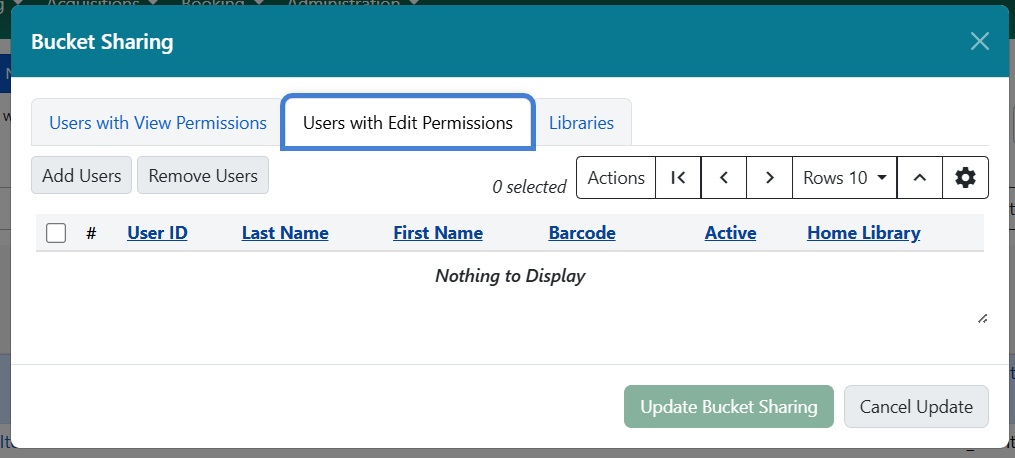
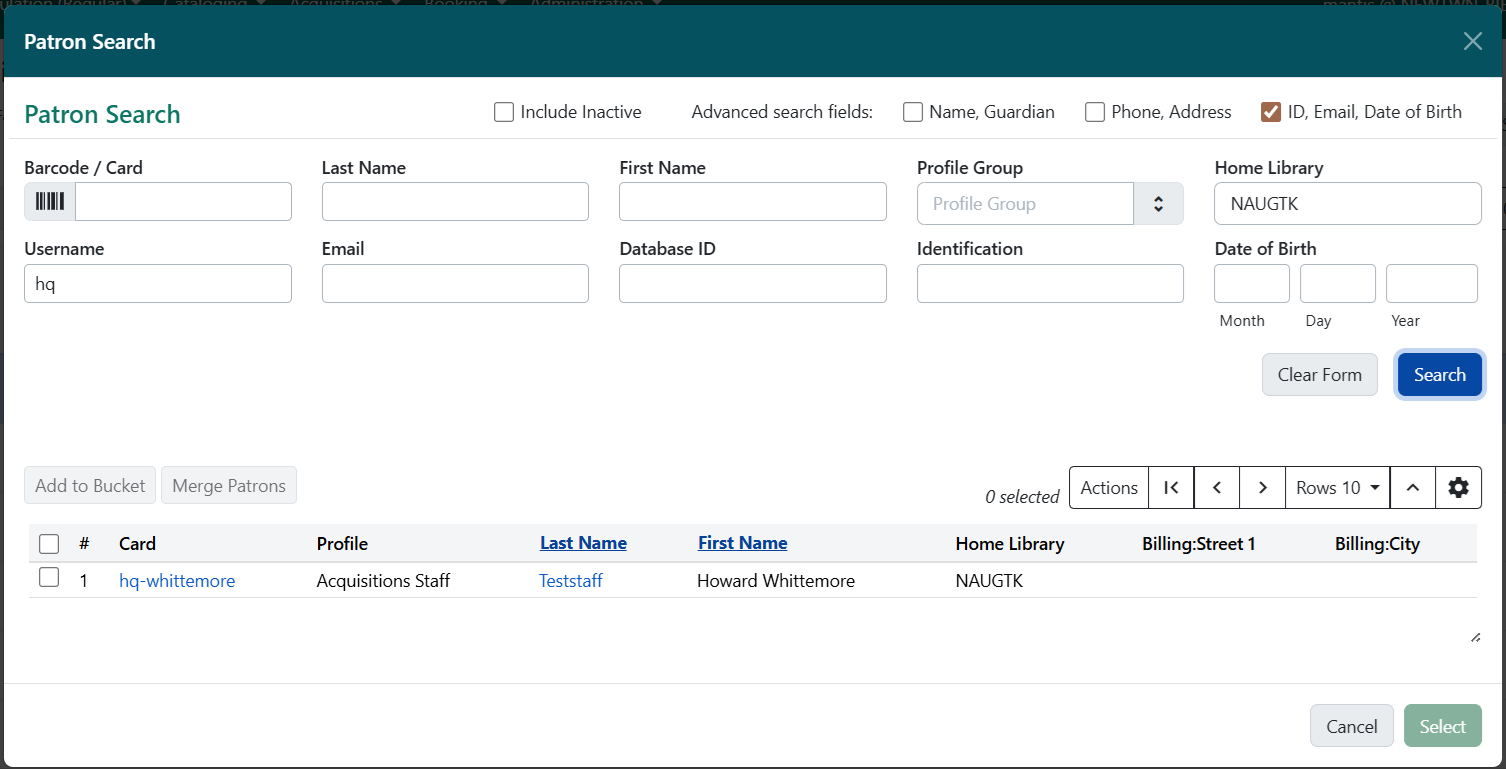
Click Add Users to bring up the patron search form to find a staff member.
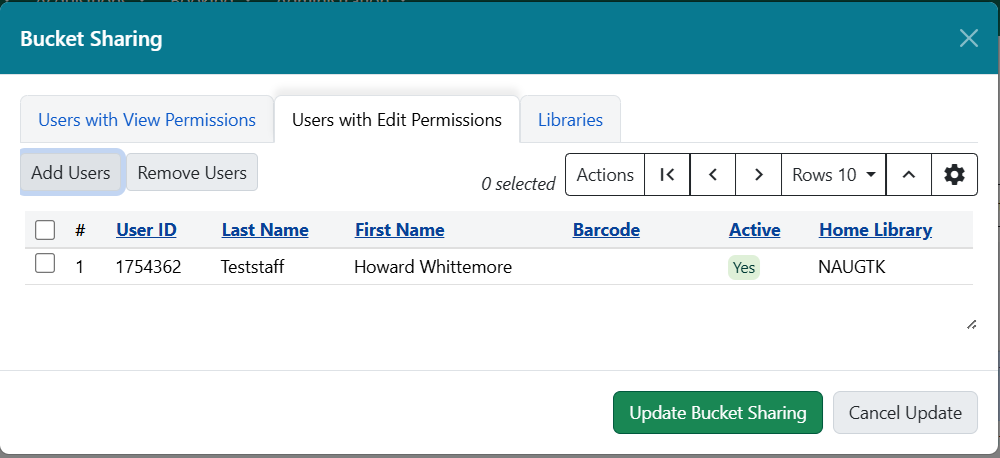
Added users will be in the share form. To remove a user, select a checkbox next to the staff account and click Remove Users then Update Bucket Sharing.
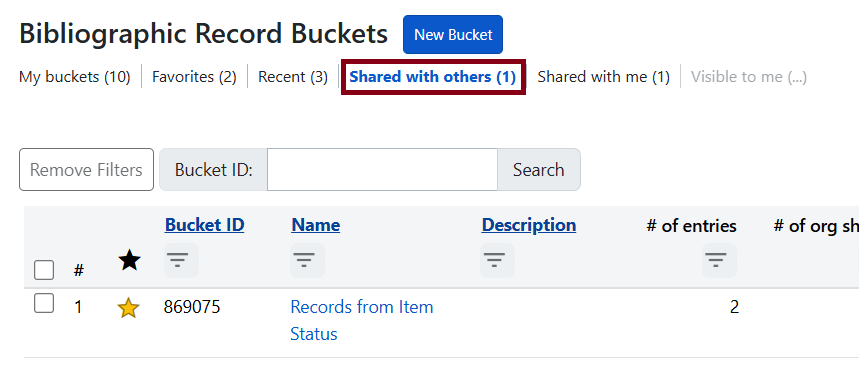
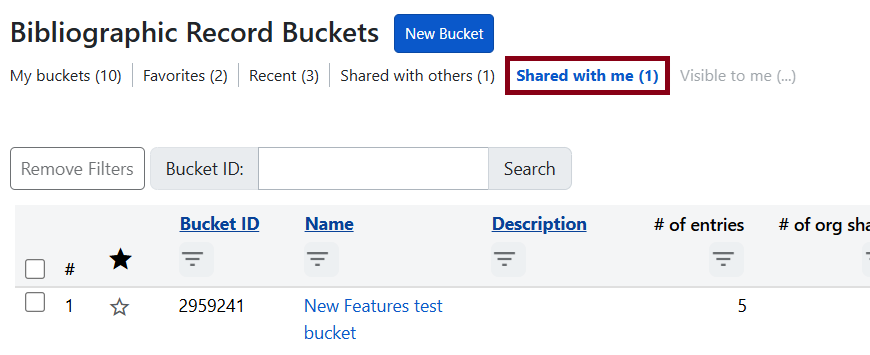
You can click on Shared with Others to get a list of buckets directly shared with other staff member. And Shared with Me is a shortcut to show buckets that are shared with you directly.
| All buckets can still be accessed with bucket ID if a staff member has it. Sharing just gives more direct access to the buckets and saves them in the appropriate shortcuts. |
There’s a widget to do a quick CONS level keyword search in the staff catalog in the upper-right hand corner. If you use the widget in the bucket list, the search will appear in a new tab. If you use the widget in the content view of the bucket, then it’ll search within the same tab.
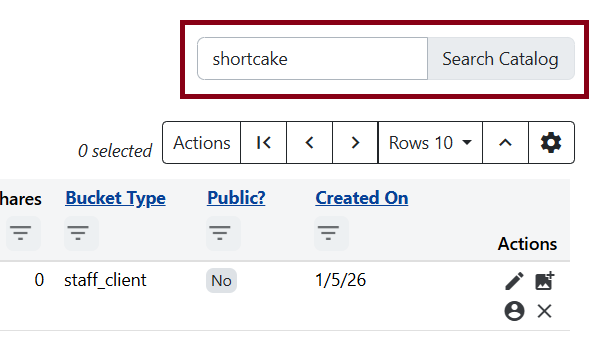
You can still add to buckets with the same options present in the current version of Evergreen. You can individually choose items by selecting Add to Bucket next to the search result in the list or do so through basket actions.
In this update, there is now a Buckets tab in the Facets of the catalog. To have this appear, make sure that Show Facets button is selected.
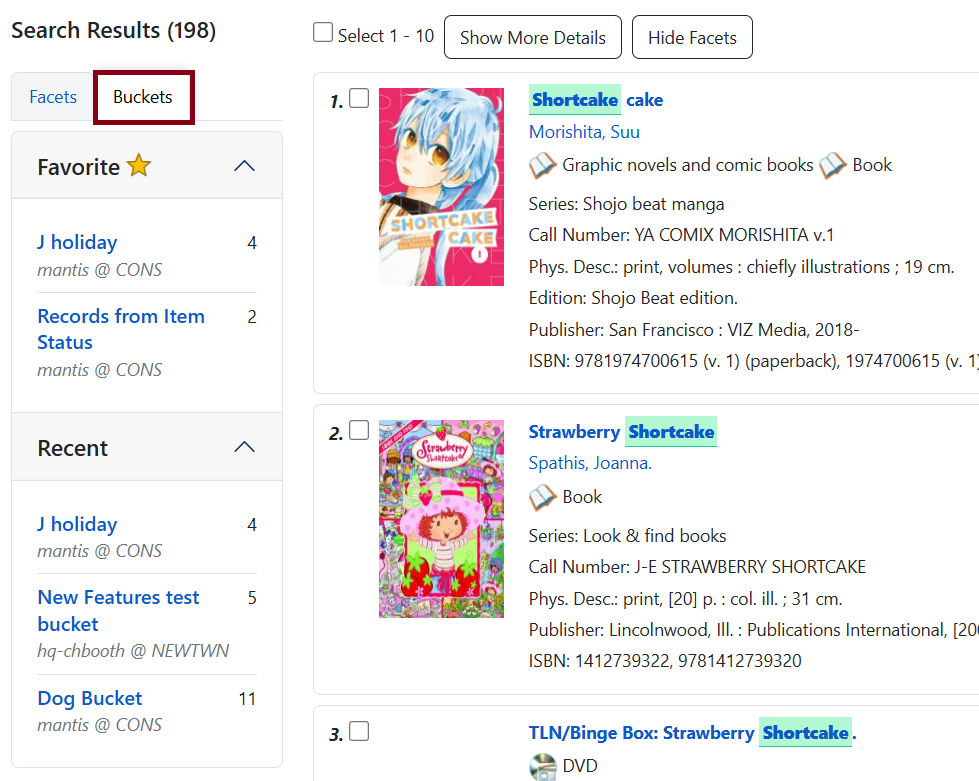
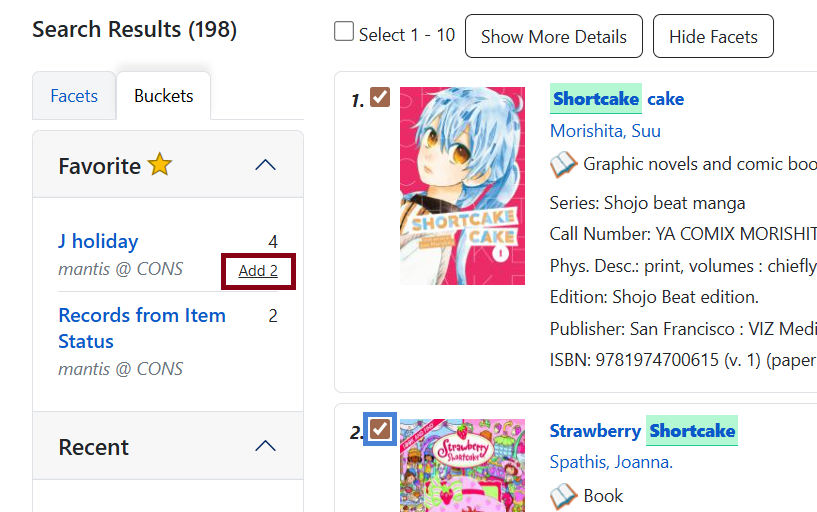
Here you can add selected items in the search results to favorite or recent buckets. Hover over the bucket you want to add to, and an Add (# Number of Search Results Selected) option.
Lastly, you can click on the title of the bucket within the Buckets tab to quickly get to that bucket’s content page.
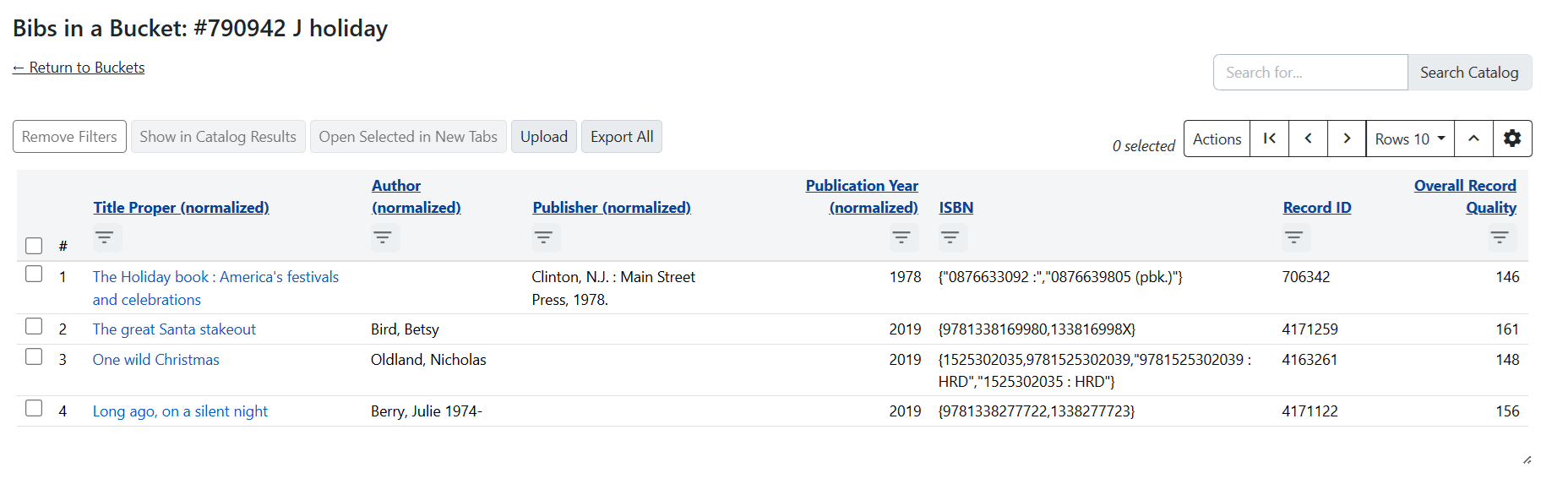
The typical actions for managing bucket contents will be here such as removing items, moving item to a different bucket, and exporting records.
Misc.
Light/Dark Mode Filter
A new dropdown menu will now allow you to view Evergreen in light or dark mode.
Click the sun icon in the upper-right hand corner of the screen next to your username and workstation.
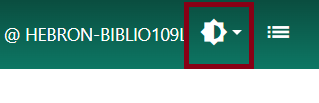
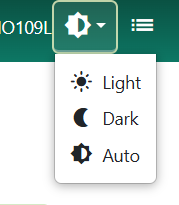
By default Evergreen will use Auto to match your computer’s Windows settings, but you can switch to Dark to reverse the staff client to a dark background and light colored text.
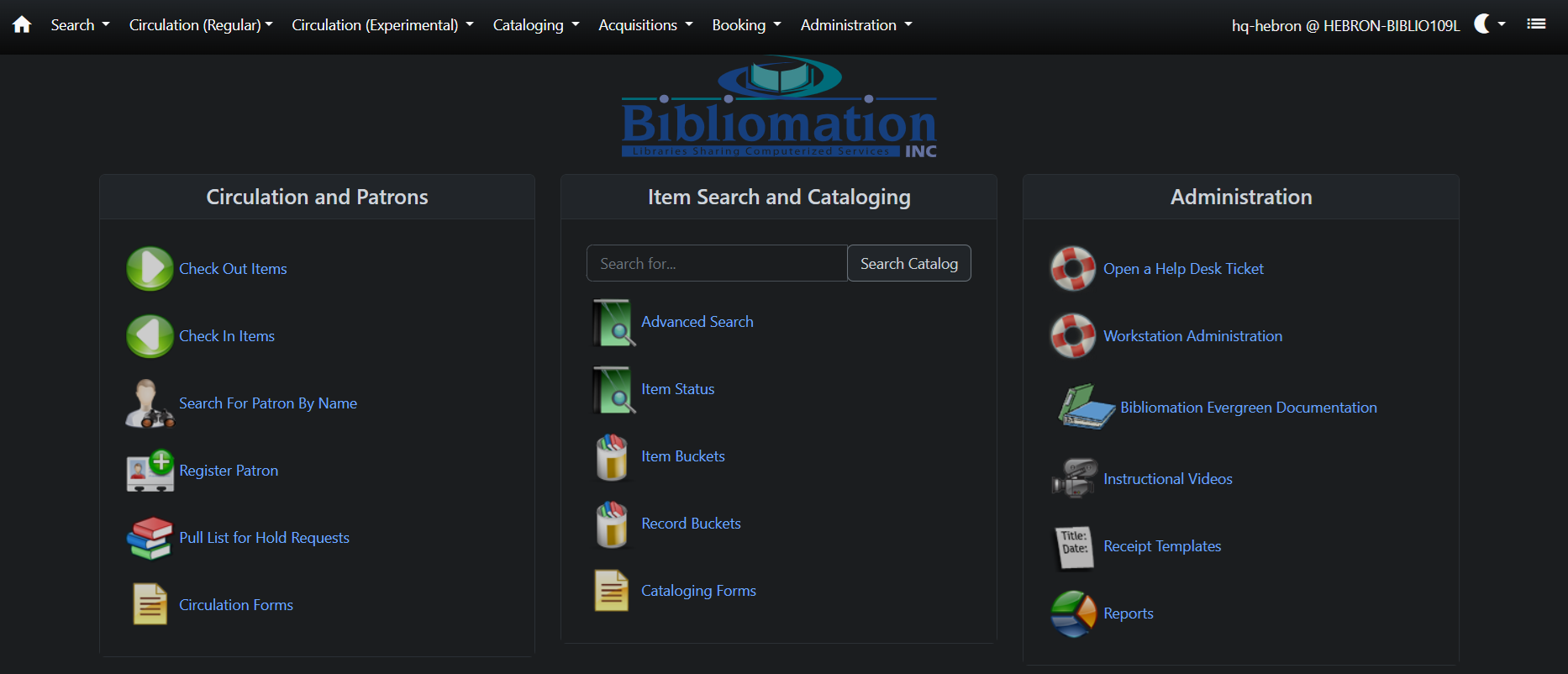
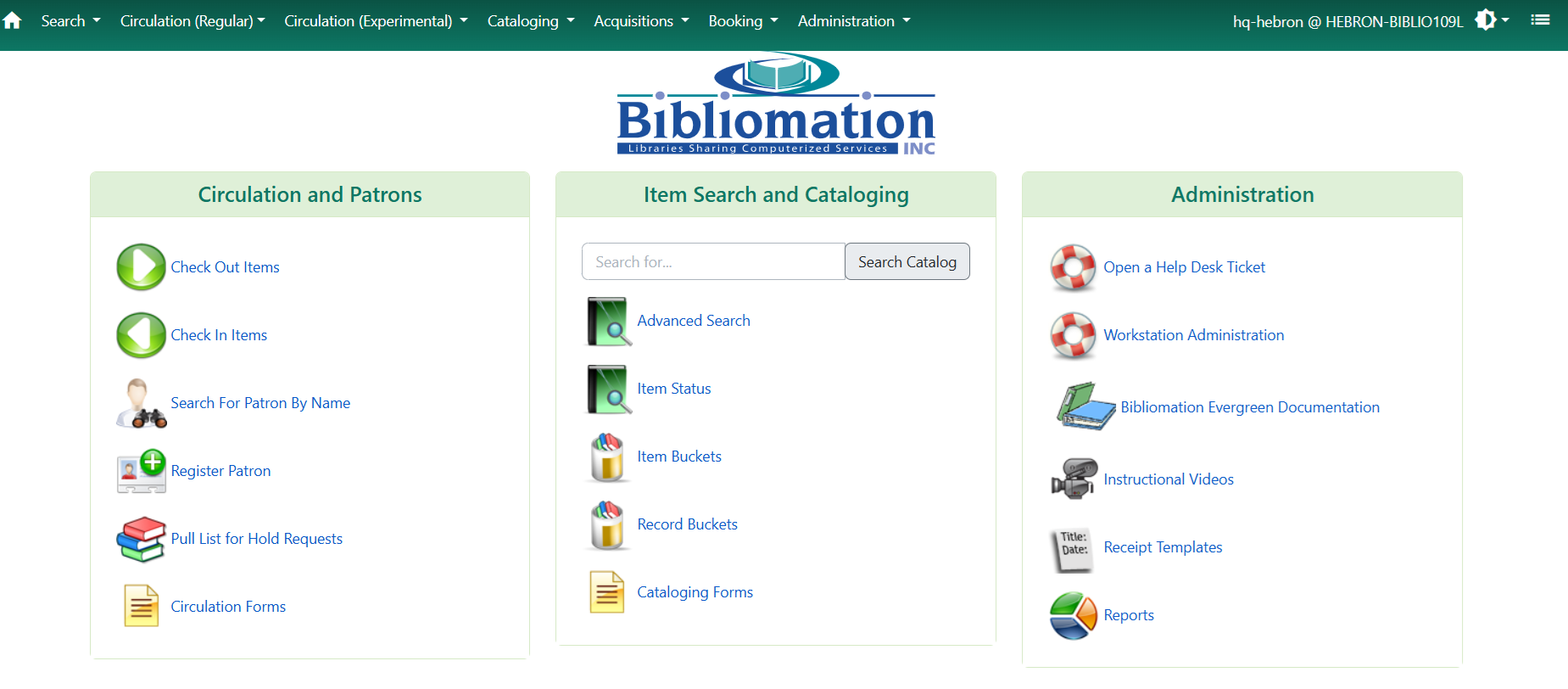
The icon will turn into a moon once Dark is select. Light will bring the client to the usual light mode.
Other Misc.
-
The Requested Username field in the patron self-registration screen will be hidden. Please submit a help desk ticket if you want to have this visible.
-
Patron self-registration date of birth field is now formatted to Month Day Year.
-
Carousels will now have duplicate record prevention.
-
Changing a hold’s pickup library in staff catalog will retarget item.
-
Privacy Waiver has been changed to Authorized Users. These are other patrons who are allowed to use your account. Click here for more information.
-
When placing a hold in the staff catalog, the Search for Patron box will look different. Toggle the checkboxes in the Advanced search fields for more options.
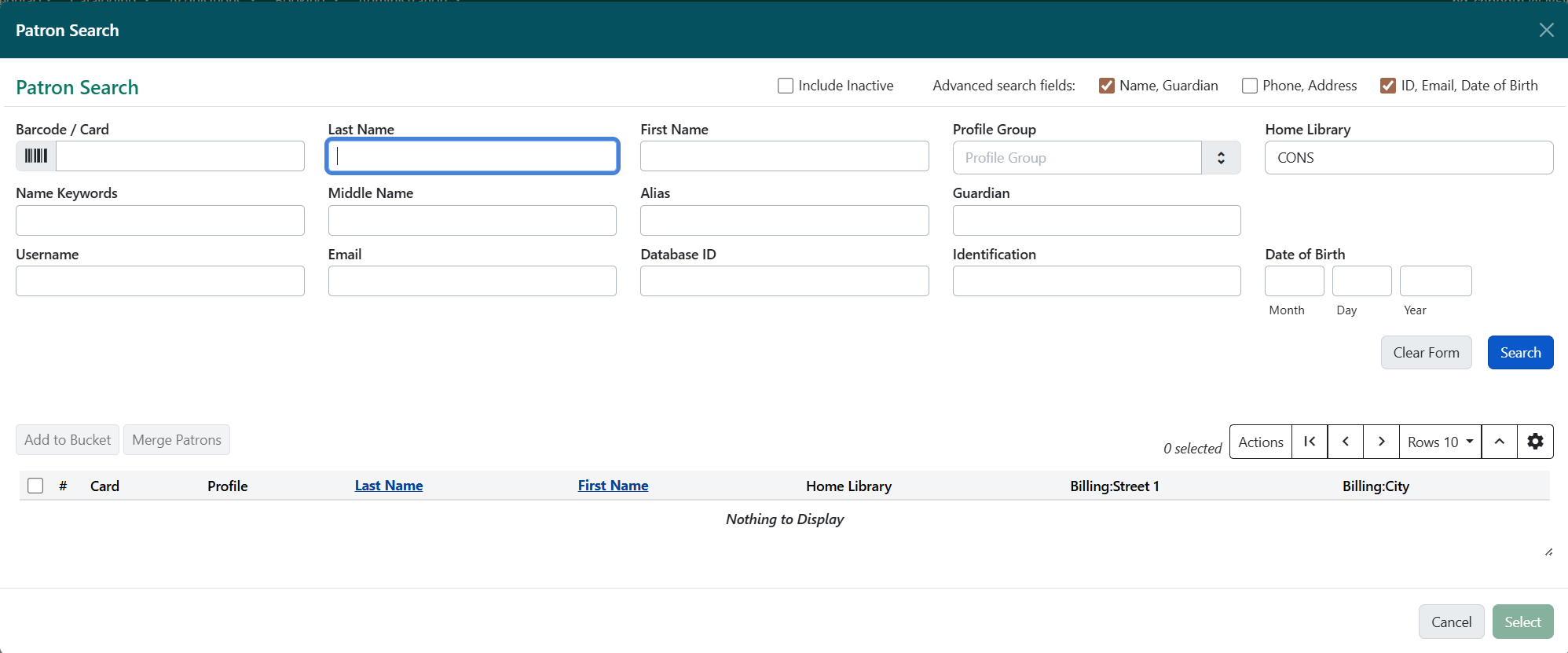 Figure 34. New Search Patron box
 -
In the My Account menu within the OPAC, you can click on Basic Search to display the search bar.
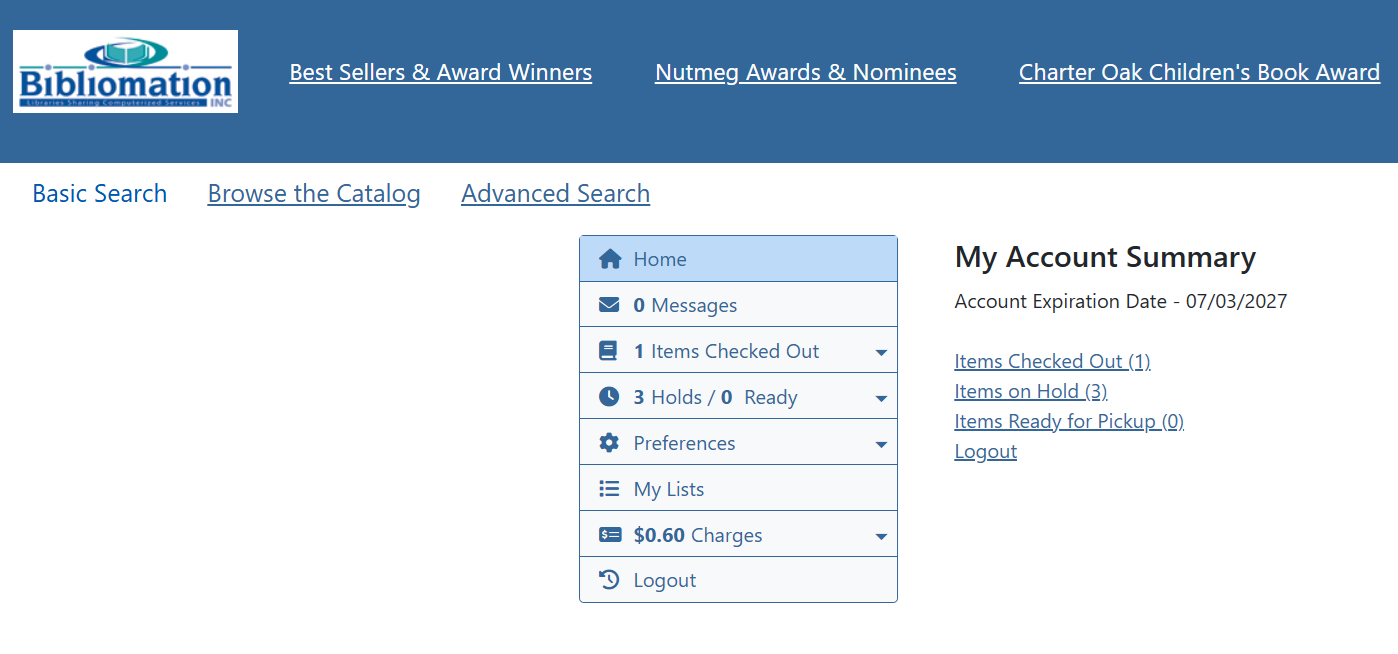 Figure 35. On default, Basic Search bar doesn’t appear in My Account
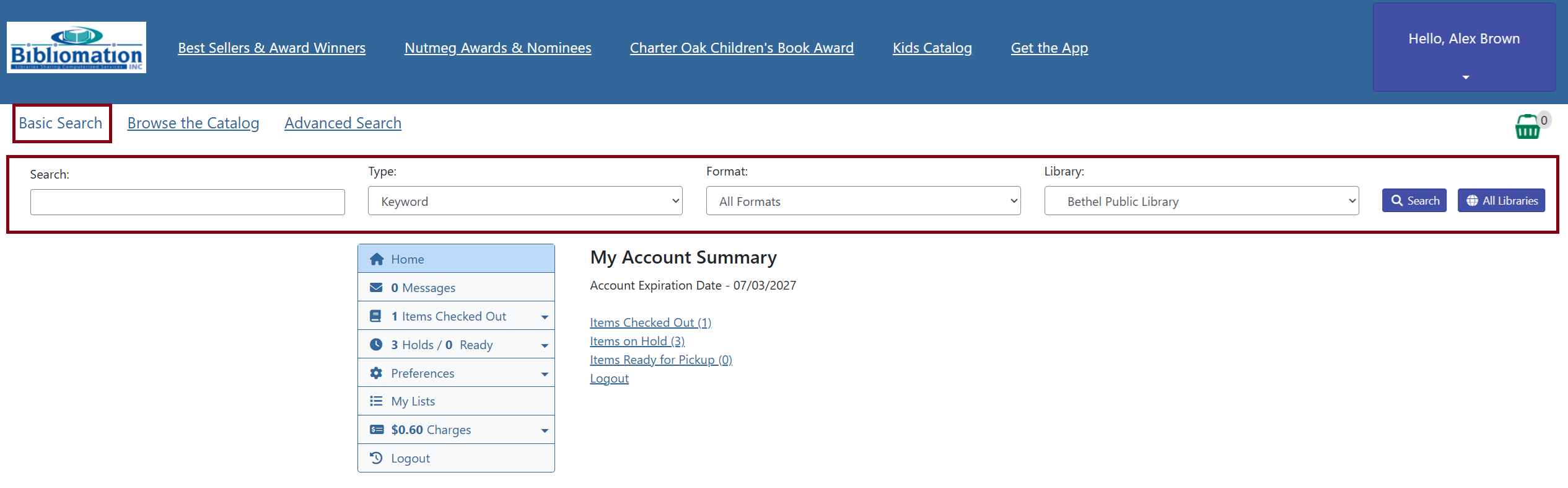 Figure 36. Toggling on Basic Search so bar appears
 -
Search & History within Preferences in My Account in the OPAC is relabeled to Other Settings. List Preferences has been relabeled to Lists.
-
Hold slips will now print the patron’s preferred name instead of their legal name if a preferred name is saved on their account.