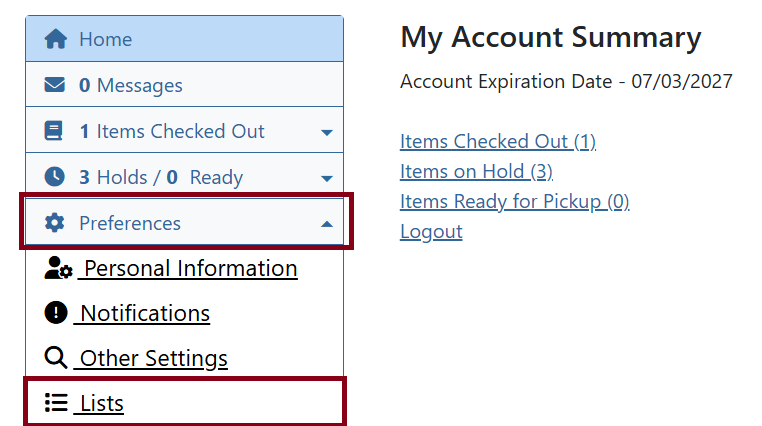
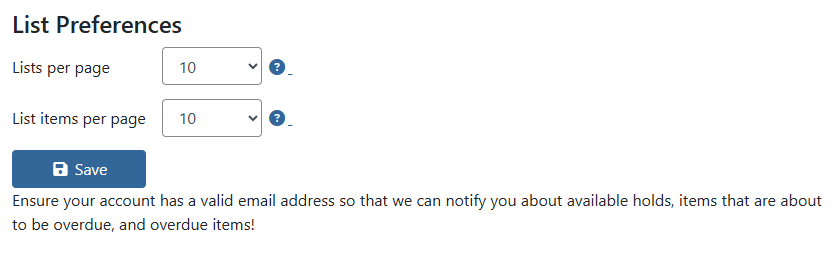
My Account Preferences
Personal Information
In the personal information area, you can view your contact information, change your username and password, and add an email address to your account.
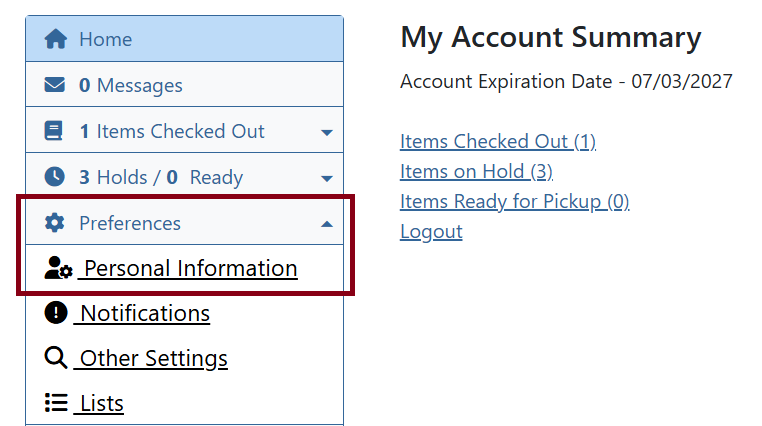
Go to Preferences → Personal Information.
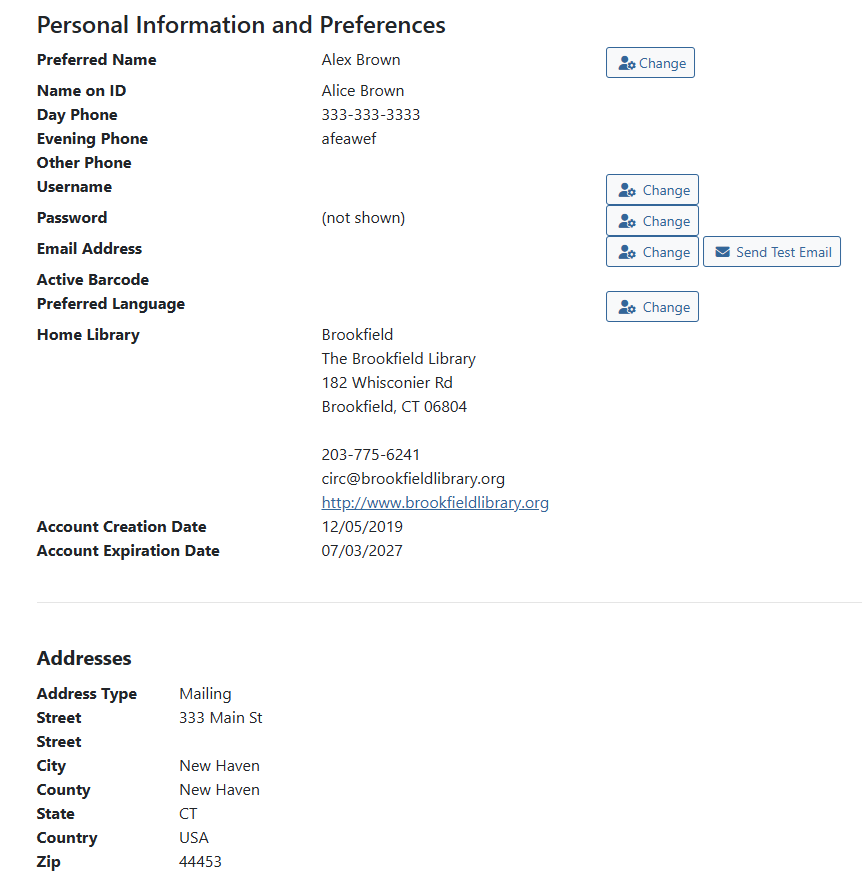
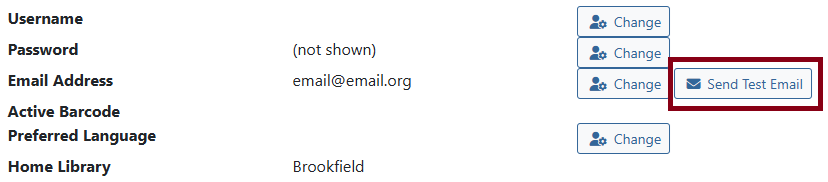
Certain fields can be changed such as username (which helps you log into the OPAC), contact information, and password. If you change these fields, you may be required to input your current password before you can save your changes.
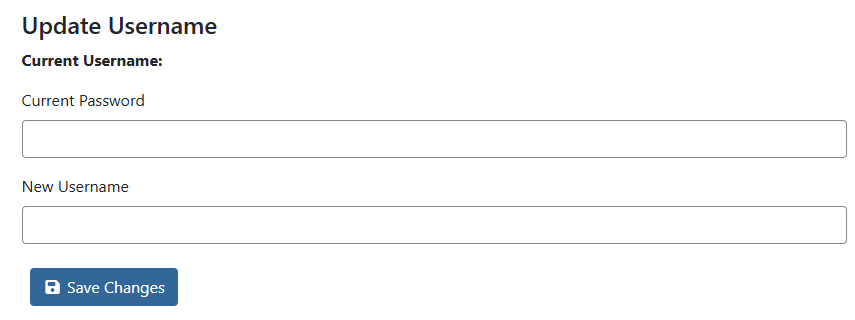
You can also send a test email to yourself in this menu.
| Go to the staff side of Evergreen to make changes that cannot be done in this menu of the OPAC. |
Notifications
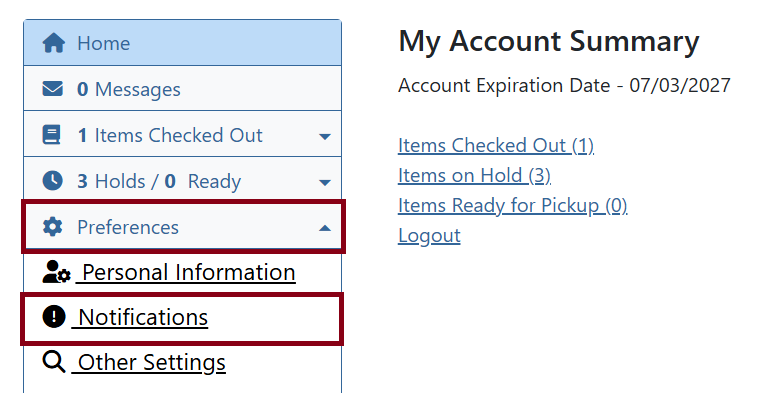
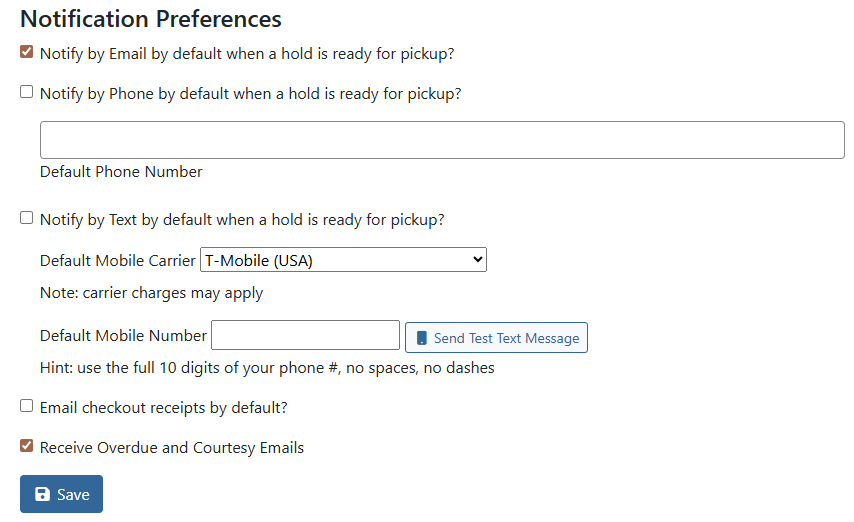
Click Preferences → Notifications. here, you can set how you would like to be notified when a hold is ready for pick up and if you would like checkout receipts emailed to you by default.
Other Settings
Click Preferences → Other Settings. You can set your search preferences such as default search location (which library you’d like to search, usually) and how many search hits you see per page. You can also set your preferred pick-up location for holds and opt-in to keep your history of checked-out items and holds.
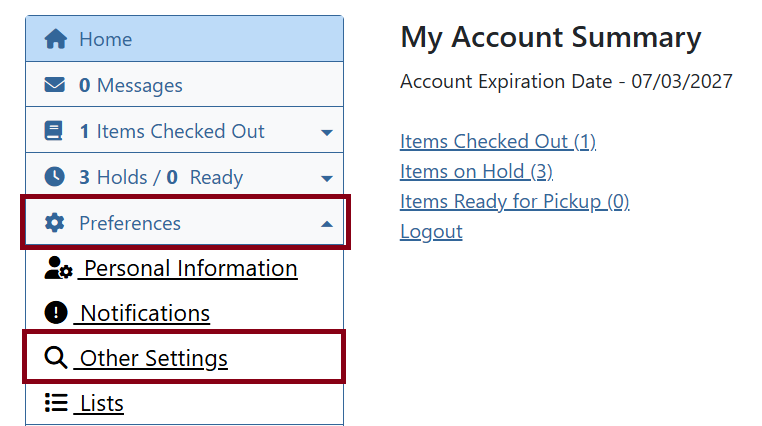
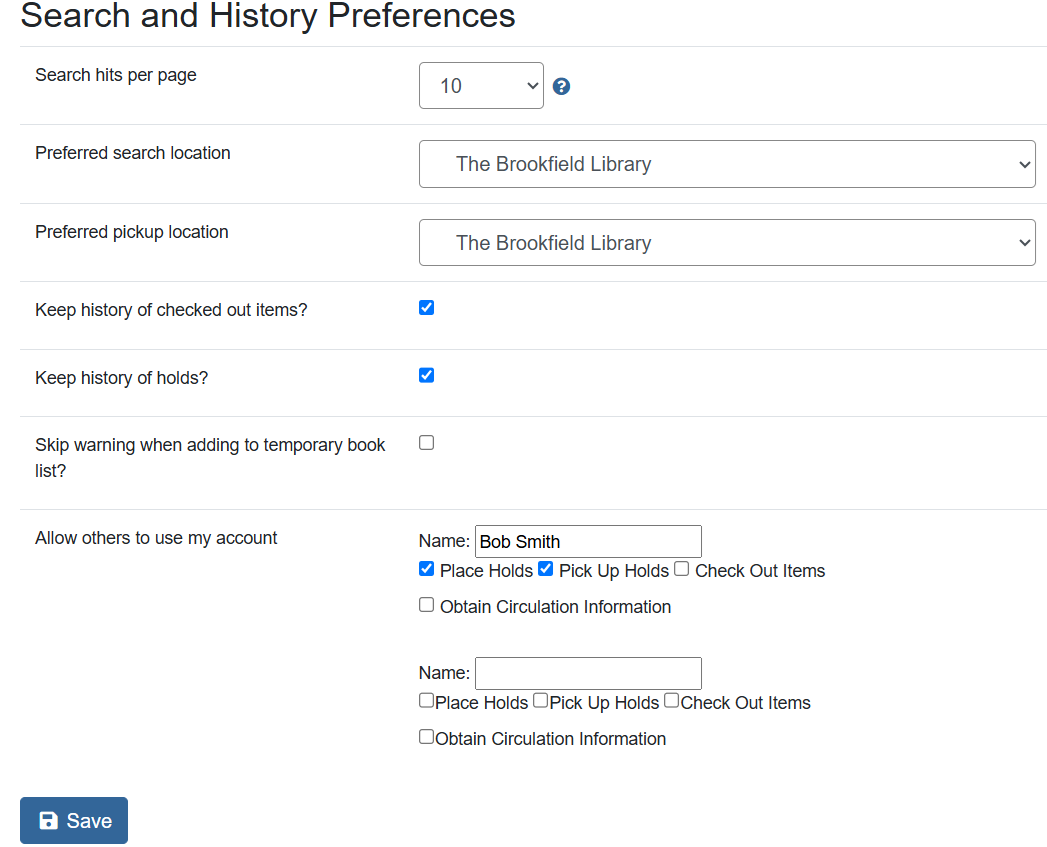
If you choose to keep your history of checked out items/holds, everything you check out/request from the time you opt-in will show up under the Check Out History section of Items Checked Out or the Holds History section of Holds. The staff at the library does NOT have access to your check-out history or holds history.
Authorized Users
You can allow others to use your account to place holds, pick up holds, check out items, or view borrowing history. In Other Settings, towards the bottom of the table there is a section Authorized Users that will allow users to access your account within your paramenters.
You can put the name of the individual and check off the actions they are allowed. Click Save. The page will reload and another box will appear if you want to add someone else.
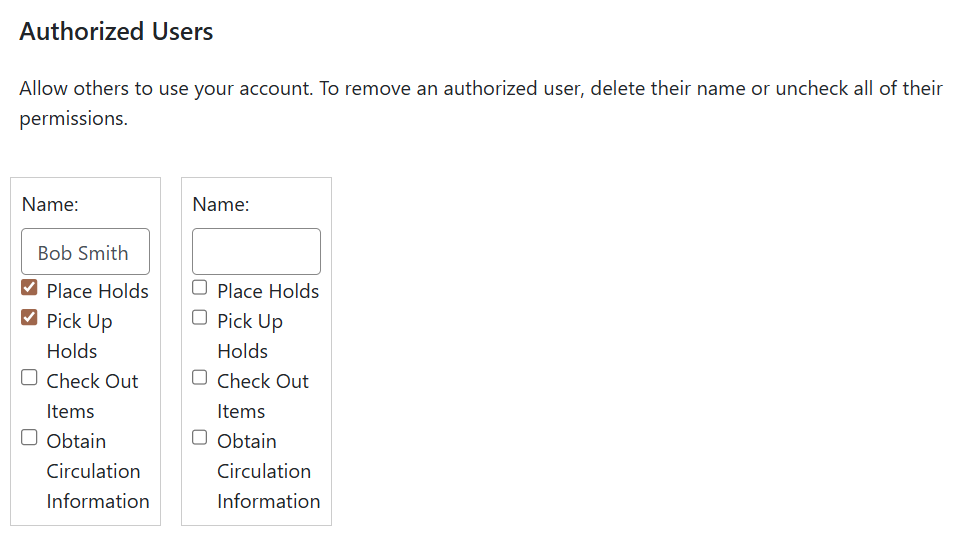
| The privacy waiver is for display purposes. This will also show on the staff side of Evergreen. |
To delete someone off your privacy waiver, uncheck all boxes under their name and click Save.