Holds
Holds can be placed by staff in the Staff client and by patrons in the OPAC. In this chapter we demonstrate placing holds in the staff client.
Item Level Holds
Placing a item level hold will allow staff members to place a hold on a specific item (barcode) for a patron or for in-house use. Be mindful of the scope of your search. CONS = Consortium level, Library name = a particular library.
In this example, we’ll use the Staff Catalog.
-
Search the catalog.
-
Select the record you want by clicking on the title.
-
Click Item Hold in the information line of the item.
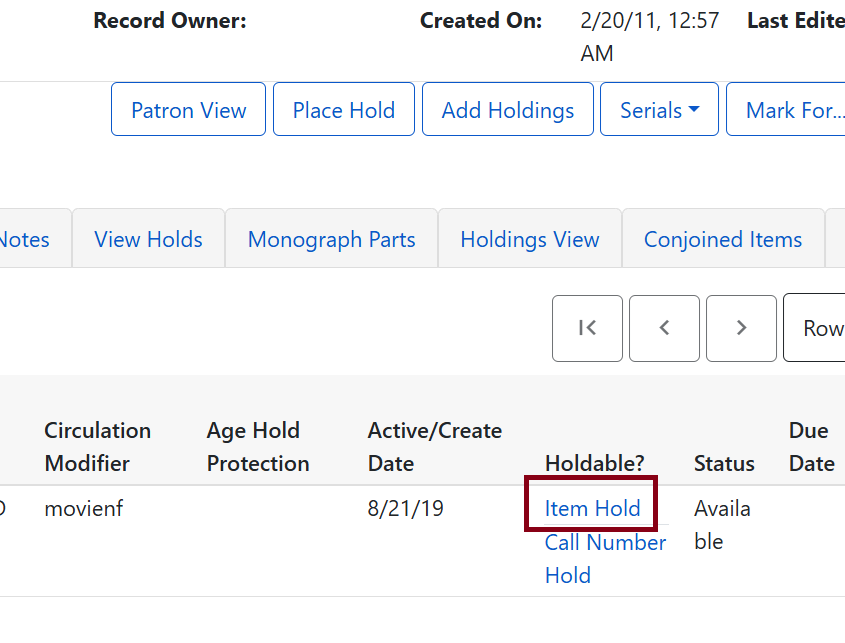 Figure 1. Item Level Hold
 -
Fill out the patron’s barcode & other information and click Submit. If you do not have the patron barcode, click Search for Patron to retrieve the patron information. Then, click Place Hold(s). Confirmation will show up at the bottom of that same screen: Hold Succeeded.
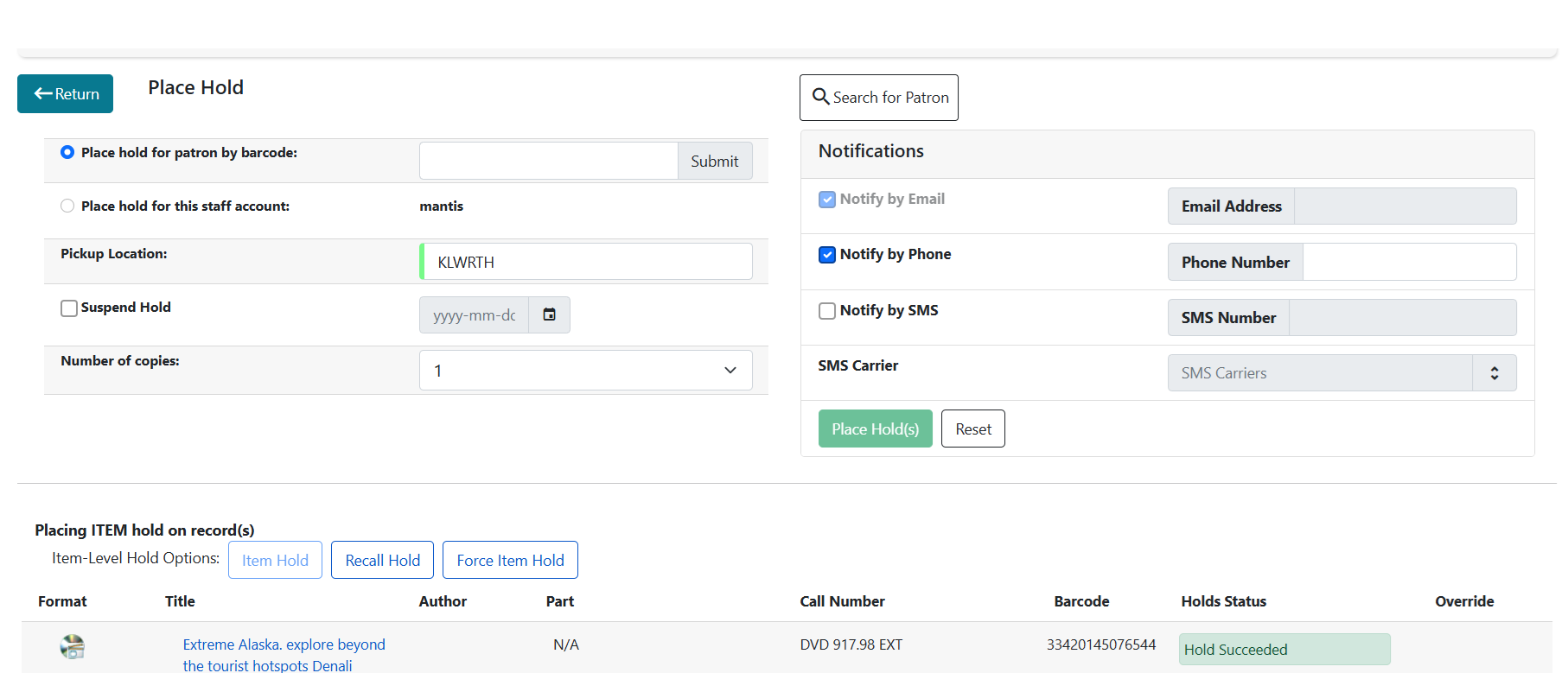 Figure 2. Hold form
 -
The hold will appear on the patron’s record.
Title Level Hold
| A default hold expiration date will be displayed when placing a hold, usually 6 months or 180 days. Uncaptured holds will not be targeted after the expiration date. If you choose the Suspend This Hold checkbox, the hold will be suspended and not captured until it is activated. This can be useful, for example, if the patron says they will be traveling and don’t want to miss their hold while they are away. |
-
To place a title level hold, retrieve the title record in the catalog and click the Place Hold button to the right of the title information on the search results screen or click the Place Hold link on the summary screen.
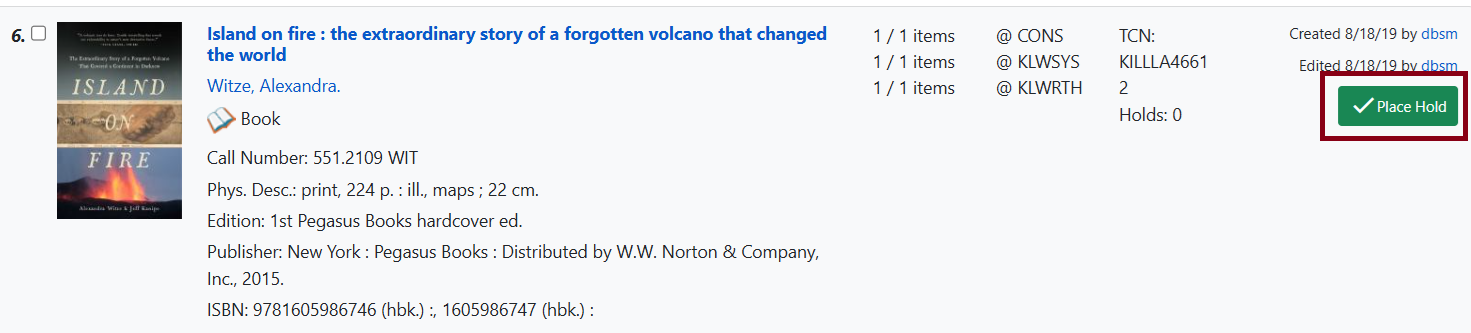 Figure 3. Place Hold button for title level holds
 -
Scan or type the patron’s barcode into the Place hold for patron by barcode window. If you do not have the patron’s barcode, use the Search for Patron button. The patron information will auto-fill the required fields. Click Place Hold(s).
-
A confirmation appears with the message Hold succeeded.
| Note: If a hold is not captured within 180 days (or designated time by library), or there is no eligible item to fill the hold, the title will appear on the Hopeless Holds list. |
Hold Sort Order
Holds will fill by the following order:
-
Fill the order of home library patrons by when they
Searching Patrons when Placing Holds
When a staff person is placing a hold in the web client, Patron Search from Request Item allows them to search for the patron by name and other searchable information, rather than needing to rely on the patron’s barcode number.
-
Search for title.
-
Click Place Hold.
-
Click on Search for Patron. Patron Search screen will appear, allowing you to enter your search criteria.
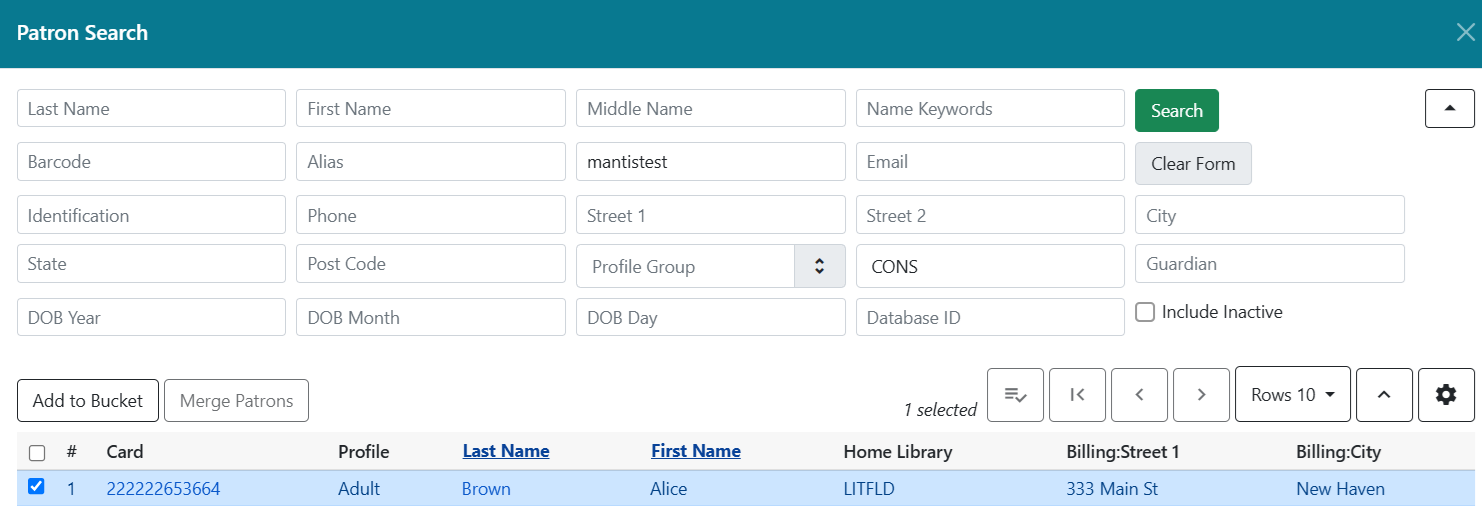 Figure 4. Patron search form
 -
Click to highlight the patron who is requesting this item, and click Select.
-
The patron information will populate the Request Item screen.
Part Level Holds
This can be useful if a patron would like only one part of a multi-set such as a DVD box set or single volume in a manga/comic book series.
-
To place a part level hold, retrieve a record with parts-level items attached to the title, such as a multi-disc DVD, an annual travel guide, or a multi-volume book set.
-
Place the hold as you would for a title-level hold, including patron barcode, notification details, and a valid pickup location.
-
Select the applicable part from the Select a Part dropdown menu, then click Place Hold(s). You MUST choose a part from this list in order for the hold to go through.
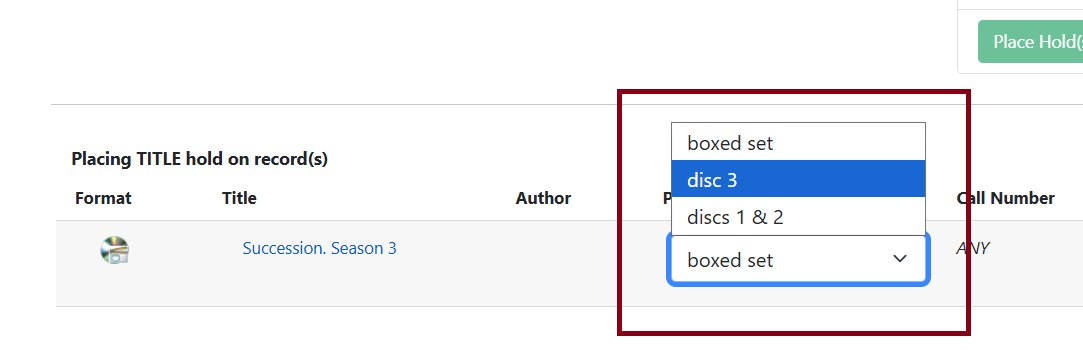 Figure 5. Part level holds
 -
Confirmation message will appear Hold Succeeded.
|
Parts and title-level holds: Once a part label is assigned to any item on a bibliographic record, title-level holds for that record are effectively blocked. No new title-level holds may be placed, and existing title-level holds will never be filled. For libraries that don’t split up multi-disc sets, we recommend assigning the part label "boxed set" to items that represent the whole set. This allows holds to coexist with libraries that do circulate discs separately. "Boxed set" should only be used when the set contains 2 or more discs AND the second disc does NOT consist of only special features or bonus material. If title-level holds are languishing because a part was later assigned:
|
Metarecord Holds
Metarecord holds allow patrons and staff to place holds on multiple bib records with the same title at once. This is useful if the patron wants to read the first available copy of a book and would take either the large print or regular print copy, for example.
To request a metarecord hold, you can start from a catalog search or the patron record. This is the workflow for the staff catalog.
-
Perform your search with Group Formats/Editions checked.
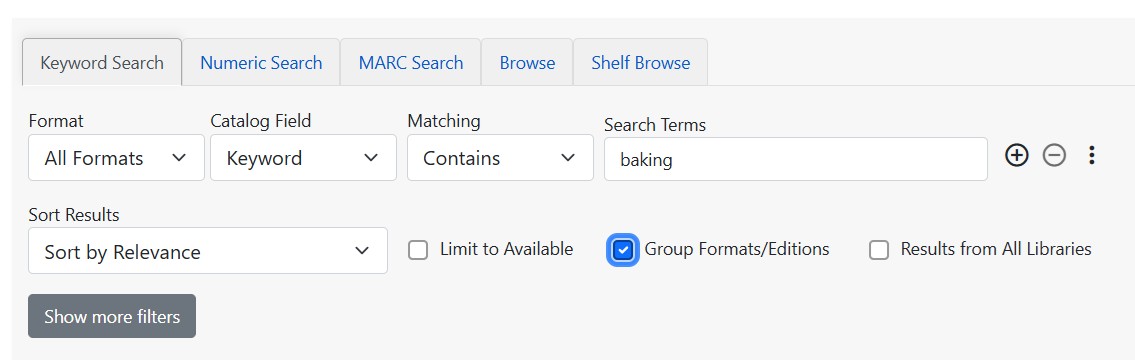 Figure 6. Group Formats/Editions checkbox
 -
Click Place Hold on the title you want to place the metarecord hold on.
-
All available formats and languages for the group of records will show at the bottom of the next page, and will be selected by default. Uncheck the formats you don’t wish to be part of your metarecord hold.
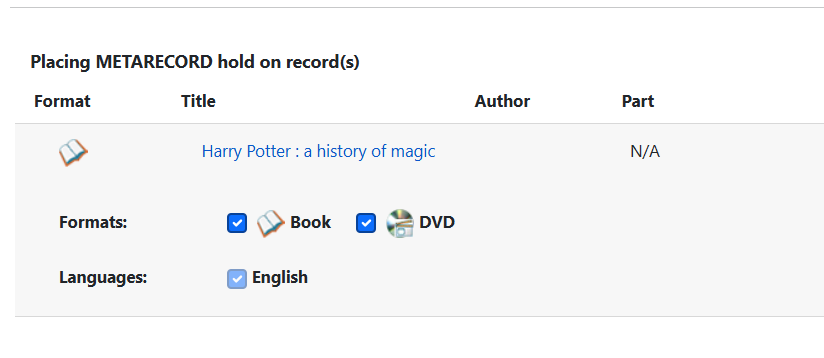 Figure 7. Metarecord hold options
 -
When you are satisfied, click Place Holds as usual.
Considerations for Metarecord Holds
-
It can be easy to place a metarecord hold by accident if you’re using Group by Format/Edition searches. It can also be easy to do this in the OPAC or in the Patron View Catalog by clicking Advanced Hold Options. If a metarecord hold is placed by mistake, it must be canceled and replaced with a title level hold.
-
Each metarecord has a “lead” bibliographic record. It may look like the hold was placed from this record when trying to find it later, but as long as the hold shows a type of M, any holdable copy on any of the grouped records can fill it.
-
Some metarecords may not be grouped appropriately. Subtitle is not currently considered when grouping records. This can lead to inappropriate groupings for records with the same main title and author, but different subtitles. Examples include the Where’s Waldo series, several Star Wars and Lord of the Rings titles, and several titles in the PAW Patrol series.
-
Clicking on the title of a record from a Group Formats/Editions search will show all of the grouped records. This can be useful to determine if the records are grouped appropriately, but if you click Place Hold from here, you will place a title level hold. You’ll need to click Search again to return to the grouped search results.
Placing Multiple Holds
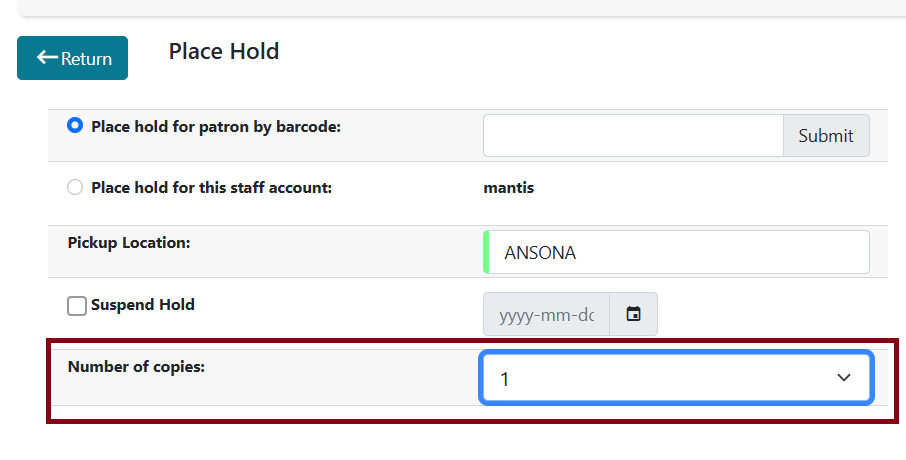
Users with the appropriate permissions will be able to place multiple title holds at one time. This feature is especially beneficial for book clubs and reading groups, which need to place holds on multiple copies of a title.
When placing a title hold, a ‘number of copies’ field will display for the staff. Search for the title as usual. Click on place hold. Enter the barcode for the patron requesting the multiple copies or the in-house patron card used for book discussion groups.
Placing Holds from Item Status
-
Scan an item barcode.
-
Go to Actions.
-
Select Request Items. You can also do this for multiple items.
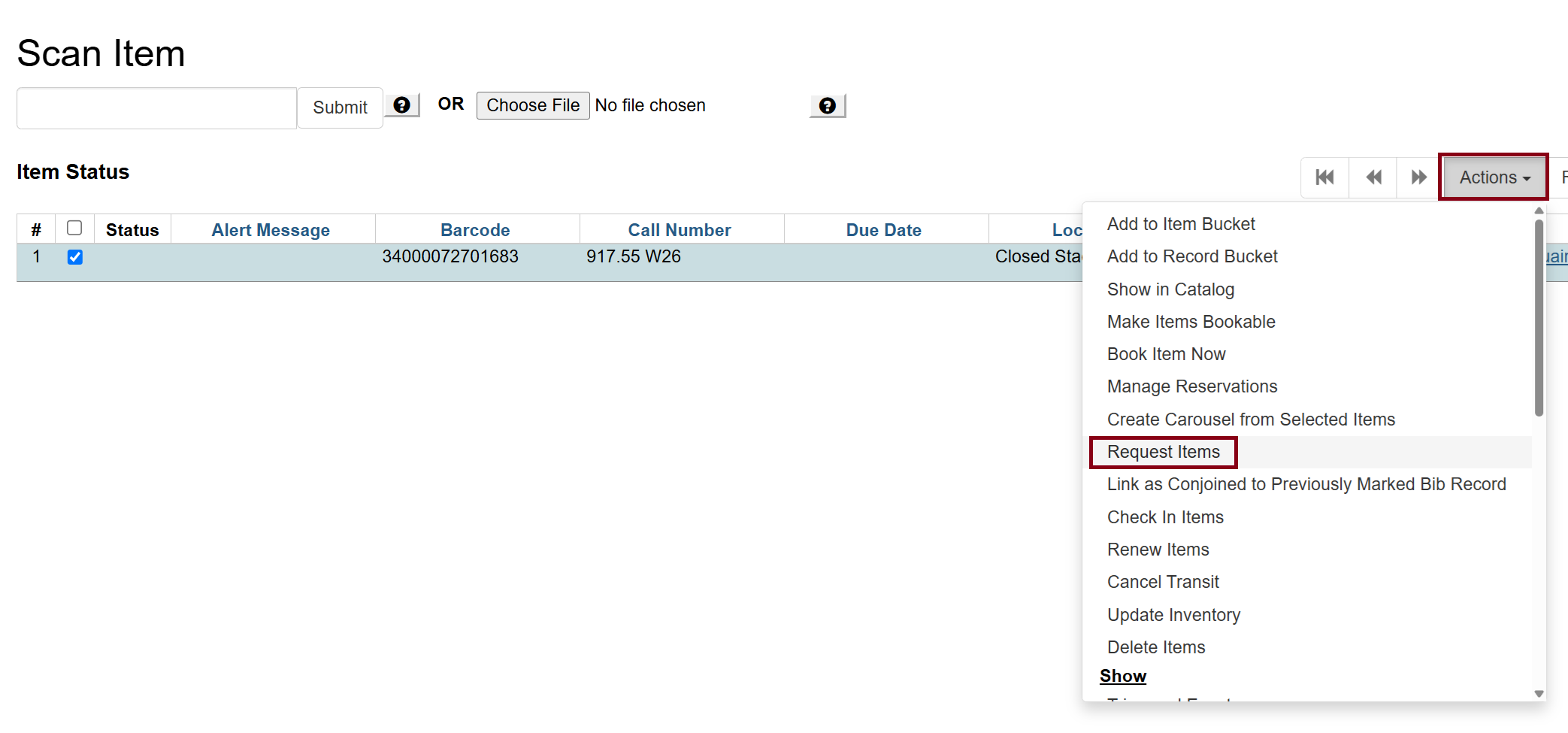 Figure 9. Requesting item in Item Status
 -
Fill in the request form. Choosing Honor user preferences will ensure the User Settings from the patron record are populated. Select a Hold Type: item (copy) or title. Then, click OK.
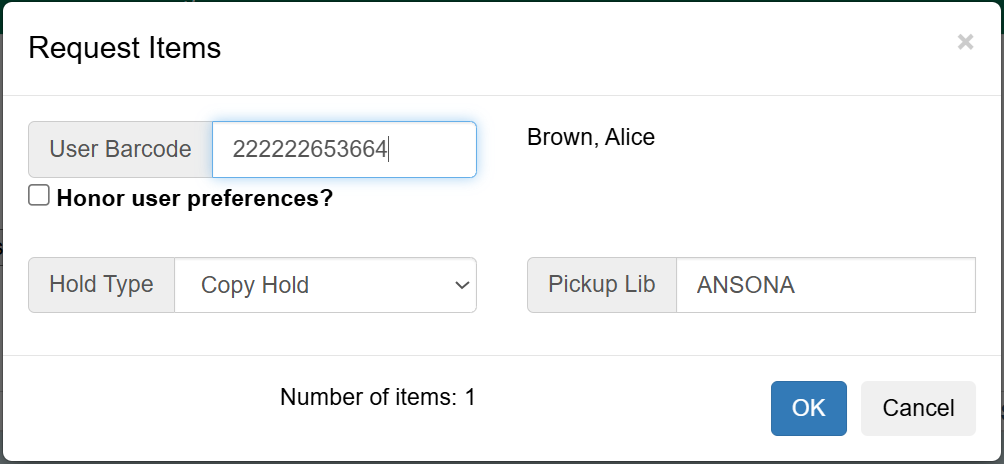 Figure 10. Request item form
 -
Hold successfully requested will display a confirmation message in lower right of the screen.
Hold Shelf Slip will display hold notification preferences if the Honor user preferences is checked.
Under Hold Type you can choose whether it is a title-level hold (for any copy listed on the same record – generally recommended), or a copy-level hold (for a single specific individual copy).
Placing Holds in Patron Records
-
In the patron record on the Holds tab, click the Place Hold button.
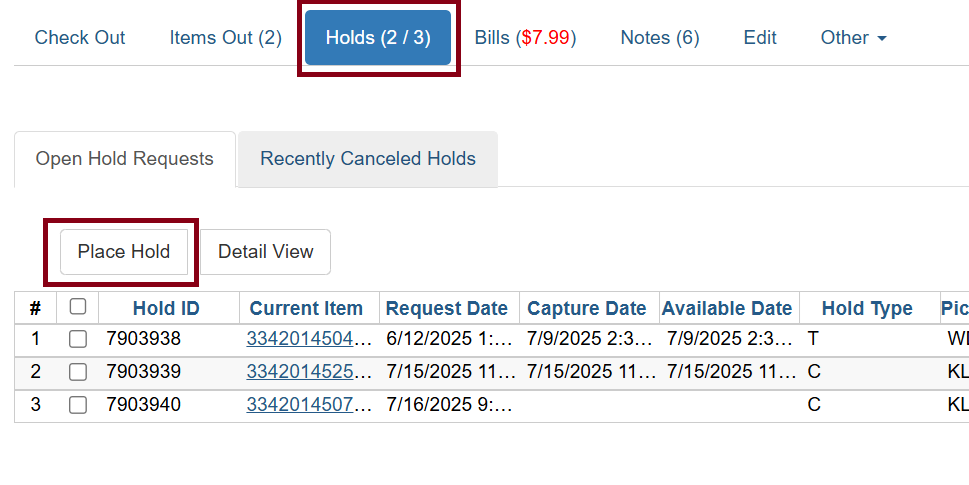 Figure 11. Place hold button in patron screen
 -
The catalog is displayed in the holds screen to search for the title on which you want to place a hold.
-
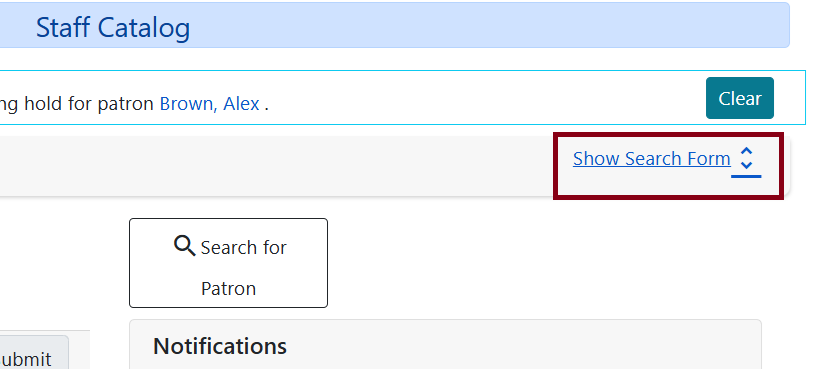
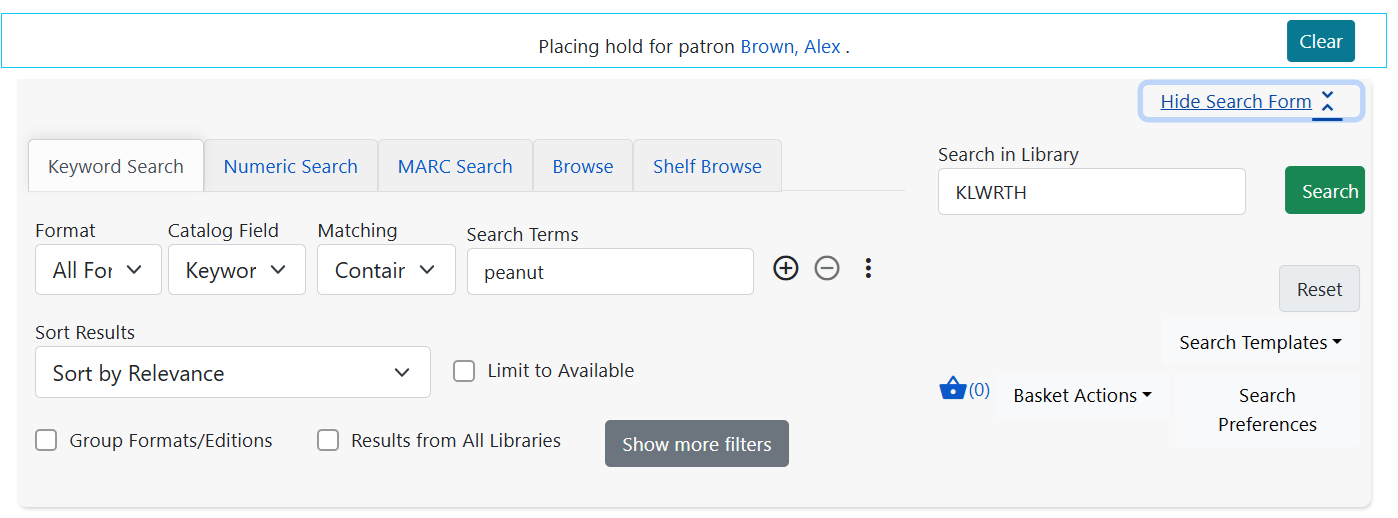
Search for the title and click Place Hold link, as you would do for a title level hold. Note that the patron’s name will show up at the top of the screen. You can click on the patron’s name to return to their record at any time.
-
The patron account information is retrieved automatically. Set up the notification fields if necessary. Click Submit, and Hold Succeeded will appear under Holds Status.
-
You may continue to search for more titles by clicking on Show Search Form in the upper right hand of the screen.
Force & Recall Holds
These hold methods are best used when you need to get your library’s copy as quickly as possible. It places the hold above the queue, but it also forces the hold to return to your library if it’s in transit, too.
Recall Holds
Recall holds allow staff to place holds on ANY of your library’s items, regardless of status, hold rule, or holdable state. These holds are displayed as type R when viewing the hold list on the bib or patron record. It does not trigger a hold as usual on checkin, but instead generates a message that says route to cataloging, like we see with precat items.
-
Scan a barcode in Item Status.
-
Click on Request Items in the Actions menu.
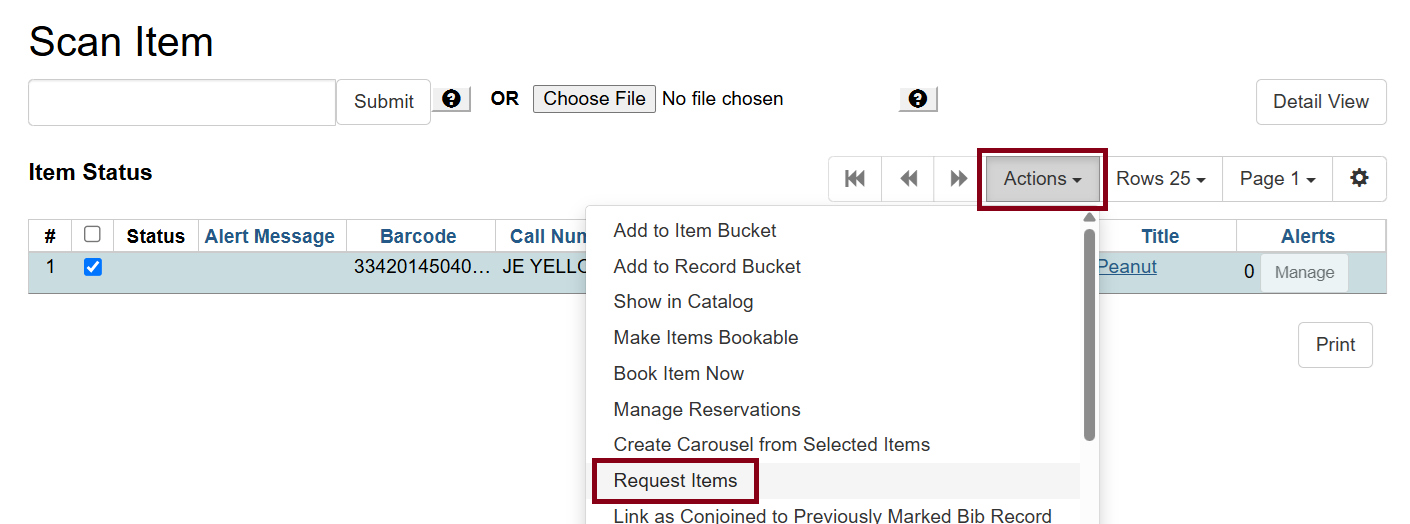 Figure 14. Request items button
 -
Select Recall Hold in the request form.
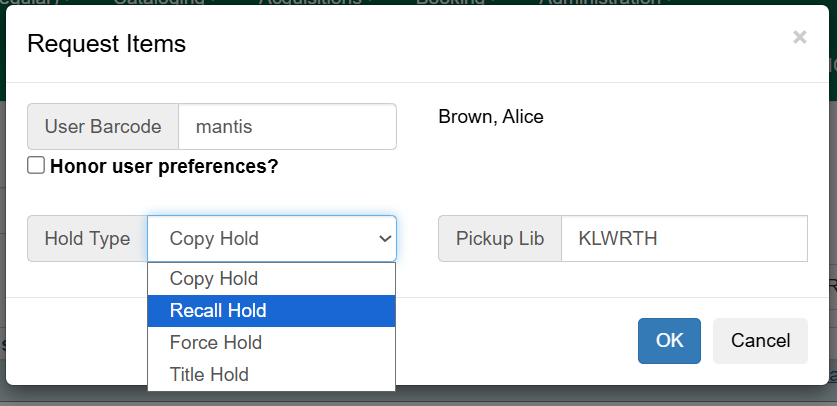 Figure 15. Recall hold in form
 -
Recall holds will show R under the Hold Type.
The hold is immediately cleared from the requesting record on check in, so you could use your staff accounts to place the hold. You would only be able to place these types of holds on items owned by your library or a branch of your library system.
Force Holds
Force holds allow staff to place holds on ANY of your library’s items and for ANY patron record, regardless of status, hold rule, or holdable state or the state of the patron record. These holds are displayed as type F when viewing the hold list on the bib or patron record. These holds act more like "traditional" holds than Recall Holds.
-
Scan a barcode in Item Status.
-
Click on Request Items in the Actions menu.
Figure 16. Request items button -
Select Force Hold in the request form.
-
Select Force Hold in the request form.
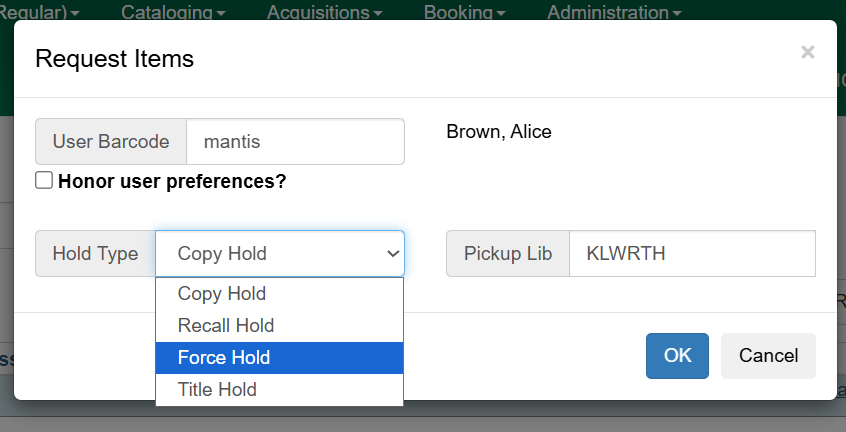 Figure 17. Force hold in form
 -
Force holds will show F under the Hold Type.
When the item is checked in, it will trigger the hold as usual and the item will either need to be checked out to the requesting patron record or canceled. Because staff accounts can’t check out items, we’d recommend placing the hold for a PL Staff account or using the alternate checkout (satisfy hold) option for a PL Staff account if you’d need to check these items out.
These holds could also be placed for ANY patron if that is needed. You would only be able to place these types of holds on items owned by your library or a branch of your library system.
Placing Holds - Cheatsheet
Hold Level |
Abbr. |
When to Use |
How to Use |
Who can Use |
Hold Tied to |
Title |
T |
Patron wants first available copy of a title. |
Staff click on PlaceHold buttons near title on list of search results or at the top of individual title record. Patrons click Place Hold near title on list of search results. |
Patron or staff |
Holds attached to a MARC (title) record |
Parts |
P |
Patron wants a particular part of title (i.e. volume or disk in a box set) |
Staff or patron selects part needed on the Place Hold screen, when setting holds options. |
Patron or staff |
Holdings with identical parts attached to a signle MARC (title) record |
Item |
C |
Patron or staff want a specific copy of an item |
In the staff client, click on Item Hold under Holdable? column in the search results. |
Staff |
A specific item (barcode) |
Call Number |
V |
Patron or staff want any title with a particular call number |
In the staff client, click on Call Number Hold under Holdable? column in search results. |
Staff |
Holdings attached to a single call number (Volume) |
Metarecord |
M |
Patron or staff want any item on a group of records with the same title and author, with chosen formats (for example, book and large print book). |
Select Group Format and Editions in the staff catalog or in the Patron View/OPAC and click Place Hold. Make sure the appropriate options are checked for Format and Language. From Patron View or OPAC, select Advanced Hold Options at the bottom of the Place Hold screen, and select the appropriate options for Format and Language. |
Patron or staff |
Holdings attached to multiple MARC records that have the same title and author. |
Recall Hold |
R |
When staff need to get a copy back as soon as possible. This allows staff to place holds on any of your library owned items regardless of status, hold rule, or holdable state. |
Scan the barcode into Item Status and choose Request Items in the Actions menu. In the request form, choose Recall Hold. |
Staff |
Specific item (barcode) |
Force Hold |
F |
When staff need to get a copy back as soon as possible. This allows staff to place holds on any of your library owened items regardless of status, hold rule, or holdable state for any account including patrons. |
Scan the barcode into Item Status and choose Request Items in the Actions menu. In the request form, choose Force Hold. |
Staff |
Specific item (barcode) |