Logging In to Evergreen
Overview
To use Evergreen’s staff functions, you must first register your workstation and then log in with your staff credentials. This page guides you through both processes.
|
The Evergreen staff client URL is: Bookmark this link for easy access. |
Registering Your Workstation
Before you can log in to Evergreen, you must register your workstation. This is a one-time setup process for each browser on each computer you use.
|
You need workstation registration permissions to complete this process. If you don’t have these permissions, contact your department head or library director. |
First-Time Registration
When you navigate to the staff client URL for the first time, you’ll be prompted to register your workstation:
-
Navigate to
https://acorn.biblio.org/eg/staff/ -
Log in with your username and password when prompted
-
You’ll see the workstation registration screen
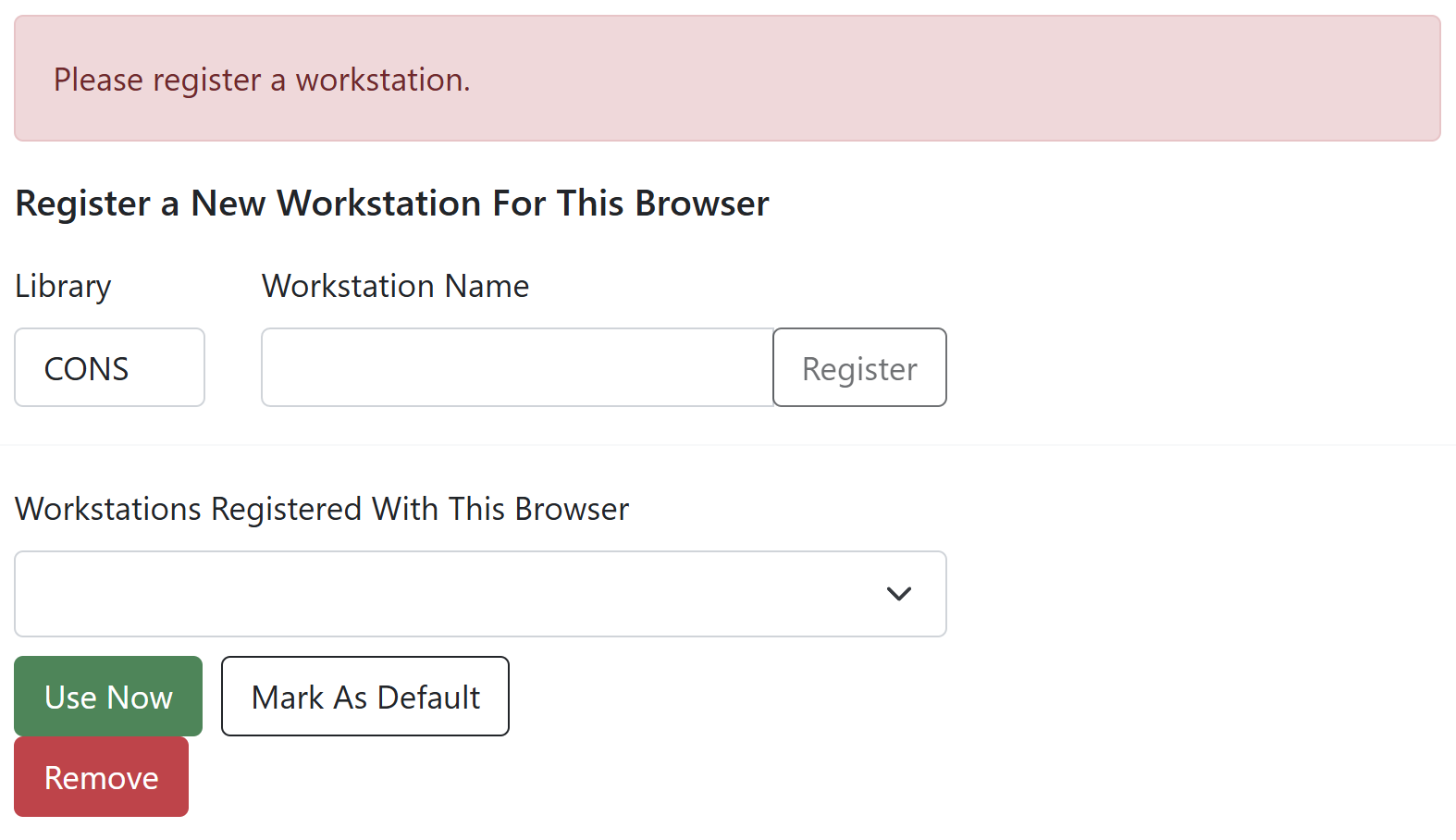 Figure 1. Workstation Registration Screen
 -
Enter a unique workstation name
Use a descriptive name that identifies the specific computer, such as:
-
The computer’s asset tag (e.g., "TR010217")
-
Location and number (e.g., "Circ-Desk-1")
-
Department and station (e.g., "Youth-Services-2")
-
-
Click Register to create the workstation
-
Verify your new workstation appears in the "Workstations Registered With This Browser" dropdown menu
-
Click Use Now to select this workstation and return to the login screen
Using an Existing Workstation
If you’ve already registered a workstation in your browser:
-
Select it from the dropdown menu on the login screen
-
Click Use Now to proceed with login
|
Workstation registrations are specific to each browser profile on each computer. If you use multiple browsers or computers, you’ll need to register a workstation for each one. |
Logging In
Once your workstation is registered, you can log in to Evergreen:
Standard Login Process
-
Navigate to
https://acorn.biblio.org/eg/staff/ -
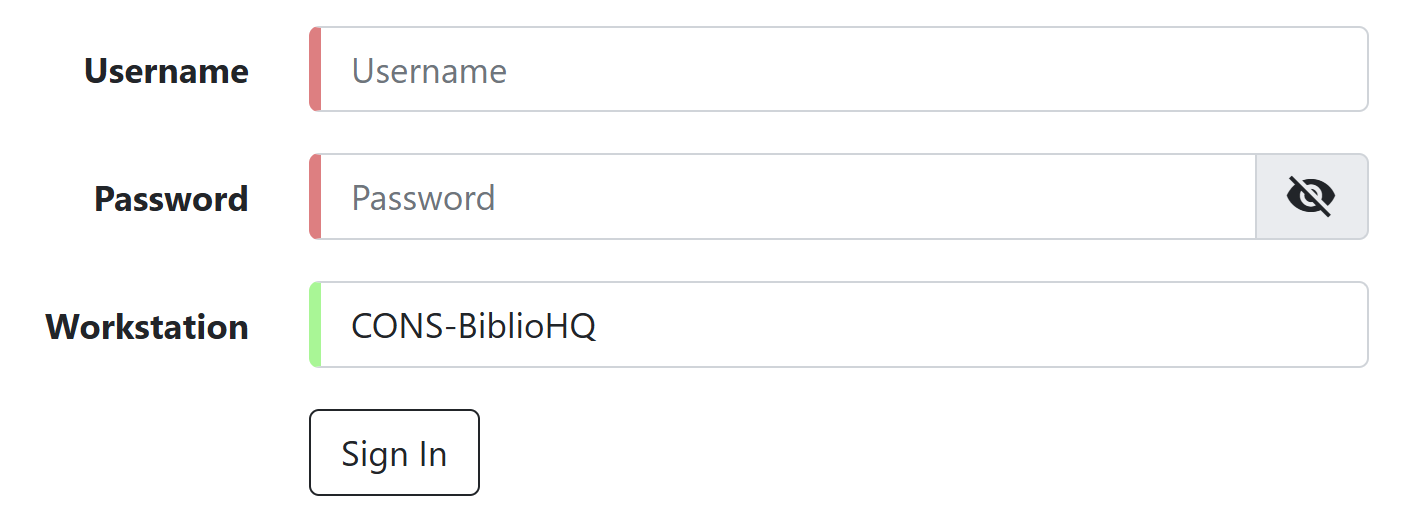
Enter your username in the Username field
-
Enter your password in the Password field
-
Verify the correct workstation is selected in the dropdown
-
Click Sign In to access the staff client
Managing Your Session
Logging Out
Properly logging out protects patron privacy and prevents unauthorized access to the system.
How to Log Out
-
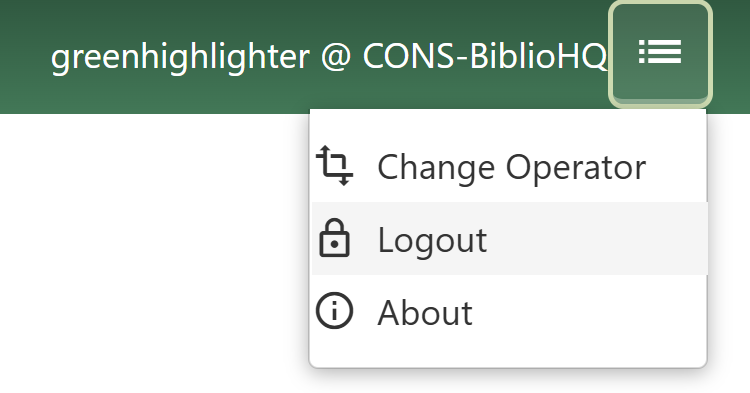
Click the menu button (☰) in the top-right corner of the window
-
Select Logout from the menu
-
Confirm you want to log out when prompted
|
Simply closing the browser tab does NOT log you out. You must use the logout function or close all browser windows to end your session properly. |
Security Best Practices
To protect patron data and library resources:
-
Never share your login credentials with anyone
-
Always log out when leaving your workstation
-
Lock your computer (Windows+L) when stepping away briefly
-
Use a strong password and change it regularly
-
Report suspicious activity to your supervisor immediately. You can also contact our help desk if you need further assistance.
|
Set up a dedicated browser profile for Evergreen work. See Browser Setup for detailed instructions. |
Changing Your Staff Password
If you need to change or reset the password for your own Evergreen staff account, you can do so through the staff client.
Resetting Your Password via Email
-
Search for your own patron account using Search → Search for Patrons
-
Open your account and go to the Edit tab
-
Click the Send password reset email button
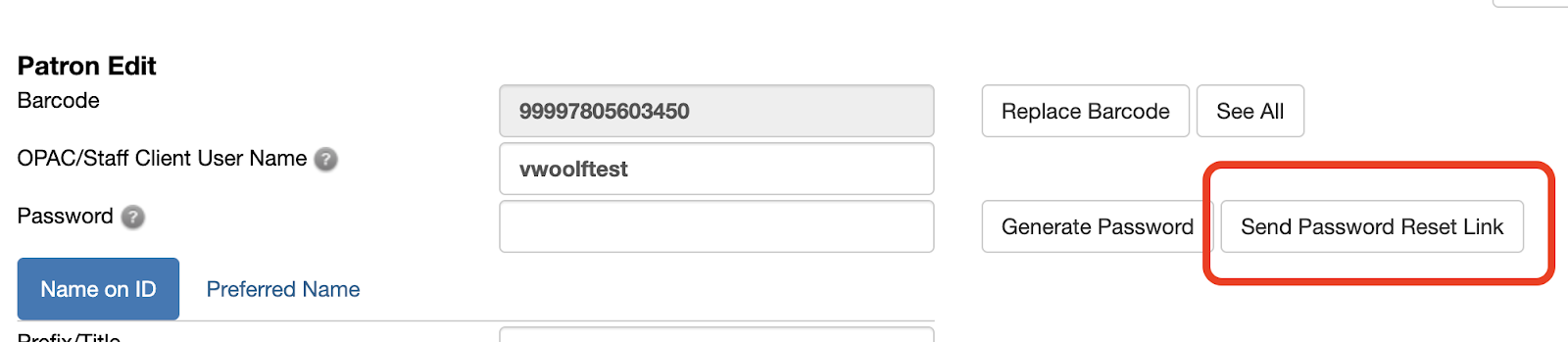 Figure 4. Password Reset Button in Patron Edit Screen
This sends a password reset link to the email address on your account. The link will allow you to set a new password.
-
Check your email and follow the reset link to create a new password
If You Don’t Have an Email on File
If your account does not have an email address associated with it:
-
Ask your library’s Local User Administrator to add an email address to your account
-
Or contact the help desk for assistance
Password Security Best Practices
Passwords must be at least 12 characters long. Library staff are encouraged to create strong passwords to protect the patron data they have been entrusted with.
|
Troubleshooting Login Issues
| Problem | Solution |
|---|---|
"Invalid username or password" |
Verify your credentials are typed correctly. Remember that passwords are case-sensitive. |
"Workstation not found" |
Register a new workstation or select an existing one from the dropdown. |
White screen after login |
Clear your browser cache and cookies, then try again. See Browser Setup for browser-specific instructions. |
"Session expired" |
You’ve been logged out due to inactivity. Log in again to continue. |
Cannot register workstation |
You may lack the necessary permissions. Contact your system administrator. |
Getting Help
If you continue to have problems logging in:
-
Contact your supervisor
-
Submit a help desk ticket (see Help and Support)
-
Call the Bibliomation help desk at 203-577-4070 ext. 1