Firefox Printing Setup
This page covers Firefox-specific printing configuration. For general printing information and Hatch setup, see the main printing documentation.
Printing Without Hatch in Firefox
Configuring Firefox Print Settings
-
On any web page, click the menu (three horizontal lines) in the top right corner of the window and choose Print. You can also use the keyboard shortcut Ctrl+P.
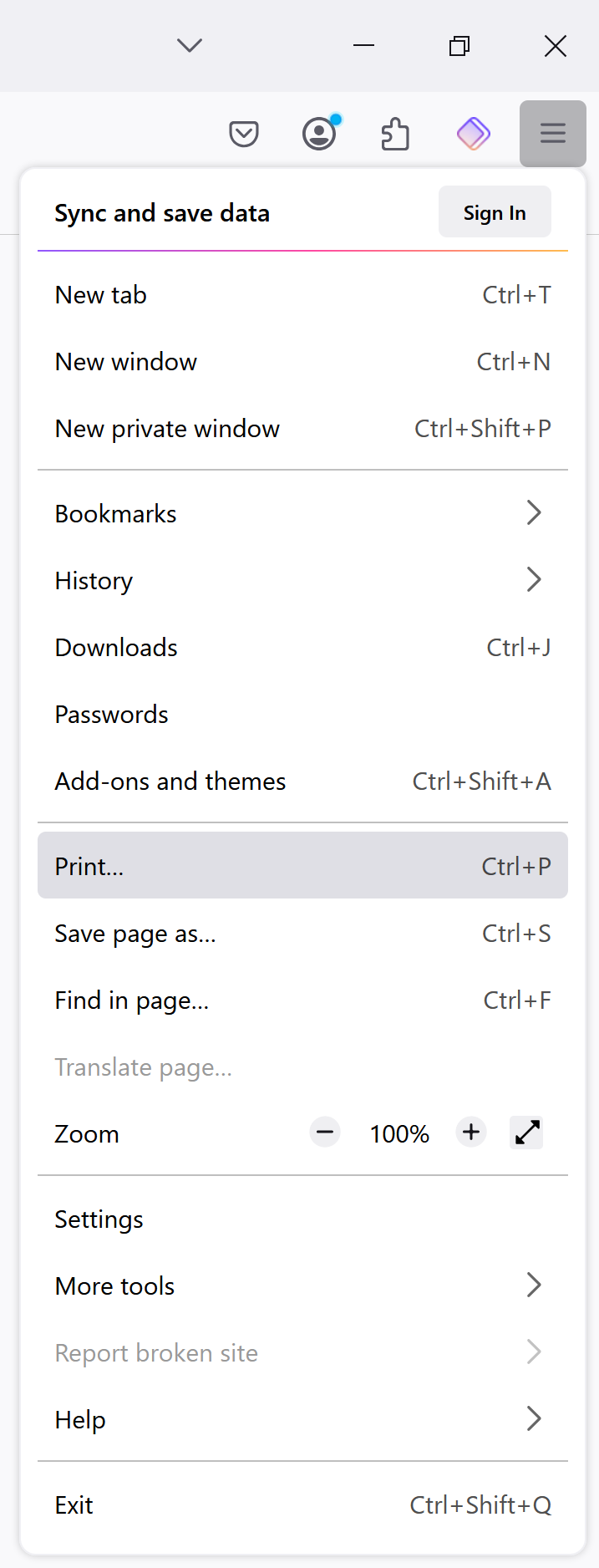 Figure 1. Menu with Print Option
 -
Make sure your receipt printer is selected as the Destination. If it isn’t, click Change and select it from the list.
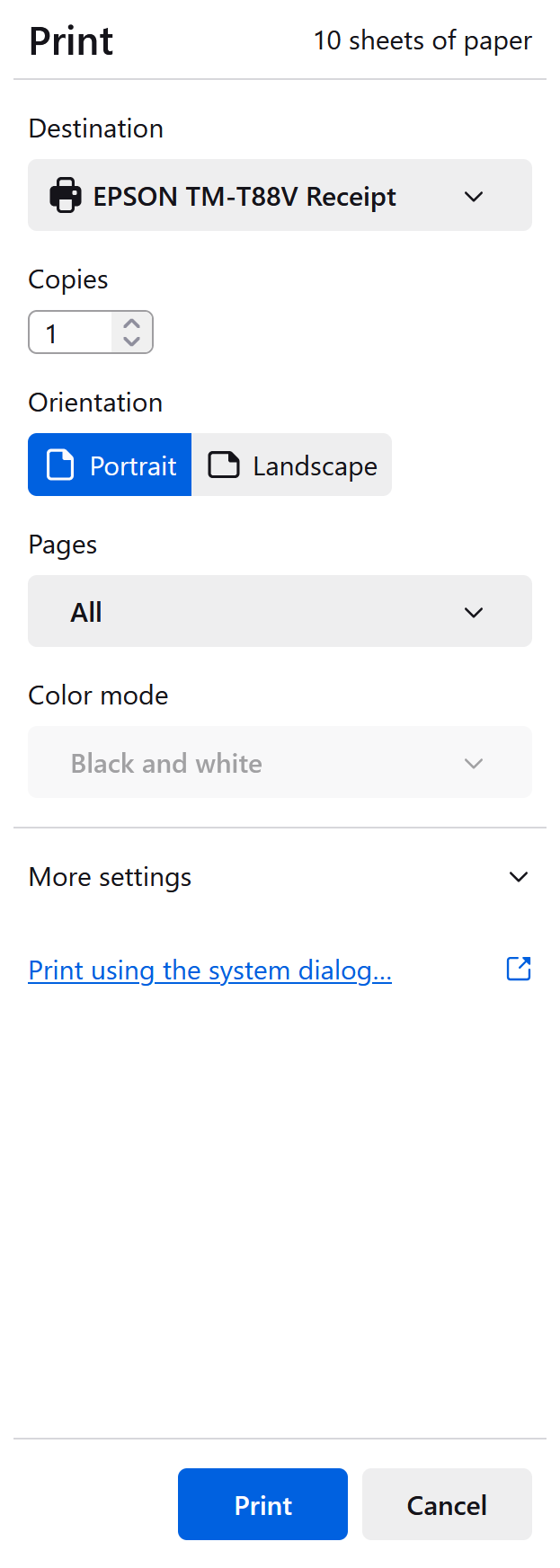 Figure 2. Print Dialog with Destination Options
 -
Click Page Setup.
-
Configure the following settings:
-
Set Margins to "0.0"
-
Set all Headers & Footers to "--blank--"
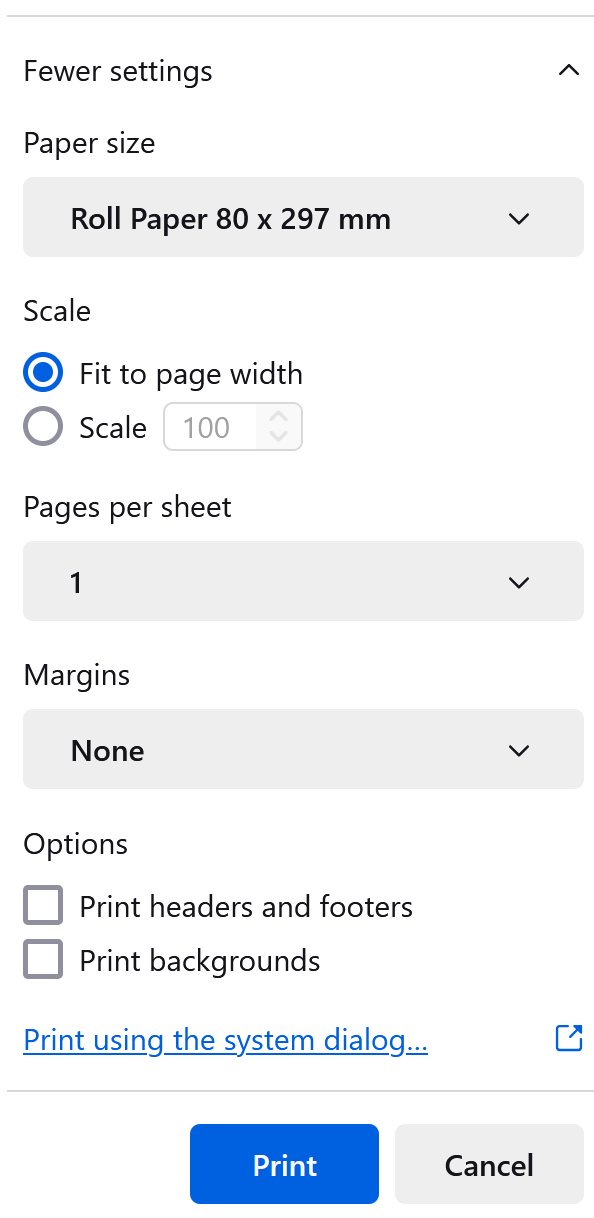 Figure 3. Page Setup Dialog
-
-
Click OK to save your settings.
Installing Hatch Extension for Firefox
To install the Hatch extension for Firefox:
-
Install the "Hatch Native Messenger" add-on from the Firefox Add-ons Store:
-
Search for "Hatch Native Messenger" in the Firefox Add-ons Store, or
-
Click Add to Firefox
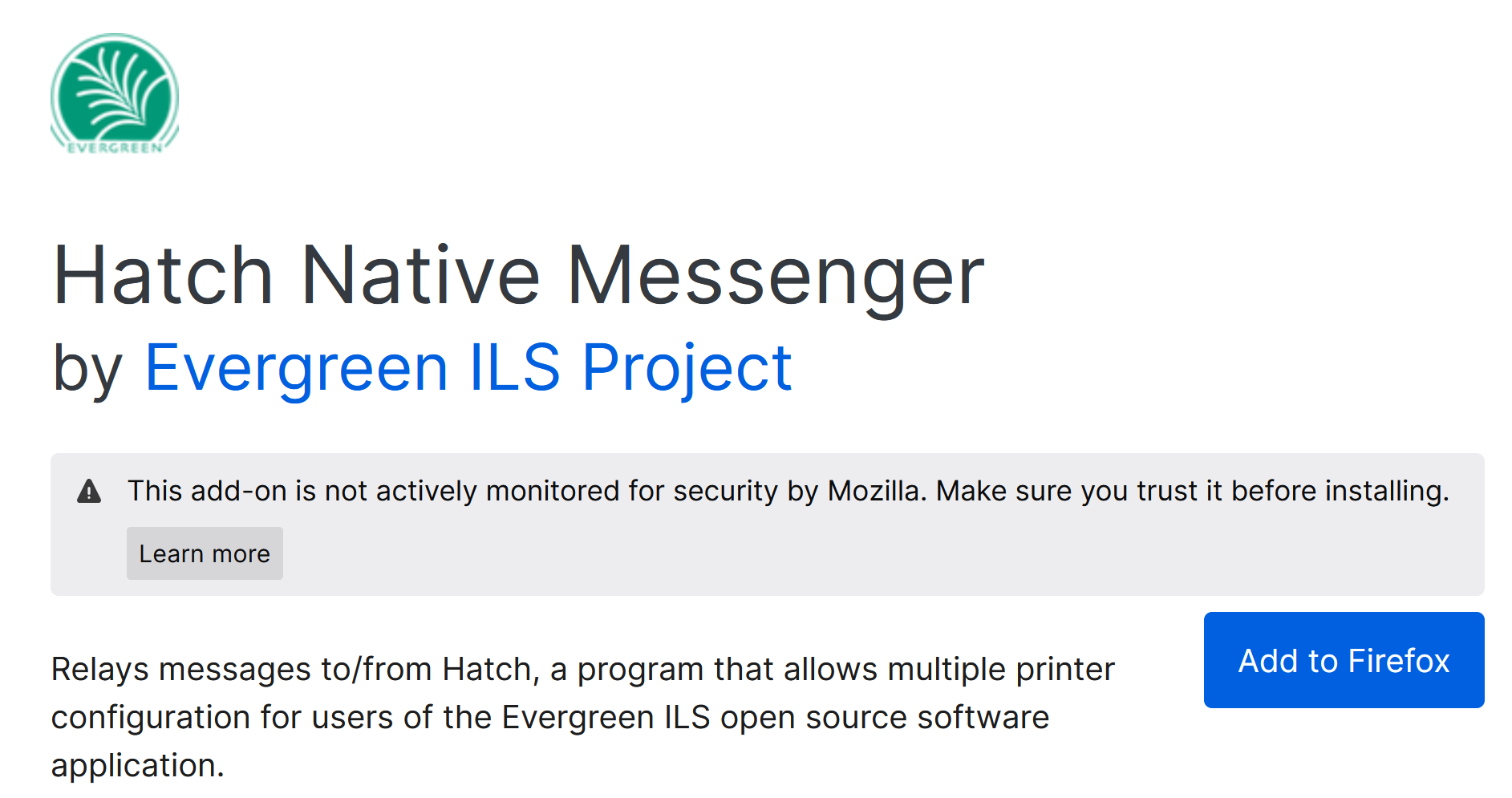 Figure 4. Adding Hatch Extension
 -
Click Add in the confirmation dialog
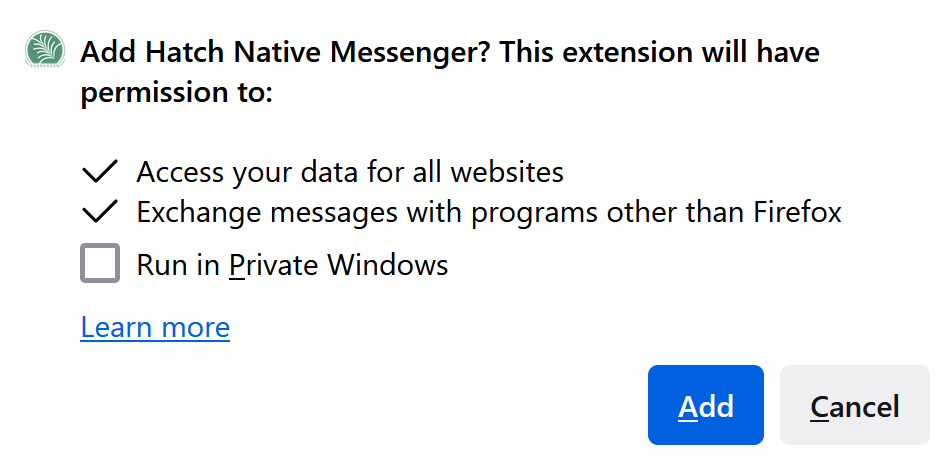 Figure 5. Extension Confirmation Dialog
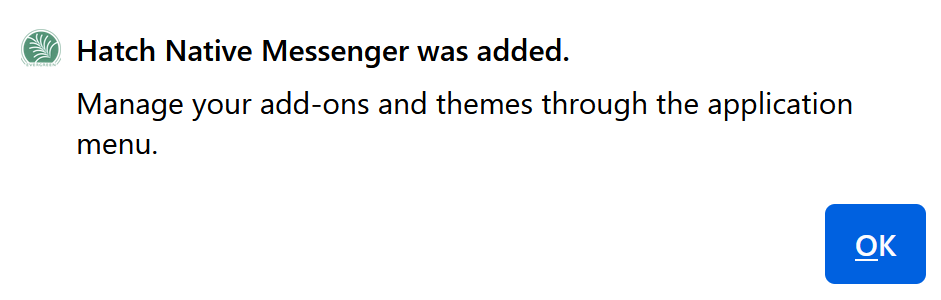 Figure 6. Hatch Success Message
-
For the rest of the Hatch configuration process, continue with the Configuring Hatch in Evergreen section of the main printing documentation.