Registration & Self-Registration
Registering New Patrons
| Per Bibliomation guidelines, best practice is to search for a patron prior to any registration. The patron may have moved to your town from another Bibliomation library town, in which case the patron may already be in the database. In this case, use the current patron record and update the appropriate fields as needed. An example of this type of registration will be addressed later in this document. |
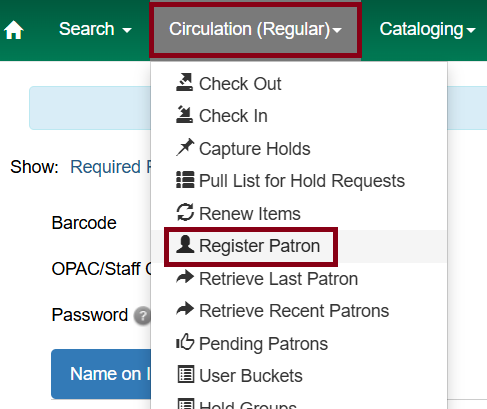
To register a new patron, select Circulation → Register Patron from the menu bar.
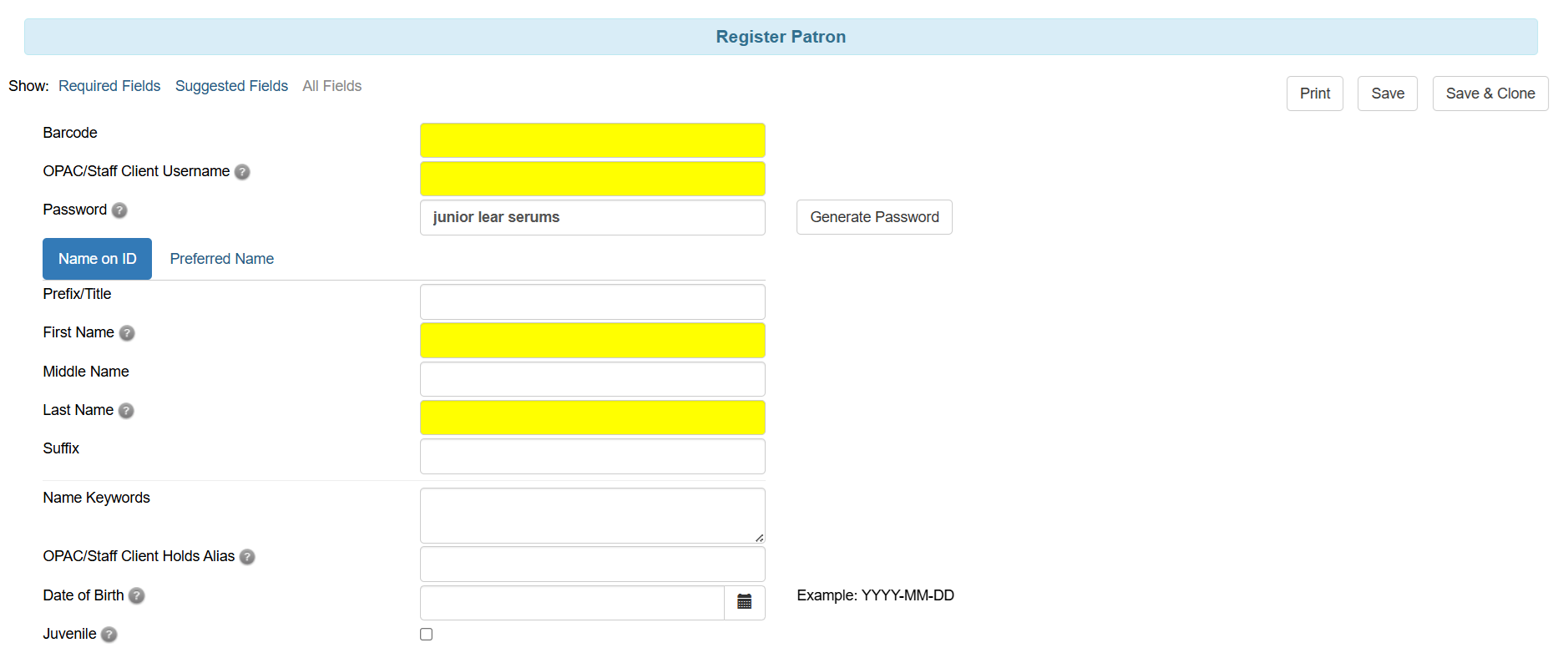
The patron registration form will display. Required fields display in yellow.
The Required Fields and Suggested Fields links may be used to limit the option on the page.
You must select a Main (Profile) Permission Group before the Update Expire Date button will work, since the permission group can determine the expiration date.
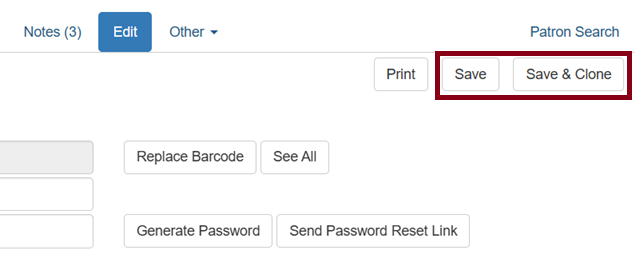
When finished entering the necessary information, select Save to save the new patron record, or Save & Clone to register an additional patron with the same address and phone number - a useful timesaver when registering families or roommates all in one session.
The same registration procedure is used for patrons of non-Bibliomation libraries with the following exceptions:
-
Patron must have in their possession a valid library card from their hometown library.
-
Use the barcode on the hometown library card in Evergreen. Do NOT issue a card from your library, except to allow the patron access to your databases.*
-
Permission group is at your discretion. Most libraries use the age group that is appropriate for the patron. Hometown library should be your library.
-
Expiration date is the date on the valid hometown library card. Residency should be the patron’s own hometown library.
| *A guest card may be issued to any patron to be used in your library only for the purposes of accessing your own databases. The library card and patron record must have a note displaying that the card is only to be used at your library. FOR USE AT XYZ LIBRARY ONLY |
Patron Self-Registration
| Patron self-registration is an opt-in feature. For more information or to have this feature implemented for your library, please contact help desk. |
Patron self-registration allows patrons to initiate registration for a library account through the OPAC. Patrons can fill out a web-based form with basic information that will be stored in Pending Patron in Evergreen.
Library staff can review pending patrons in the staff-client and use the preloaded account information to create a full patron account. Pending patron accounts that are not approved within a configurable amount of time will be automatically deleted.
Patron Self-Registration in the OPAC
In the OPAC, patrons will click on the link to Request Library Card in the top banner.
They will fill out the self-registration form to request a library card, and click Submit Registration.
Patrons will see a confirmation message: Registration successful. Please see library staff to complete your registration.
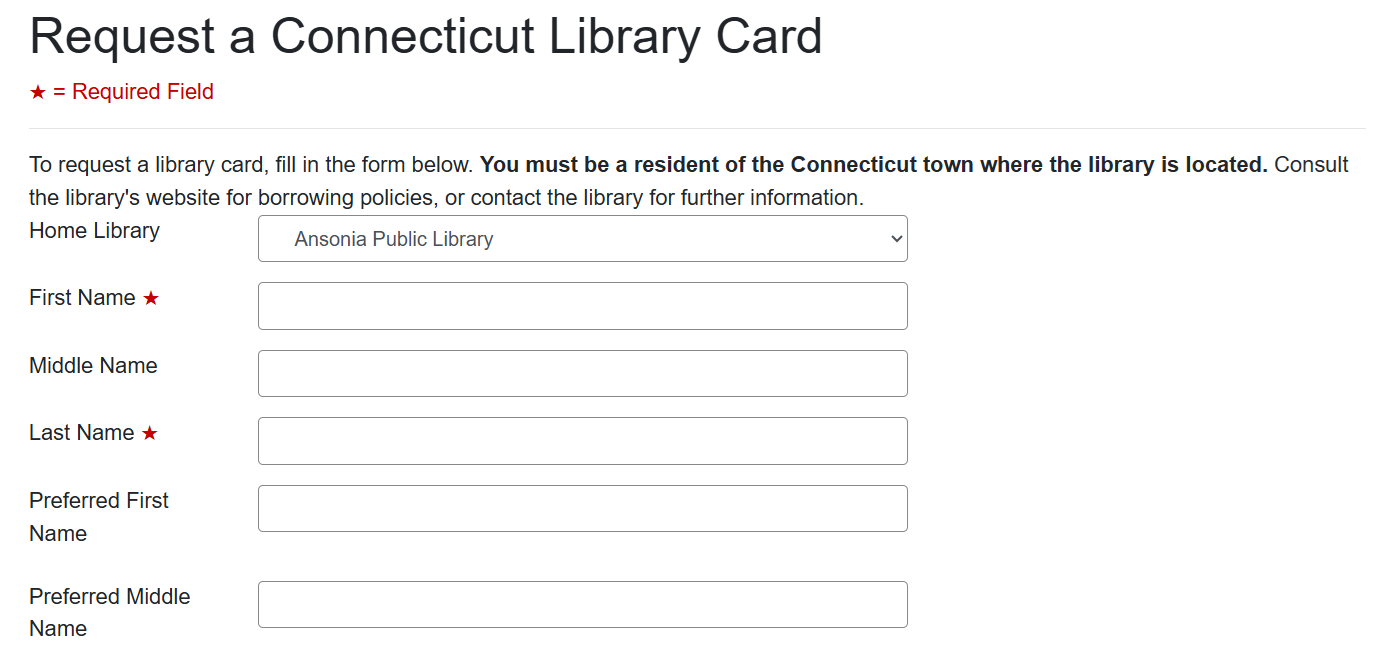
| There a few areas of the self-registration Bibliomation staff can customize such as requiring a DOB, email, or phone number. If these are required within this form, it will also be required for the registration form on the staff side. Open a help desk ticket if you would like to require certain fields. |
|
Bibliomation staff can also help you customize and send out two notices after a patron fills out the self-registration form. 1. A confirmation email sent to the patron. This can include further instructions in how to retrieve their card at your library. This sends immediately after self-registration. 2. A notification sent to your staff email to confirm if you have pending patrons to view. This sends once per day in the morning. |
Pending Patrons
In the staff client, go to Circulation → Pending Patrons.
Select the patron you would like to review.
| Avoid duplicate records! Search for the patron to verify they are not already in the Bibliomation database. |
In this screen you have the option to Load the pending patron information to create a permanent library account.
To create a permanent library account for the patron, click on the patron’s row, click on the Load Patron button at the top of the screen.
This will load the patron self-registration information into the main Patron Registration form.
Fill in the required patron information for your library, and click Save to create the permanent patron account.
|
Pending patron entries will permanently delete if Delete Pending Patron(s) is selected! Bibliomation won’t be able to recover deleted form submissions as they will no longer exist in the database. |