Grouping Patron Records
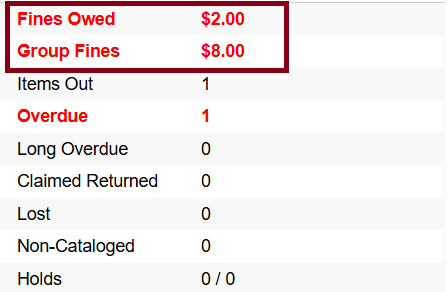
Patron accounts may be grouped to allow staff to easily retrieve multiple accounts that are linked together, such as a guardian and dependent child, spouses, a senior and their adult child acting as caregiver, etc.
|
Grouping connects different patron records without losing any individual records. If a patron has duplicate records that need to be combined into one, use Merging Patron Records instead. |
Grouping Patrons During Registration
-
Register one member of the group and select the Save and Clone button.
-
Register the remaining patrons of the group, again using the Save and Clone button. For the final patron in the group, simply click Save.
-
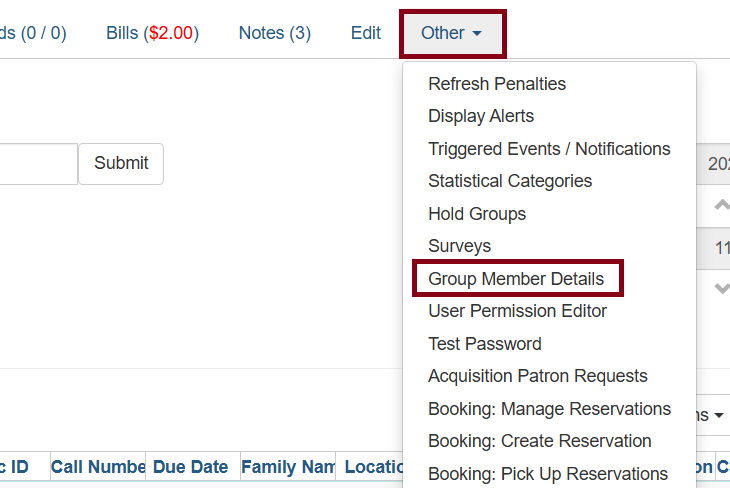
Search for the first patron registered in this group. Select the patron from the listing and click Other, then Group Member Details.
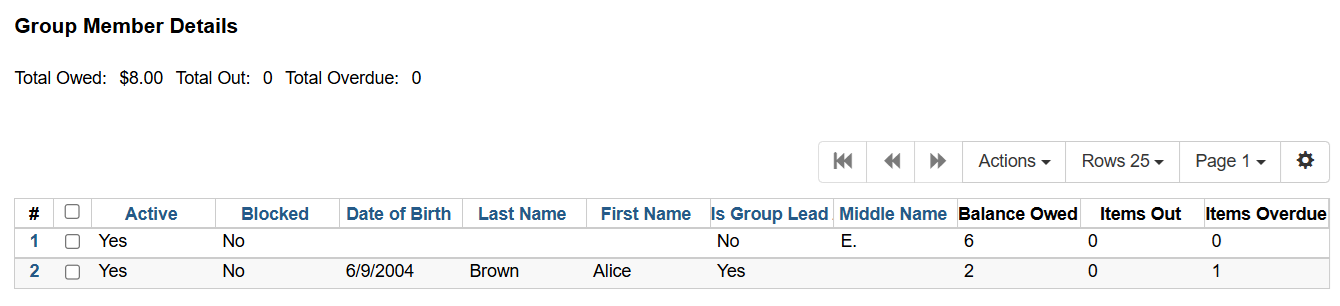
All members of the group will display with total details.
Grouping Patrons After Registration
-
Search for the patron requesting to have others added to their group.
-
Select the patron.
-
Click Other, then Group Member Details as shown above.
-
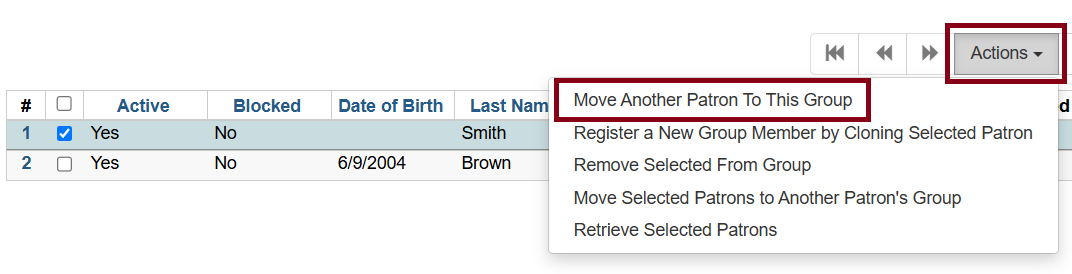
Choose Move Another Patron to This Group. This will require the barcode of the patron to be added to the group.
Other Options
-
Register a New Group Member by Cloning Selected Patron will display the registration screen to register a new patron to be added to this group.
-
Remove Selected From Group will allow staff member to remove a patron from this group when requested to do so.
-
Move Selected Patrons to Another Patron’s Group will require the barcode of the lead patron of the other group.
-
Retrieve Selected Patrons will display the selected patron account.