Holds Shelf
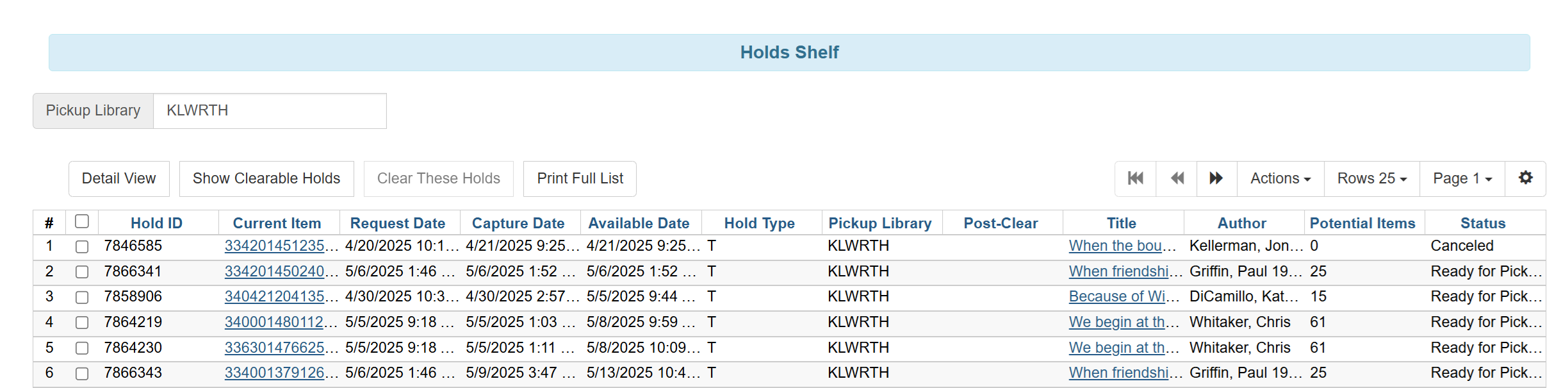
In this screen, you can view items that are placed on your holds shelf and clear expired holds.
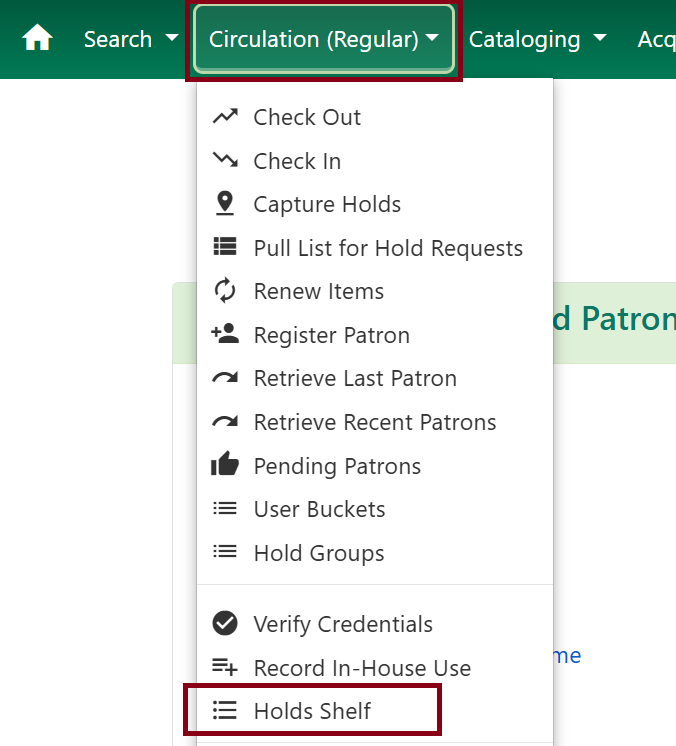
To get there, click Circulation → Holds Shelf.
Hold Shelf Expiration
The default hold shelf expire interval is set to 6 days. When a hold is captured, the system calculates the expiration based on when the item was placed on the shelf.
If the calculated expiration falls on a day your library is open, the expire time will be exactly 6 days after the hold was captured. For example, if the hold was captured on 11/1 at 3:30 PM, the hold would expire on 11/7 at 3:30 PM. This gives the patron the full 6th day to pick up the item.
However, if the expire time would fall when your library is closed, it gets pushed to your next open day, and the time is set to 11:59 PM on that day.
|
The shelf expire interval can be adjusted to accommodate your library’s workflow. Contact the help desk if you need this setting changed. |
Hold Shelf Delay
When a hold is captured, there is a 5-minute delay before the item appears to patrons as being on the holds shelf. This gives staff time to process the item before it shows as ready for pickup in the catalog.
There is a further 30-minute delay before hold notifications are sent via email or text message.
|
Both of these delays can be adjusted to accommodate your library’s workflow. Please open a help desk ticket if your library needs these settings changed. |
Clearing Expired Holds
When holds reach the end of their eligible Ready for Pickup status, you can clear out the expired holds.
-
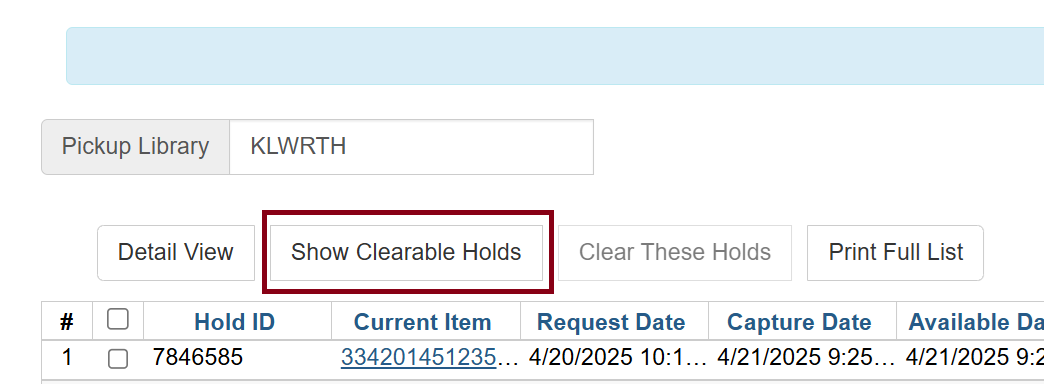
Click the Show Clearable Holds button to list expired holds and canceled holds only. Expired holds are holds that expired before today’s date.
-
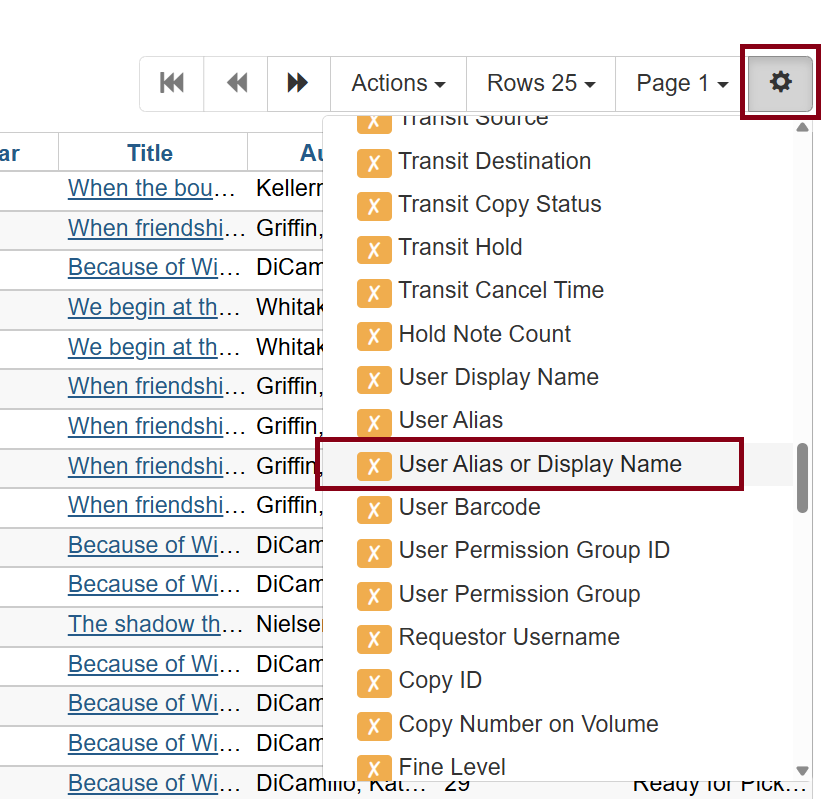
From here, you can add some columns that could be helpful. By default, patron names are not displayed, but you can add columns such as User Alias or Display Name.
-
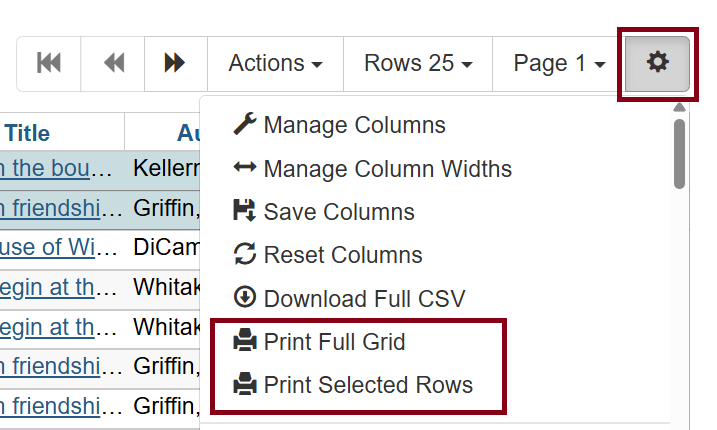
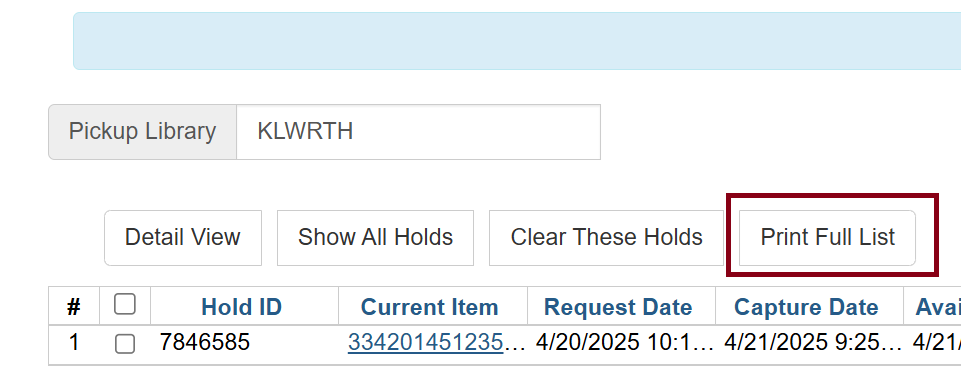
When the list is configured to the preferred display, choose Print Full Grid from the Actions menu, Print Selected Rows also in the Actions menu if you have certain lines selected, or the Print Full List stand alone button in the upper left hand corner of the screen.
-
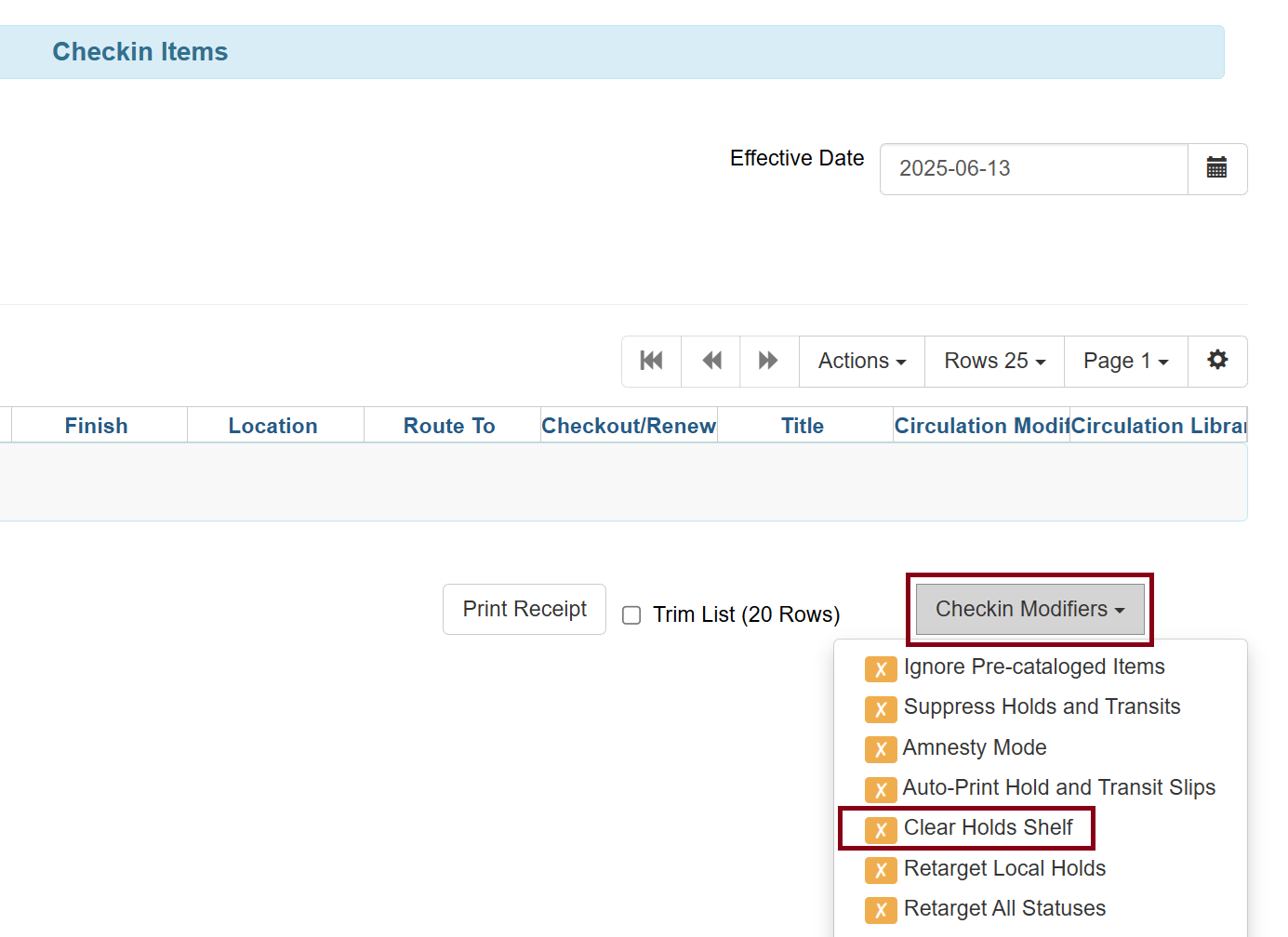
Physically remove the expired and canceled holds from your physical hold shelf, and check them in with the Clear Hold Shelf checkin modifier enabled.
| DO NOT use the Clear These Holds button within the Holds Shelf screen. Clicking this presumes you want to send all expired back to the shelf or on to the owning library or the next library with a hold. Using the Clear Holds Shelf checkin modifier allows you to keep expired holds on the shelf a while longer on a case-by-case basis. Please be mindful of other libraries’ materials when doing this. |