Viewing Report Outputs
If you want to view your outputs or the status of a running report, go into the appropriate output folder under My Folders.
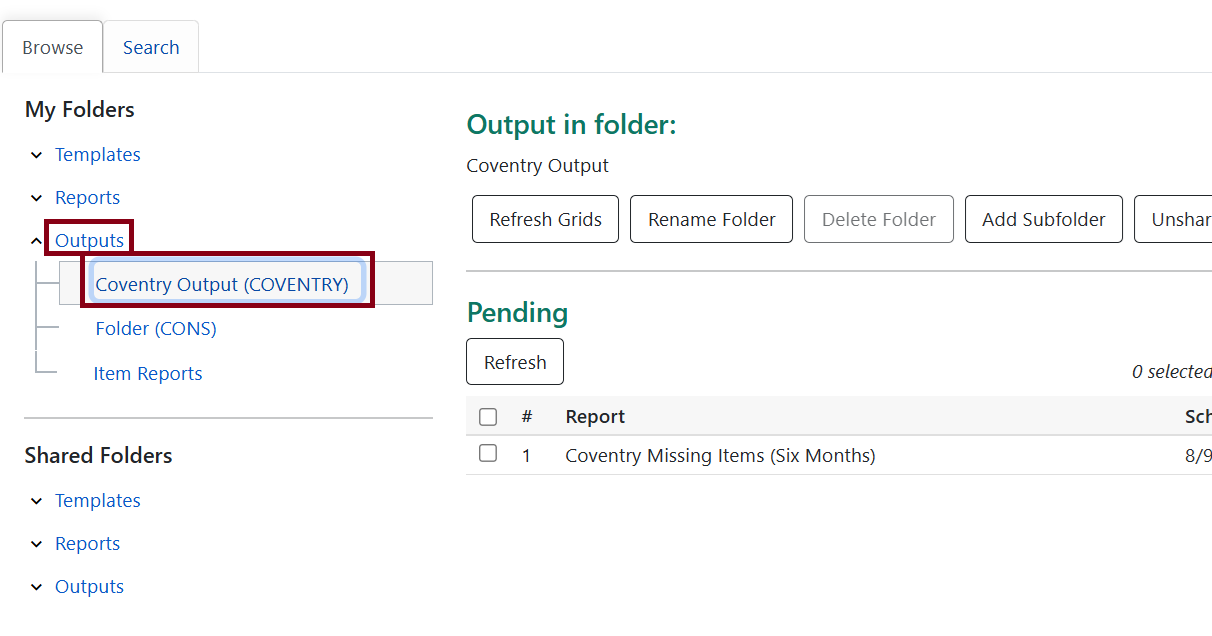
Anything that is currently running will be under the Pending status and Complete outputs are also listed. Some reports may take some time to complete.
To view the outputs within the reporter, you can go to the completed reports and select which format you want to view by the buttons on the right.
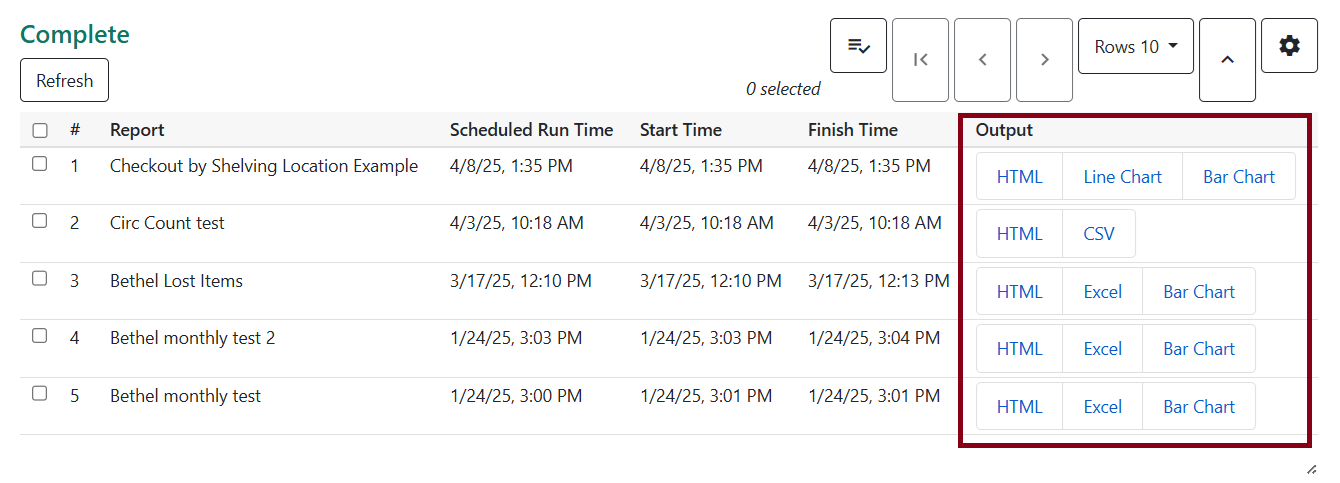
HTML outputs will appear in a new tab and can be viewed in your browser.
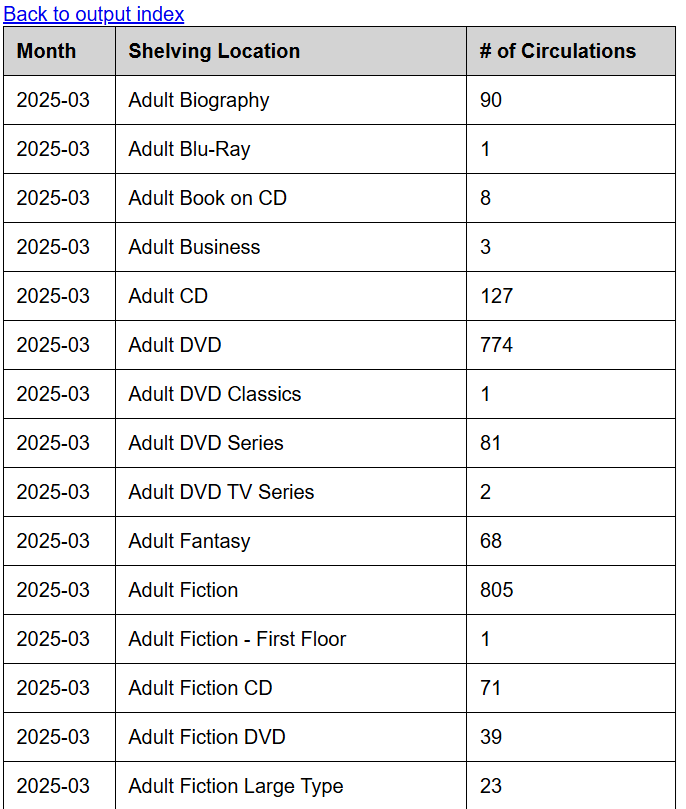
| You can share the link of the output with other staff members. They’ll need to use their Evergreen staff login to access these. |
CSV and Excel options will prompt downloading to open in Excel.
Bar chart and line chart examples
Cloning from an Output
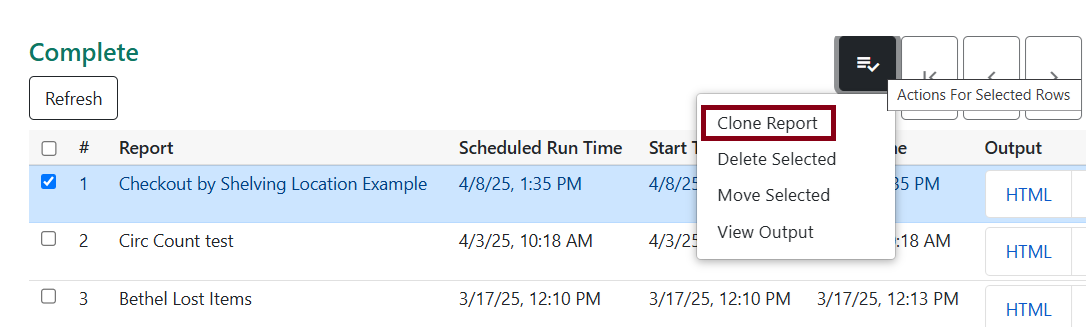
If you wish to run the report again, you can select Clone Report after highlighting it. This will bring you to the Filters area where it will be prefilled with the same filters that were chosen to run the particular output. You can change the filters as needed to run a different report.