Pull List for Hold Requests
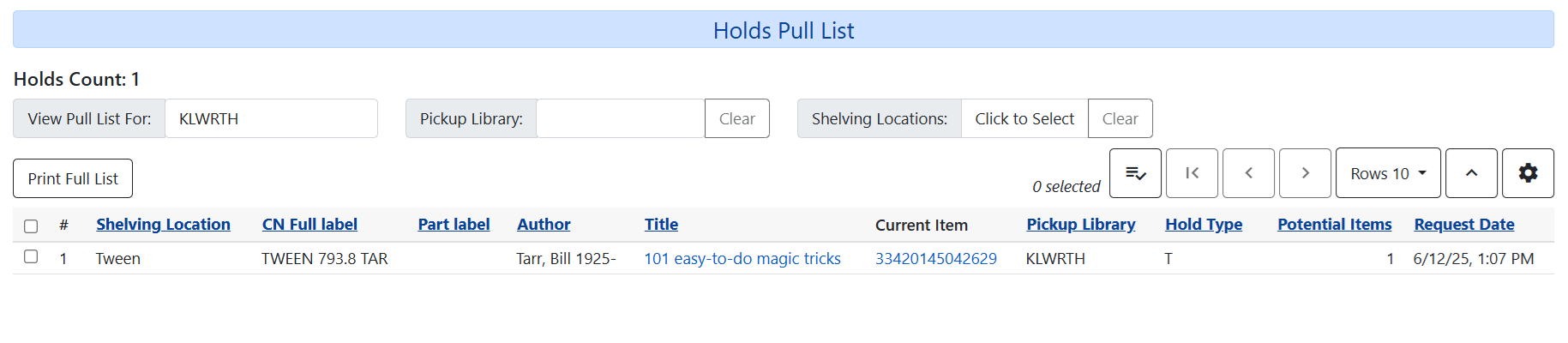
The Pull List for Hold Requests, more commonly known as the Pull List, is where you can find what copies are targetted for patrons' holds.
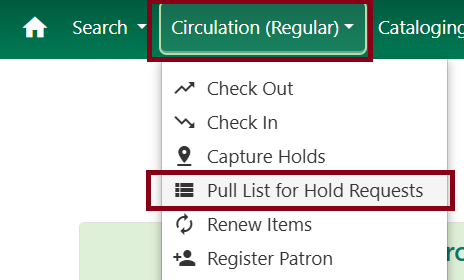
To get to the menu, go to Circulation → Pull List for Hold Requests.
Sorting the Pull List
The Pull List is sortable by pickup library, shelving locations, and shelving location groups.
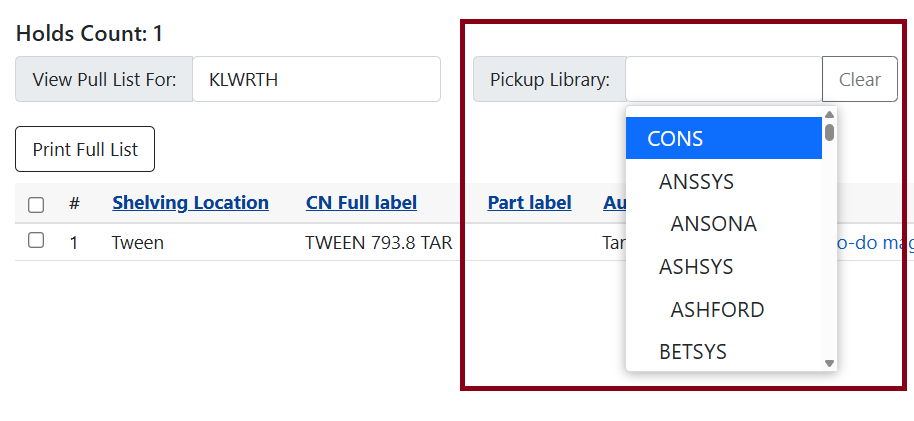
To sort the pickup library, click on the empty text box next to Pickup Library: and select or type in the shortname/shortcode of the library.
This may become helpful if you have a long list and want to filter by patrons picking up their holds locally by selecting your library.
To sort by shelving locations, you have two options. One is selection shelving locations individually and by shelving location groups.
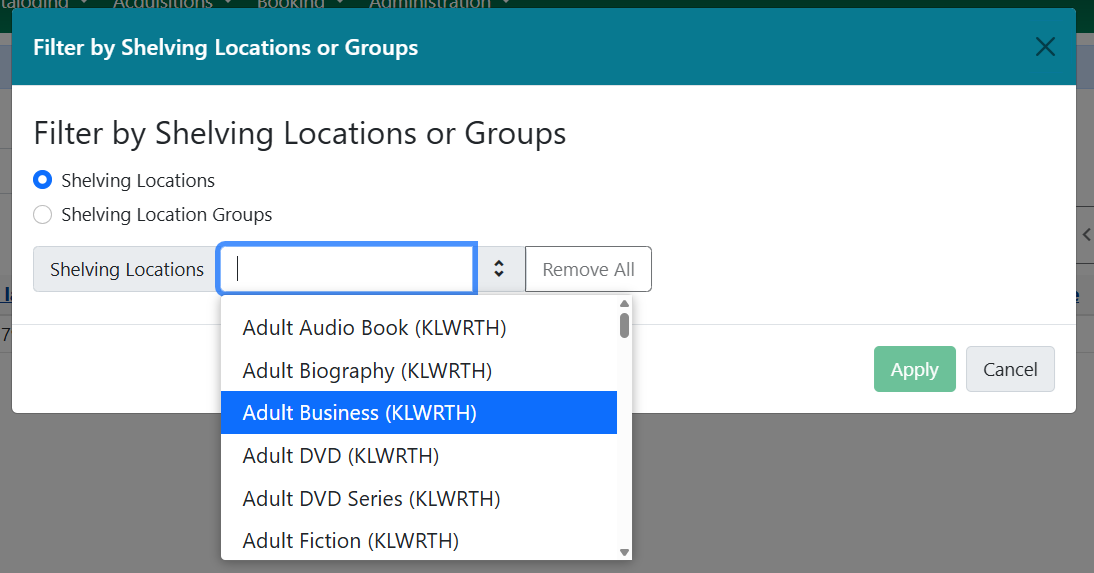
To select individually, use the Click to Select button next to Shelving Locations:.
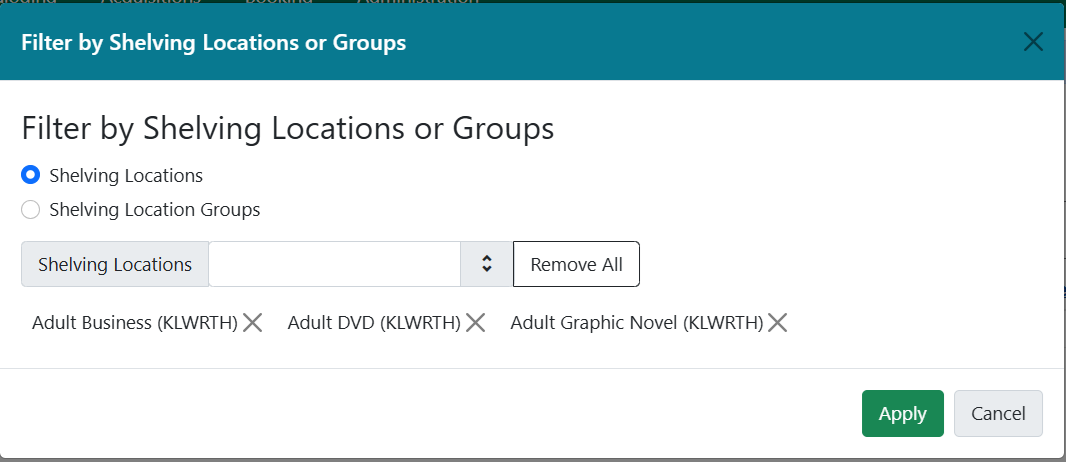
You can make multiple selections. Click the X icon next to a shelving location you want to remove or Remove All to start over. You can also click Clear after applying your selection in the main Pull List menu.
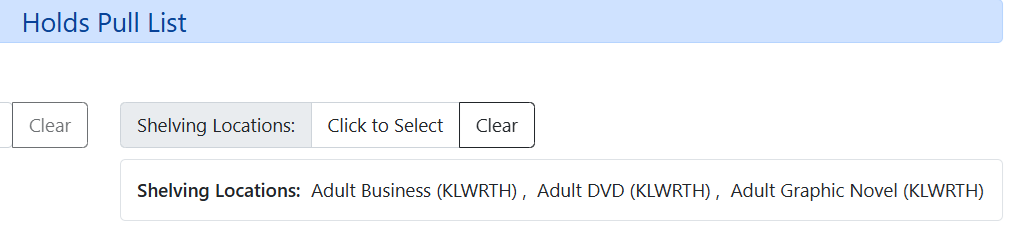
If you have Shelving Location Groups set up, you can also choose them within the selector. The same idea applies - you can select multiple groups and remove or clear them the same way as individual locations.
Hold Statuses
There are usually four statuses a hold may have.
-
Waiting for Copy: all holdable copies are checked out or not available.
-
Waiting for Capture: an available copy is assigned to the hold. The item shows up on the Pull List waiting for staff to search the shelf and capture the hold.
-
In Transit: hold is captured at a non-pickup location, and on the way to the pick-up location.
-
Ready for pick-up: Holds are captured and items are on the Hold Shelf waiting for patrons to pick up. Besides capturing holds when checking in items, Evergreen matches holds with available items in your library at regular intervals. Once a matching copy is found, the item’s barcode number is assigned to the hold and the item is put on the Pull List. Staff can print the Pull List and search for the items on shelves.
Printing List
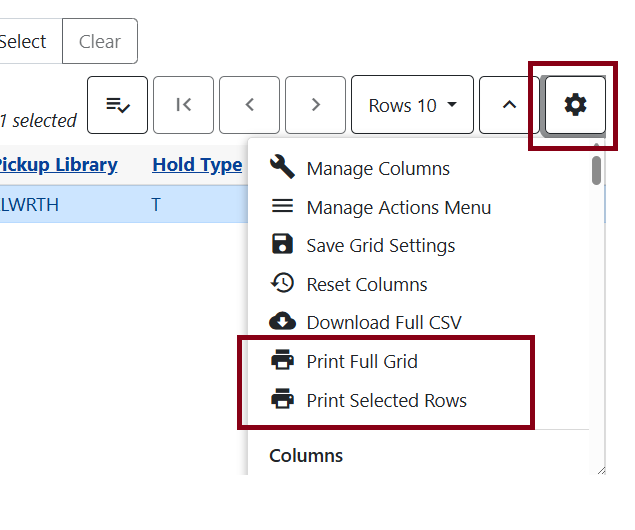
To print the list, you can select Print Full Grid or Print Selected Rows in the Actions menu (gear icon).
These options will print out the grids or selected rows based on the columns chosen.
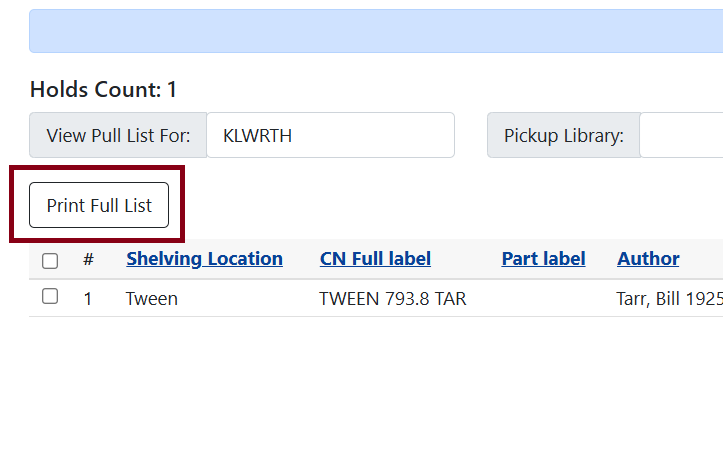
There is also a Print Full List button on the left-hand side of the screen. Print Full List prints the following fields: Title, Author, Shelving Location, Call Number and Item Barcode.