Holds
Overview
Lists all current holds with status and an EDIT action. New holds originate from an Item Detail (Search Catalog → title → Place Hold). You can later change pickup location, suspend (freeze), set activation / expiration dates, or cancel.
Holds List View
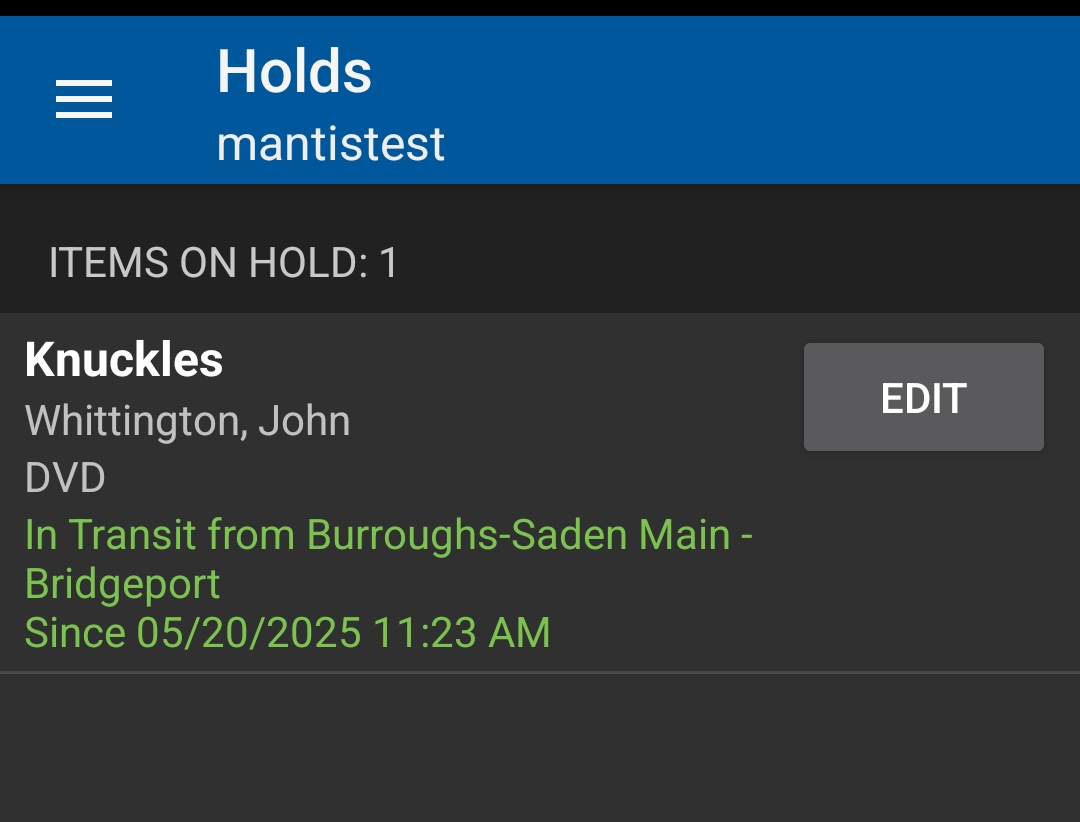
Each entry shows:
-
Title (bold)
-
Author & format line
-
Status line (green) with source location and timestamp of last change (
Since <date time>) -
EDIT button
Common status phrases:
-
Pending / Active – Waiting in queue
-
In Transit from <lib> – Item on the way to pickup library
-
Ready for Pickup – On shelf; generates Hold Ready push notification
-
Suspended – Frozen until activation date
|
If a patron wants to pause a hold so it will not fulfill while they are away, edit and suspend it before it goes In Transit. |
Placing a New Hold
From Item Detail (Search Catalog → title → Place Hold). Saved notification preferences apply even if fields display blank (inherited data).
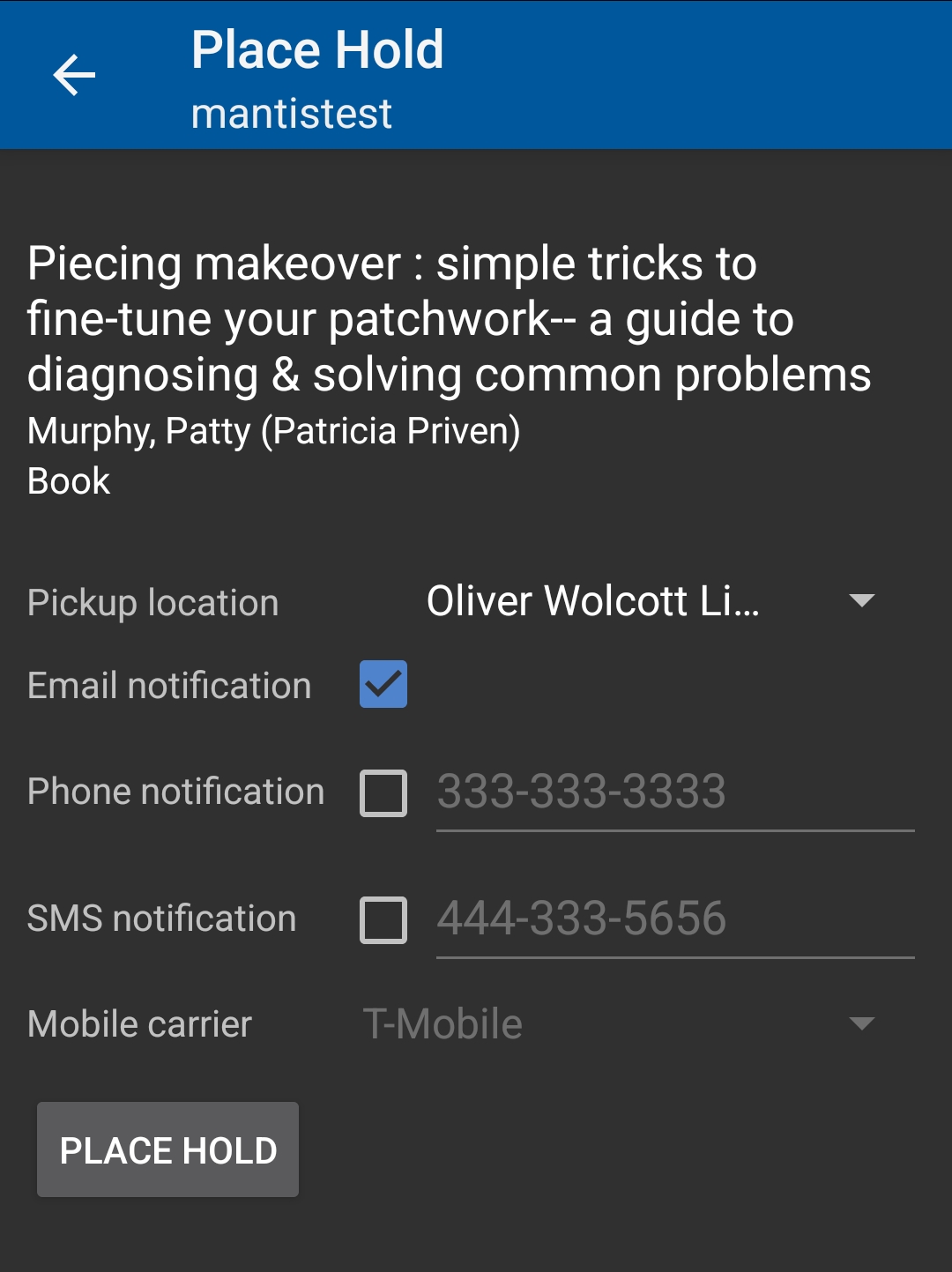
Fields & options:
-
Pickup location – Change before submitting
-
Notification checkboxes (Email, Phone, SMS) – Availability depends on patron record setup
-
Carrier (if SMS) – Dropdown when SMS enabled
|
Push notifications (Hold Ready, Courtesy) are separate from email/SMS. Enabling or disabling one channel does not change the others. |
Editing an Existing Hold
Tap EDIT beside a hold to open the hold details.
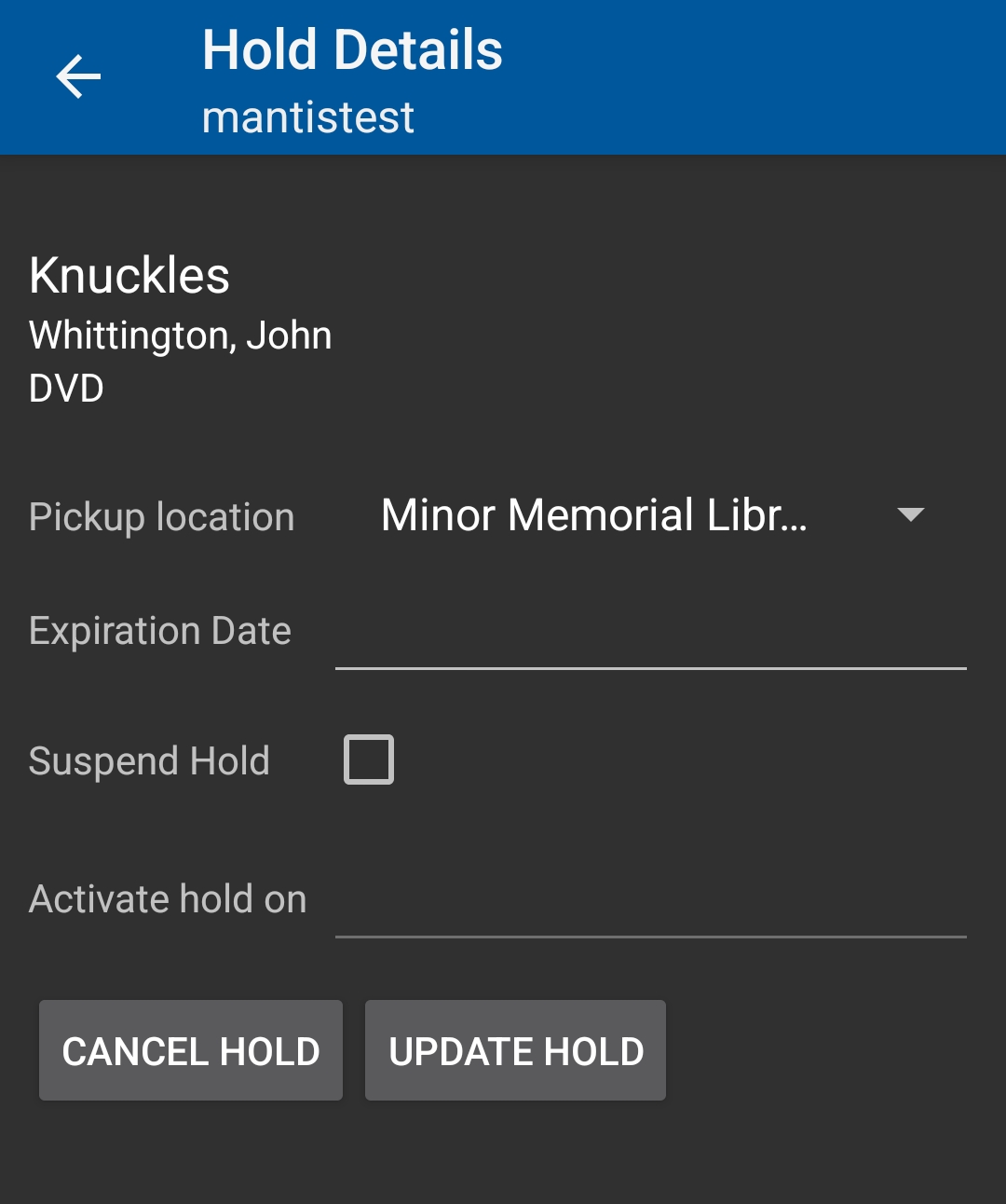
Editable elements:
-
Pickup location – Change before arrival
-
Expiration Date – Optional last date patron wants item; system can release after
-
Suspend Hold – Checkbox to freeze (prevents fulfillment). Combine with an Activate hold on date for scheduled reactivation.
-
Activate hold on – Future date to automatically un‑suspend
-
Buttons: CANCEL HOLD (immediate removal) / UPDATE HOLD (save changes)
|
Changes after an item is already In Transit may not stop imminent fulfillment. For meaningful pickup changes or suspensions act while status is still Active. |
Key Actions
Action |
When to Use |
Notes |
Suspend |
Vacations / managing queue timing |
Set activation date to auto‑resume |
Change Pickup |
Patron relocating temporarily |
Best before In Transit |
Cancel |
No longer needed |
Frees queue slot; cannot undo |
Set Expiration |
Soft deadline (after event/trip) |
Hold may cancel past date |
Activate on (schedule) |
Delay fulfillment until patron returns |
Pairs with suspend |
Best Practices
-
Suspend early for vacations to avoid uncollected Ready items.
-
Confirm contact preferences if expected notifications seem missing.
-
Combine pickup change + suspend + activation date for extended travel.
Quick Troubleshooting
Issue |
Resolution |
Hold not appearing after placement |
Refresh list (navigate away/back); slight delay possible |
Cannot edit Ready hold |
Pickup changes locked by timing—staff client may have limited options |
Activation date field hidden |
Check Suspend Hold box first |
Patron says notification missing |
Confirm push/email settings; check timestamp—may still be Active, not Ready |
Canceled by mistake |
Re‑place hold from Item Detail; original queue position lost |
|
To pause multiple holds, suspend each with the same Activate hold on date—no need to cancel and recreate. |