Items Out
Overview
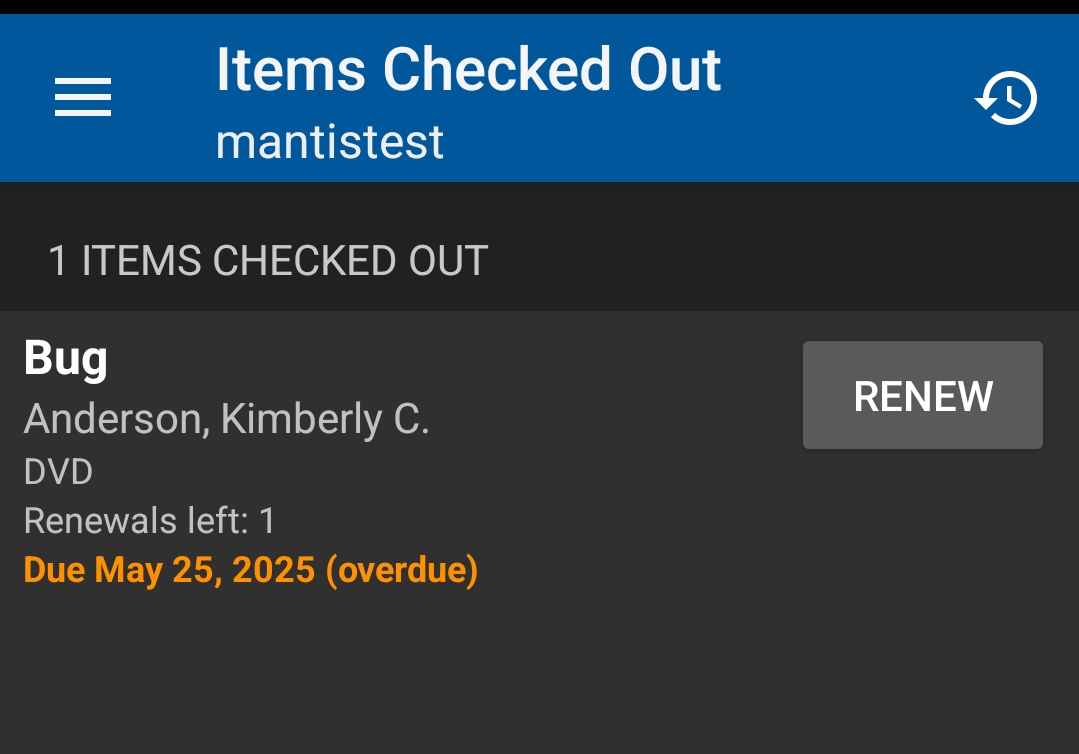
Lists active loans: title, author (if present), format, renewals left, and due date (orange (overdue) after due). RENEW appears only when policy permits another attempt (no blocks and renewals remain).

First Use: Enable Checkout History (Optional)
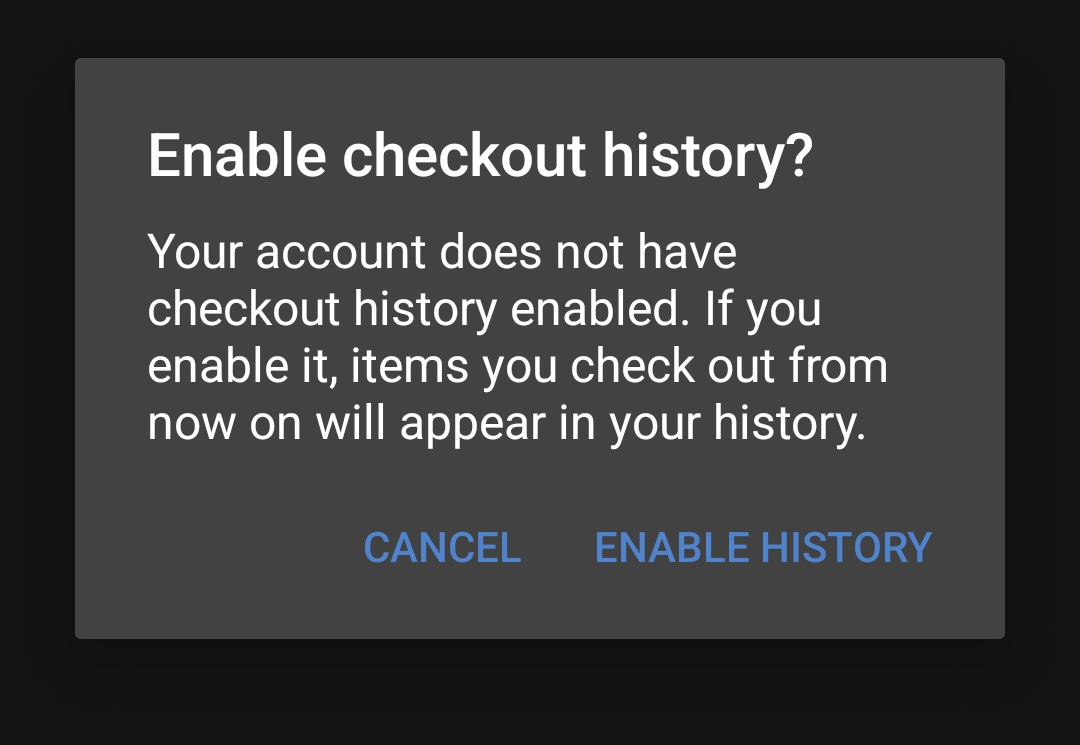
If checkout (circulation) history is off, a prompt may appear when opening history (clock icon). Accept to retain future loans (past loans are not added retroactively).
|
Checkout history is opt‑in. Declining keeps current privacy settings—renewal functionality is unaffected. |
Screen Layout
Element |
Meaning |
Notes |
Header count (e.g., 3 ITEMS CHECKED OUT) |
Number of active loans |
Updates after successful renewal if item’s due date changes but item remains checked out |
History icon (clock/arrow) |
Opens checkout history (if enabled) |
May trigger enablement prompt first time |
Title (bold) |
Bibliographic title |
Tapping title currently not required for renewal (renew button inline) |
Author / format line |
Author + material type |
Format string mirrors OPAC descriptive term |
Renewals left: N |
Remaining renewal attempts allowed by policy |
Counts both auto‑renew and manual attempts (shared pool) |
Due date line |
Displays due date; turns orange + (overdue) after due time |
Courtesy push notification fires ~3 days prior if feature active |
RENEW button |
Manual renewal attempt |
Hidden if no renewals remain OR policy block OR item is already overdue with block conditions |
Renewal Logic (Simplified)
-
Remaining count decreases each successful manual or auto‑renew.
-
Auto‑renew (if configured consortium‑wide) occurs shortly before due date; if it succeeds the due date advances and the remaining count is reduced, so patrons may see fewer renewals left than expected.
-
An item with holds or other blocks (fine threshold, max renewals, specific non‑renewable type) shows no RENEW button.
|
If the patron expects an auto‑renew but sees the count unchanged and the due date approaching, advise a manual RENEW attempt—failure message in OPAC/staff client will clarify (e.g., Item has hold). The app itself simply hides the button when renewal is not allowed. |
Manual Renewal Workflow
-
Open Items Out.
-
Locate the target loan; confirm Renewals left > 0.
-
Tap RENEW.
-
App sends a renewal request; on success:
-
Due date updates
-
Renewals left decrements
-
Overdue label (if present) disappears if new date is in future
-
-
If renewal fails (no change or button disappears on refresh), check for blocks (holds, max renewals, policy) in staff client.
|
If patrons watch the screen closely, they may not notice the due date shift. Suggest taking a screenshot before tapping RENEW for comparison when coaching remotely. |
Auto‑Renew vs Courtesy Push
Aspect |
Auto‑Renew |
Courtesy Push |
Trigger Time |
Policy‑defined (e.g., hours before due) |
~3 days before due date |
What It Does |
Attempts to extend loan |
Reminds patron to act |
Consumes Renewal Count |
Yes (successful only) |
No |
Visible in App Immediately |
Updated due date & lower renewals count |
No explicit badge—just push on device |
Limitations
-
No inline error reason when a renewal is blocked—button simply absent or action silently fails to change values (needs staff client/OPAC for message).
-
Cannot renew multiple items in batch (one at a time only).
-
Does not display fine accrual projections—see Fines tile or staff client.
-
Checkout history (once enabled) is forward‑looking only; past loans not imported.
Best Practices
-
Encourage enabling checkout history if patrons frequently ask “Did I already borrow…?”
-
Remind patrons that holds, max renewal limits, or non‑renewable formats override remaining count expectations.
-
Suggest manual renewal a day before due if auto‑renew reliability is critical to them.
-
Promote push notifications as a lightweight reminder—not a guarantee of successful renewal.
Quick Troubleshooting
Issue |
Resolution |
RENEW button missing |
No renewals remain, item on hold, non‑renewable type, or policy block—verify in staff client |
Due date unchanged after tapping |
Possibly blocked; refresh (leave tile & return); check staff client for block reason |
Overdue but still shows RENEW |
Some policies allow post‑due renew within grace—attempt renewal; if fails, staff intervention needed |
Renewals left seems low |
Auto‑renew already consumed one; explain shared pool |
History icon does nothing |
Enable history via prompt or account settings in OPAC |
Courtesy push not received |
Verify device notifications enabled; timing may fall outside expected window (edge cases) |
|
Advising repeated rapid taps on RENEW can cause confusion—one request is sufficient; have patron navigate out and back to confirm. |