My Lists
Overview
Lightweight personal lists for future reading, themed ideas, or program preparation. Each list has a name and optional description (added only when creating the list). Tap the + icon in the top bar to create a new list (opens a popup form). After creation, list names and descriptions can only be changed in the OPAC.
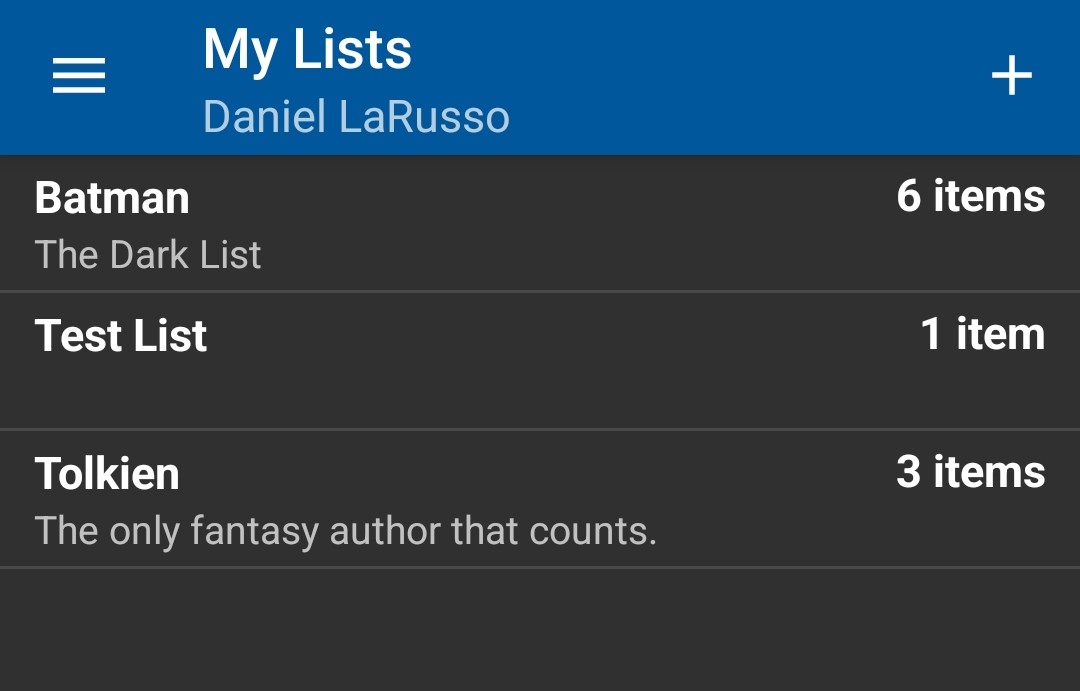
Create a List
-
Open My Lists.
-
Tap the + icon (upper right).
-
Enter a concise name and (optionally) a description.
-
Tap Create List (list starts with 0 items).
You cannot rename a list or change its description in the app after creation. Use the OPAC if edits are needed later.
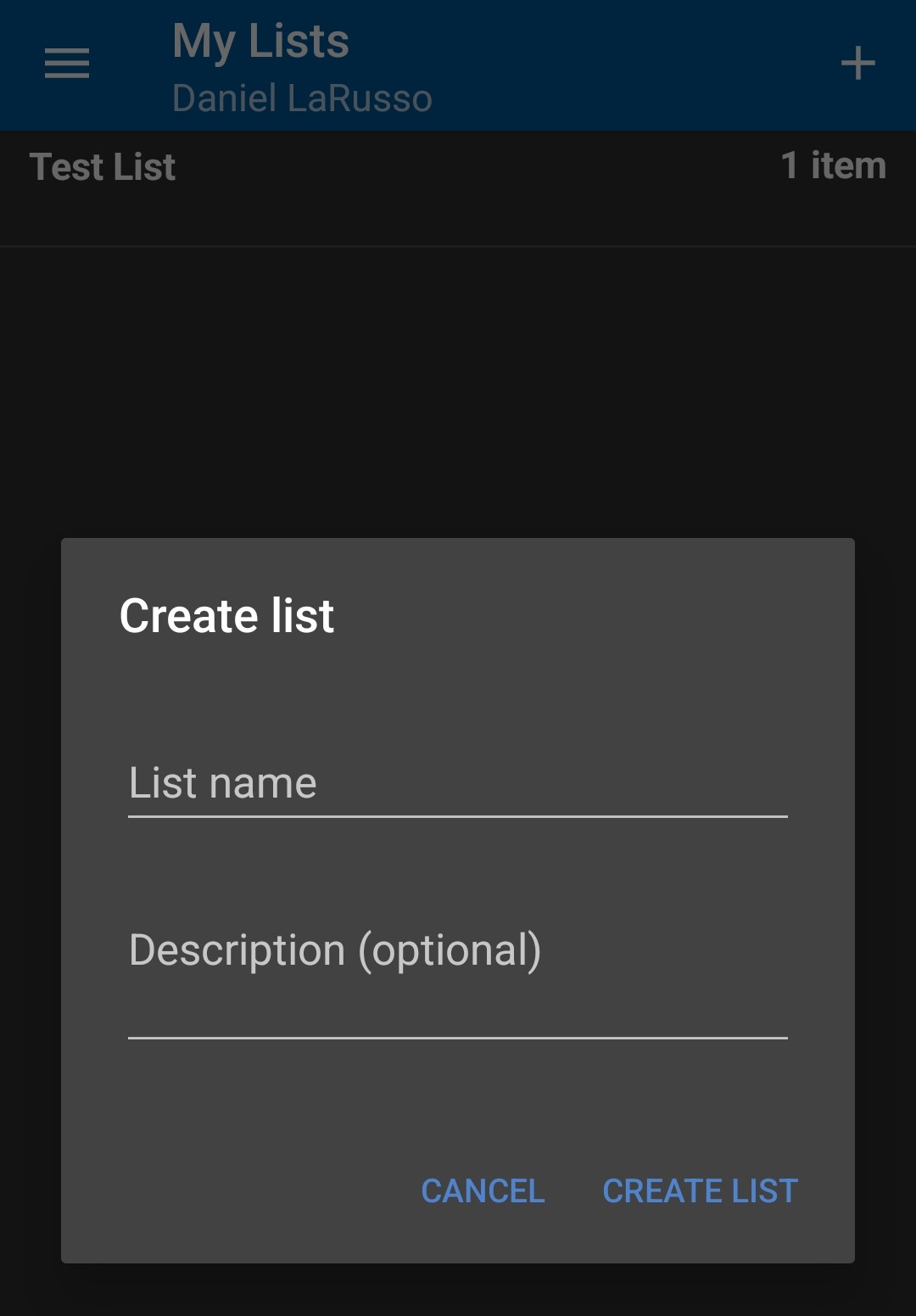
|
Create themed lists ("Summer Reading 2026", "Mystery Book Club") before browsing so Add to List prompts show the right destinations. |
Add Items
From Item Detail (Search Catalog → title → Add to List). Only existing lists appear.
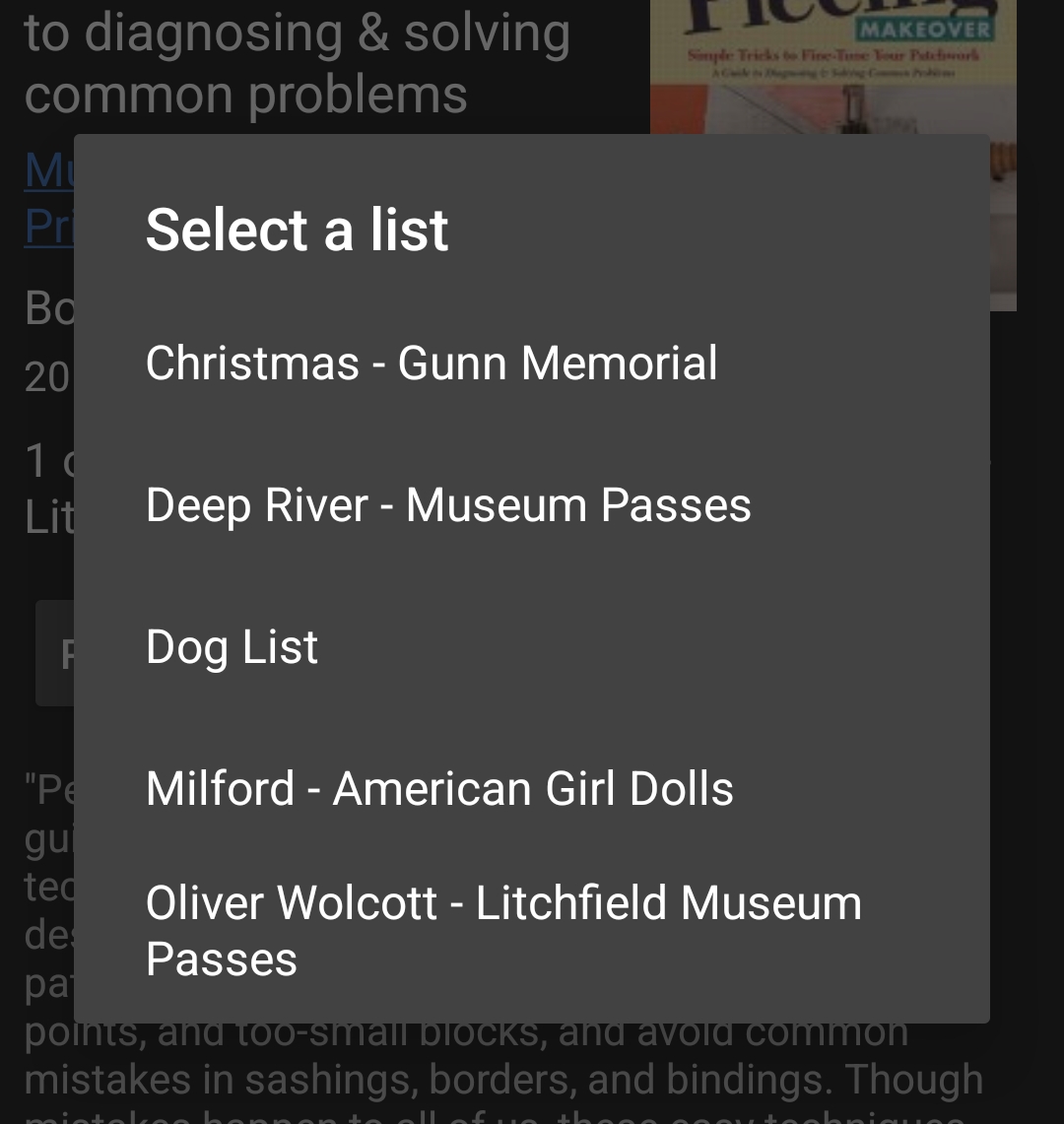
Only existing lists display. Create first, then add. After tapping a list name, the dialog closes—item appears in that list.
View a List
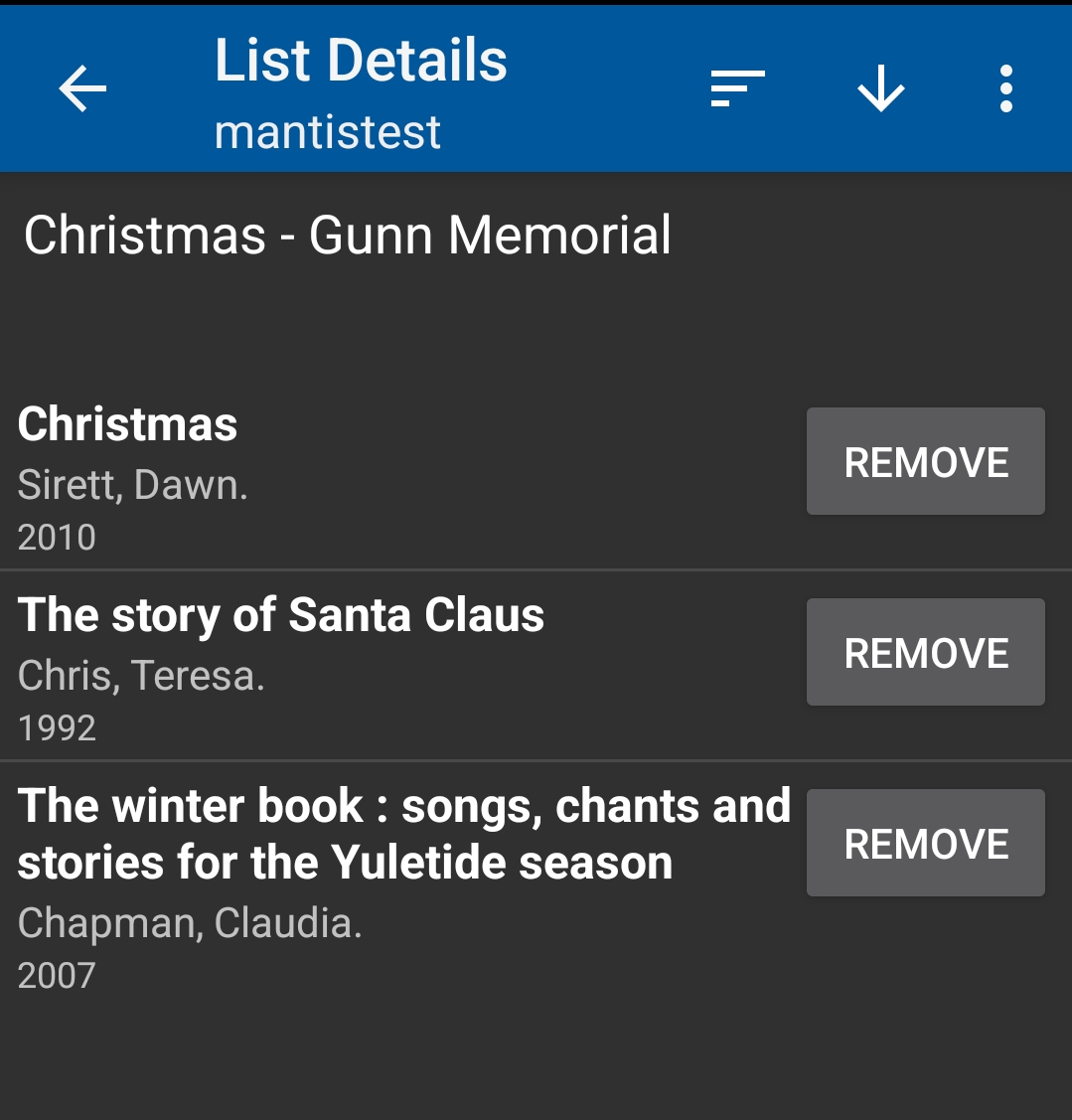
Tap a list name: titles show author + publication year. REMOVE deletes a single title.
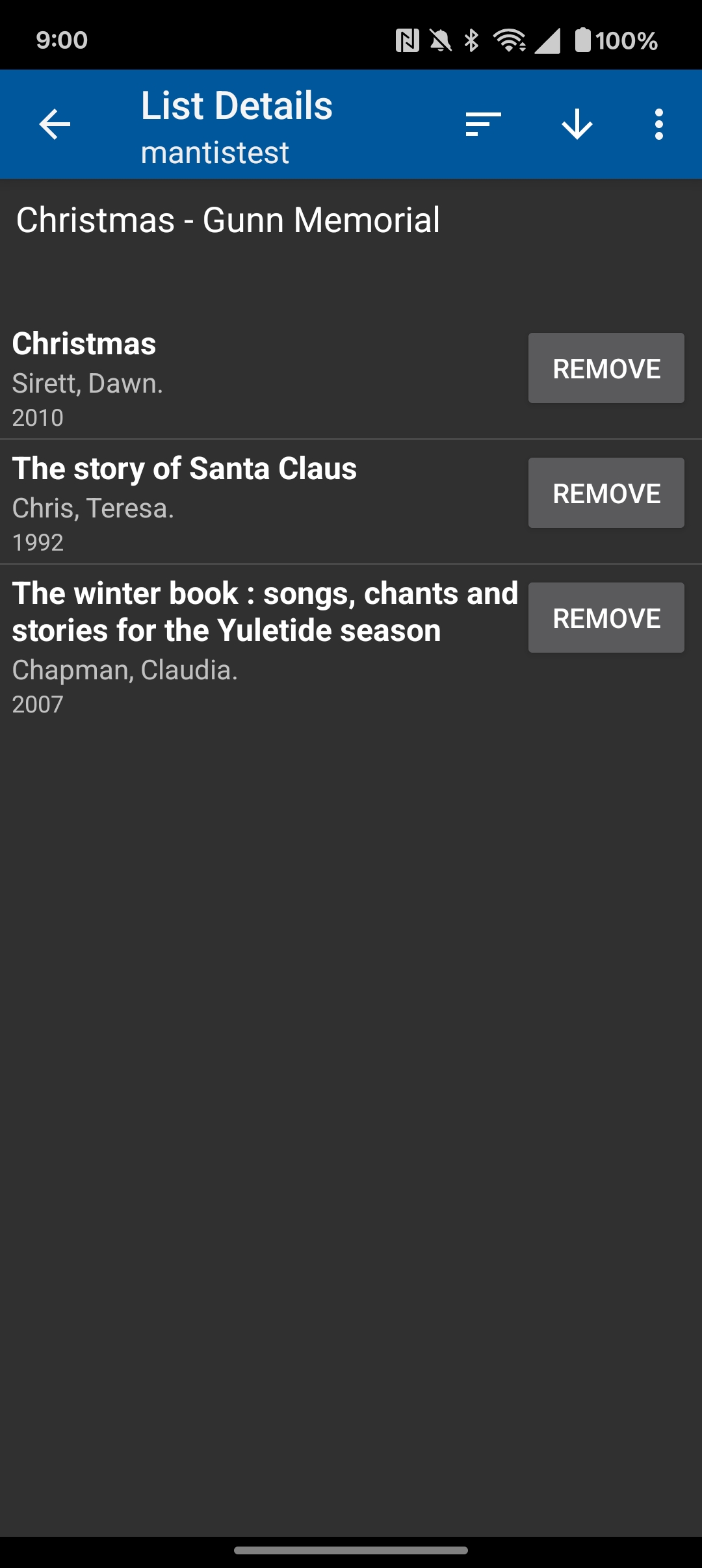
Another example with seasonal content:
Sorting
Inside List Details tap the sort (stacked lines) icon to choose sort field; tap the arrow icon to toggle ascending / descending.
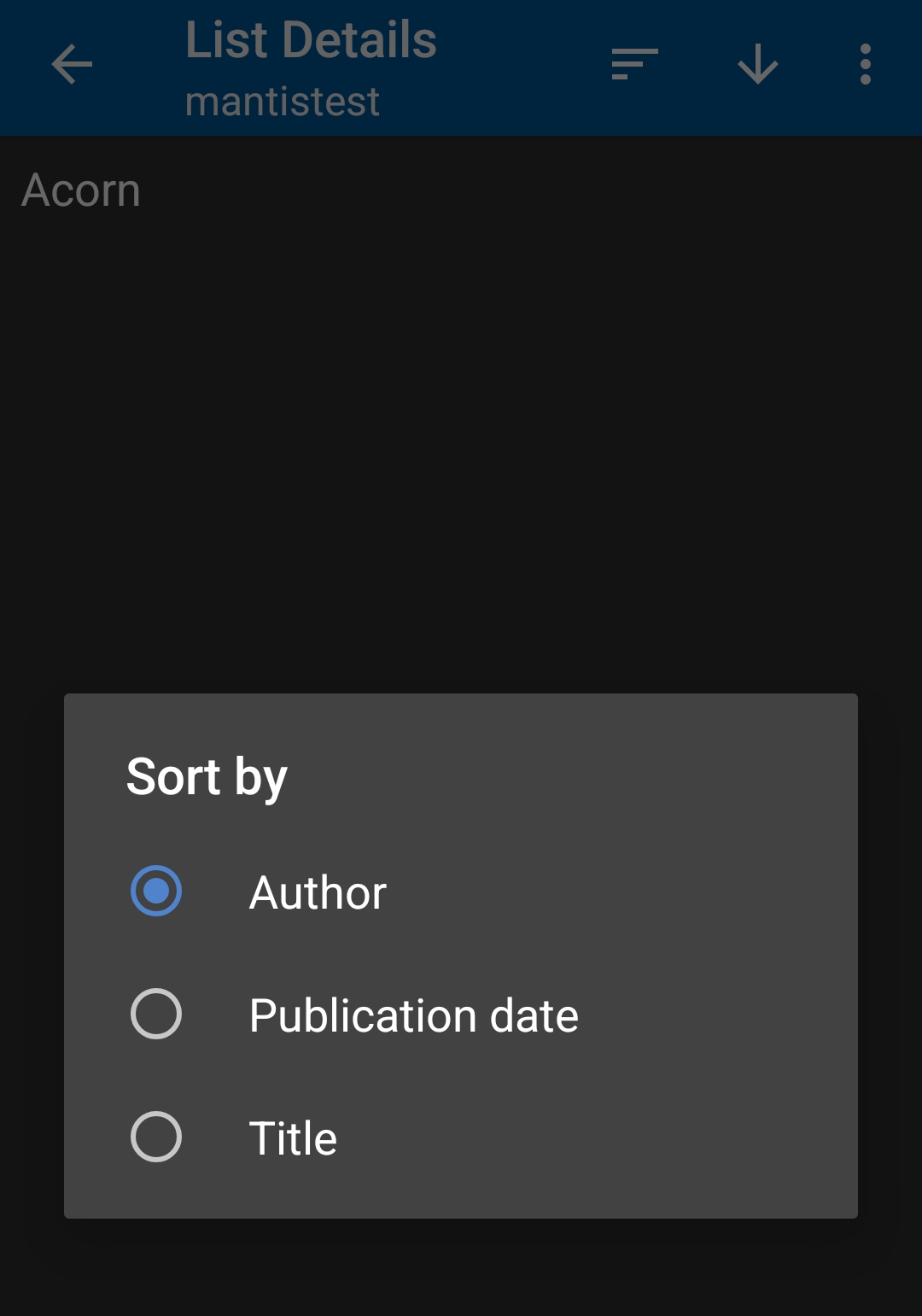
Sort fields: * Author * Publication date * Title
Delete a List
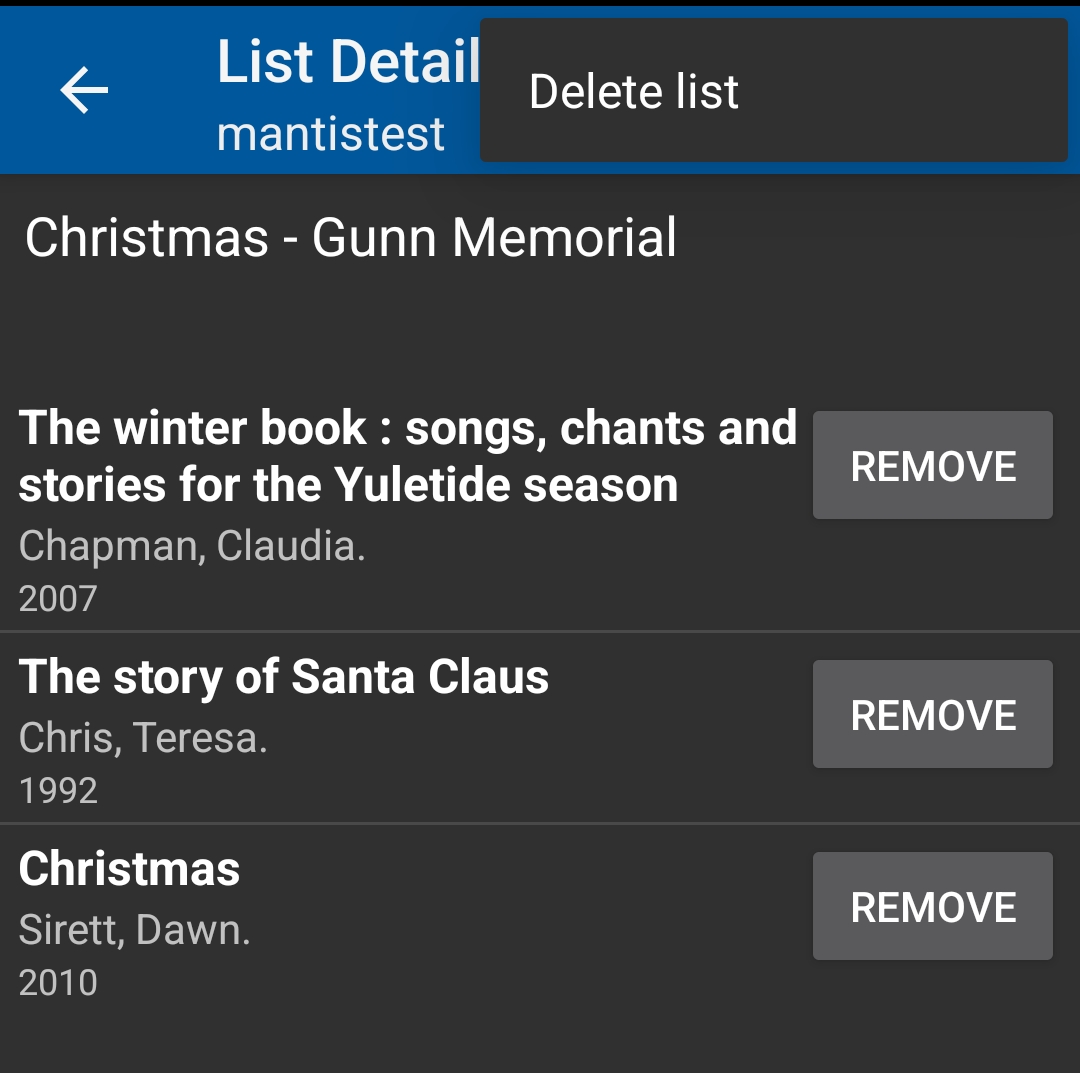
In List Details open the 3‑dot menu (⋮) → Delete list (confirm).
|
Deletion is permanent in the app; recreating the list requires re‑adding all titles. |
Limitations
-
Cannot rename a list or edit its description after creation (OPAC only)
-
No manual drag reorder (sorting only)
-
No bulk remove
-
Lists are private (no direct share link)
Best Practices
-
Prefix program lists with location for clarity (e.g., "Milford – Summer Reads").
-
Keep names short for quick scanning in dialogs.
-
Use Publication date sort to surface newer material first.
Quick Troubleshooting
Issue |
Fix |
List not in Add dialog |
Create list first or refresh (back out & re‑open Item Detail) |
Cannot find delete |
Open list → 3‑dot menu → Delete list |
Wrong list chosen |
Re‑add to correct list; remove from incorrect |
Need to change name or description |
Not supported in app; edit in OPAC then refresh |
Sort not changing order |
Tap arrow icon to flip direction after choosing field |
|
Descriptions added or modified via the OPAC appear as smaller text under the list name after you reopen My Lists. |