Acorn Mobile App
Get the App
Free public download.
| Platform | How Patrons Download |
|---|---|
iOS |
Download from the App Store (search "Acorn Catalog" if link not opening). |
Android |
Get it on Google Play (search "Acorn Catalog" if link not opening). |
Overview
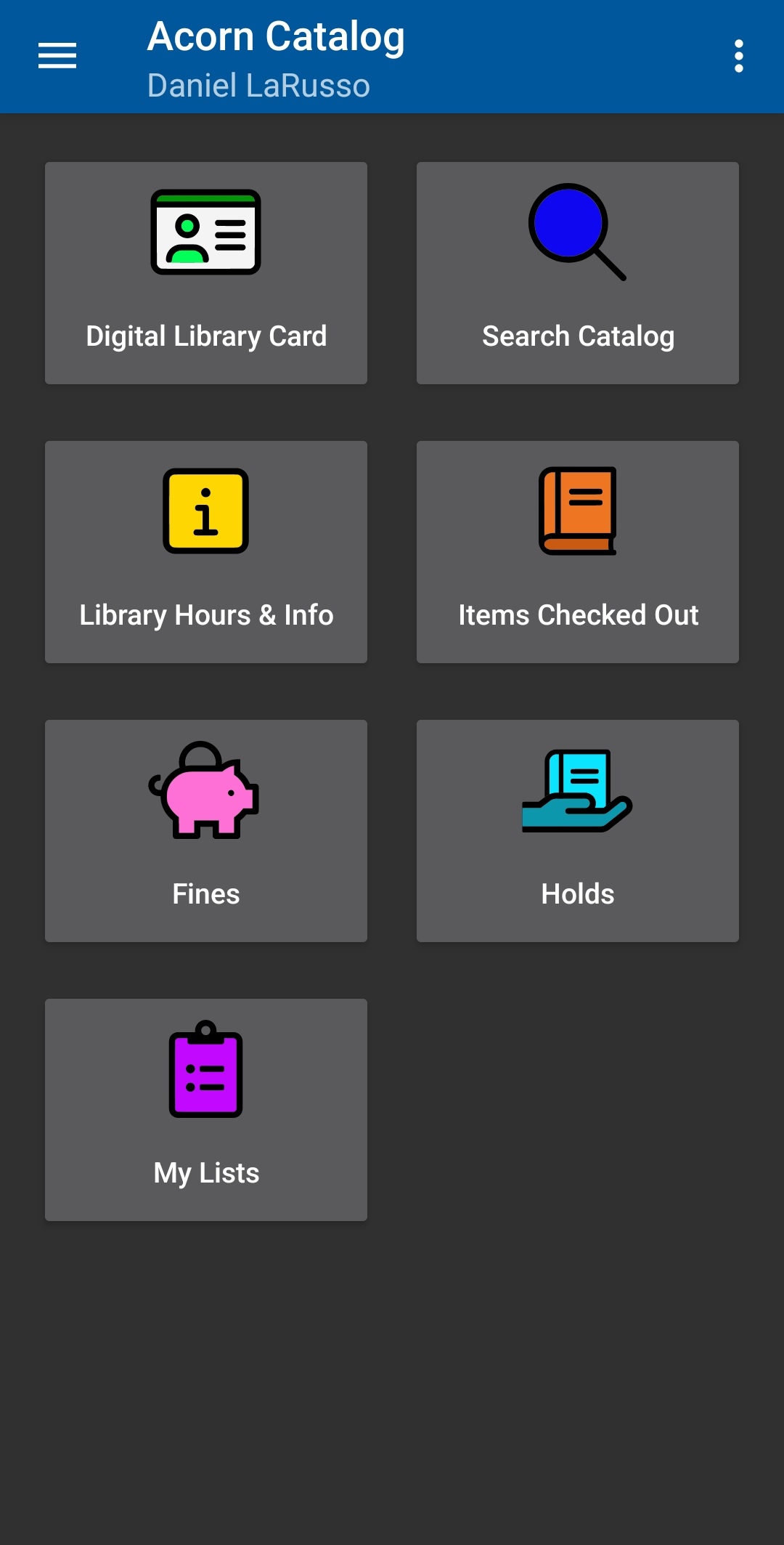
Acorn lets you search the catalog, place and manage holds, show a scannable library card, view and renew items, see or pay fines (when enabled), keep lightweight reading lists, view library hours & contact details, and receive two push notifications (Hold Ready, Courtesy pre‑due). Use the tiles on the home screen or the side menu; each tile has a focused page linked in the navigation.
Quick Start
-
Install the app (see Get the App for store links) and open it.
-
Sign in with your barcode (or username) and password.
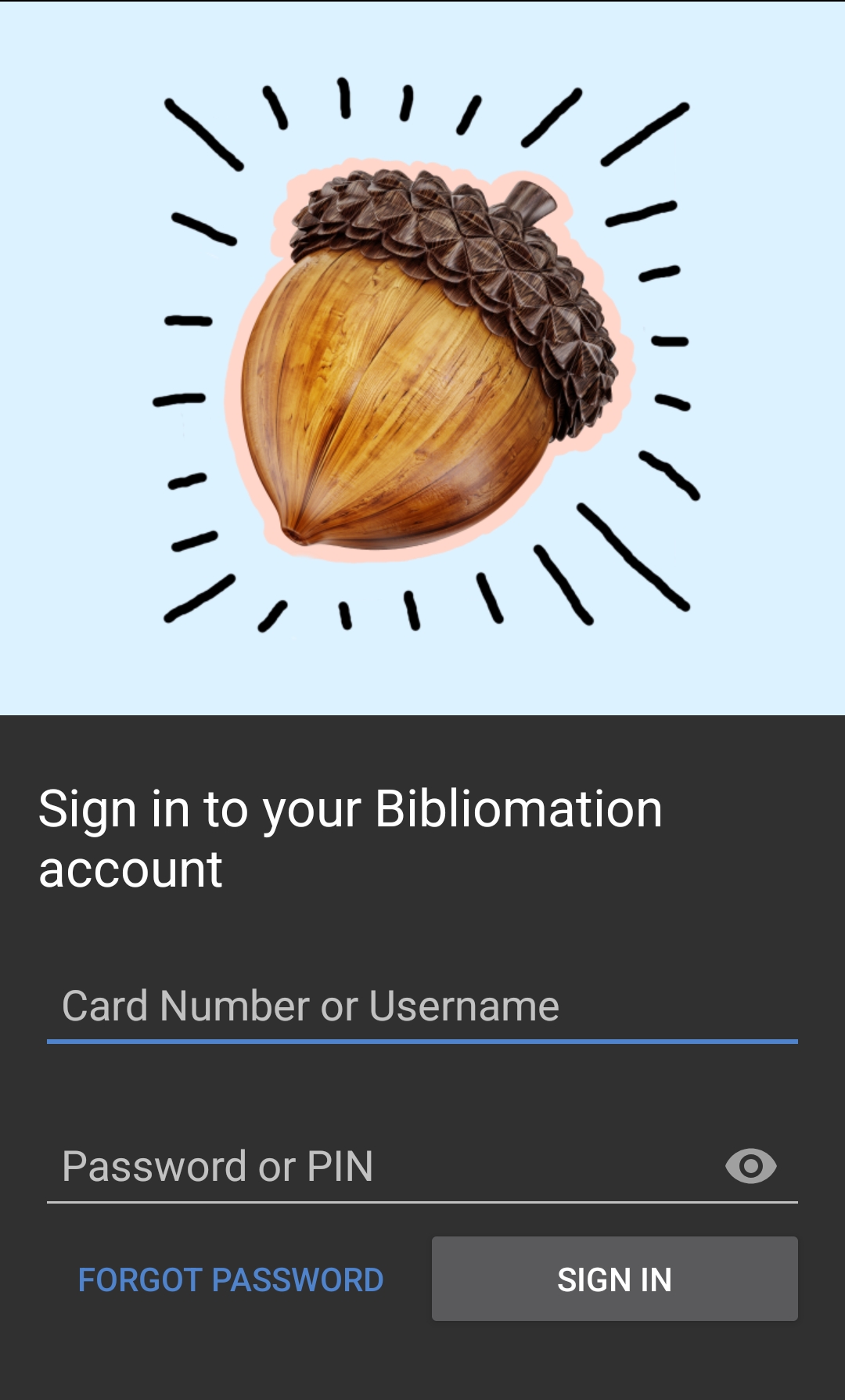 Figure 3. Login Screen
 -
Open a tile: for example Digital Library Card to display or copy your barcode.
-
Search for a title → open details → Place Hold.
-
Allow notifications on first launch (recommended) so you get Hold Ready and Courtesy alerts.
|
If you skipped the notification prompt, enable later in device Settings → Notifications → Acorn. |
At a Glance (Tiles)
Icon |
Tile |
Primary Purpose |
Key Action |
|
Digital Library Card |
Show / copy barcode |
Raise brightness; tap to copy |
|
Search Catalog |
Find materials |
Tap item → Place Hold |
|
Holds |
View/manage holds |
Edit (suspend / pickup / cancel) |
|
Items Out |
Active loans & renewals |
Tap RENEW when available |
|
Fines |
Charges & payment link |
Open OPAC to pay (if enabled) |
|
My Lists |
Lightweight title lists |
Add after list creation |
|
Library Hours & Info |
Contact & hours |
Tap phone/email/address |
|
Optional Feature Tiles (Events / eBooks & Digital / Museum Passes) |
Local web resources (events, digital collections, passes) |
Details & setup: Optional Feature Tiles |
Navigation
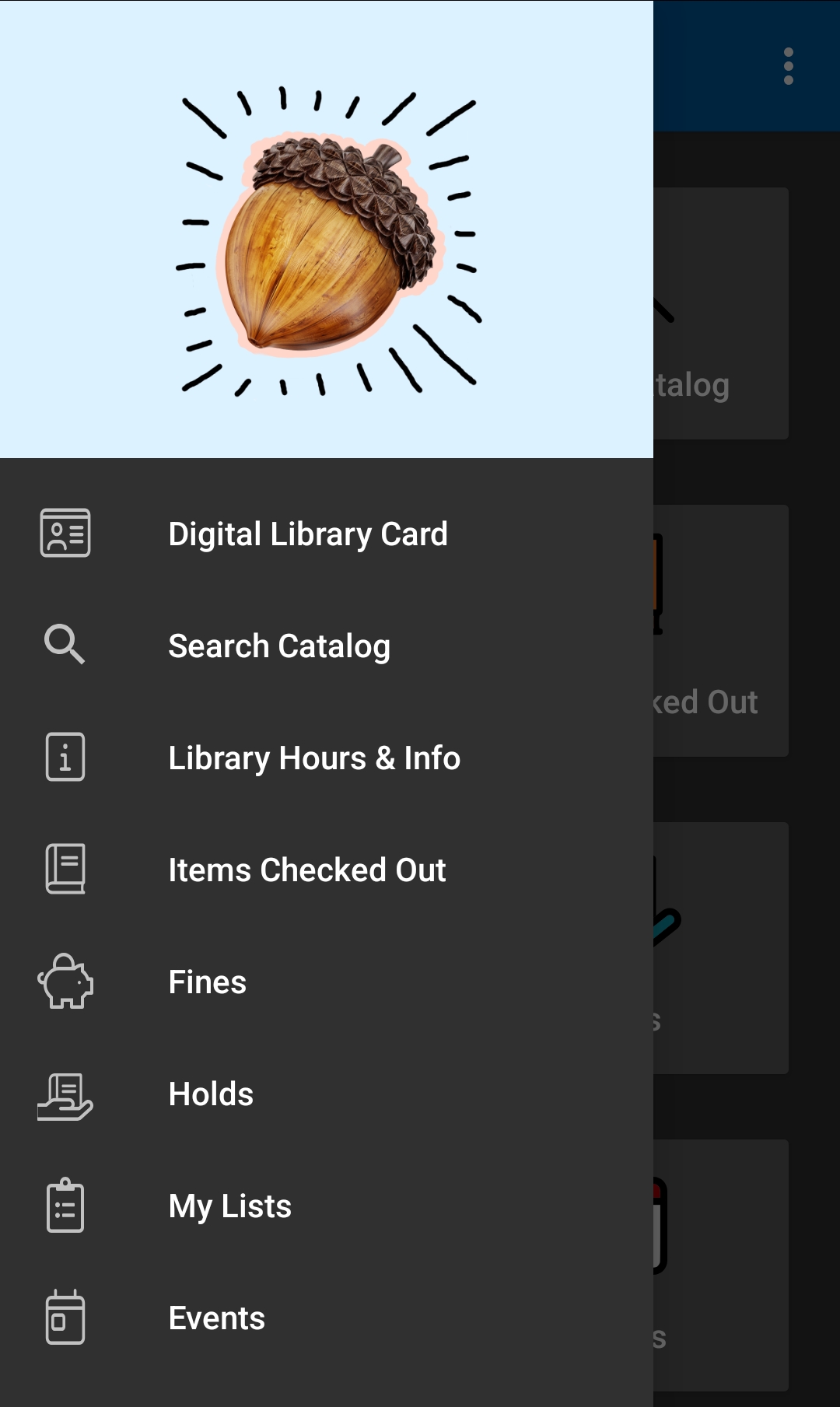
The tile screen is the hub. The side drawer repeats all tiles so you can jump anywhere; tap the app acorn/logo in the drawer to return home.
Account & Menu Controls
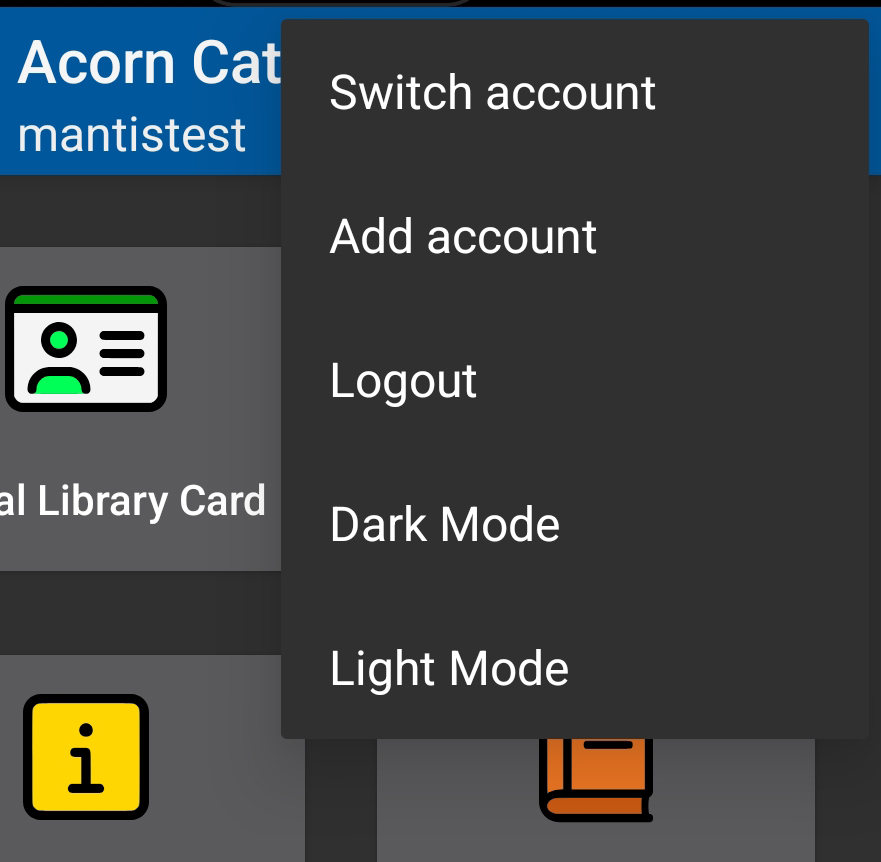
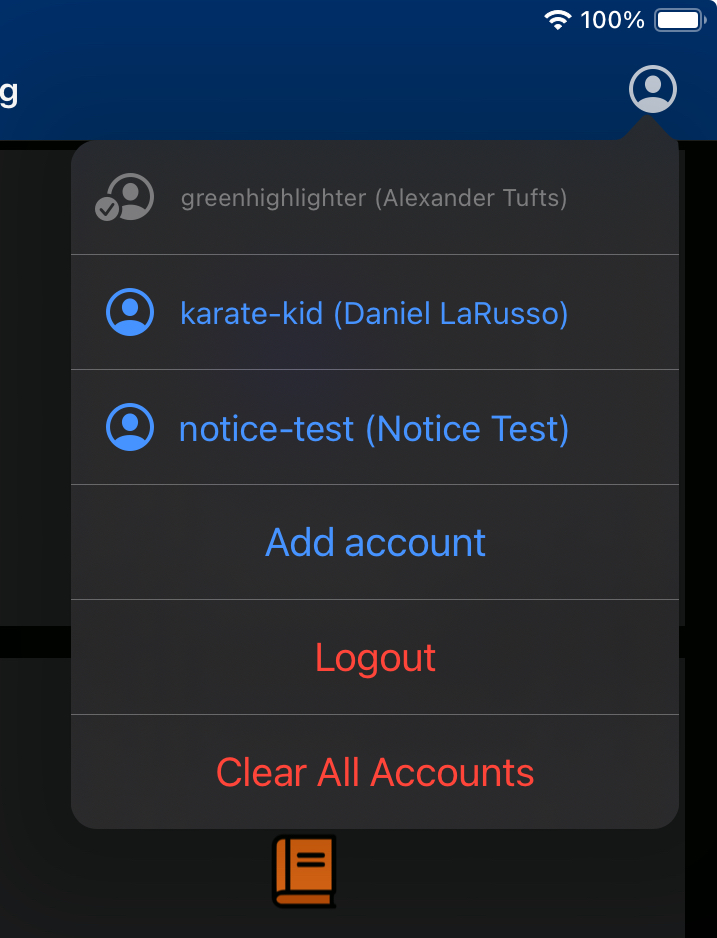
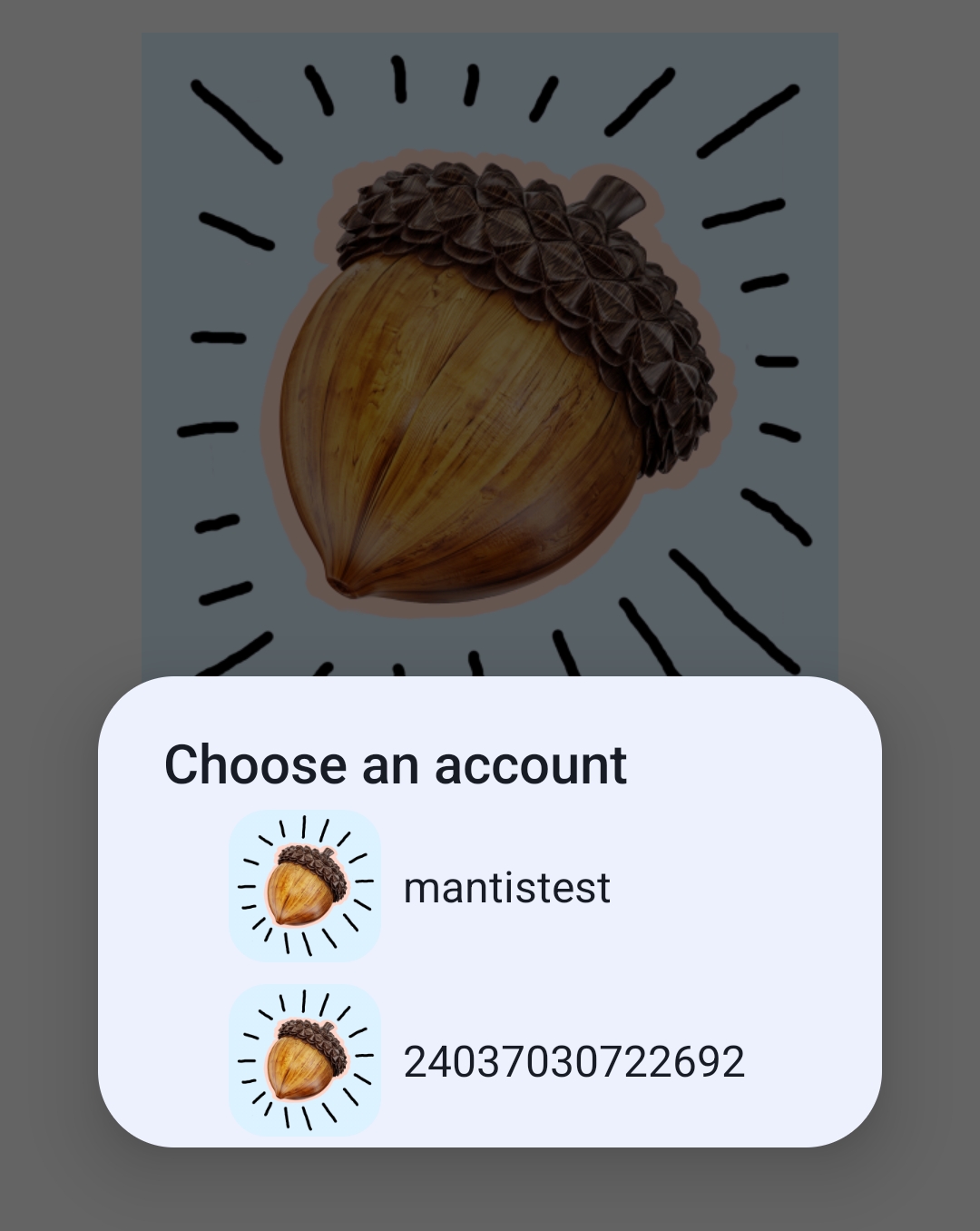
Android: 3‑dot menu. iOS: profile/person icon. Both provide Add Account, Switch Account, Logout. Dark/Light: Android toggle in menu; iOS follows system appearance.
Android (3‑dot menu) |
iOS (Account icon) |
|
|
Core Concepts
Concept |
What It Means |
Where to Learn More |
Hold Ready push |
A notification that an available hold is ready to pick up |
|
Courtesy push |
Reminder ~3 days before current due date |
|
Renewals left |
Remaining renewal attempts for a checkout (manual + auto share) |
|
Copy Info |
Snapshot of availability & call numbers for a title |
|
Checkout history |
Optional saved list of future checkouts (once enabled) |
|
Optional tiles |
Links to Events / Digital / Passes web pages |
Optional Tiles
Events, eBooks & Digital, and Museum Passes tiles (when present) open library web pages in your browser. (Library staff configure or update these by request—details on that page.)
Quick Tips
-
If the barcode will not scan, raise screen brightness and angle slightly.
-
Create lists before browsing so Add to List shows the destination immediately.
-
Edit or suspend holds before they go In Transit for the most flexibility.
-
Keep email notices enabled as a backup to push notifications.
OPAC context: Some actions (renewal eligibility, detailed bills, list renaming) rely on underlying OPAC settings—use linked pages or OPAC docs when deeper policy detail is needed.