Folder Management
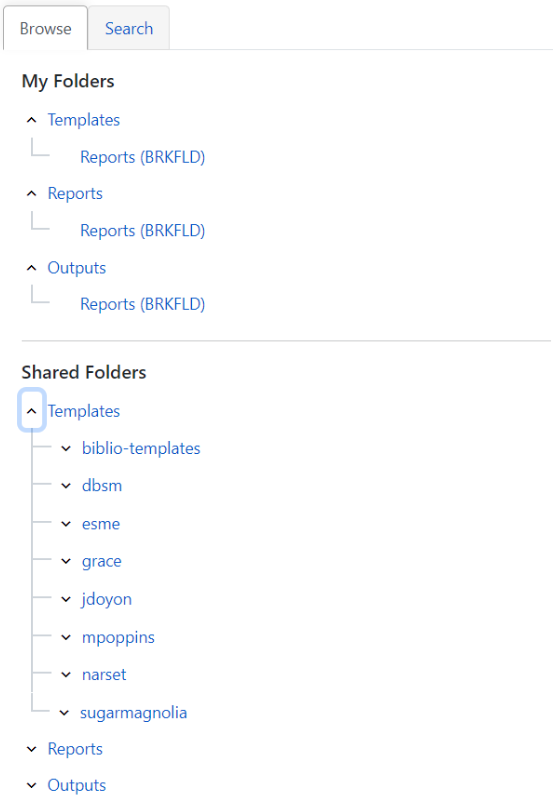
All folders with your saved report templates and outputs will be under Browse and My Folders. Folders that are shared with the consortium will be underneath Shared Folders. biblio-templates will commonly be an area to look up other report templates if you haven’t cloned them into your personal folders yet.
Add Folders
-
To add a new folder, click on the top level link of the folder such as Templates then click on Add top-level template folder in the button on the right.
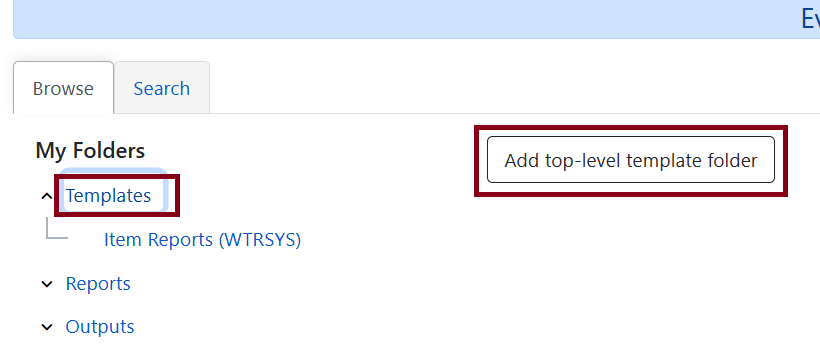 Figure 2. Add folder
 -
Enter a folder name.
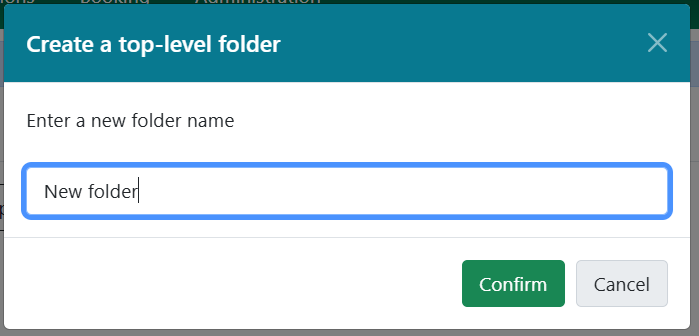 Figure 3. Name folder
 -
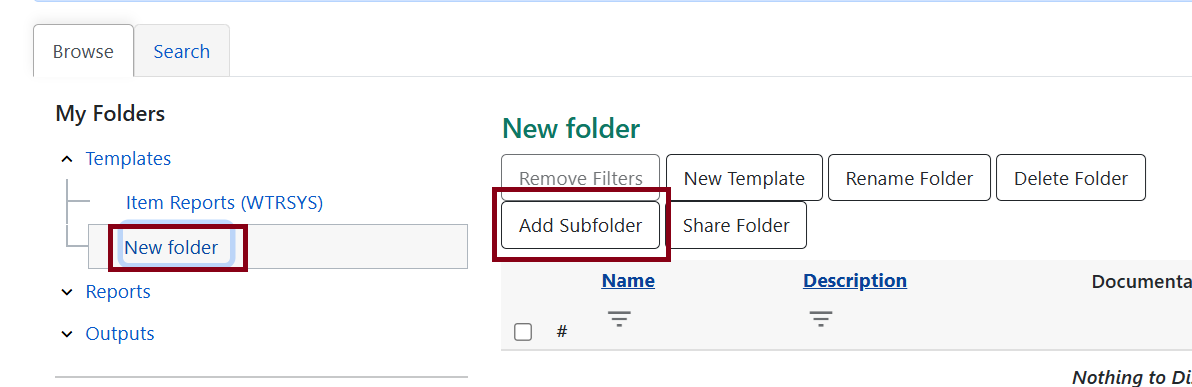
The new report will show underneath the Templates top folder.
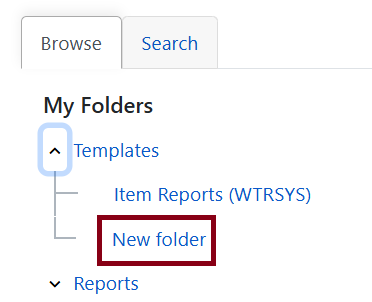 Figure 4. New folder
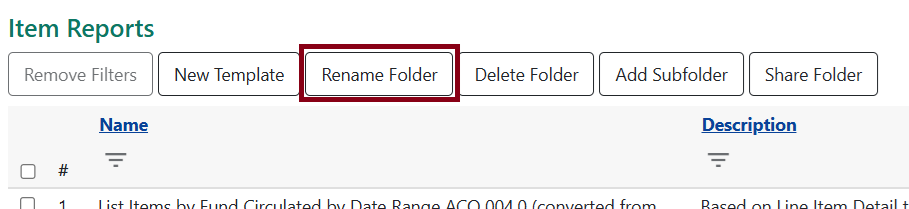
You can also add subfolders by clicking on a folder name then Add Subfolder to place it underneath.
Share Folders
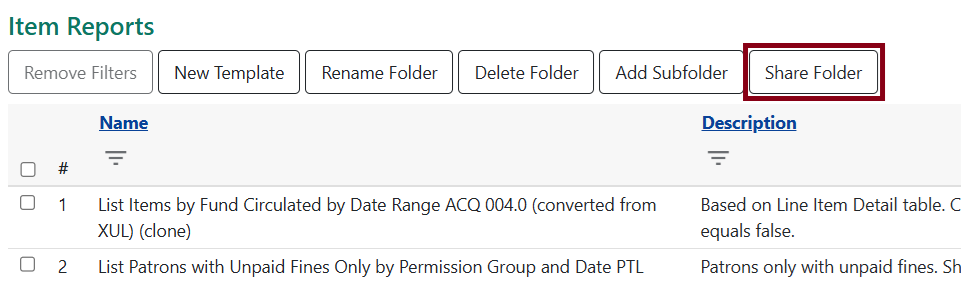
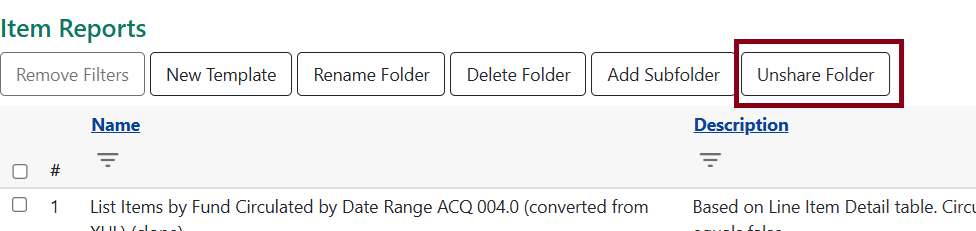
You can click on Share Folder and Unshare Folder as you wish. This will share your folders and report templates or outputs inside with the entire consortium.