Getting a Firefox Browser Ready
Creating Profiles
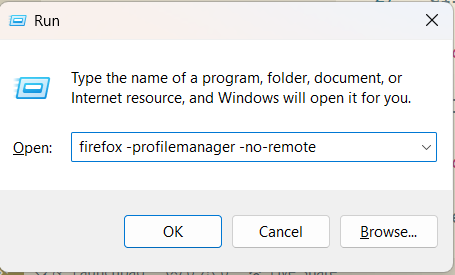
Open the Windows menu and search for Run. Open that program. Copy this command:
firefox -profilemanager -no-remote
Enter it into the text box.
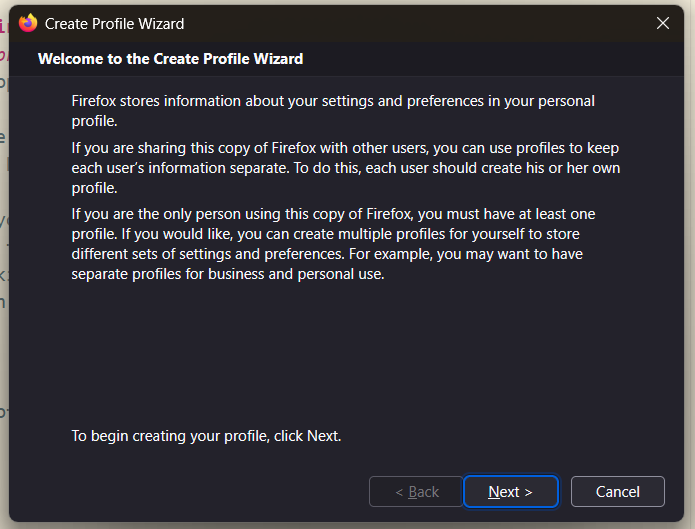
A small window pops up where you can create a new profile. Follow the screen prompts. As this example shows, you can have several different profiles.
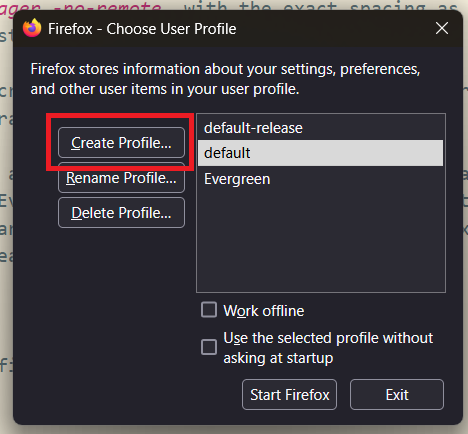
We strongly recommend that you set up a separate profile for internet browsing and email use, and keep that separate from the Evergreen profile. To do so, uncheck “Use the selected profile without asking at startup”. That way whenever you open Firefox, this prompt for profile selection will appear.
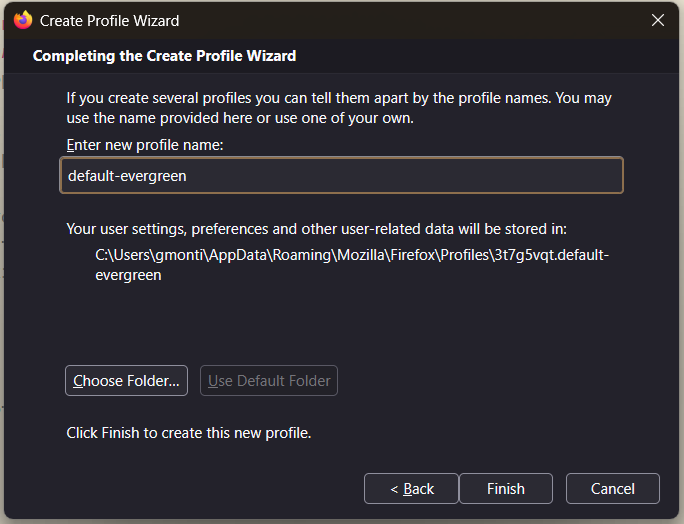
Enter a name for the new profile and finish.
Turn Off Pop-Up Blockers
Some screens in the web client will require pop-up windows. A good example is the Volume/Copy editor used for adding or editing items. You will need to let your browser know that pop-ups for the web client site are permissible.
Click on the browser’s menu icon in the upper right corner (3 horizontal lines).
Select Settings.
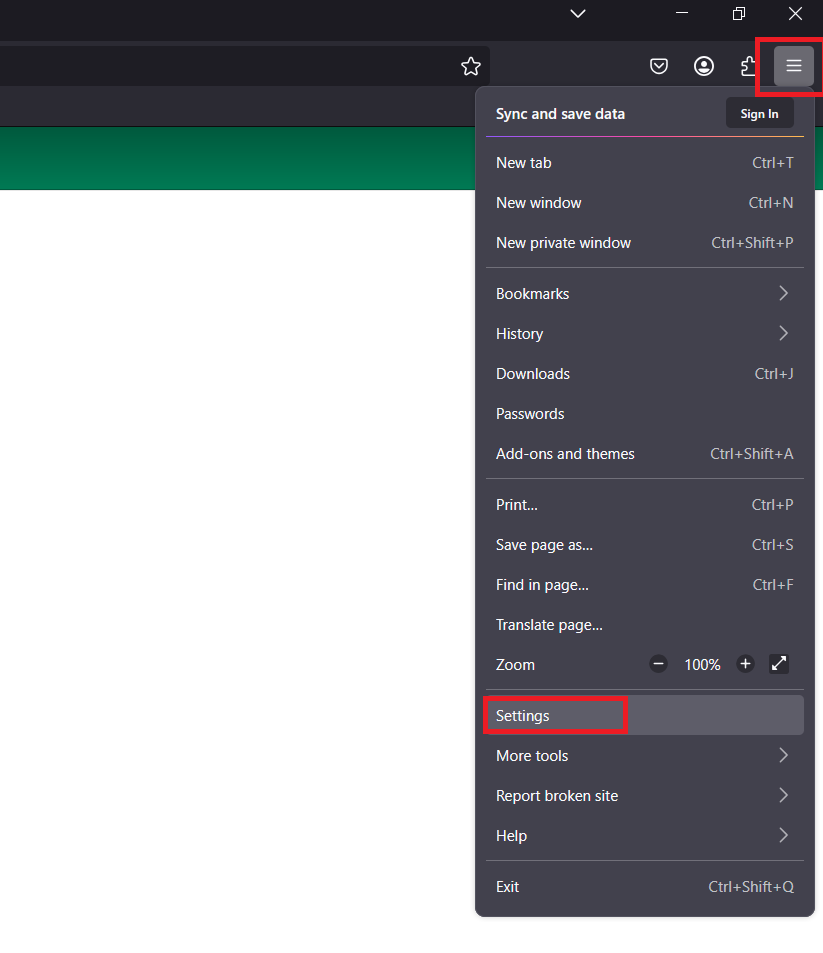
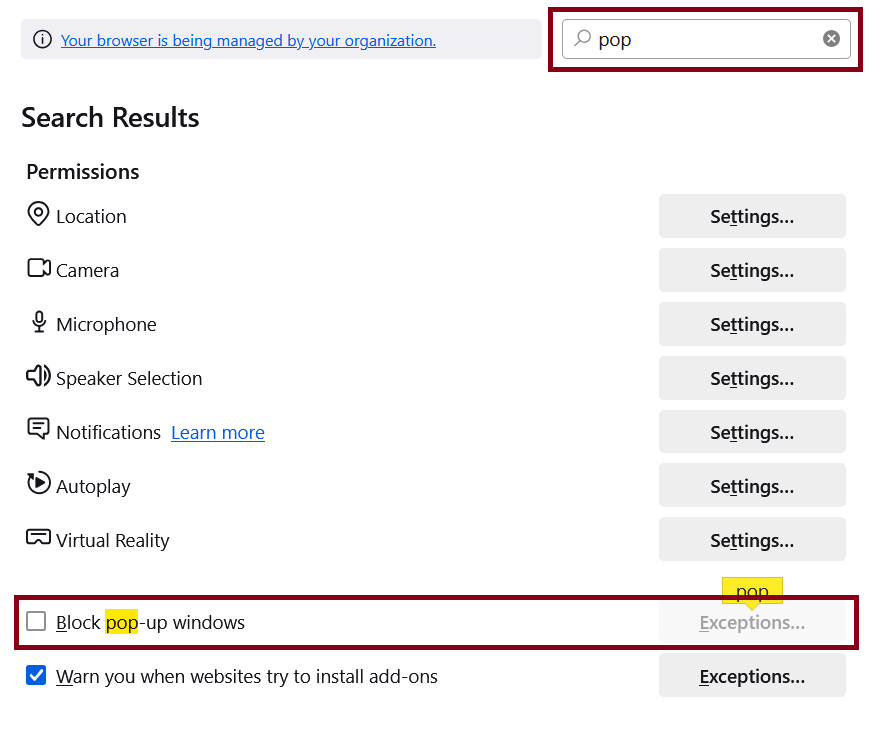
Use the Find in Settings field to search for "pop".
It will bring up the option in the search results. Uncheck Block pop-up windows.
Disable Autofill
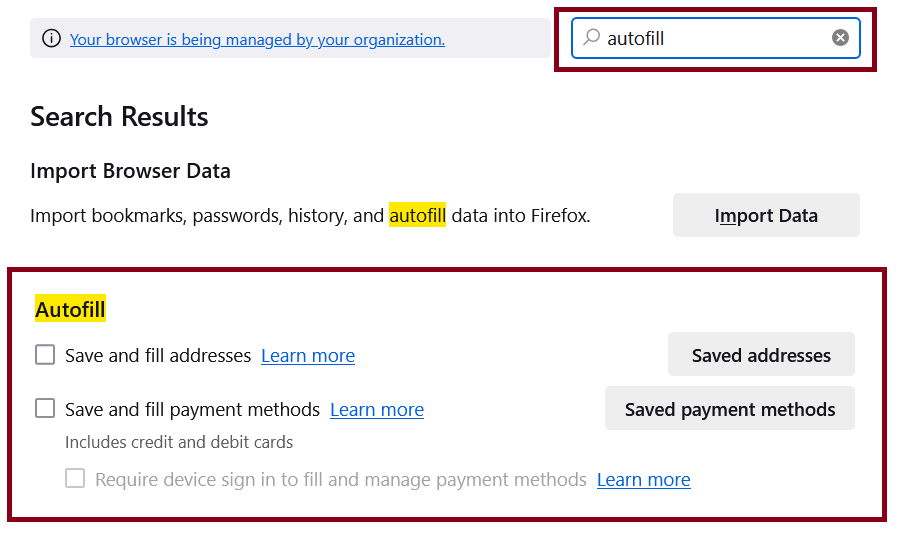
Type in autofill into the search bar and these results should show.
Uncheck Ask to save logins and passwords for websites under Login and Passwords. Uncheck Autofill addresses and Autofill credit cards under Forms and Autofill.
Customizing Your Bookmark Toolbar
To give yourself faster access to your most commonly used functions, you can display your browser’s bookmark toolbar and save those functions to it. When you want to open a function in a new tab, click on the CTRL key while clicking on the link on the bookmark toolbar.
To open the display of the bookmark toolbar, move your cursor next to the URL window and right click. Select Bookmarks Toolbar and a line will be added below the URL.
You can rename the bookmark by right clicking on it and clicking Edit.
Edit the text in the Name field, then save the change.
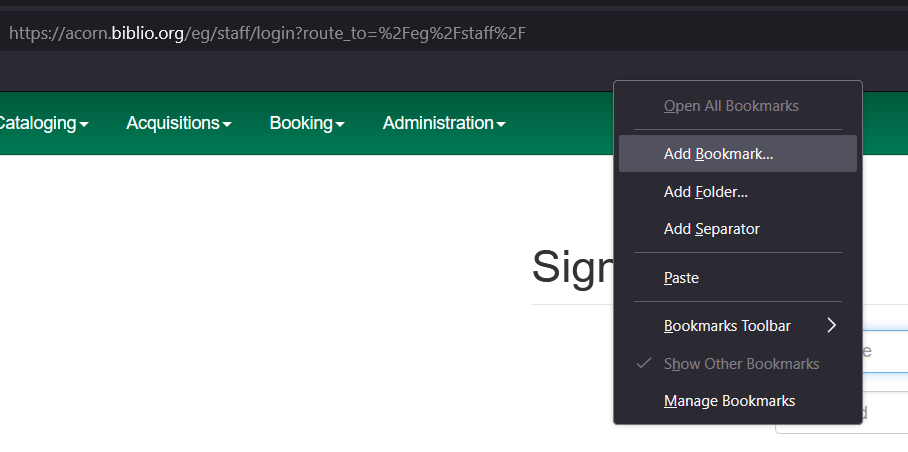
| Open bookmarks in new tabs when you want to keep different screens open at the same time. You can right-click and select Open in New Tab or press the CTRL key and then click the link. |