Renew & Editing Item Due Dates
Checked out items can be renewed if your library’s policy allows it. The new due date is calculated from the renewal date, or you can renew the item with a specific due date. You can also extend the loan period for a checked out item, by editing the item’s due date – though this is not the same as a renewal and will not count as an additional circulation.
Renewing via Patron Account
Retrieve the patron record and go to the Items Out tab.
Select the item(s) you want to renew. Click on Actions → Renew. If you want to renew all items in the account, click Renew All instead. Then, click OK/Continue.
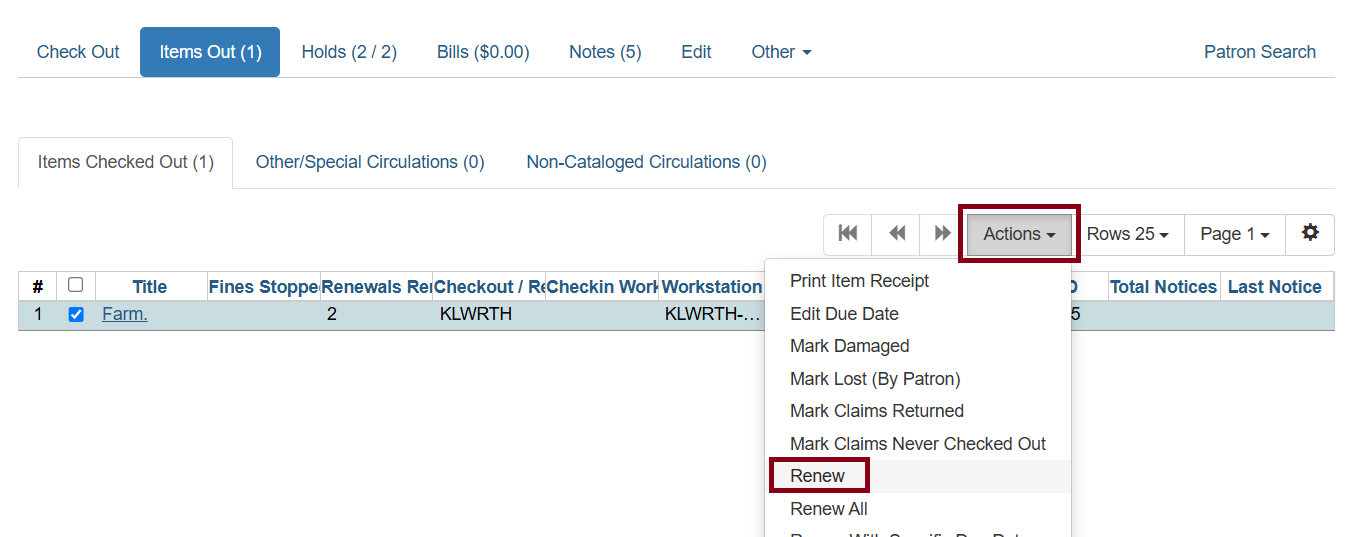
If you want to specify the due date, click Renew with Specific Due Date.
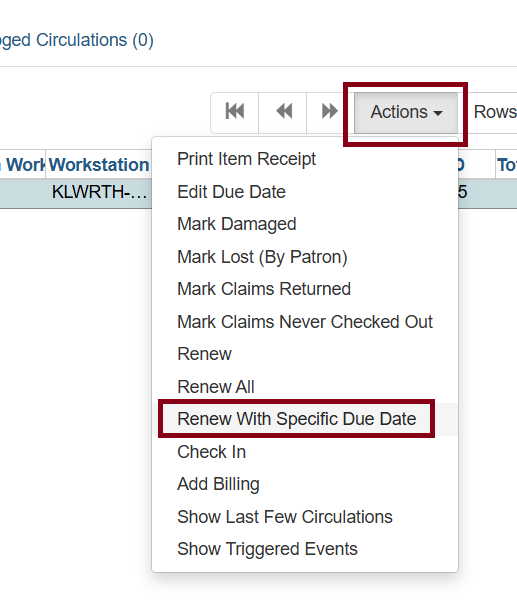
You will be prompted to select a due date. Once done, Click Submit.
The item(s) will appear with the new due date(s).
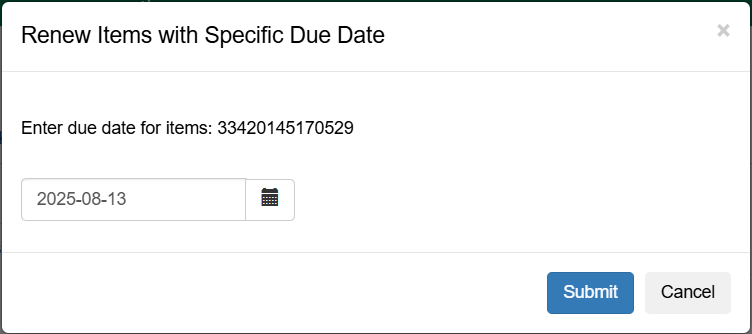
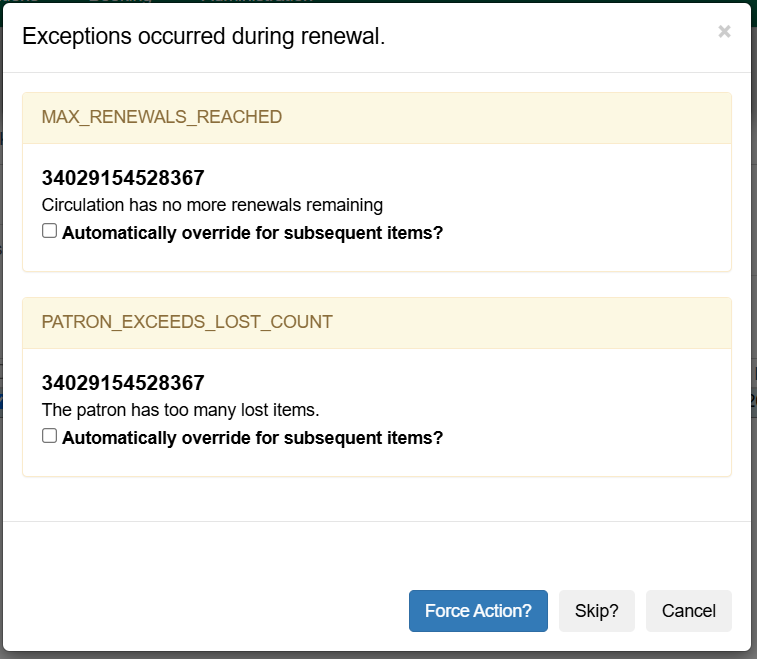
If an item cannot be renewed for various reasons (i.e.: patron exceeds fines or lost items), you have the opportunity to override if you have the correct permissions. Click Force Action? to override, Skip to honor the renewal block and move on to the next item, and Cancel to close the window without continuing. Check Automatically override for subsequent items? to avoid seeing this message for all items being renewed.
Renewing by Item Barcode
To renew items by barcode, select Circulation → Renew Items.
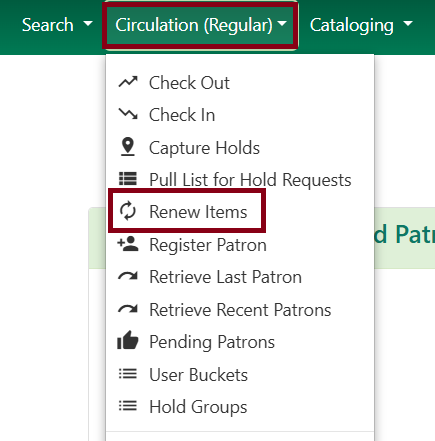
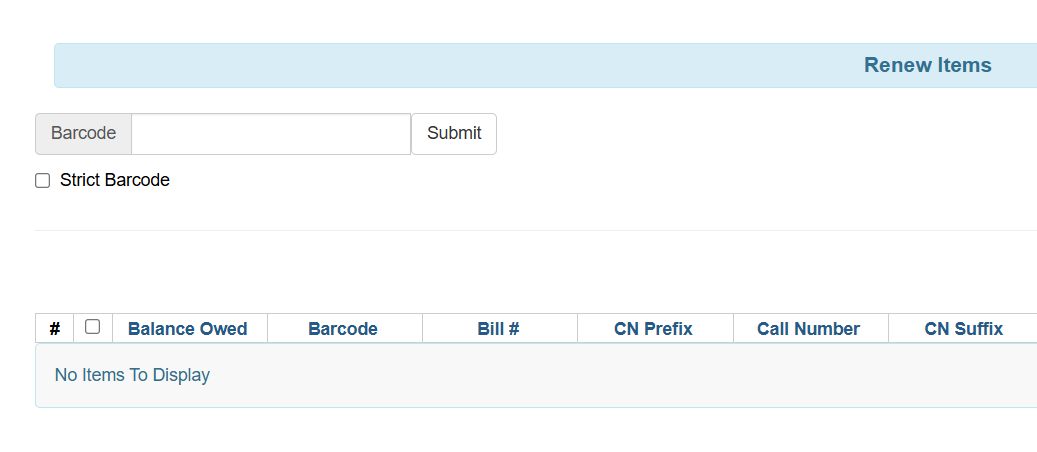
For a regular renewal, scan the item barcode, or manually enter barcode and click Submit.
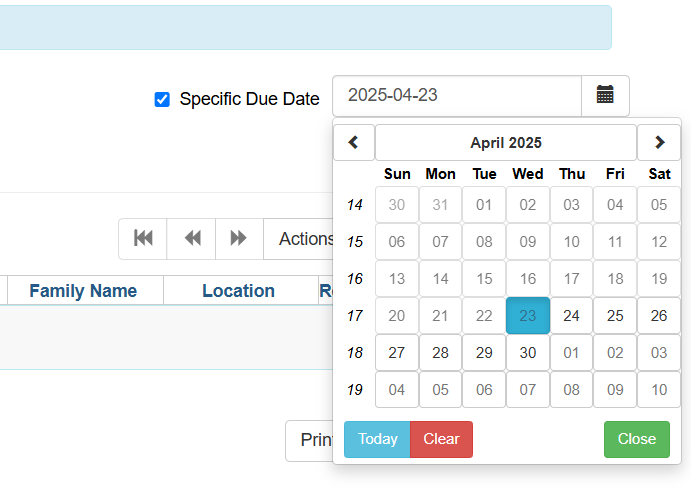
If you want to specify the due date, first click Specific Due Date in the right hand corner of the screen and enter a new due date in yyyy-mm-dd format or use the calendar button. Then, scan the item barcode, or manually enter the item barcode and click Submit.
Editing the Due Date
Retrieve the patron record and go to the Items Out screen. Select the item for which you need to change the due date.
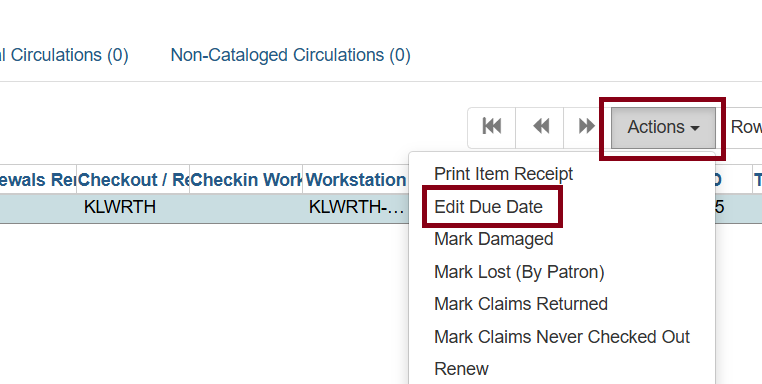
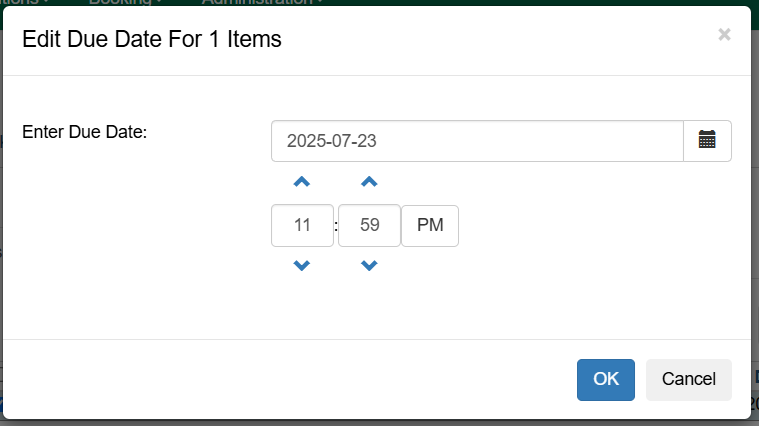
Enter a new due date in yyyy-mm-dd format in the pop-up window or use the calendar icon. Then click OK.
| Editing a due date only changes the checkout period! It will not be counted as an additional circulation in the renewal count. It’s useful for extending a checkout period, but if you also want it to count as a circulation for your statistics, use Renew With Specific Due Date instead! |