Check In
-
Regular Check In – Checking in items throughout the day.
-
Backdated Check In – Checking in overnight returns from the book drop or other sources when the return date needs to be altered.
-
Backdate Post-Check in – There may be some instances when it would be helpful to backdate an item after it has been checked in.
-
Check In notes (Item Alerts) or Fines
-
Check In Modifiers.
-
Cancel Transit – canceling a transit on an item as a result of check-in.
Regular Check In
Click Circulation → Check In.
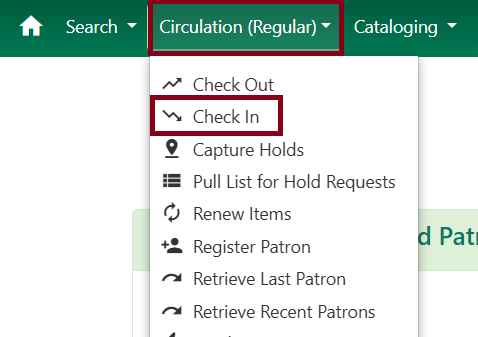
You may also use the Circulation & Patrons menu on the portal screen of Evergreen.
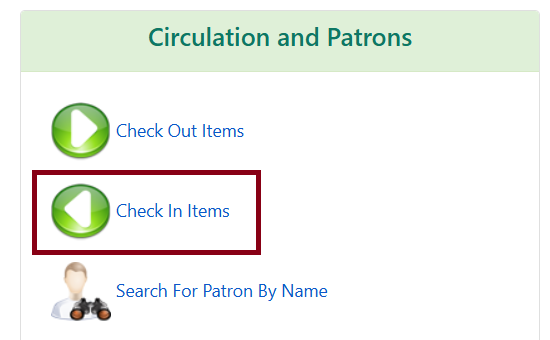
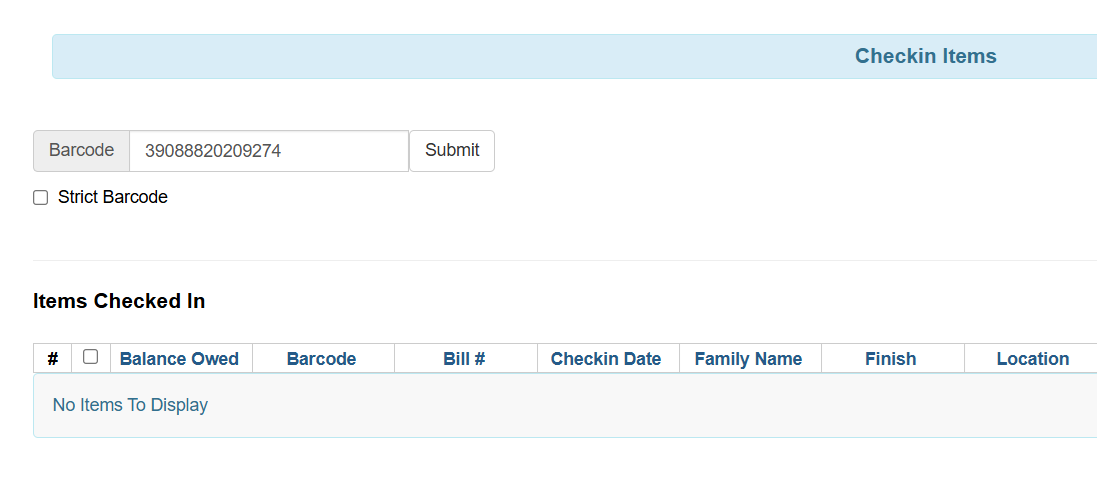
Scan the item barcode or enter manually and click Submit.
If there is an overdue fine associated with the check-in, an alert will appear at the top of the screen with a fine tally for the current check-in session.
| To immediately handle fine payment, click on the alert to jump to the patron’s record. |
Backdated Check In
This function is helpful for clearing a book drop.
In Effective Date field enter the date in yyyy-mm-dd format or click the calendar icon to use the date picker.
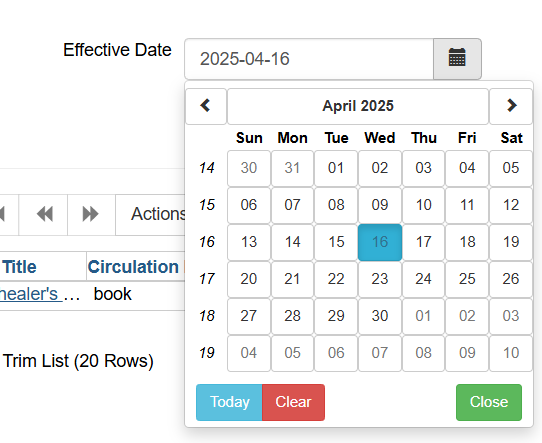
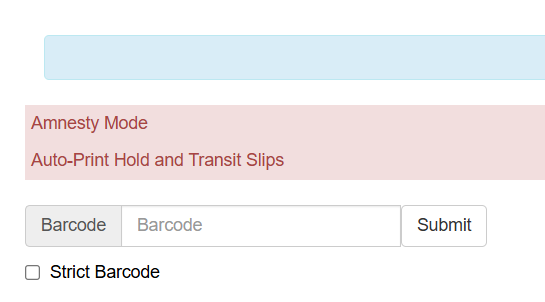
The Effective Date is now displayed in the red bar above the Barcode field.
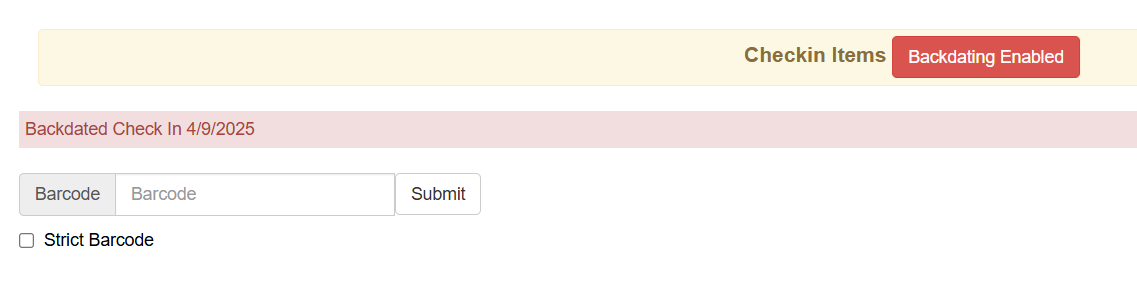
Move the cursor to the Barcode field. Scan the item(s).
| When finishing backdated Check-in, change the Effective Date back to today’s date. |
Backdate Post Check In
This can be useful if a staff person forgets to backdate the book-drop check-in process.
To set the backdate after an item has been checked in, select the item(s), choose Actions → Backdate Post-Checkin.
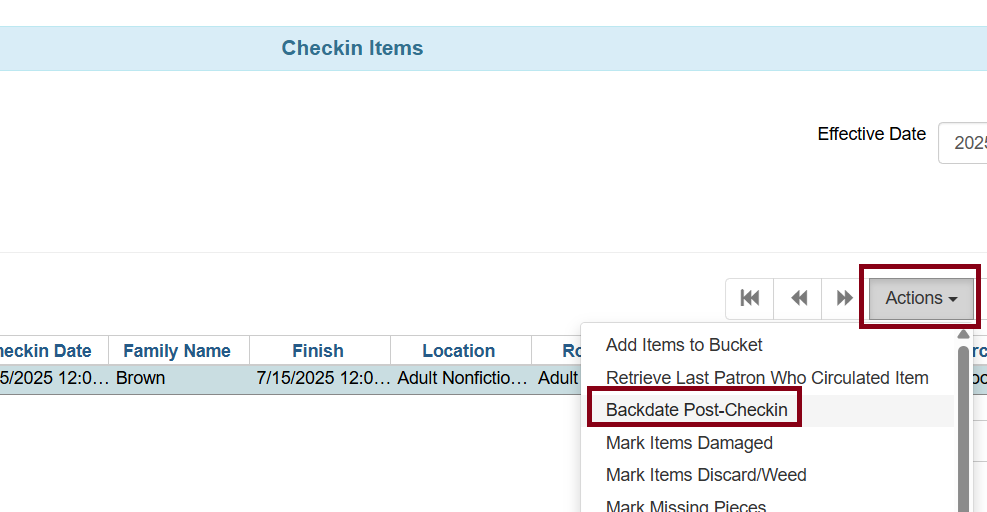
A prompt will appear to select a date. Use the calendar to choose the new post check-in backdate.
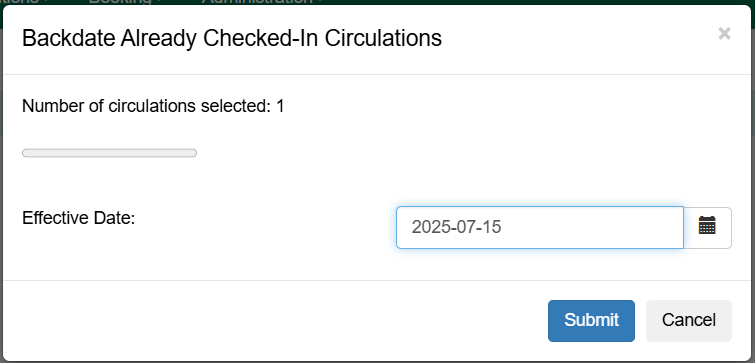
Note that there is an indicator of how many items you are editing.
The check-in screen will display the post check-in date as the Check-in Date.
Cancel Transit
Canceling a transit may need to be done when an item is checked in whether from the Pull List for Hold Requests or an item that has been returned and triggered a transit to another library.
You can cancel the transit to keep the item in your library and retain the patron associated with that item intact in the hold queue list.
This process is to be used when an item has been scanned, triggered a transit, and then it is decided that the item will not be sent.
If you decide that this item should not leave the building, you can cancel the transit. Highlight the item, choose Actions and Cancel Transit.
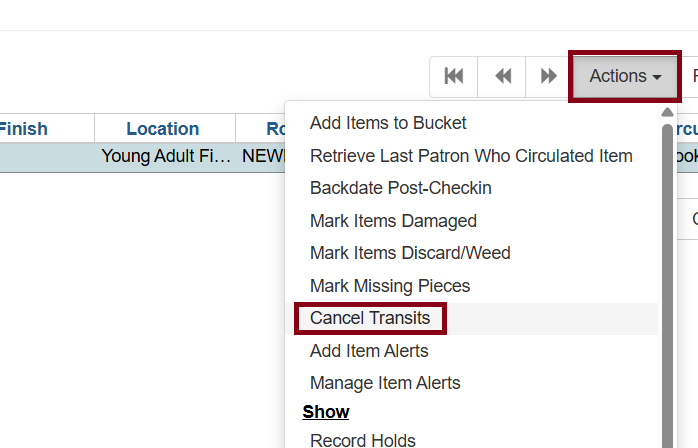
The transit has been cleared and the patron is back in the original spot of the hold queue so that the next available item will fill the hold for the patron. However, the item’s status will be Canceled Transit.
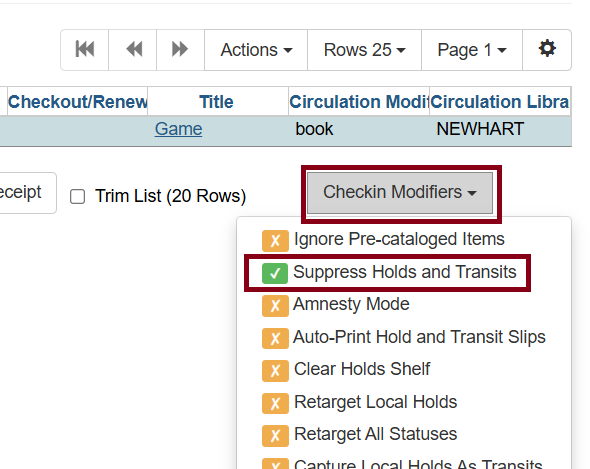
To change the item’s status so that it displays as Available in the catalog, check the item in again using Suppress Holds and Transits from Check in Modifiers in lower right hand corner of the Check In screen.
Your screen will note that you are suppressing holds and transits.
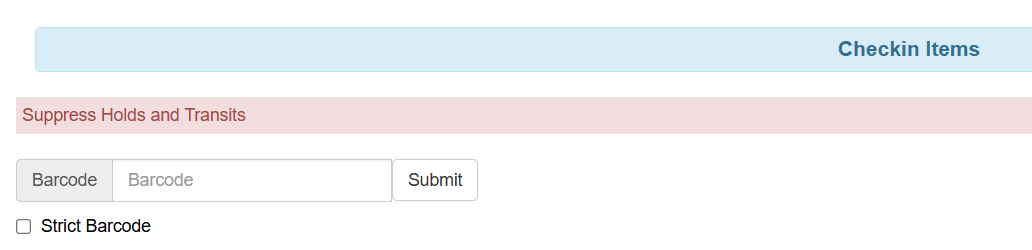
Check in the item. The transit will not trigger and the status will now be Recently Returned.
| Check in modifiers are “sticky” and will remain toggled until you manually change them. When you are through with this procedure, unselect the Suppress Holds and Transits check in modifier before checking in another item. |
Checkin Modifiers
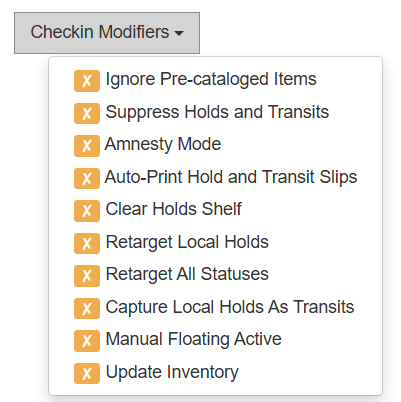
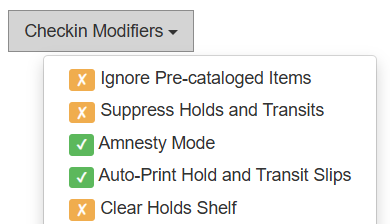
In general checkin modifiers are used for specific tasks, but a few can be turned on throughout the day such as Auto-Print Hold and Transit Slips. To turn on a checkin modifier, go to the dropdown menu at the bottom-right of the screen. Any modifier selected will have a green checkmark next to it. It’ll also show up in text on the upper-left of the screen, above the barcode field.
Modifier |
Description |
Ignore Pre-cat Items |
No prompt when checking in a pre-cat item. Item will be routed to Cataloging with Cataloging status. NOT RECOMMENDED unless you’re working on bulk transactions. |
Supress Holds and Transit |
Item will not be used to fill holds or sent in transit. Item has Reshelving status. Not recommended for checking in other libraries' materials. Good for quarantining items without putting them on the hold shelf or sending them out right away. |
Amnesty Mode |
Use if you want to forgive all fines (including lost item fees) for items being checked in. |
Auto-Print Hold and Transit Slips |
Slips will be automatically printed without prompt for confirmation. |
Clear Holds Shelf |
Checking in hold-shelf-expired items will clear the items from the hold shelf (holds to be cancelled). Should be off at all other times. Click here for more info on clearing the hold shelf. |
Retarget Local Holds |
When checking in In Processing items that are owned by the library, attempt to find a local hold to retarget. Use this when checking in newly cataloged items. |
Retarget All Statuses |
Only to be used temporarily when checking in new material right after cataloging that doesn’t have an In Processing status or after checking in an item in a non-holdable status (lost or missing) to make sure holds gets captured. Should be off at all other times. Used with Retarget Local Holds. |
Capture Local Holds as Transits |
Good for if you are quarantining items before putting them on the hold shelf, but still want to put items into transit. |
Manual Floating Active |
Do Not Use |
Update Inventory |
Only on if you are performing inventory on a portion of your collection, and you want to use the Inventory Date as your benchmark (rather than last edit date). |
Troubleshooting
| Problem | Solution |
|---|---|
Error message containing "Network or server failure" and |
This is caused by having Retarget Local Holds or Retarget All Statuses checkin modifiers enabled. Turn off these modifiers and try checking in the item again. If you need to retarget the most recent hold, do so from View Holds on Bib instead. |
A hold does not trigger when checking in a newly cataloged item |
The hold targeter may not have recognized the new item as eligible yet. Enable the Retarget Local Holds checkin modifier and check the item in again. If the hold still doesn’t trigger, find the oldest hold that will be picked up at your library via View Holds on Bib, and choose Find Another Target to reset that hold individually. |
I forgot to choose the Retarget Local Holds checkin modifier when processing a new item. |
Choose Retarget Local Holds and Retarget All Statuses before checking in the item again. |
A hold does not trigger, but the item is not new |
Check the patron record. If the patron has lost items, excessive fines, or another type of block, holds will not be captured for them until the block is cleared. |
A hold does not trigger and other items on the record have parts assigned |
If even one item on the bibliographic record has a part label and yours does not, holds may not be able to target your item. If you believe a part has been placed on an item inappropriately, contact the help desk. See also Part Level Holds for more information. |