Curbside Pickup
What is Curbside Pickup?
Curbside Pickup in Evergreen provides a dedicated staff interface to schedule appointments, stage items, and complete contact-free delivery. Staff can make appointments for patrons; optionally, patrons can self-schedule and announce arrival from My Account.
| This feature must be enabled for your library. It can be used with or without OPAC features. Submit a Help Desk ticket to enable it, and indicate whether OPAC features should be on. We recommend starting without OPAC features and adding them later. |
Curbside Setup
You can contact help desk to request setting up curbside. Outside of training, you’ll need to determine from the following options:
-
Curbside appointments are set up by time intervals within the operating hours of your library. The default is set to 15 minute time slots, and this is customizable.
-
Curbside appointments have a maximum number of patrons who can reserve time slots. The default is 10 patrons per time slot, but this is customizable.
-
The patron side of curbside is optional. There they can schedule and manage their own curbside appointments that will show up in the staff side of the module.
-
Finally, Curbside Pickup includes email notices that send to the patrons when an appointment is schedule. Text can be customized.
Accessing the Module
Circulation menu > Curbside Pickup. If you cannot see the full menu, scroll or zoom out with Ctrl+-. Use Ctrl++ to zoom back in.
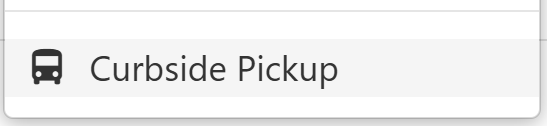
| If you do not see Curbside Pickup in the Circulation menu, submit a Help Desk ticket to enable it for your library. |
Tabs Overview

-
To Be Staged — Upcoming appointments that need items pulled.
-
Staged and Ready — Items already pulled and staged.
-
Patron is Outside — Patrons who have arrived and are waiting.
-
Delivered Today — Completed curbside deliveries for today.
-
Schedule Pickup — Create or manage pickup appointments.
Schedule a Pickup by Phone (Staff)
-
Open the Schedule Pickup tab and enter the patron barcode.
 Figure 3. Schedule Pickup Form
 -
Verify the patron and number of holds available at your location.
-
Click Make New Appointment, pick a date/time slot (remaining capacity displays), and optionally add notes (e.g., car description/license).
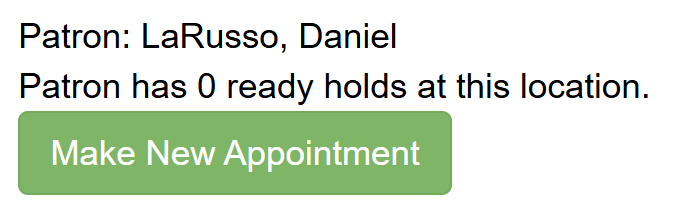 Figure 4. Make New Appointment button
 -
Click Save. A confirmation toast appears. If the patron has an email on file, a confirmation email is sent automatically.
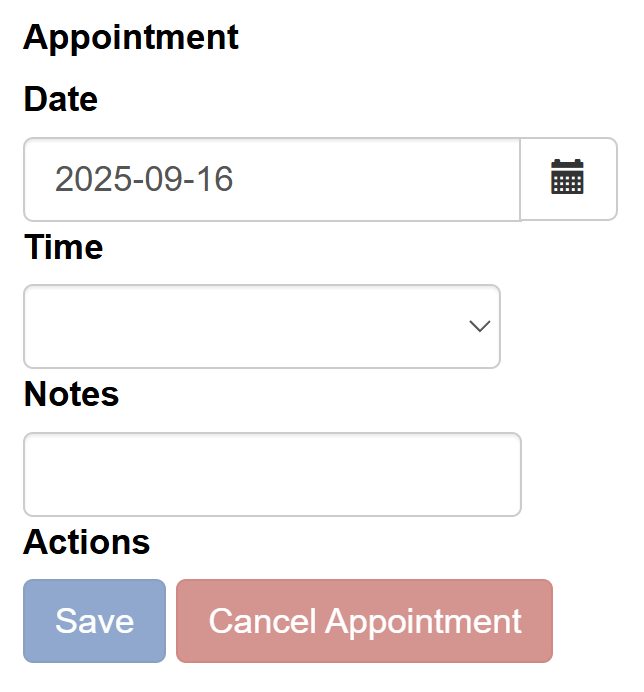 Figure 5. Make new Appointment form
Patron Self-Scheduling in the OPAC (Optional)
If enabled, patrons see a Curbside Pickup tab in My Account when they have holds ready. They can: * Schedule an appointment. * Indicate arrival.
| If OPAC features are enabled, monitor both To Be Staged and Patron is Outside. |
Retrieve Items (To Be Staged)
-
Open To Be Staged to see holds for the next set of time slots (number depends on your slot length).
-
Pull the listed items and place them in your staging area.
-
Select the items and click Mark Staged and Ready for Pickup.
-
Optionally, click Claim to assign a pickup to yourself when multiple staff are working.
Mark Patron Arrival
If patrons call on arrival, staff can go to Staged and Ready and click Mark Patron as Arrived. If OPAC arrival is enabled, arrivals appear automatically in Patron is Outside.
| The interface refreshes periodically; refresh the browser to see updates sooner. |
Check Items Out
Only check out once the patron has arrived.
-
If using arrivals: open Patron is Outside, select items, then click Checkout Items and Mark Delivered.
-
If not using arrivals: from Staged and Ready, select items, then click Checkout Items and Mark as Delivered.
Deliver the Items
Bring items to the patron. Delivered Today lists all curbside deliveries completed today.
Rescheduling
In Schedule Pickup, enter the patron barcode to view and reschedule an existing appointment. If OPAC features are enabled, patrons can reschedule from My Account.
Workflow Tips
-
A staff member monitors the day’s curbside appointments.
-
Your Evergreen hold shelf should match the physical holds shelf.
-
Set up a staging area/table for upcoming pickup time slots.
-
Only items ready for pickup (on the holds shelf) are eligible in the module.
-
Items are checked out from the Curbside interface. If a patron instead checks out at the desk or self-check, the curbside appointment may appear “empty.” This is harmless but can be confusing.