Lost and Claimed Returned
Marking an item Lost will automatically bill the patron the replacement cost of the item as recorded in the price field in the items record. There may an instance that a lost (and paid) item is returned, refunds must be dealt with to close the transaction.
When an item is marked Claims Returned, the value in Claims-returned Count field in the patron record is automatically increased. Staff can manually adjust this count by editing the patron record.
Marking an item Damaged will result in a bill on the patron’s record if the setting is enabled for your library.
Marking item Never Checked Out will remove the item from the patron’s record. See Bills section for billing patron instructions.
Marking Item Lost
To mark items Lost, retrieve patron record and click Items Out.
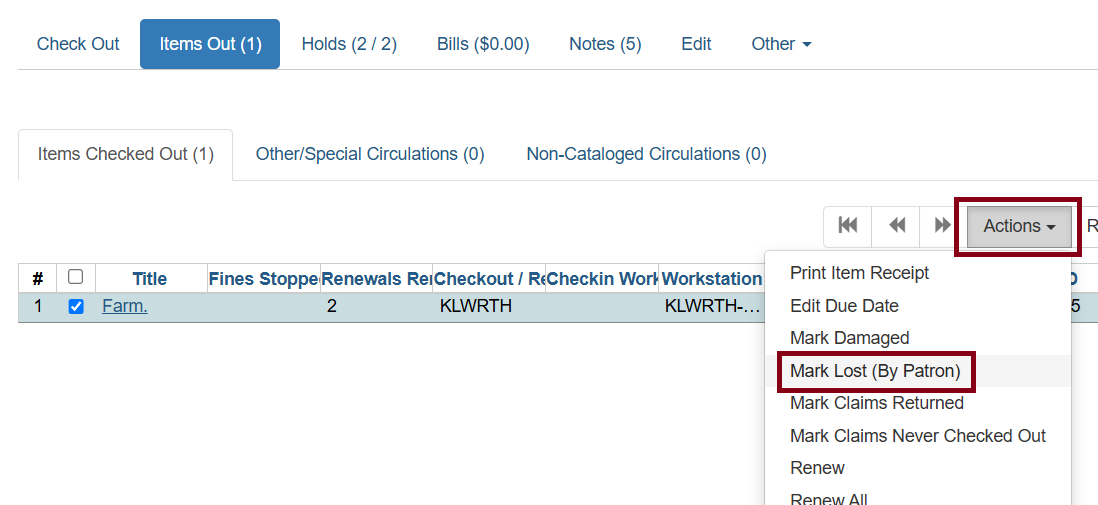
Select the item. Click on Actions → Mark Lost (By Patron).
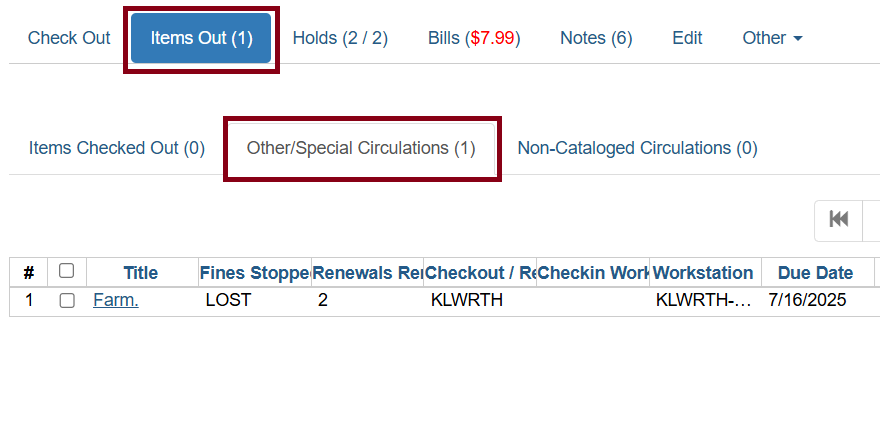
The item now displays as lost in the Other/Special Circulations section of the patron record.
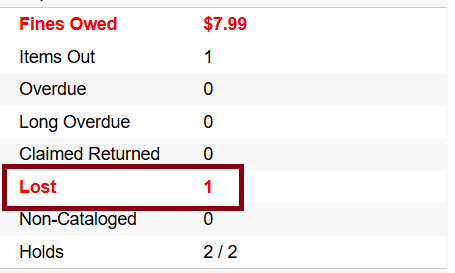
The lost item also adds to the count of Lost items in the patron summary on the left of the screen and places ‘block’.
Lost Item Billing
Marking an item lost will automatically bill the patron the replacement cost of the item as recorded in the price field in the item record. And a processing fee as determined by your library policy.
A lost-then-returned item will disappear from the Items Out screen only when all bills linked to this particular circulation have been resolved. Bills may include replacement charges, processing fees, and manual charges added to the existing bill.
The replacement and processing fee for the lost-then-returned items may be voided if set by the library policy. Overdue fines may be reinstated on lost-then-returned items according to your local policy.
Refunds for Lost Items
If an item is returned after a lost bill has been paid and the library’s policy is to void the replacement fee for lost-then-returned items, there will be a negative balance in the bill. A refund needs to be made to close the bill and the circulation record. Once the outstanding amount has been refunded, the bill and circulation record will be closed and the item will disappear from the Items Out screen.
If you need to balance a bill with a negative amount, you need to add two (2) dummy bills to the existing bills. The first one can be of any amount (e.g. $0.01), while the second should be of the absolute value of the negative amount. Then you need to void the first dummy bill. The reason for using a dummy bill is that Evergreen will check and close the circulation record only when payment is applied or bills are voided.
Claimed Returned Items
To mark an item Claimed Returned. Retrieve the patron record and go to the Items Out screen. Select the item.
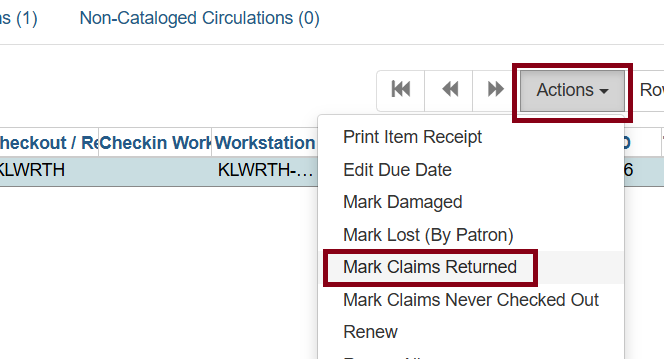
Select Actions → Mark Claimed Returned from the dropdown menu.
Enter the date of return in yyyy-mm-dd format or use the calendar icon to choose a date. Then click Submit.
The Claimed Returned item now displays in the Other/Special Circulations section of the patron record.
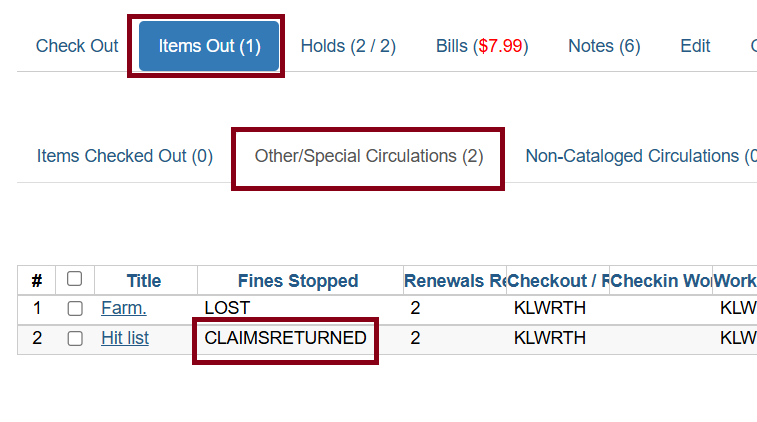
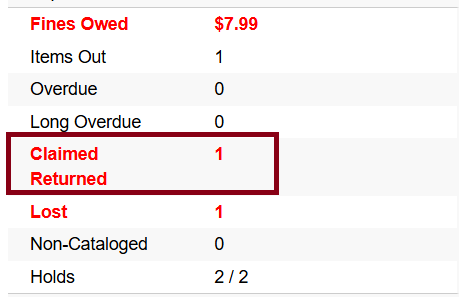
The Claimed Returned item also adds to the count of items that are Claimed Returned in the patron summary on the left of the screen.
More on Claimed Returned Items
The date entered for a Claimed Returned item establishes the fine. If the date given has passed, bills will be adjusted accordingly. To give the patron the 'benefit of the doubt’, use the due date as the claimed returned date to avoid fines.
When a Claimed Returned item is returned, if there is an outstanding bill associated with it, the item will not disappear from the Items Out screen. It will disappear when the outstanding bills are resolved.
When an item is marked Claimed Returned, the value in Claims-returned Count field in the patron record is automatically increased.
Mark Item Damaged
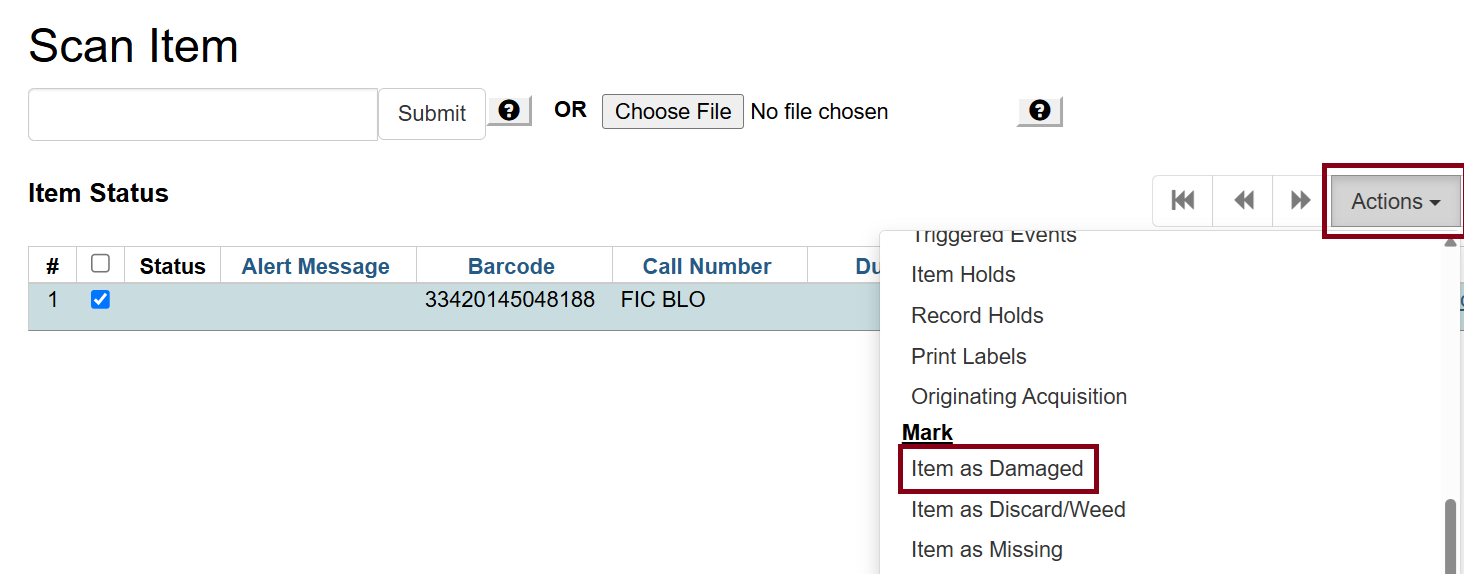
To mark items Damaged, scan item in Item Status or Search for Copies by Barcode. This can also be done in the patron record’s Items Out screen or in Check In.
Choose Actions → Mark → Item as Damaged.
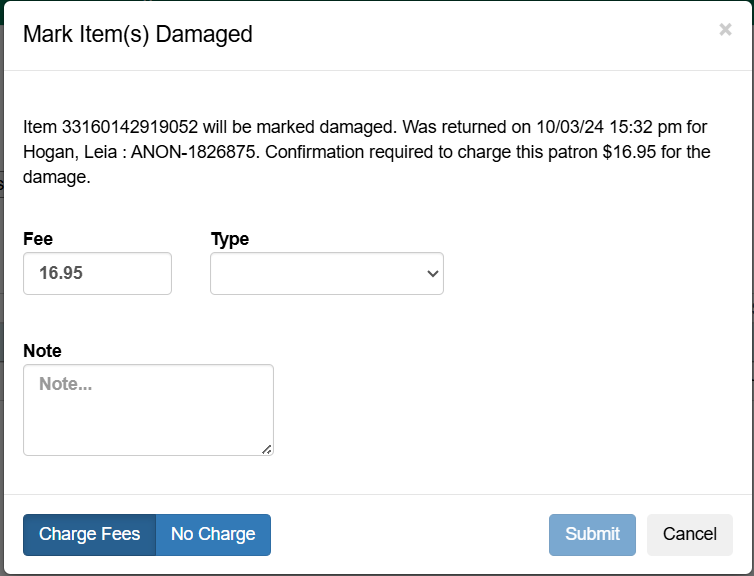
If the setting is enabled for your library, create a bill on the patron’s record for the damaged item. (Contact helpdesk if this setting is desired.)
Mark Item Never Checked Out
To mark items Never Checked Out, from the patron record and click Items Out.
Select the item. Click on Actions → Mark Claims Never Checked Out.
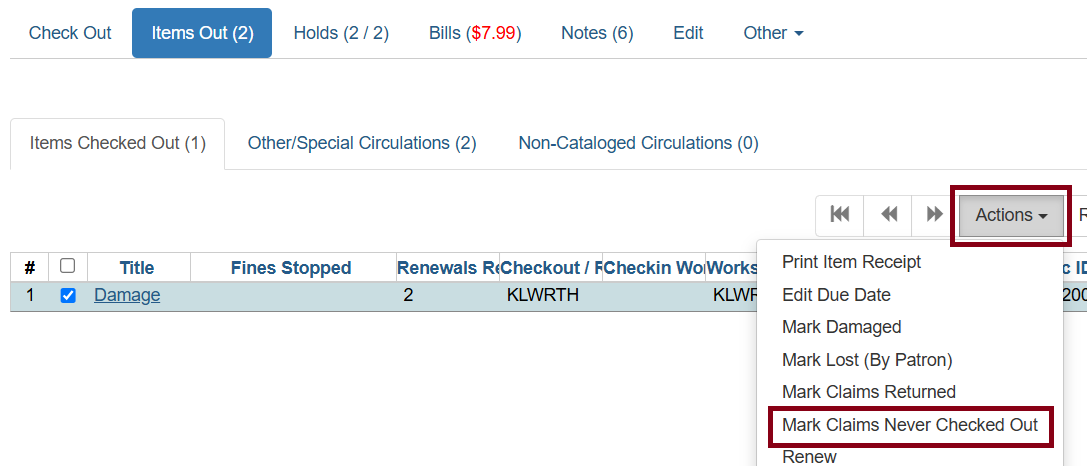
The item is severed from the patron’s record and marked as Missing is the catalog giving staff a chance to check the shelves for the item.
Troubleshooting
| Problem | Solution |
|---|---|
A lost item from 2012 or earlier is stuck on a patron’s account and cannot be removed |
Right-click on the lost item and choose Add Billing. Add a billing in any amount (even $0.01). You can add a note such as "Removing stuck lost item" to keep track of the action. Pay the bill. The lost item should now be removed from the patron’s account. |